How to Choose a PPT Creation Mode
Kimi PPT offers two generation modes. Choose the one that best fits your needs:
| Smart Layout | Classic Templates | |
|---|---|---|
| Design approach | Kimi intelligently generates the layout and style | Combines library templates with AI to quickly generate a presentation |
| Best for | Personalized design | Fast, efficient drafting |
| Estimated time | 5-10 minutes | 3-5 minutes |
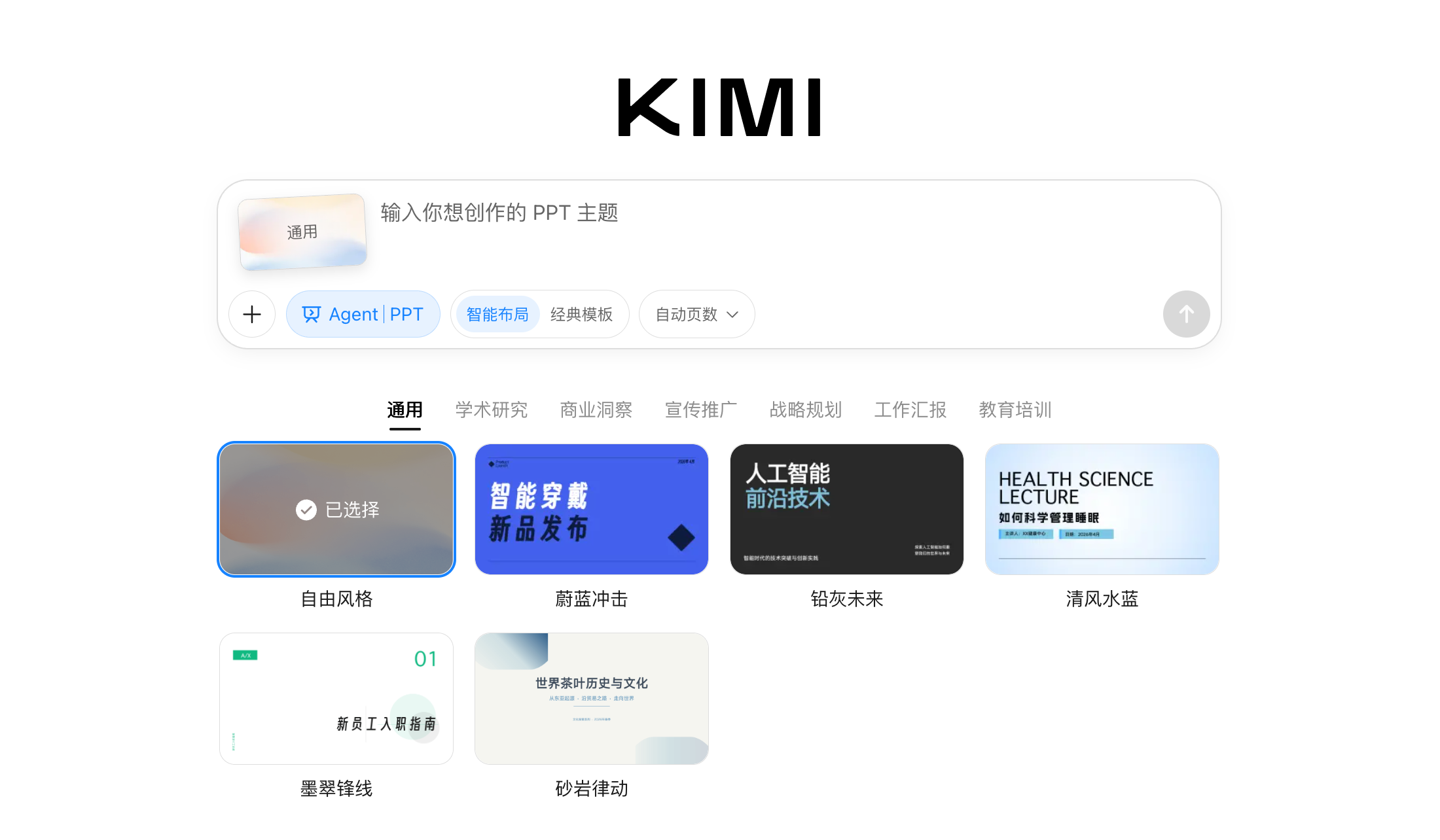
Smart Layout Mode
Smart Layout Mode gives AI more room to organize content and design the layout on its own. It is well suited to PPT decks that include more non-text content, such as data and images.
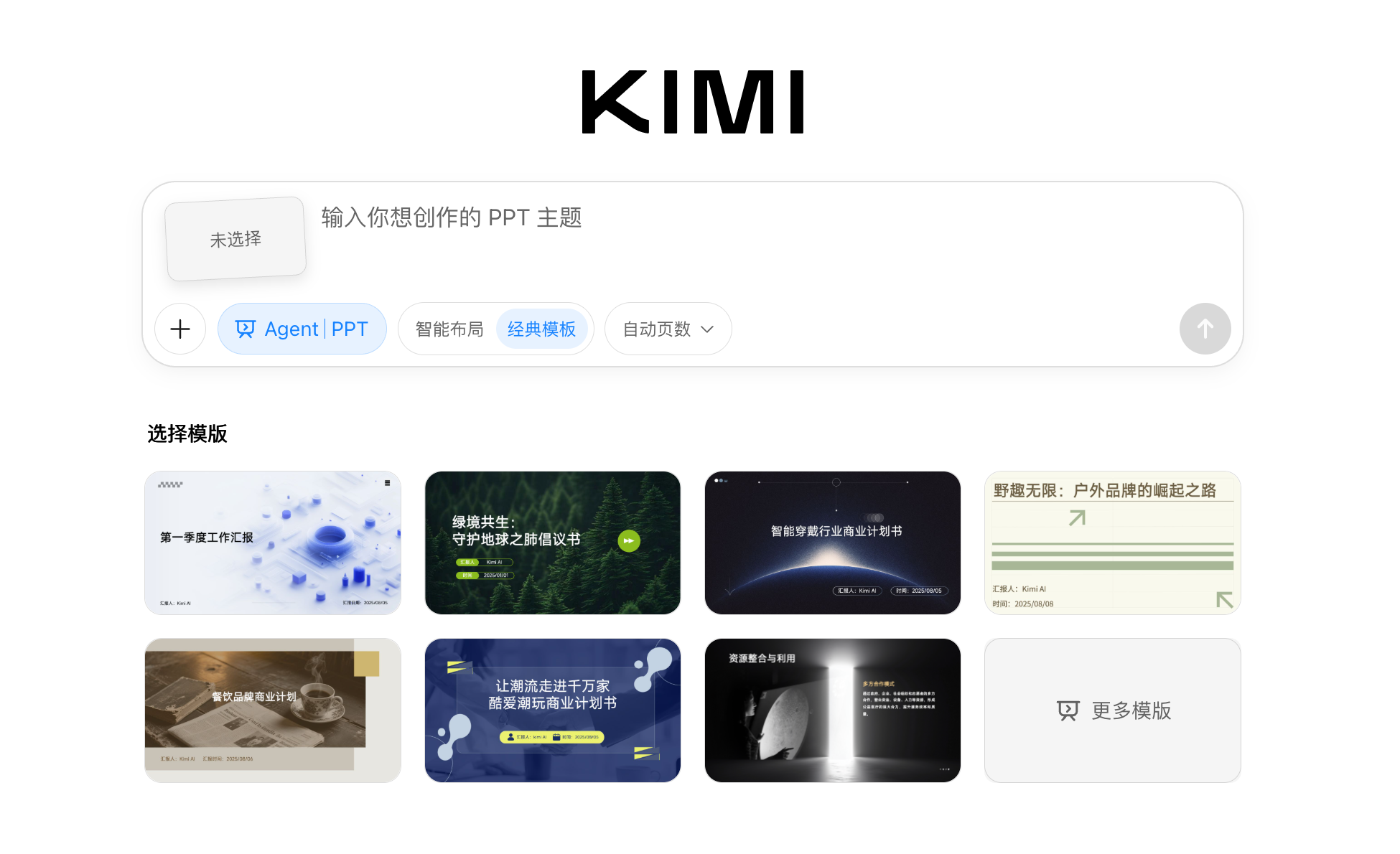
Classic Templates Mode
Classic Templates Mode fills content into carefully prepared templates, delivering more stable page layouts and visual results. It is ideal for PPT decks with more text-heavy content.
How to Choose PPT Scenarios and Templates
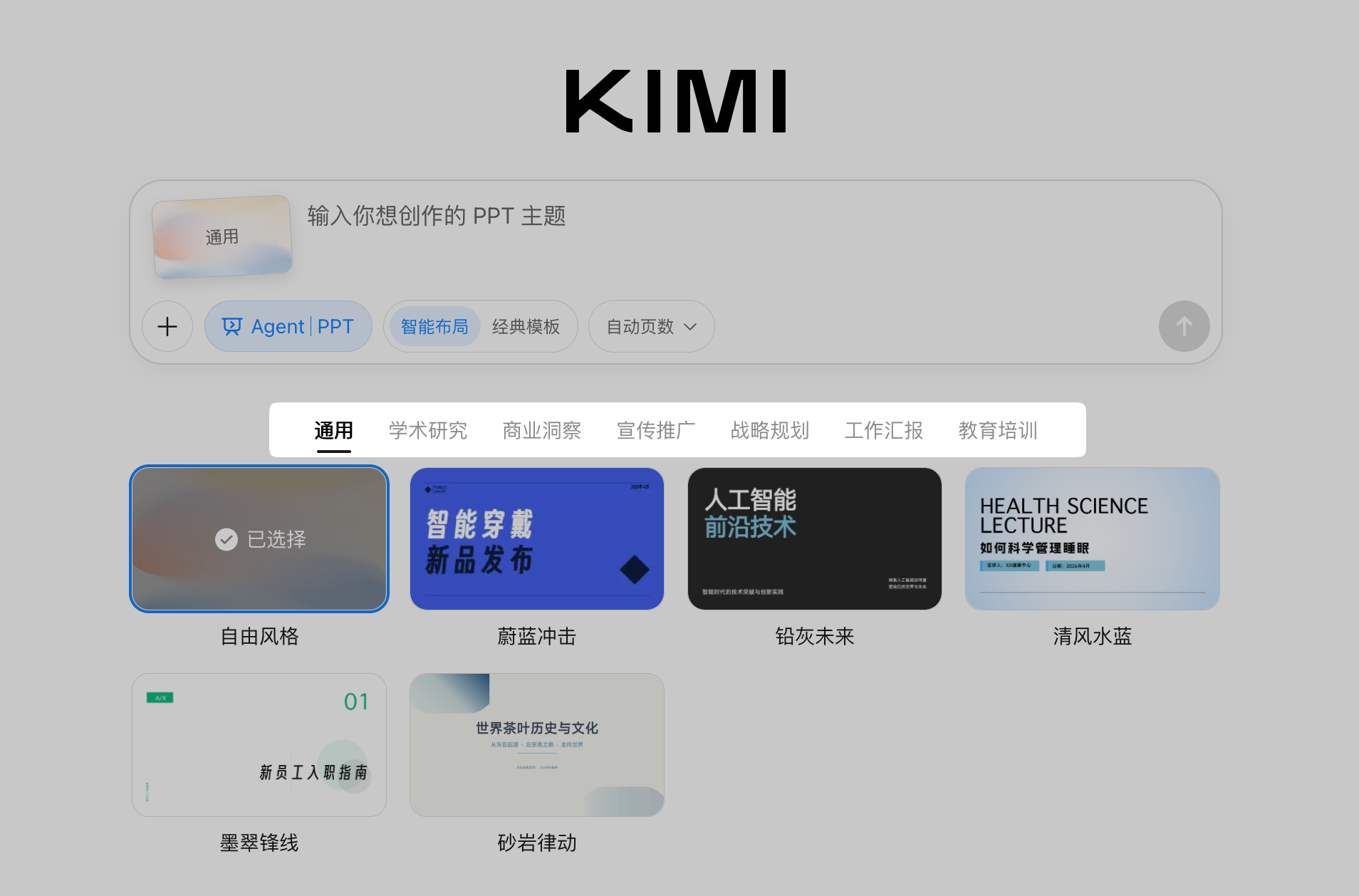
Smart Layout Mode offers multiple scenario options, including academic research, business insights, and marketing promotion, helping you generate PPT decks that better match real-world use cases.
- Preset templates are available for each scenario. Selecting a specific template generates a PPT deck in that template’s style.
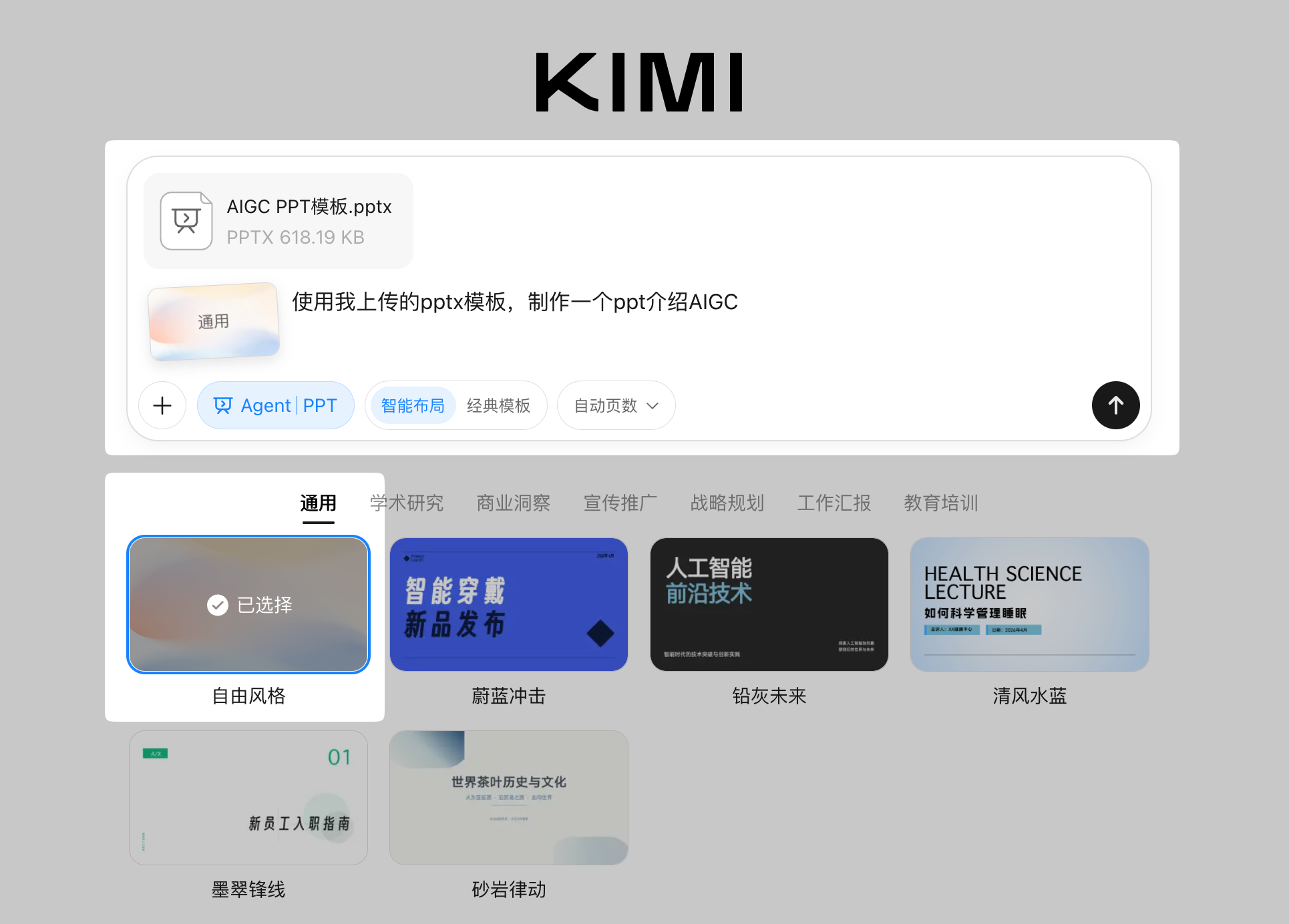
- To use a custom template, upload a PPTX file directly and describe what you want to generate. You do not need to select a specific scenario or official preset template.
Was this article helpful?