Deploy Kimi Claw Desktop in One Click
OpenClaw is an AI assistant with a distinctive personality and long-term memory. In the Kimi desktop client, you can deploy a local OpenClaw in one click and chat with it.
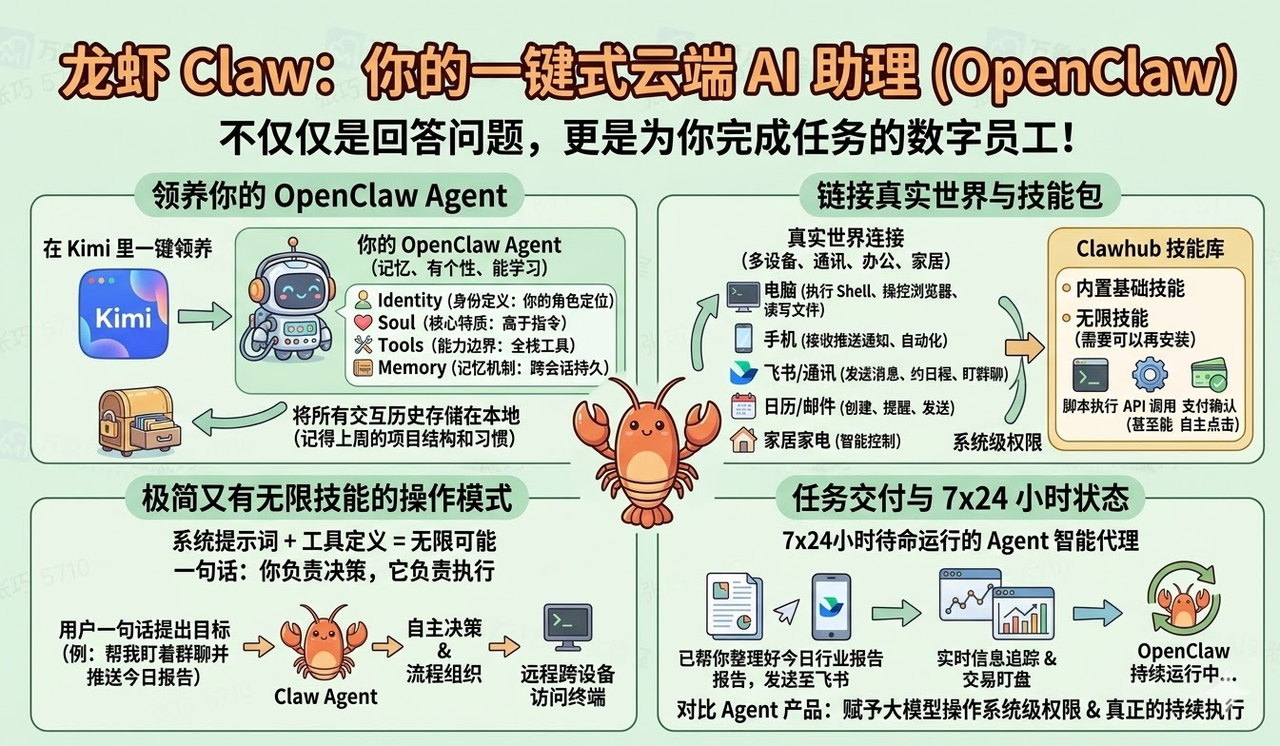
If you do not yet have a local OpenClaw, go to the Kimi Claw page in the Kimi desktop client to create your own OpenClaw first.
One-click deployment sets up the following for you:
- Automatic deployment — Kimi automatically deploys OpenClaw on your local machine. If you already have another OpenClaw installed locally, Kimi can also, with your authorization, remix the existing OpenClaw’s persona, Memory Space, and capabilities for easy one-click migration.
- Automatic model configuration — Kimi automatically configures the Kimi K2.6 model and links your Kimi membership benefit credits, so no separate API setup is required. It also configures the Kimi Web Search service to give the AI web search capabilities.
- To switch to the Kimi K3 model, adjust the model configuration in Kimi Claw settings, or refer to Switch to the Kimi K3 model.
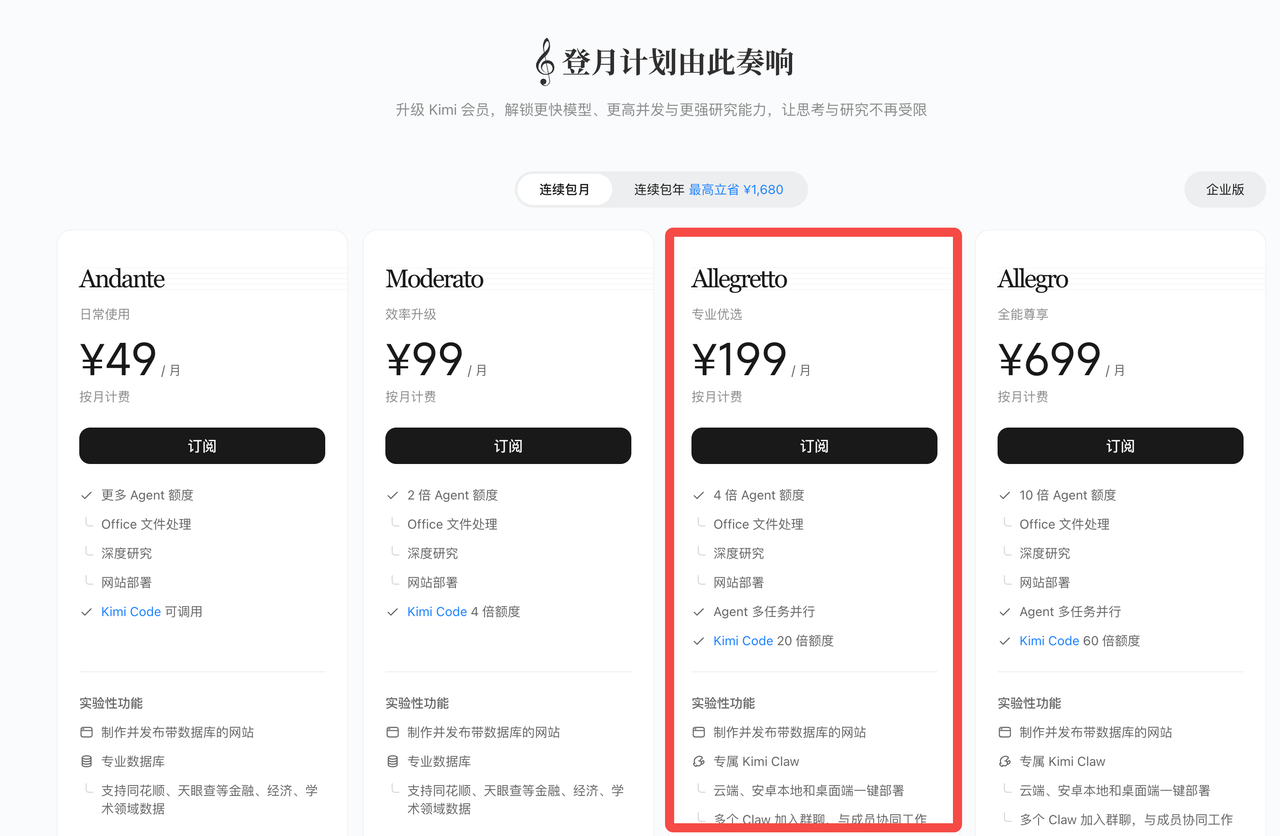
- Membership requirement — One-click deployment is available only on Allegretto and higher plans.
- Quantity limit — Currently, each account supports up to 1 Kimi Claw Desktop. If you switch devices and deploy a new Kimi Claw Desktop in the Kimi desktop client, follow the prompts at that time to unlink the Claw on your previous device.
Step 1: Download the Kimi desktop client and upgrade your membership
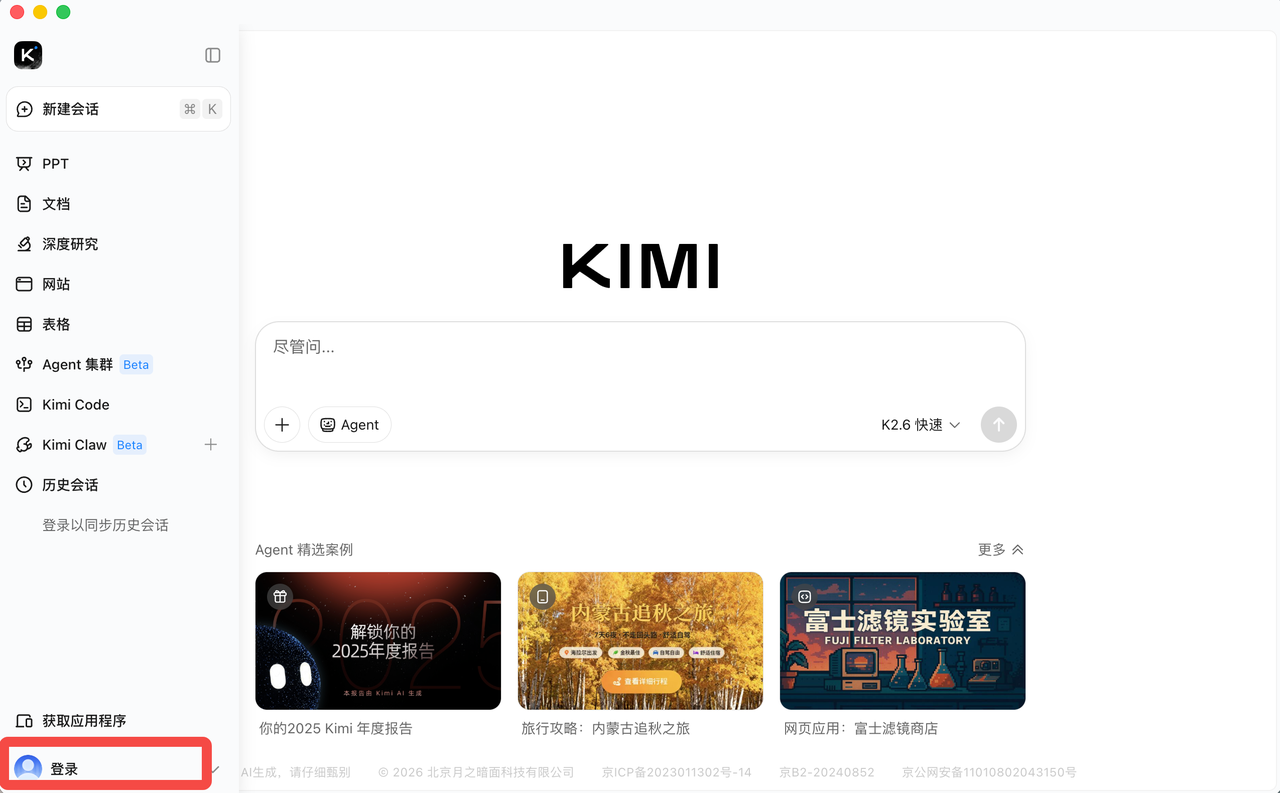
First, download the Kimi desktop client and sign in to your account.
System requirements
| Item | Requirement |
|---|---|
| Operating system | macOS or Windows |
| Membership tier | Allegretto or higher |
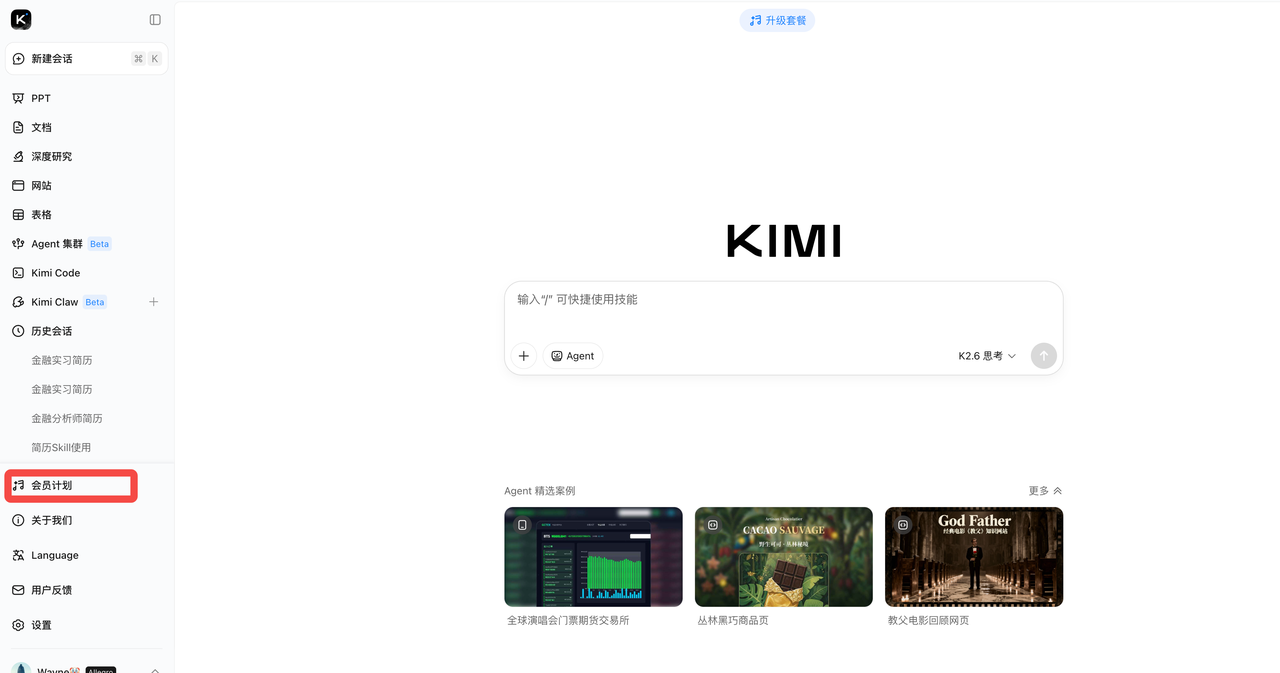
After the download is complete, sign in to your Kimi account and make sure your membership tier is Allegretto or higher. If not, upgrade your membership plan first.
Step 2: Deploy locally
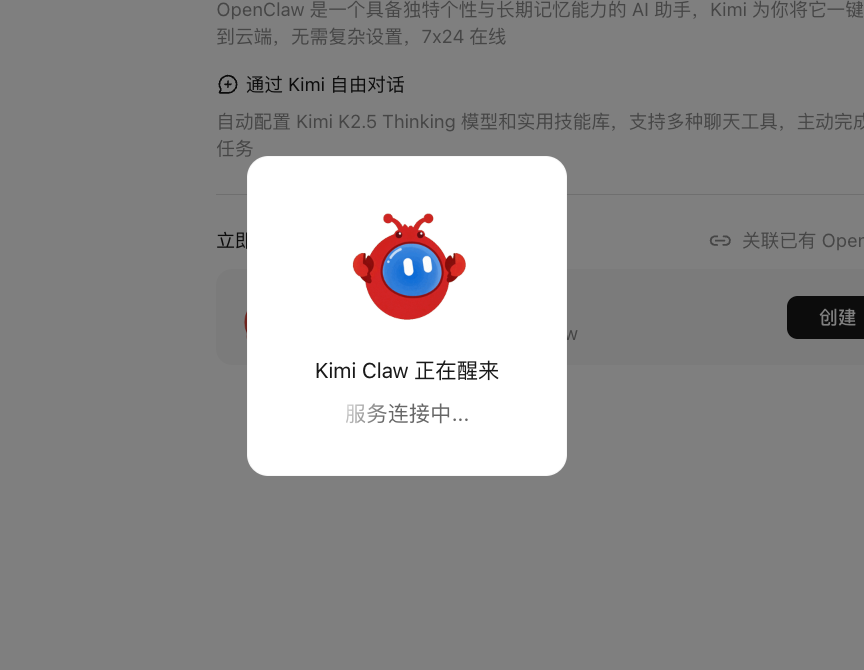
Go to the Kimi Claw page in the Kimi desktop client, click deploy “On my computer”, and follow the prompts step by step to create Kimi Claw Desktop.
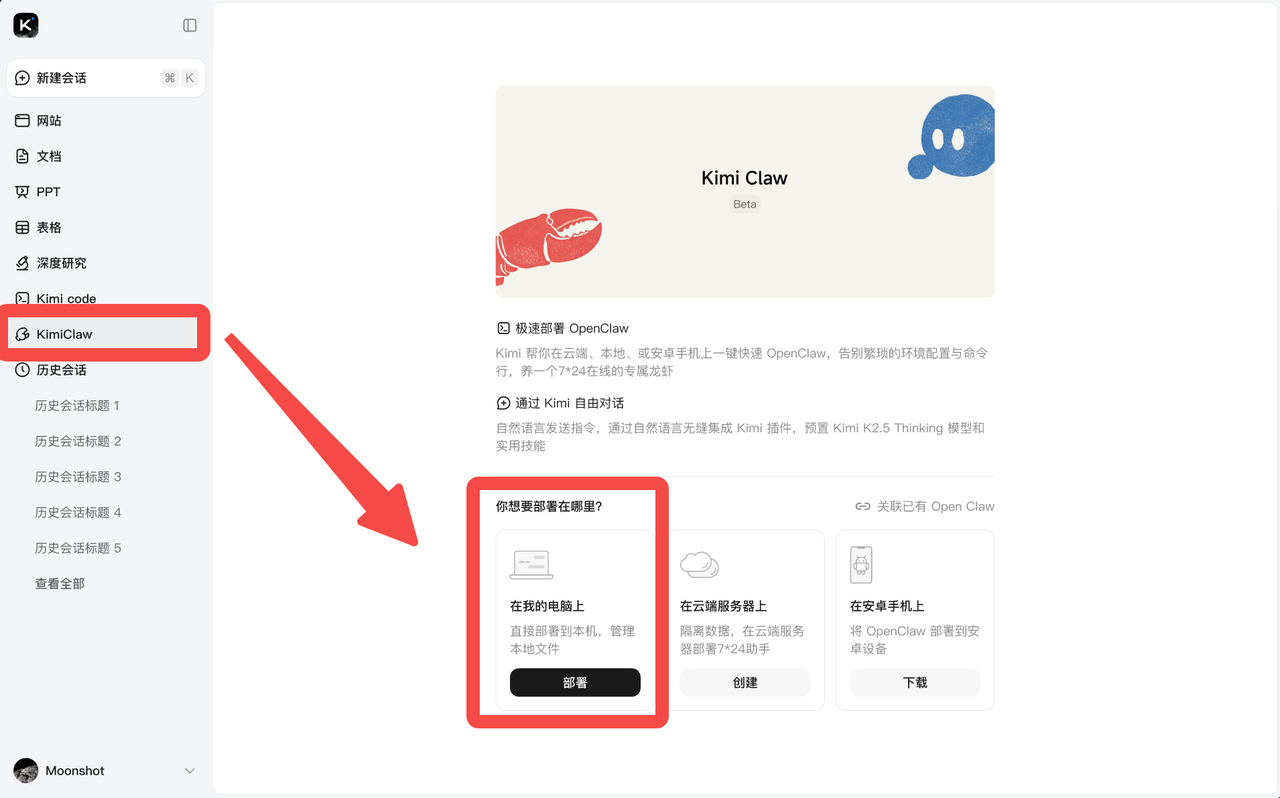
Each user account currently supports deploying up to 1 Kimi Claw Desktop. If you have deployed one on another computer before, Kimi will ask you to confirm whether to disconnect the old Claw. You can choose as needed.
Bring over your local OpenClaw in one click
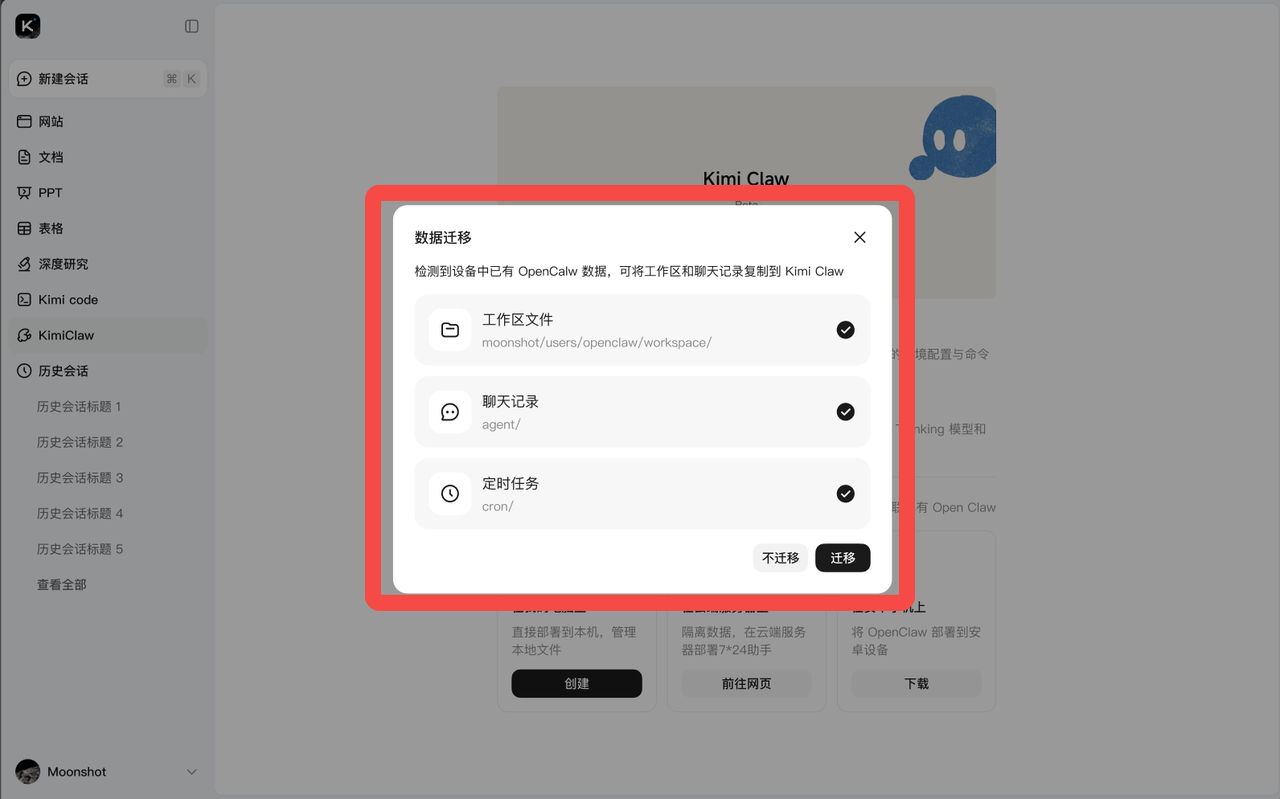
If you have installed another version of local OpenClaw on this computer, the system will ask whether you want to copy the following data:
- OpenClaw’s persona
- Memory Space
- Chat history
- Workspace files
You can choose whether to migrate this data as needed.
Step 3: Change the nickname
After deployment is complete, change the nickname of Kimi Claw Desktop to your preference.
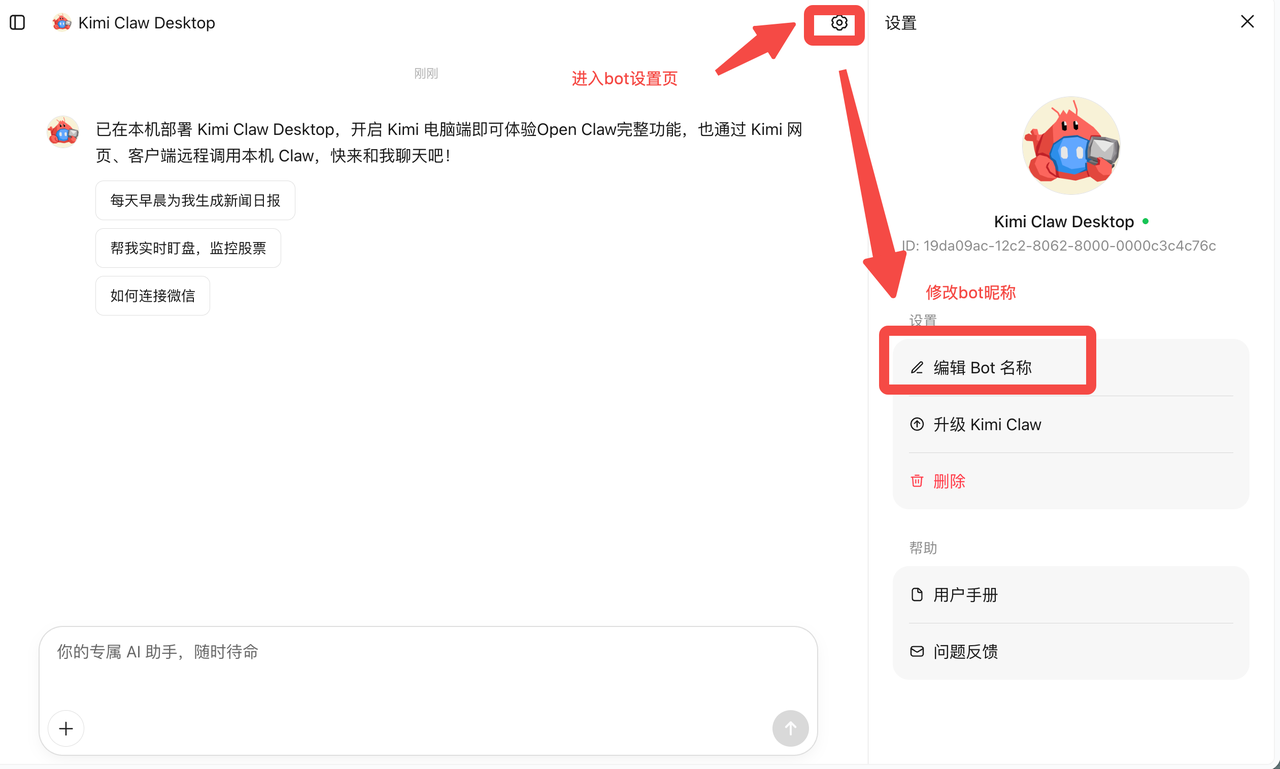
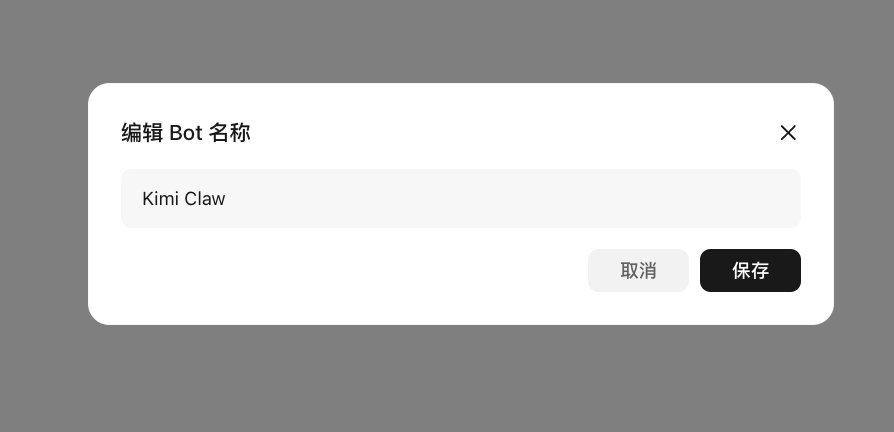
After you change the nickname, your Kimi Claw Desktop is ready and you can start chatting with it.
After deployment, you can further configure Kimi Claw Desktop’s persona, skills, and scheduled tasks to build a more personalized AI assistant.
Was this article helpful?