Deploy OpenClaw in the cloud
OpenClaw is an AI assistant with a distinct personality and long-term memory. In Kimi, you can start a conversation with OpenClaw through Kimi Claw.
One-click OpenClaw deployment
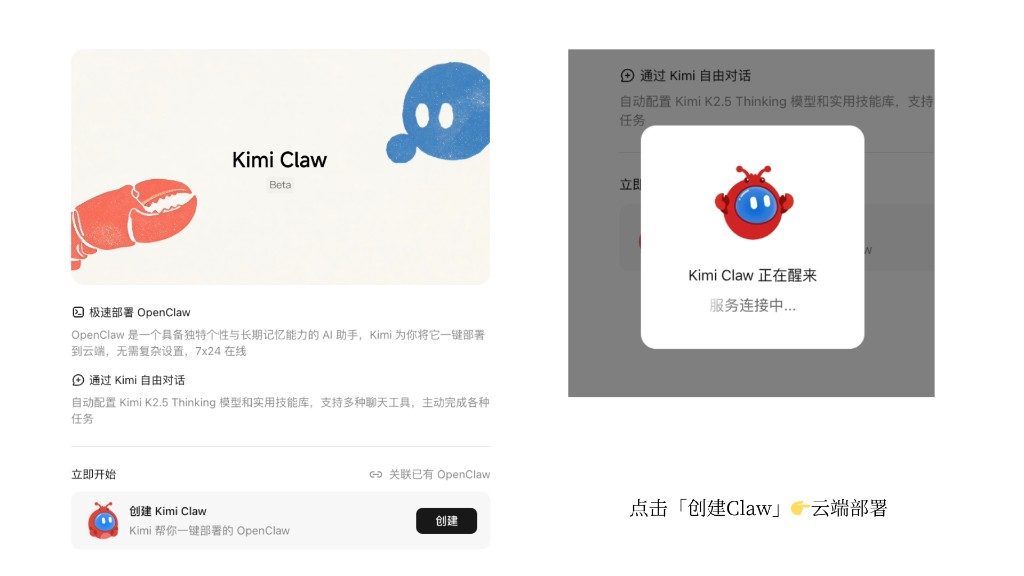
If you don’t have your own OpenClaw yet, go to kimi.com/bot to create a dedicated OpenClaw. Kimi will deploy OpenClaw to the cloud for you in one click—no need to buy a server or configure anything from the command line.
- One-click deployment is available only on Allegretto and higher plans. For details, see Kimi membership plans.
- Kimi automatically configures the Kimi K2.6 model and links it to your Kimi membership benefit credits, with no separate API setup required. It also automatically configures the Kimi Web Search service, giving your AI web search capabilities.
- Kimi Claw can be deployed directly to Feishu, WeCom, Weibo, and other platforms.
Creation flow
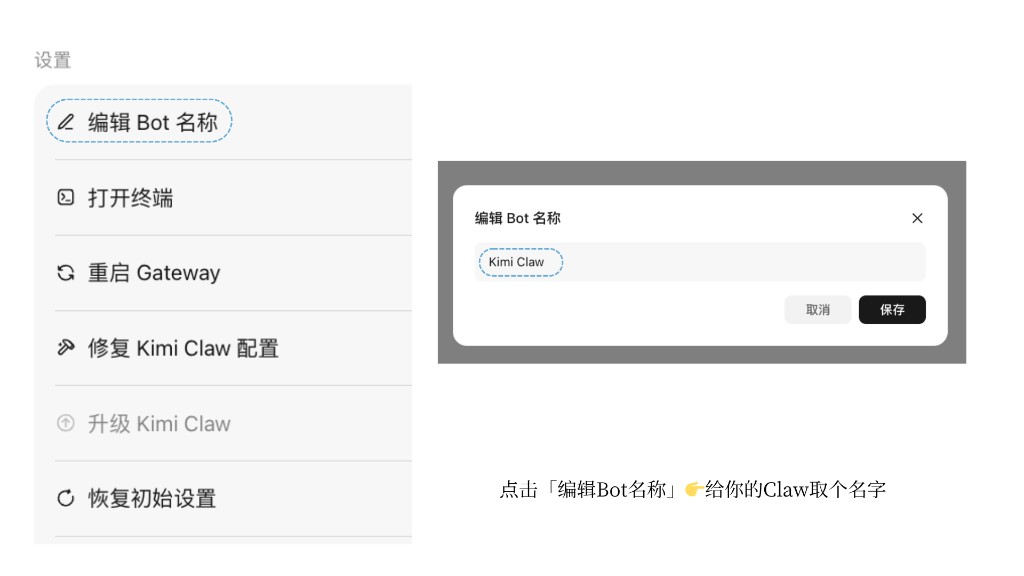
- Log in to kimi.com/bot.
- Click Create Kimi Claw.
- Wait for the system to complete the configuration automatically. This usually takes a few minutes.
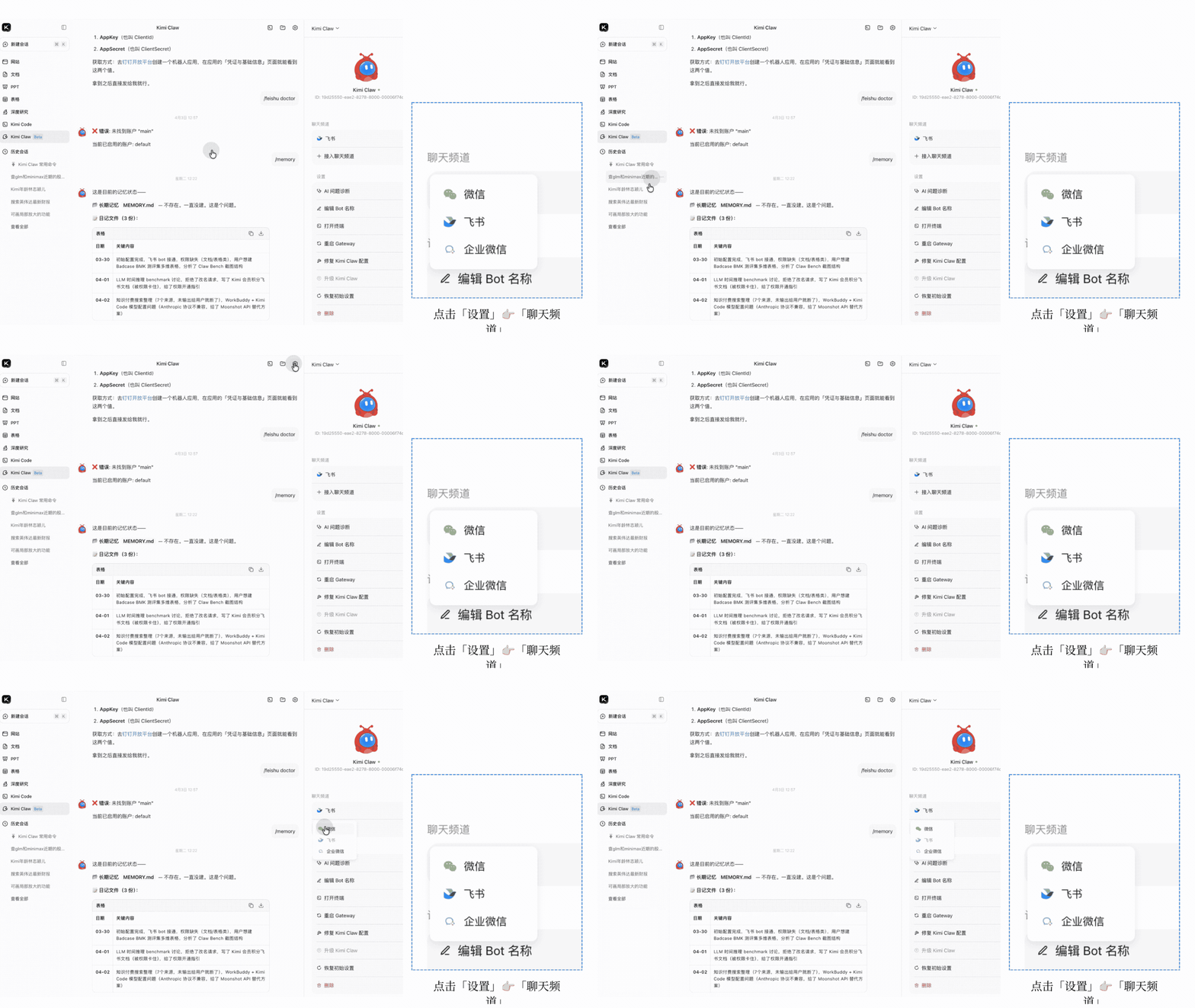
- Change your Kimi Claw nickname and set a personalized name.
- Under Settings → Chat channels, configure the chat platforms you need, such as WeChat, Feishu, and WeCom.
Link an existing OpenClaw
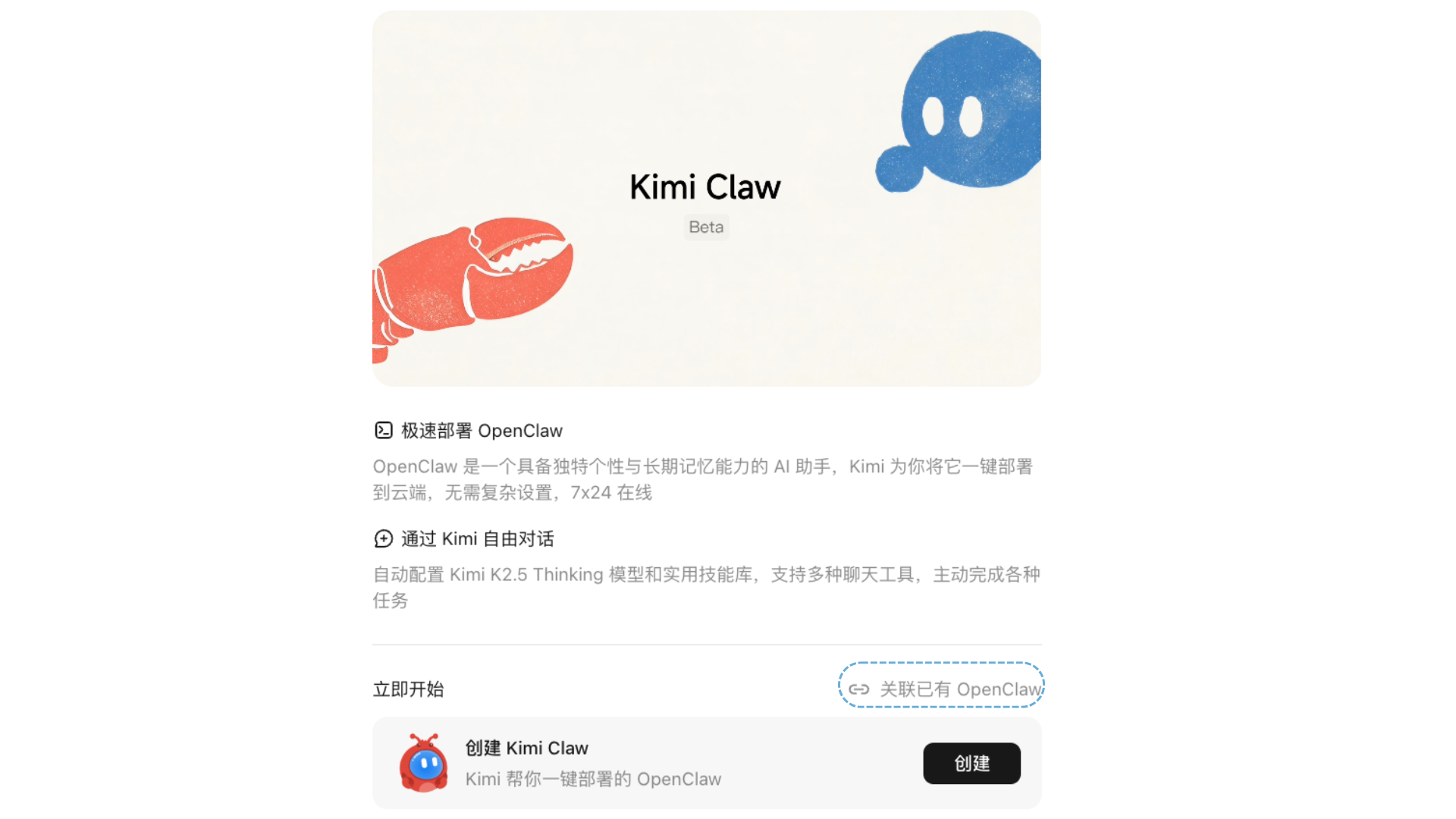
If you have already deployed your own OpenClaw, you can also chat with OpenClaw in Kimi by installing the Kimi plugin:
- Go to the Kimi Claw page and select Link existing OpenClaw.
- Follow the instructions to install the plugin on the device running OpenClaw.
- Once installation is complete, you can talk to your OpenClaw in Kimi.
Switch to the Kimi K3 model
Kimi Claw uses the Kimi K2.6 model by default. If you want to use Kimi K3, run the following commands to automatically update your local OpenClaw configuration.
After running the commands, verify that session_status shows model as kimi-coding/k3 and the context limit as 1.0m.
The configuration file path may vary depending on how OpenClaw was installed. Replace /root/.openclaw/openclaw.json with the actual path on your system. Be sure to back up the file before making changes.
Was this article helpful?