Configure a Feishu Bot
Quick setup
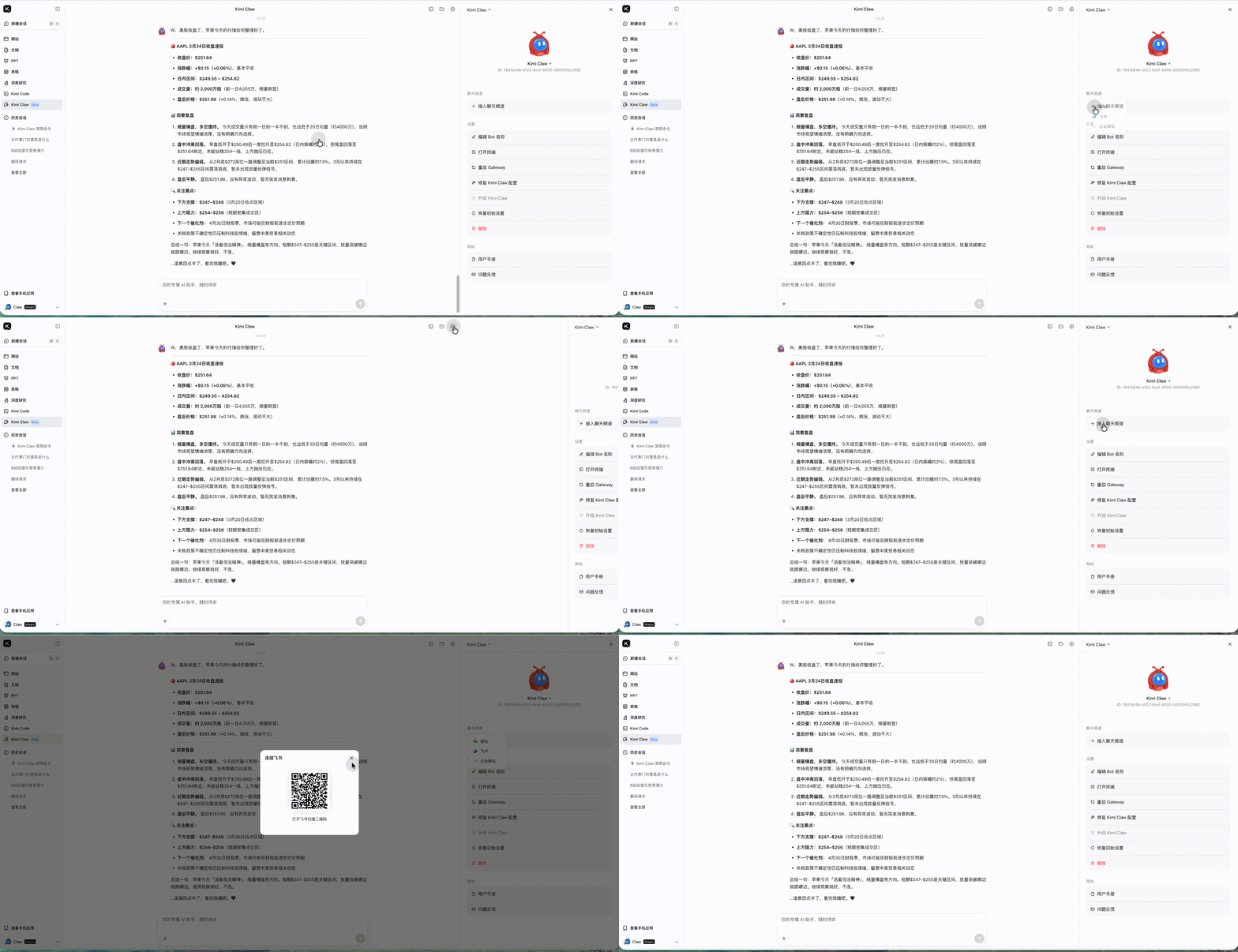
- Click https://www.kimi.com/bot
- Open Settings in Kimi Claw.
- Go to Chat channels.
- Follow the on-page instructions to scan the Feishu QR code and complete the connection.
Manually configure a Feishu bot
Kimi Claw has a built-in Skill that can help you configure a Feishu bot. You can simply tell it, “I want to configure a Feishu bot,” and it will give you a step-by-step plan. You can also follow the steps below to configure it manually.
Detailed steps
- Go to the Feishu Developer Platform, click Create enterprise self-built app, and set the App name and description.
- In the app, click Add bot to create the bot service.
- Go to Permission settings and add the required permissions via Batch import/export permissions.
- Go to Credentials & Basic Info, copy the App ID and App Secret, send them to Kimi Claw, and specify that they are the application credentials for the Feishu bot.
- After Kimi Claw finishes the configuration, restart it for the settings to take effect. You can let Kimi Claw restart itself, or manually click Restart Kimi Claw in Settings.
- After the restart, switch to Events & Callbacks in the Feishu Developer Platform, select Long connection to receive events, click Save, and then add the event
im.message.receive_v1. - Switch to Version Management & Release and publish the app. In Feishu, search for the bot name to start chatting.
Diagnostic commands
If you run into issues when configuring the Feishu bot, use the following commands for diagnosis:
| Command | Description |
|---|---|
/feishu start | Check whether the Feishu plugin is installed and running |
/feishu doctor | Check whether the Feishu bot configuration is correct |
/feishu auth | Grant Feishu bot permissions in batches |
Fix commands
For further troubleshooting and fixes, run the following commands in your terminal:
| Command | Description |
|---|---|
npx doctor | Diagnose the Feishu plugin runtime status |
npx fix | Automatically fix common configuration issues |
npx info | View detailed Feishu plugin information |
Related docs
Was this article helpful?