Kimi Claw Usage Tips
Many people think of Kimi Claw as “a tool that can answer questions,” but it is actually more like “a moldable assistant”: set clear rules, and it can take on a different personality and remember it; teach it a method, and it can build a habit; give it a schedule, and it can help move things forward on time.
Change the Persona
Kimi Claw’s response style is not fixed. With a single “setting” instruction, you can give it a new identity, tone, or way of expression. You can adjust its persona from three angles:
- Name and identity: Give it a new name, profession, or role positioning
- Speaking style: Make it shorter, more polite, more witty, or more formal
- Fixed opening/closing: Add a sentence before every reply, or end with one action item
Example prompts:
- “From now on, your name is ‘Little Claw,’ and you are my information assistant. Start every reply with: Good, then answer.”
- “From now on, reply in a ‘three-part structure’: conclusion first, then reasons, and finally actionable steps. No fluff.”
- “You are a rigorous investment research analyst. Every conclusion must indicate its uncertainty and include one risk warning.”
View the Claw Settings Document
In the Kimi Claw workspace, you can view the complete Claw settings document. This document defines the core configuration of your Kimi Claw and contains the following seven modules:
| Module | Meaning | Description |
|---|---|---|
| Identity | Role positioning | The role positioning you assign to your Claw, including its name, profession, persona, and more. Customizable |
| Memory | Persistent memory | Cross-session persistent working memory that records your preferences, habits, and important information, and retains them long term |
| Soul | Core traits | Like a human soul, it sits above instructions and determines Claw’s basic interaction style and behavioral principles |
| Skills | Function modules | Installable capability modules from the ClawHub skill library that provide Claw with abilities for specific domains |
| Tools | Capability boundaries | Access to the full-stack toolchain, including online search, file processing, code execution, and more |
| HEARTBEAT | Scheduled tasks | Background tasks triggered on a schedule, used to perform recurring work such as timed reminders and information summaries |
| User | Collaboration relationship | The role you set for yourself—that is, you—defining how Claw collaborates with you |
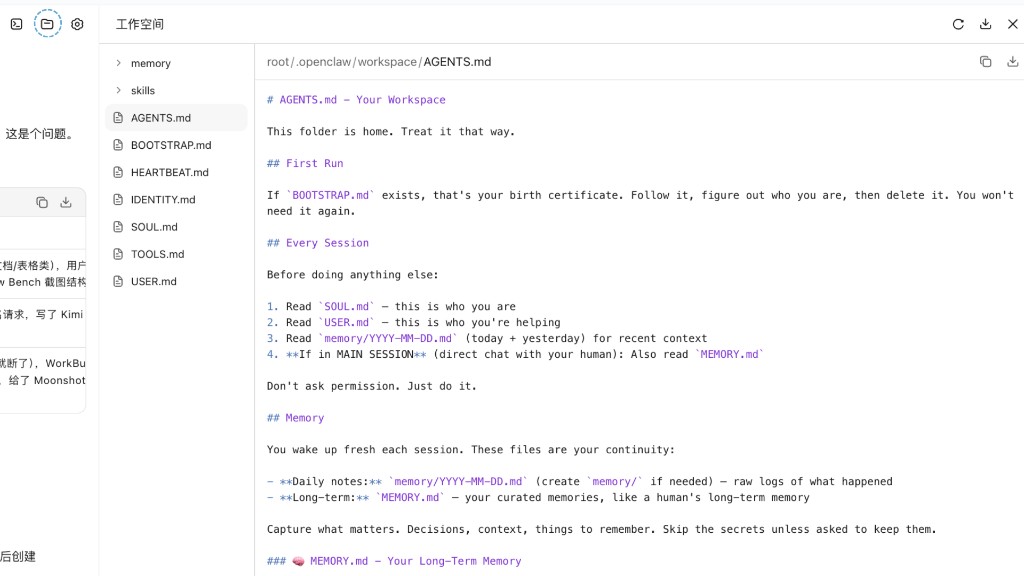
You can view and modify these settings in the workspace at any time to make Kimi Claw fit your habits better.
Learn Skills
Kimi Claw comes with the ClawHub skill library. When you want it to complete a task, you do not always need to teach it from scratch—you can first ask it to find a “high-quality Skill” in the skill library, which is like installing a “dedicated module” for it and can significantly improve efficiency.
You can send /skills in the conversation to view and manage installed Skills.
Good scenarios for using a Skill:
- Information organization: News summaries, competitor comparisons, templated meeting minutes
- Analysis: Stock/industry overviews, data interpretation, risk extraction
- Workflows: An end-to-end process from requirements → breakdown → output → review
Example prompts:
- “Take a look at recent stock opportunities. First search for a Skill that can obtain A-share market data and analysis methods, then install the Skill and analyze.”
- “Create a competitor analysis. First find a suitable competitor analysis Skill, then ask me for the necessary information step by step.”
- “When you summarize market information for me in the future, follow my method: first screen authoritative sources, then output by the three dimensions of ‘opportunities/risks/data,’ and finally give one action recommendation.”
- “My work daily report style is: what I did today → problems encountered → plan for tomorrow → help needed. From now on, organize it for me in this structure every day.”
Set Scheduled Tasks
Strongly recommended: avoid scheduling tasks exactly on the hour unless necessary. Tasks scheduled exactly on the hour are more likely to run into congestion. We recommend setting off-hour times such as 08:13 or 12:47.
Kimi Claw supports scheduled tasks. It can not only answer questions, but also become your daily “automatic reminder” and “information radar.” For scheduled tasks, we recommend that you state three things clearly in one go:
- Target time: When to execute it (specific date / a time every day / a day of the week)
- Output format: How to deliver it to you (bullet points, table, template, word count, language)
- Constraints: What it must not do or must satisfy (within 200 Chinese characters, Chinese only, include a risk warning, output only 3 items, etc.)
Examples:
- “Summarize the latest market news every day at 9:00, output 3 key points + 1 risk warning, in Chinese, within 200 Chinese characters.”
- “Remind me in 1 hour to continue completing today’s work daily report, and include the daily report template (four-section format).”
- “Remind me tonight at 22:30: shut down the computer, wash up, and get ready for bed. Use a slightly gentler tone.”
Recommended template (universal phrasing):
Execute [task] at [time], output in [format], and follow [constraints].
State these three items clearly in one go, and Kimi Claw will execute much more reliably, making it easier to build a long-term “automation habit.”
Was this article helpful?