Kimi WebBridge Product Introduction
Kimi WebBridge is a browser extension designed for AI Agent. Unlike cloud-based browser automation solutions, Kimi WebBridge runs directly in the Chrome or Edge browser you are already using. It can automatically access your signed-in sessions, enabling Agent to interact with web pages just like a real person.

For the best browser automation experience, we recommend deploying Kimi WebBridge on your primary work computer.
WebBridge works through a local bridge service and a browser extension. All execution happens locally, and your signed-in sessions and web page content never leave your device.
| Item | System Requirement |
|---|---|
| Operating system | macOS or Windows |
| Browser | Chrome or Edge |
| Network | A stable network connection is required |
| Companion app | Kimi Work or another Local Agent |
Step 1: Download the Kimi WebBridge Extension
You can download it in either of the following ways:
Option 1: Install from the browser store
- Chrome users: go to the Chrome Web Store
- Edge users: go to Edge Add-ons
Option 2: Install manually
If you cannot access the browser store for the time being, you can install it manually.
Then complete the installation according to the browser you use:
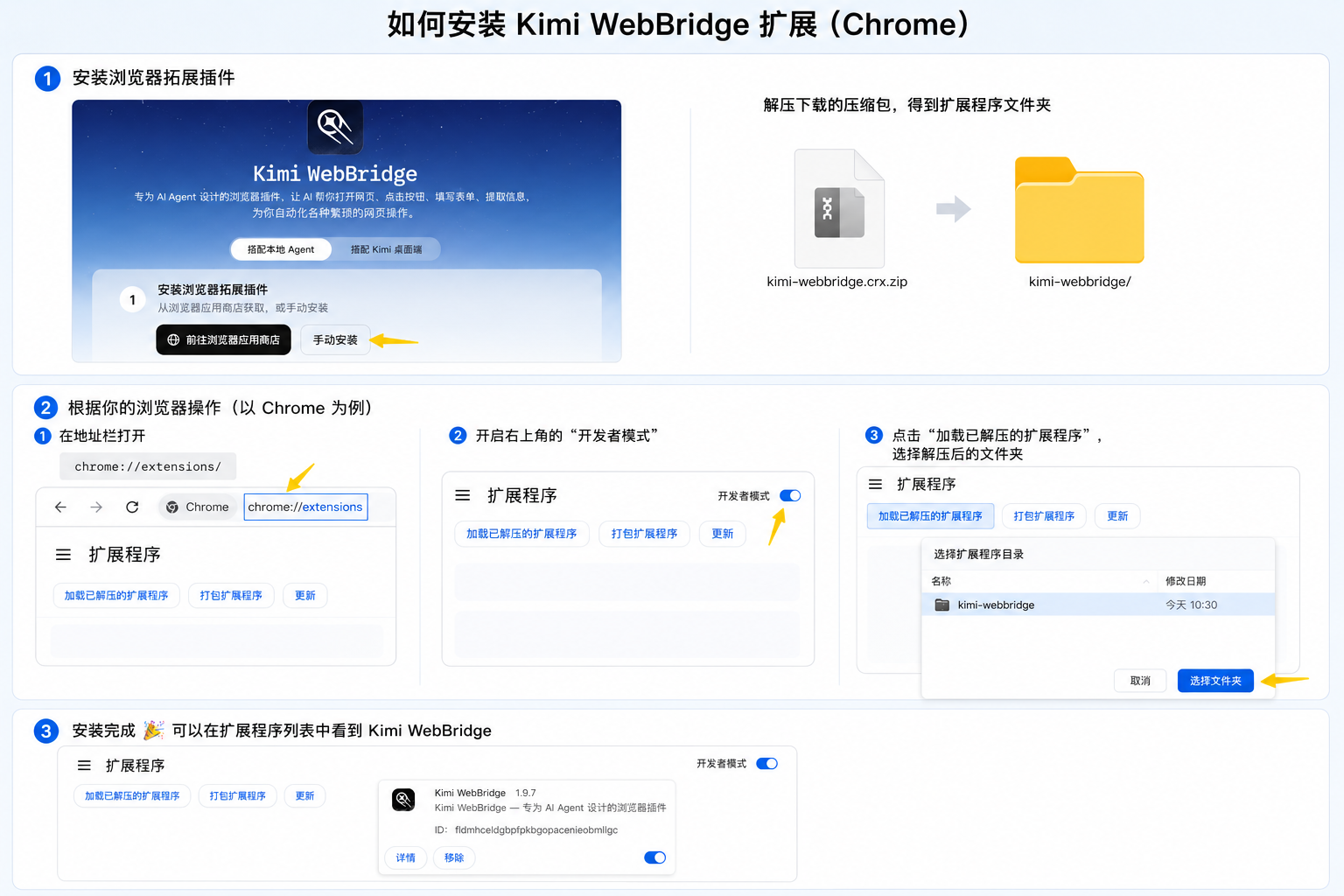
Chrome:
- Go to the Kimi WebBridge official website to download the extension installation package.
- Extract the downloaded file.
- Enter
chrome://extensions/in the browser address bar. - Turn on “Developer mode” in the upper-right corner.
- Click “Load unpacked”.
- In the file selection window, select the extracted WebBridge folder.
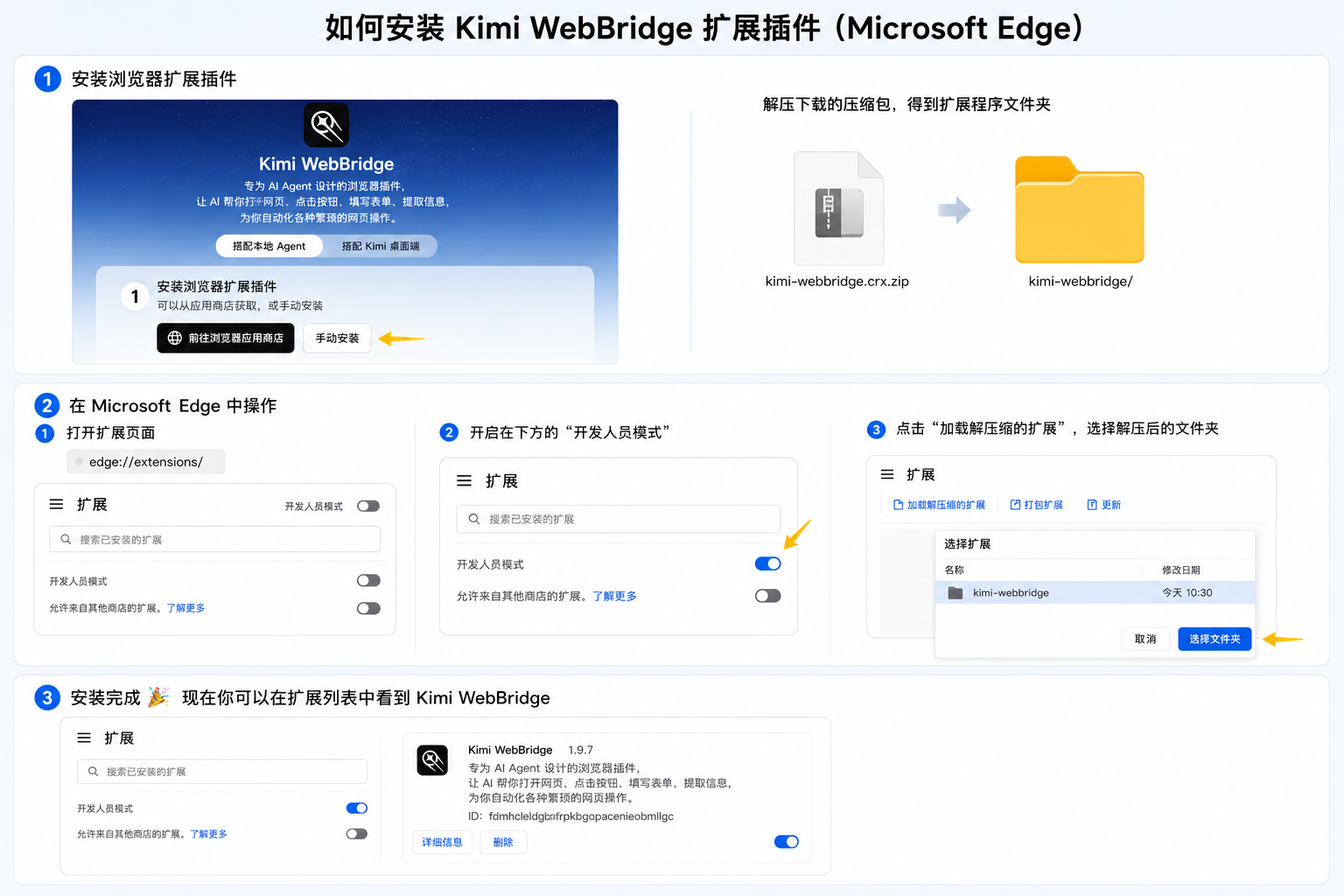
Edge:
- Go to the Kimi WebBridge official website to download the extension installation package.
- Extract the downloaded file.
- Enter
edge://extensions/in the browser address bar. - Turn on “Developer mode” in the lower-left corner.
- Click “Load unpacked”.
- In the file selection window, select the extracted WebBridge folder.
After installation, you will see WebBridge in your browser’s extension list. For easier access later, we recommend pinning it to the browser toolbar.
Step 2: Choose a Usage Method and Complete Setup
Option 1: Use with Kimi Work Desktop
-
Download Kimi Work from the official website
-
After installation, you can send instructions in Kimi Work, for example:
Option 2: Use with a Local Agent
Supports Claude Code, Codex, Cursor, Kimi Code, Hermes Claw, and more.
- Send the following instruction directly in Agent to automatically complete the WebBridge installation. Agent will run the appropriate installation process based on your operating system.
If you are a macOS user, use the following command:
If you are a Windows user, use the following command:
- Start using it
After the extension is connected, you can send instructions such as:
Was this article helpful?