FAQs and Troubleshooting
If you can’t find the PPT feature entry, cannot open a generated PPT, or encounter file issues after downloading, try the following troubleshooting steps.
PPT Feature Entry
- Web: Open kimi.com, click the “PPT” shortcut below the chat input box, or go directly to PPT Assistant
- App: Open the Kimi App and tap the “PPT” button in the toolbar below the input box
- Agent mode: In the general Agent mode, simply describe what you need for the PPT. Kimi will automatically use its PPT generation capability
What if PPT Generation Gets Stuck
A PPT task may get stuck during generation in the following situations:
- The PPT generation task is interrupted: Click the button on the lower right to continue the task, and the model will keep working on the PPT.
- The PPT task has been canceled: This is usually caused by a PPT Assistant generation failure. Create a new chat and enter the same task instruction to generate it again.
If you need further assistance, contact our staff through the in-product “👎” feedback channel, or email [email protected].
PPT Card Display and Preview Issues
After the model finishes creating the PPT, the end of the conversation will say “Click the card below to preview” and display a PPT card. Click the card to enter the PPT editing page.

If clicking the PPT card does not take you to the editing page, refresh the page and open it again. If it still won’t open, clear your browser cache and try again.
PPT Card Does Not Pop Up Properly
- Open the same conversation in another browser, such as Chrome, Safari, or Firefox, and check whether the PPT card displays properly
- Log in to the same account on the mobile App or another computer, and check whether the conversation contains the PPT result
- If the correct PPT card is not visible across multiple browsers and devices, follow the Bug Feedback Guide below to submit feedback, and create a new chat to generate it again
If you confirm that the PPT cannot be viewed across multiple devices and browsers, email [email protected] with the conversation link and screenshots of the issue. Once verified as a Bug, we will compensate you with the corresponding credit.
PPT Preview Is Blank or Styles Are Broken
- We recommend using the latest version of a mainstream browser such as Chrome, Edge, or Safari
- Check whether your network connection is stable. PPT previews need to load online resources
- Try switching browsers or using incognito/private mode to rule out extension interference
How to Download a PPT
- Web: In the PPT editor, click the Download button in the upper-right corner, then confirm to start downloading the file. If you have trouble downloading, check whether your current network connection is stable, or try another browser
- App: After the PPT is generated, tap Export to share it to WeChat or other apps
PPT Won’t Open After Downloading
- Web: Refresh the page and open it again. If it still won’t open, clear your browser cache and try again
- Won’t open after downloading: Make sure you are opening the file with software that supports the
.pptxformat, such as Microsoft PowerPoint, WPS, or Keynote. Some older office software may be incompatible - File is 0KB or damaged: This is usually caused by an error during generation. Create a new chat and generate it again
Some older office software may be incompatible. If the downloaded file won’t open, we recommend installing the latest office software.
Bug Feedback Guide
If the methods above do not resolve the issue, submit feedback through the in-product “👎” feedback channel or email [email protected]. To help us locate the issue faster, please provide as much of the following information as possible:
| Information Type | Details |
|---|---|
| Browser information | Browser name and version number, such as Chrome 126, Safari 18.1, or Edge 126 |
| System information | Computer: operating system and version, such as macOS 15.4 or Windows 11 24H2; mobile: system and version, such as iOS 18.4, Android 15, or HarmonyOS 5.0, plus the phone model |
| Issue screenshots | Capture the full browser window or App screen showing the issue |
| Steps to reproduce | Briefly describe the steps that trigger the issue so we can reproduce it |
How to check your browser version: In Chrome, click “⋮ → Help → About Google Chrome” in the upper-right corner; in Safari, click “Safari → About Safari” in the menu bar; in Edge, click “⋯ → Help and feedback → About Microsoft Edge” in the upper-right corner.
How to Send Feedback
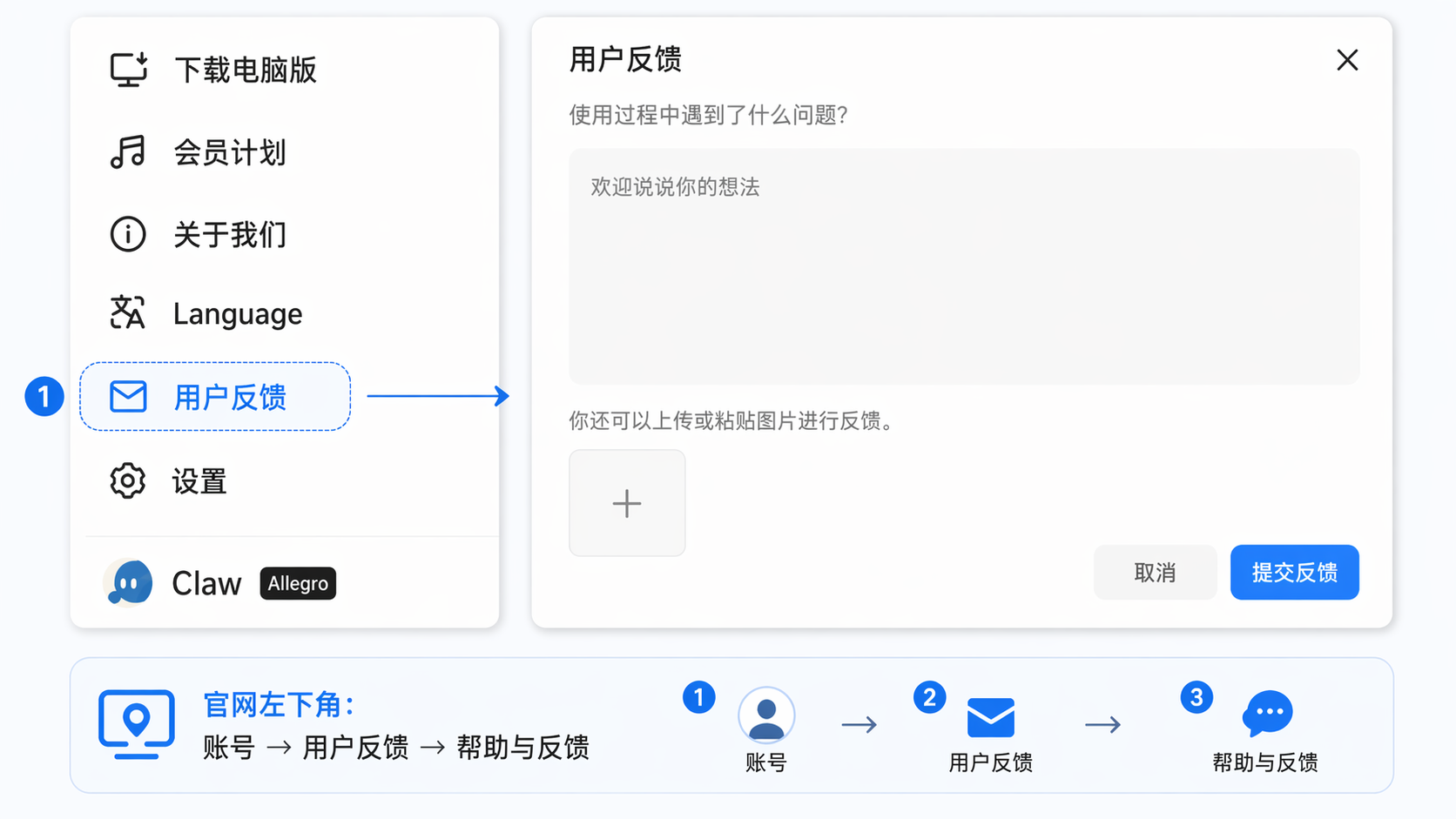
Web: Bottom-left of the official site: “Account → User Feedback → Help & Feedback”
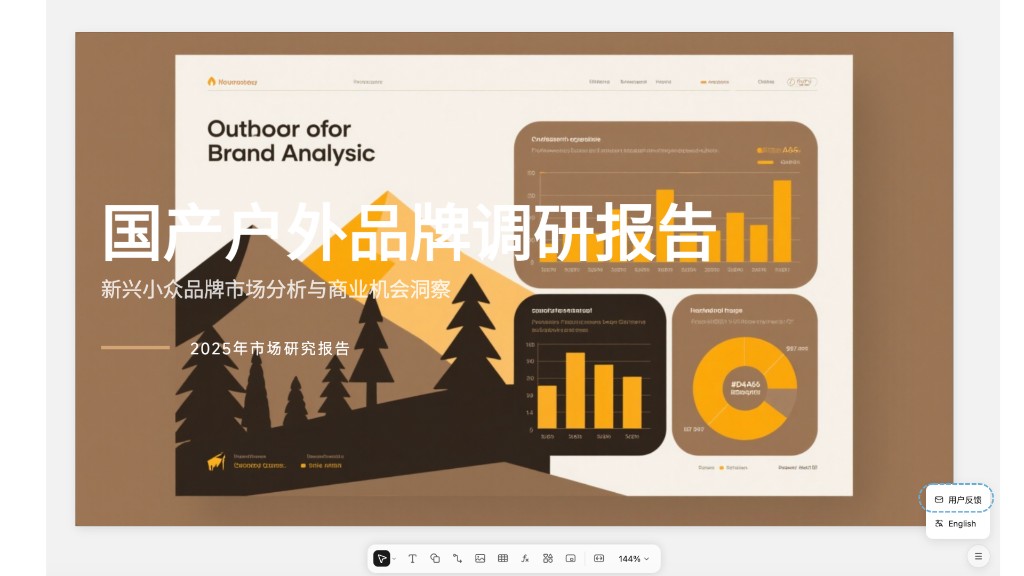
PPT results page: Click the “☰” menu button in the lower-right corner of the PPT results page → “User Feedback” → “PPT-specific feedback entry” to open the PPT feedback page and fill in your feedback
Was this article helpful?