Memory
Overview
With memory enabled, Kimi can use the preferences, work background, and ongoing projects you mention in chats to give more relevant answers later. This reduces the need to repeat the same background information.
The new memory experience is rolling out gradually from October 2026. Features and settings may vary by platform, version, and region. The screenshots below show the English web interface on Kimi AI. If your account still shows Memory Instructions, some of the new controls described here may not be available yet.
How Kimi uses memory
Kimi can draw on two sources:
- Memory Space: Saved information organized into files that Kimi can consult when needed.
- Past chats: Previous conversations available for Kimi to refer to.
When memory is enabled, Kimi can remember information from your conversations that may help with future replies, such as your preferred name, professional background, or response preferences. You can also ask directly: “Remember that I am an elementary school math teacher” or “Remember that I like Radiohead.”
Kimi uses memory when it is relevant to the current question. When a reply uses memory, a citation indicator at the end of the message lets you check the sources it referred to.
How is memory different from Chat settings?
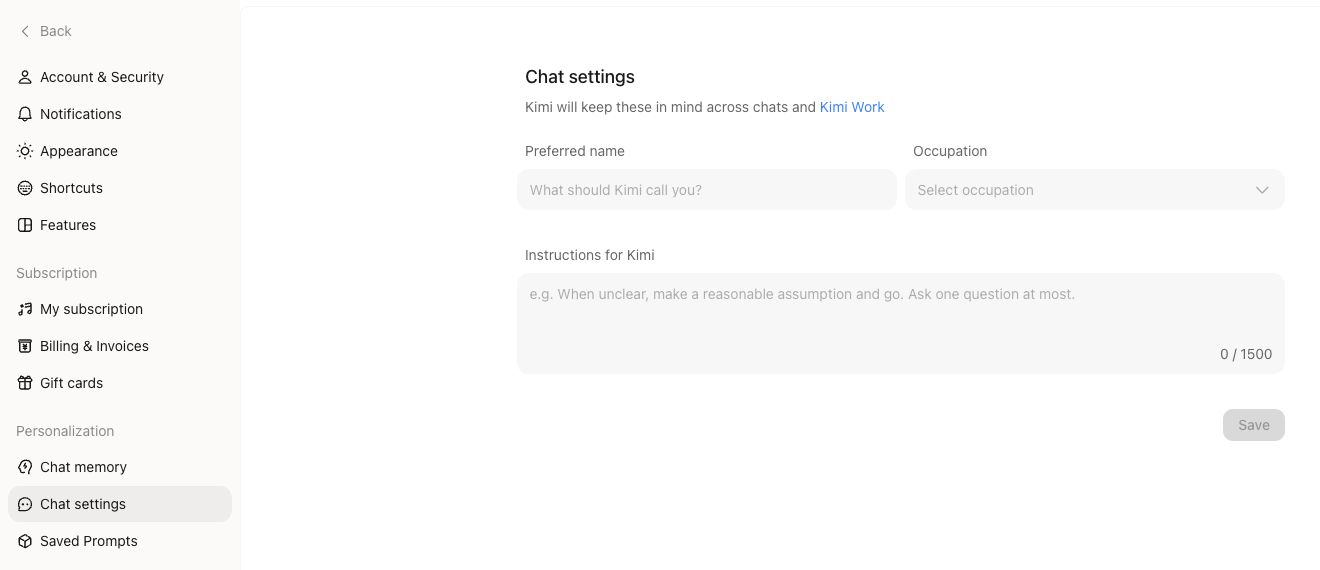
Memory saves and recalls relevant information from conversations. For ongoing instructions, such as your default language or preferred answer structure, use Settings → Personalization → Chat settings.
Chat settings includes Preferred name, Occupation, and Instructions for Kimi. Enter the details you want to provide, then select Save.
Use project instructions for requirements that apply only to a particular project. For examples, see Memory tips.
Find memory settings
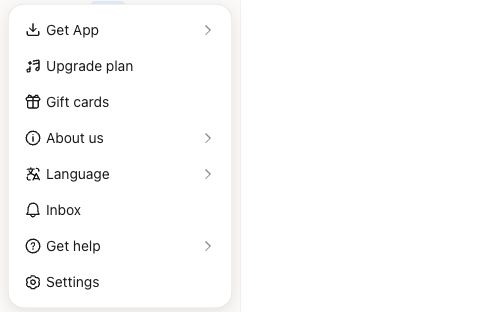
Step 1: Open Settings
On the web, open your profile menu at the bottom of the sidebar and select Settings.
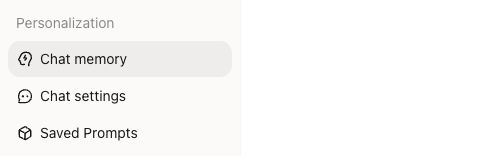
Step 2: Select Chat memory
Under Personalization, select Chat memory. You can also open memory settings directly.
Step 3: Open Memory Space
Once your account has the new experience, open Memory Space from the memory settings page to view saved information and the last update time. If you still see Memory Instructions, follow the controls currently available to your account while the upgrade rolls out.
Turn memory on or off
In the new experience, go to Settings → Personalization → Chat memory and use the switch that controls memory from chats.
When memory is off, Kimi does not use any form of memory or create new memories in new chats. To remove information already saved, delete it separately in Memory Space.
Manage Memory Space
Add or correct information
Tell Kimi in a chat what you want it to remember. If something changes, explain the correction. For example:
- “Remember that I am a frontend engineer and mainly use React.”
- “Correction: I now work in London. Please update the previous city in your memory.”
After you start a new chat, the system organizes information from past conversations into Memory Space. Updates take time, so new information may not appear immediately. Check again after the update completes.
Delete memories
You can delete information you no longer need in Memory Space. To clear the entire space, open Settings → Personalization → Chat memory → Memory Space and use the delete option.
After you delete a specific memory or the related conversation, the deleted content will no longer be used in later replies. Turn memory off as well if you want to stop creating and using memories in new chats.
Import and export memories
The new experience supports importing memories from other AI services and exporting saved memories. Use the options available in your current version of Memory Space to import or export information.
If you are upgrading from the previous version, memory settings also provides an option to export your previous memories.
Privacy
Kimi refuses to save sensitive information as memory, including your or someone else's identity document numbers, bank card numbers, criminal or victimization records, and information about suicide or self-harm. If you have questions, contact [email protected].
For information about how conversation data is used, see Data usage. For account deletion, see Account deletion and data removal.
Frequently asked questions
Where did Memory Instructions go?
As the memory upgrade rolls out from October 2026, previous entry points such as Memory Instructions are being brought together under Settings → Personalization → Chat memory. Your previously saved memories are retained. You can review and manage them in the new Memory Space, or export your previous memories.
Go to the new Memory Space (open Memory Space after entering memory settings; availability depends on your account's rollout status).
Why was a memory not used in a new chat or a project?
Check that memory is enabled and that the relevant information has been organized into Memory Space. Kimi uses memory when it is relevant; it does not cite memory in every reply.
Memory availability in project chats and scheduled tasks differs from regular chats. Include essential background in the current conversation. Put project-specific requirements and reference materials in project instructions and files.
Why does Kimi still use old information after I correct it?
Correcting memory does not change messages in existing conversations. If later replies still use old information, the update may not have finished. Try again later, or state the correction directly in the current chat, such as “I now work in London.”
If the issue keeps happening, delete the outdated memory in Memory Space and save the corrected information again.
Does deleting memory change my chat history?
Deleting a memory or its related conversation stops the deleted content from being used in later replies. Editing memory does not rewrite previous messages. To remove a conversation, delete it separately from your chat list. See Chat FAQs.
Does memory sync across devices?
Memory is saved to your account. Sign in to the same account on another device or client to use your saved memories.
If the memory switch or behavior differs between devices, update the affected client to the latest version. If the issue persists, note the account details and the time it occurred, then contact support.
Was this article helpful?