Quick Start
Kimi Code for VS Code is an extension integrated into Visual Studio Code. After installation, you can ask questions directly within the editor, review code diffs, and quickly commit changes. The extension can read the content of files you reference and display modification suggestions through a visual interface, executing them after your confirmation. The entire workflow is under your control while significantly improving development efficiency.
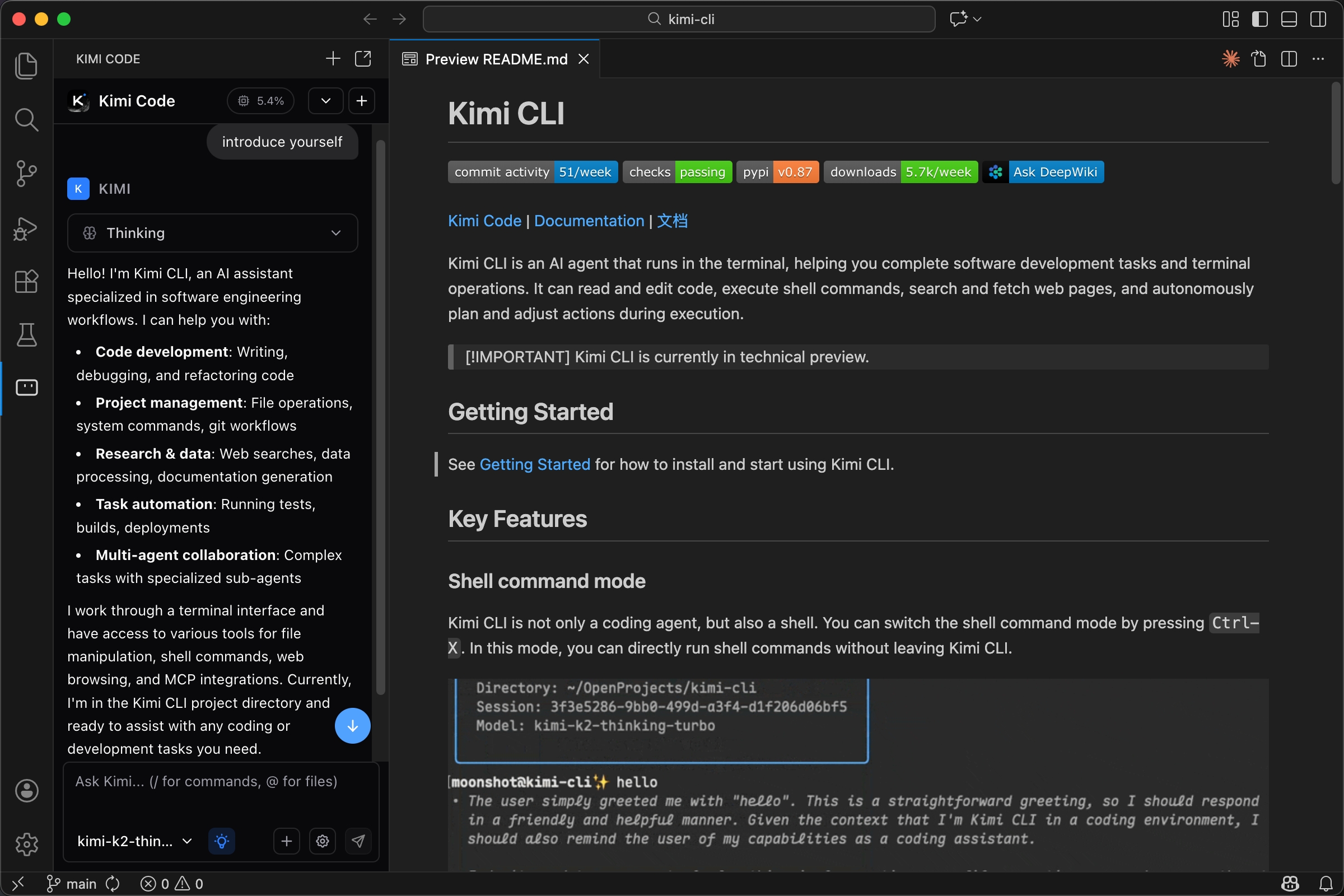
This extension provides a native chat panel in VS Code, supporting referencing files or folders via the @ symbol, executing project scans and context management via / commands, diff views showing file changes with rollback support, and integrating MCP servers to call external tools. The chat panel can be placed in the activity bar, sidebar, or as a standalone tab.
Before Installation
You need a Kimi account subscription or a Kimi API key.
Installation
Install via VS Code Marketplace.
If the extension doesn't appear after installation, please restart VS Code or execute "Developer: Reload Window" in the command palette (Mac: Cmd+Shift+P, Windows/Linux: Ctrl+Shift+P).
Authentication
Kimi Code supports two authentication modes:
Kimi Account Mode: Click the login button, and the browser will open the authorization page. After completing the authorization flow, return to VS Code.
API Key Mode: If you have already configured an API key, you can click to skip login. The extension will run in this mode.
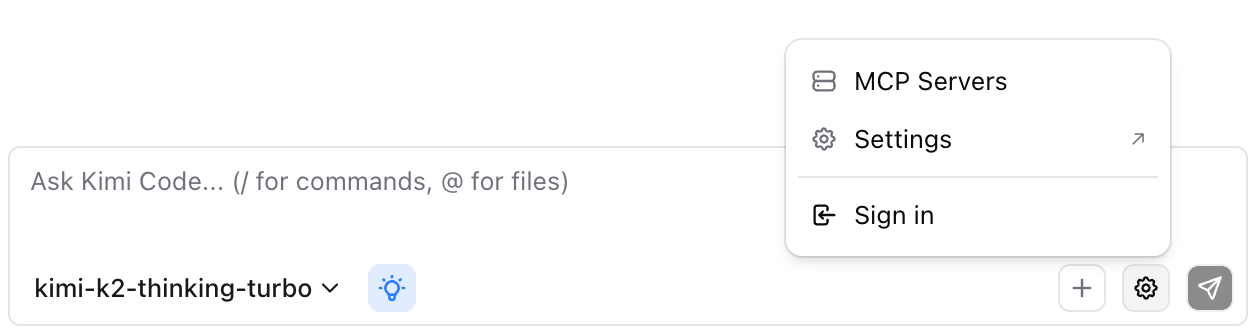
You can switch authentication modes at any time via the gear icon. After logging out, you will return to the login screen.
Typical Workflows
Code Reading: Type @ to select a file or folder, request an explanation of the code flow, and continue asking follow-up questions.
Refactoring: Reference target code such as @src/feature/, request a refactoring plan, review the diff and selectively approve, using rollback when necessary.
Debugging: Paste error messages or stack traces, reference related files, request diagnosis and fixes, then approve the proposed changes.
Project Overview: Reference a folder such as @src/services/, request a module map or architecture summary, and continue asking about dependencies or weak points.
Commands and Shortcuts
| Shortcut | Function |
|---|---|
Ctrl+Shift+K / Cmd+Shift+K | Focus Kimi input box |
Alt+K | Insert current file reference |
Ctrl+N / Cmd+N | New conversation (requires kimi.enableNewConversationShortcut to be enabled; enabling this will occupy the system's default "New File" shortcut) |
↑ / ↓ | Browse input history in the input box |
Type "Kimi Code" in the command palette to access more commands: open in new tab, open in sidebar, new conversation, etc.
FAQ
VS Code says no workspace is open
Open a folder in VS Code — the Kimi Code VS Code extension requires a workspace to function properly.
VS Code says CLI not found
Manually install Kimi Code CLI and configure kimi.executablePath in VS Code settings, or ensure the built-in CLI exists.
VS Code login fails
Try skipping login and using API key mode instead, check your network connection, or retry later via the extension's action menu.
VS Code shows no response after sending a message
Confirm that Kimi Code CLI is available, a model is configured, and a workspace folder is open in VS Code. Check error logs via "Kimi Code: Show Logs".
VS Code connection timeout
Requests time out after 30 seconds with no response. Check your network and retry.
VS Code shows an error before sending a message
Certain errors prevent sending messages in VS Code, such as CLI not found, version too low, not logged in, or session busy. Errors appear as toast notifications; your input is preserved for retry.
Next Steps
- Core Operations – Learn chat panel usage, context management, and diff review
- Customization – Explore Skills, Hooks, and MCP extensions
- Configuration – Customize authentication, models, and behavior settings