Plugins
Plugins package reusable Kimi Code CLI capabilities into installable units: they can add Agent Skills, custom agents, automatically load a specified Skill at session start, contribute system-prompt instructions, and declare MCP servers to provide real tool capabilities. They are ideal for sharing workflows with a team, connecting to external services, or installing extensions from the official plugins.
Installation and Management
Run /plugins in the TUI to open the plugin manager. It is a single panel with four tabs, switched with Tab / Shift-Tab:
- Installed: Manage installed plugins
- Official: Kimi-maintained marketplace plugins
- Curated: Third-party plugins from Kimi partners in the default marketplace
- Custom: Install from a URL
Common keys:
| Key | Action |
|---|---|
Tab / Shift-Tab | Switch between the Installed / Official / Curated / Custom tabs |
Space | Enable or disable the selected installed plugin (Installed tab) |
D | Remove the selected installed plugin (Installed tab) |
M | Manage MCP servers for the selected plugin (Installed tab) |
R | Reload installed.json and all manifests (Installed tab) |
Enter | Installed: update if available, or view details · Official/Curated: install or update · Custom: install |
I | View plugin details (Installed tab) |
Esc | Go back or cancel |
You can also use slash commands directly:
| Command | Description |
|---|---|
/plugins | Open the interactive plugin manager |
/plugins list | List installed plugins |
/plugins install <path-or-url> | Install from a local directory, zip URL, or GitHub repository URL |
/plugins marketplace [source] | Browse the official marketplace, or pass a custom marketplace JSON path or URL |
/plugins info <id> | View plugin details and diagnostics |
/plugins enable <id> | Enable a plugin |
/plugins disable <id> | Disable a plugin |
/plugins remove <id> | Remove a plugin (requires confirmation) |
/plugins reload | Reload installed.json and all plugin manifests |
/plugins mcp enable <id> <server> | Enable an MCP server declared by a plugin |
/plugins mcp disable <id> <server> | Disable an MCP server declared by a plugin |
Installing from GitHub
Use /plugins install <url> to install directly from a GitHub repository. Four URL forms are supported:
https://github.com/<owner>/<repo>: Install the latest release; falls back to the default branch if no release existshttps://github.com/<owner>/<repo>/tree/<ref>: Install a specific branch, tag, or short commit SHAhttps://github.com/<owner>/<repo>/releases/tag/<tag>: Pin to a specific taghttps://github.com/<owner>/<repo>/commit/<sha>: Pin to a specific commit
Network requests only go through github.com redirects and codeload.github.com downloads; api.github.com is not called.
Notes
- Plugin changes apply after
/reloador in new sessions. After installing, enabling/disabling, or removing a plugin, run/reloador/new; the current session will not update. - Local installations are copied to
$KIMI_CODE_HOME/plugins/managed/<id>/, and the CLI always runs from this managed copy. Editing the original source directory after installation has no effect; you must reinstall. - Removing a plugin only deletes the installation record; the managed copy and original source files remain on disk.
- Plugins are currently installed per-user and apply to all projects; project-level installation scope is not yet supported.
Custom marketplace JSON
Pass a custom marketplace JSON path or URL to /plugins marketplace <source>, or set KIMI_CODE_PLUGIN_MARKETPLACE_URL to override the default catalog. Each entry in the plugins array needs an id and a source (local path, zip URL, or GitHub URL):
{
  "version": "2",
  "plugins": [
    {
      "id": "my-plugin",
      "displayName": "My Plugin",
      "source": "./my-plugin"
    }
  ]
}
Official Plugins
Official plugins are plugins and built-in product capabilities maintained by Kimi. There are currently three:
- Kimi Datasource: Query financial market data, financial news, macroeconomic indicators, corporate registration records, academic literature, Chinese laws and regulations, and official data from intergovernmental organizations in natural language
- Kimi Browser Extension: Let AI drive your own browser to get web tasks done
- Kimi Computer Use: Let AI operate your desktop apps (macOS and Windows)
Installation and Upgrade
All official plugins share the same installation and upgrade flow:
- Run
/pluginsand pressTabto select Official - Find the plugin you want and press
Enterto install - After installation completes, run
/reloador/newto activate it
Note
Kimi Browser Extension installs in two parts: after the steps above, you also need to install the browser extension before it works.
Official plugins do not update automatically. When an update is available, you'll be prompted the next time you use the old version. To upgrade, repeat the installation steps above.
Kimi Datasource v3.4.0
Kimi Datasource is the official Kimi Code data plugin, letting you query financial market data, financial news, macroeconomic indicators, corporate registration records, academic literature, Chinese laws and regulations, and official data from intergovernmental organizations in natural language. No manual API calls or data accounts required.
Sources include authoritative institutions and leading databases such as the World Bank, IMF, OECD, FRED, WHO, FAO, the National Bureau of Statistics of China, Wind, S&P Capital IQ, SEC EDGAR, Caixin, Xinhua Finance, and Hundsun Juyuan, all traceable to their original publishers.
You must first complete OAuth login with a Kimi Code account via /login; data queries consume your Kimi Code plan quota.
How to use
- Describe your need in natural language, and Kimi Code will automatically invoke the data capabilities
- Explicitly trigger the data query skill with
/skill:kimi-datasource:kimi-datasource
What you can do
Live market research — Want to run a quantitative analysis on a stock?
Pull three years of daily closing prices, MACD, and KDJ signals in a single query, no third-party data platforms needed.
Cross-country macro comparison — Studying supply-chain shifts across China, India, and Vietnam?
Get complete GDP growth, trade volume, and demographic time-series for multiple countries from World Bank data spanning 50+ years, all in one go.
Pre-contract risk check — Need to vet a counterparty minutes before signing?
Type the company name and instantly get business registration, equity structure, litigation disputes, and credit blacklist status, right when you need it.
Literature review acceleration — Tracing the research arc of RLHF for a paper?
Get the most-cited papers, key authors, and core findings in seconds, so your literature review outline takes shape in half the time.
On-the-spot legal lookup — Need to confirm the statute behind a residence-right contract dispute?
Pinpoint the relevant Civil Code articles (full text, authority level, and validity) in one query, then pull a few comparable precedents to back them up, without digging through statute databases.
Institutional-grade US equity research — Writing a deep dive on a US stock?
Pull the annual report, standardized financial metrics, top-50 holders, and consensus estimates in one go, no more juggling multiple data terminals.
Financial news and industry data — Tracking market hotspots or policy moves?
Query Caixin's market news, bond/fund/futures data, and listed-company supply-chain relationships, plus news, policies, announcements, and market flashes from the Xinhua Finance national financial information platform. All sources are authoritative and traceable.
Standards lookup — Need to check compliance against Chinese standards?
Look up national (GB), industry, local, and association standards by number or topic, with status and full-text entry points.
Coverage
| Category | Scope |
|---|---|
| Stocks & financial markets | Wind, S&P Capital IQ, SEC EDGAR; A-share/HK/US quotes, indicators, financials, valuation, estimates; 8,000+ US-listed filings |
| Financial news & industry data | Caixin, Xinhua Finance; market news and flashes, company announcements, regulatory policy, bond/fund/futures data, credit-violation records, supply-chain ties |
| Macroeconomics | World Bank, IMF, OECD, FRED, China's NBS, WHO, FAO; 50+ years, 189 countries; national/provincial/municipal China indicators (GDP, trade, population, exchange rates, CPI, balance of payments) |
| China standards | National (GB), industry, local, and association standards: IDs, titles, status, details; official full text for some GB and public association standards |
| Corporate data | Registration, equity chain, legal risk, and related-entity graph for mainland Chinese companies |
| Academic literature | Millions of papers in physics, mathematics, CS, quantitative finance, economics, including preprints |
| Legal | Yuandian Legal and other leading legal databases: Chinese laws, regulations, judicial cases; statute search across authority levels; ordinary and authoritative case search |
| Smart screening | Gildata and other well-known databases: natural-language screening of stocks, funds, and fund managers; macro-industry data, research reports, announcements, news |
Billing and limitations
- Data queries are billed per call and consume Kimi Code account credits
- The plugin provides read-only queries; no write or trading functionality is available
- Technical indicators and real-time prices are only available during active trading hours
- AI-generated output is for reference only and does not constitute investment or business advice
Kimi Browser Extension v2.0.11
Kimi Browser Extension lets AI drive your browser directly: not an emulator, not a crawler, but the browser you use every day, with your login sessions and cookies. AI can open pages, read content, click buttons, fill in forms, and take screenshots just like you do, taking repetitive web operations off your hands. See the Kimi Browser Extension site for a product overview.
Install the browser extension
After installing via /plugins, you also need the Kimi Browser Extension in your browser before AI can drive it. There are two ways to install it:
Option 1: Install from a store (recommended)
Open the Chrome Web Store or Edge Add-ons page and click Add.
Option 2: Install manually
Use this when you can't reach the stores:
Download the extension package and unzip it
Type
chrome://extensions/in the address bar to open the extensions page, then turn on Developer mode in the top-right corner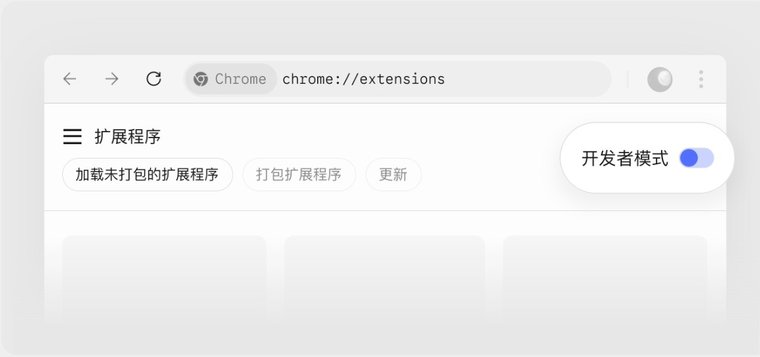
Click Load unpacked in the top-left corner and select the unzipped
kimi-webbridge-extensionfolder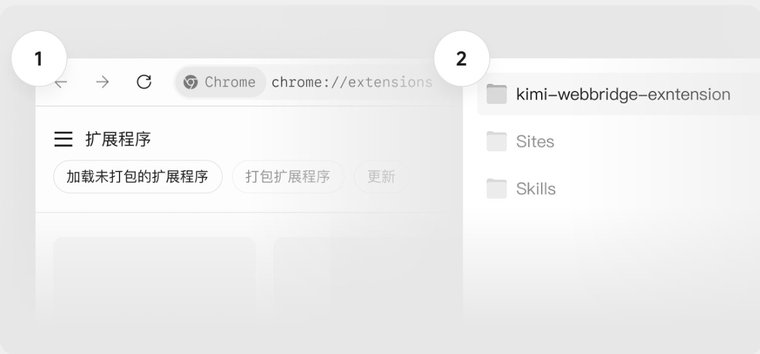
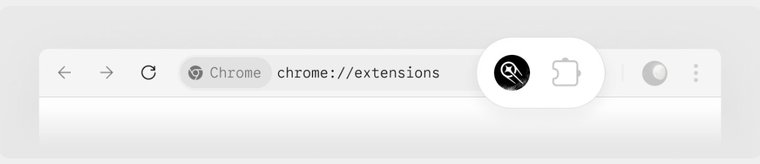
Once installed, the Kimi Browser Extension icon appears in the browser toolbar. Seeing the icon means the installation succeeded, and AI can start working on web pages for you.
What you can do
- Web automation: Just say what you need, and AI clicks through pages, fills in forms, reads content, and takes screenshots for you
- Social trending research: Automatically browse trending topics on X (Twitter), Weibo, and Xiaohongshu, open the top-liked posts one by one to screenshot and extract key viewpoints, then organize everything into a research library with topic suggestions
- Job listing collection: Filter positions on recruiting sites by keyword, city, and job type, and organize titles, links, companies, salaries, and application methods into a table
- Competitive analysis: Batch-question multiple AI products and collect their answers to build side-by-side comparison reports
- Flight price comparison: Query the same itinerary across multiple travel platforms, record airlines, departure/arrival times, and links sorted by price, and get recommended options
Kimi Computer Use v0.5.4
Kimi Computer Use lets AI operate your desktop apps directly, clicking, dragging, scrolling, and typing. The macOS version works silently in the background without taking over your mouse (a few popup actions may still bring an app to the foreground); see the notes below for how the Windows version differs.
Authorization (macOS)
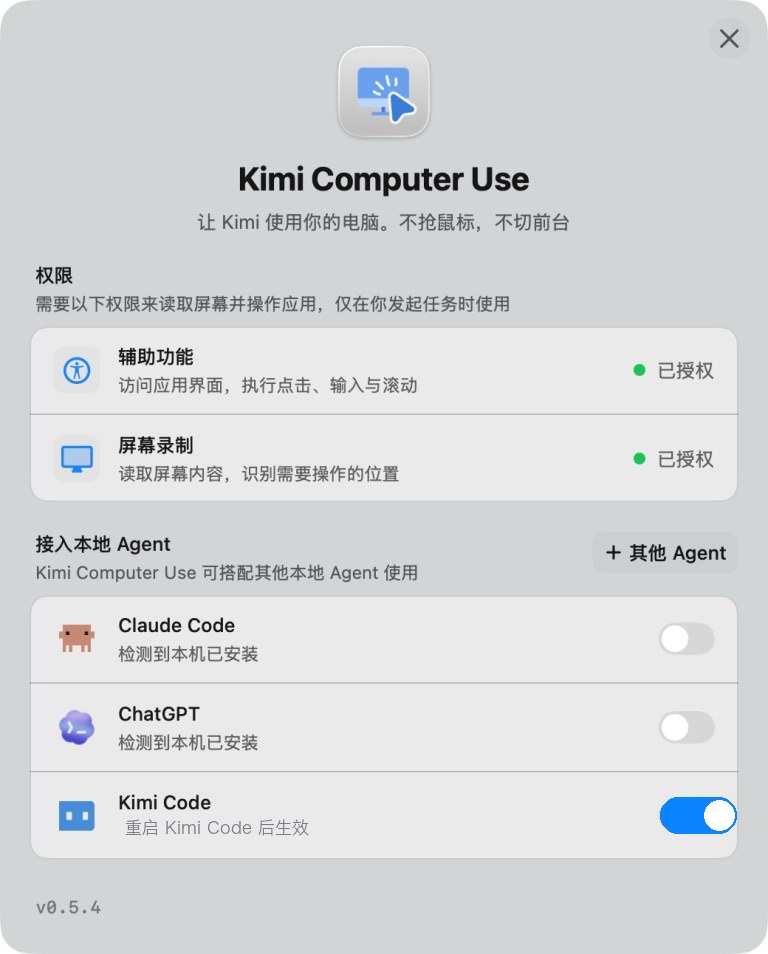
The first time you use Kimi Computer Use after installation, it shows an authorization window. Just follow the prompts:
- Click Authorize next to Accessibility and Screen Recording, and enable both permissions in System Settings: the former lets it perform clicks, typing, and scrolling; the latter lets it read screen content and locate UI elements
- Turn on the Kimi Code switch under "Connect local agents", then restart Kimi Code for it to take effect
Notes for the Windows version
The Windows version (WinCU) installs differently from the macOS one: run /plugins install https://cdn.kimi.com/kimi-computer-use-windows/latest/kimi-cu-win-plugin.zip in Kimi Code, then restart after installation. A few things to know before using it:
- It may briefly take over your mouse and keyboard: Unlike the macOS version, the Windows version cannot reliably inject input in the background; it may briefly activate the target window and use your real mouse and keyboard while performing actions
- System requirements: Windows 10 version 1903 (Build 18362) or later, or Windows 11, x64; a real interactive desktop session is required, and Windows Server needs Desktop Experience
- No extra permissions needed: Windows does not require the Accessibility and Screen Recording grants that macOS does
- Matching privilege level: If the target app runs as administrator, KimiCU must run at the same privilege level
What you can do
- Organize and enter information: Have AI gather scattered information into Notes, spreadsheets, or your note-taking app, instead of typing everything in by hand
- Walk through site and app flows: After changing a page, let AI click through the key flows and screenshot each step to confirm rendering and navigation work
- Handle repetitive operations: Repeatedly opening, copying, pasting, and checking can run silently in the background without taking over your mouse
- Run fixed-step tasks: For flows with clear steps, spell them out and AI follows along; for example, ask AI to open NetEase Cloud Music and play a specific song
- Handle software that has no API: Plenty of professional tools and internal systems have no CLI or API at all; what used to require your own clicking can now be handed to AI, like trimming the first three seconds off a clip in Final Cut Pro and exporting it
Note
Don't hand it anything involving money, accounts, or publishing, such as payments and transfers, deleting important files, changing passwords, or posting content. To judge whether a task is suitable, check three things: the result is verifiable, the action is reversible, and the risk of getting it wrong is low.
Plugin Manifest
A plugin is a directory or zip file containing a manifest. The manifest can be placed at either of the following locations:
<plugin_root>/kimi.plugin.json
<plugin_root>/.kimi-plugin/plugin.json
When both files exist, kimi.plugin.json takes precedence.
Example:
{
  "name": "kimi-finance",
  "version": "1.0.0",
  "description": "Finance data and analysis workflows for Kimi Code CLI",
  "skills": "./skills/",
  "systemPromptPath": "./SYSTEM.md",
  "sessionStart": {
    "skill": "using-finance"
  },
  "interface": {
    "displayName": "Kimi Finance",
    "shortDescription": "Market data and financial analysis workflows"
  }
}
Supported fields:
| Field | Description |
|---|---|
name | Required; serves as the plugin id. Must match [A-Za-z0-9_-]+(\.[A-Za-z0-9_-]+)*(@[A-Za-z0-9_-]+)? |
version, description, keywords, author, homepage, license | Display metadata |
interface | Shown in /plugins: displayName, shortDescription, longDescription, developerName, websiteURL |
skills | One or more ./ paths within the plugin root; if omitted, root SKILL.md is the single Skill root |
agents | One or more ./ paths within the plugin root, pointing to agent files; if omitted, agents/ is auto-discovered |
sessionStart.skill | Loads the specified plugin Skill into the main Agent when a new or resumed session starts |
skillInstructions | Additional instructions appended whenever a Skill from this plugin is loaded |
systemPrompt | Inline instructions contributed to the agent's system prompt while the plugin is enabled |
systemPromptPath | A ./ path to a UTF-8 text file; content is appended after systemPrompt when both are present |
mcpServers | MCP server declarations; enabled by default, can be disabled from /plugins |
hooks | Hook rules run on lifecycle events while enabled; see Hooks in Plugins |
commands | One or more ./ paths to a directory or .md file; registers the Markdown files inside as slash commands. See Plugin Slash Commands |
Unsupported runtime fields such as tools, apps, inject, and configFile appear as diagnostics and are ignored.
System-prompt instructions
Plugins inject instructions into the agent's system prompt through the systemPrompt and systemPromptPath fields. This section covers three parts: writing format and read timing, size limits, and the differences between the two engines.
Writing format and read timing
Use systemPrompt for a short inline instruction, or systemPromptPath to keep longer instructions in a file inside the plugin root. If both fields are present, the inline text appears first, followed by the file content. The file content is read when the plugin is installed or reloaded, so edits take effect only after /plugins reload. For example:
{
  "name": "code-review",
  "systemPromptPath": "./SYSTEM.md"
}
The built-in agent prompt includes instructions from enabled plugins automatically. A custom SYSTEM.md or agent file owns its template, so include ${plugin_sections} where plugin-contributed instructions should appear. If the custom template includes ${base_prompt} and that effective default already contains the plugin block, do not add ${plugin_sections} again. See Custom agents and SYSTEM.md for the complete variable table.
Size limits
Each field (the inline systemPrompt and the systemPromptPath file) is limited to 32 KB (UTF-8 bytes): oversized content is ignored and reported in the plugin diagnostics. Across all enabled plugins, one prompt build injects at most 64 KB of instructions; contributions beyond the budget are skipped with a warning, including a single plugin whose inline text and file together exceed that budget.
Differences between the two engines
System-prompt contributions take effect on every Kimi Code surface: the interactive TUI, kimi -p, and kimi web all run on the v2 engine.
Instruction refresh behavior under the two engines
New sessions and newly created agents read the contributions from the plugins currently enabled. An in-flight request keeps its existing system prompt. /plugins reload refreshes the plugin skill list and requests prompt rebuilds for live agents; use it when you need the change to converge deliberately before the next turn.
On the v2 engine, installing, enabling, disabling, or removing a plugin updates the catalog immediately, and a later prompt rebuild (for example after compaction or a tool-policy change) may pick up the new sections. The legacy engine keeps each live session's plugin snapshot until /plugins reload or a new session. A resumed session starts from its persisted prompt, and later rebuilds follow the engine-specific behavior above. Toggling a plugin's MCP server does not change system-prompt sections.
Plugin Slash Commands
Slash commands save a prompt you use often as a /command, so you can trigger it by typing the command instead of retyping the whole thing.
Here is a minimal end-to-end example. The plugin's directory structure:
kimi-finance/
  kimi.plugin.json
  commands/
    report.md
In the manifest (kimi.plugin.json), the commands field points to where the command files live:
{
  "name": "kimi-finance",
  "version": "1.0.0",
  "commands": "./commands/"
}
The command file commands/report.md. The block between the two --- lines at the top is frontmatter (metadata describing the command); everything below is the prompt sent to the Agent:
---
description: Pull and summarize a stock's latest financials
---

Pull the latest financials for $ARGUMENTS and summarize revenue, profit, and key risks.
After installing and enabling the plugin, type this in the chat:
/kimi-finance:report TSLAKimi replaces $ARGUMENTS in the body with TSLA, then runs the prompt. The three details below cover each step.
Declaring Commands (the commands field)
commands takes a single ./ path or an array of paths, each pointing to a directory or .md file inside the plugin root:
- Pointing at a directory: collects every
.mdfile under it recursively; each becomes one command. - Pointing at a single
.mdfile: registers just that one. - Pointing at a non-
.mdfile or a missing path: appears as a diagnostic (shown in the/pluginspanel) and is ignored.
Writing a Command File
A command file has two parts: an optional frontmatter (the metadata between the two --- lines at the top, where you set name and description) and the body (the prompt after the ---). When a field is omitted, it falls back as follows:
name(the command name): derived from the file's path relative to the declaredcommandspath (without.md, using/separators), e.g.commands/frontend/component.md→frontend/component. Anameset in the frontmatter takes precedence.description(shown in the command list): the first non-empty line of the body (truncated past 240 characters); if the body is empty too,No description provided.is shown.
Running Commands and Passing Arguments
Commands are prefixed with the plugin id (their namespace) and registered as <plugin>:<command>, so the command above is actually /kimi-finance:report. This keeps same-named commands from different plugins from colliding.
Whatever you type after the command replaces $ARGUMENTS in the body (above, TSLA replaces $ARGUMENTS). If the body has no $ARGUMENTS but you pass arguments anyway, they are not dropped; they are appended to the end of the body as ARGUMENTS: <what you typed>.
Skills and Session Start
Plugin Skills use the same SKILL.md format as ordinary Agent Skills. A typical directory structure:
my-plugin/
  kimi.plugin.json
  skills/
    using-my-plugin/
      SKILL.md
    another-workflow/
      SKILL.md
sessionStart.skill loads a plugin Skill into the main Agent at session start, making it suitable for initialization instructions, workflow rules, or mapping terminology from other tools to Kimi Code CLI. It only injects text; it does not execute code. The value is the Skill's frontmatter name as declared inside the plugin, without the <plugin-id>: prefix.
Plugin Skills are listed and invoked under the qualified name <plugin-id>:<skill-name> — for example /skill:my-plugin:using-my-plugin — mirroring plugin slash commands. This keeps same-named Skills from different plugins distinct, and a bare skill name never resolves to a plugin Skill. If a plugin command and a plugin Skill share the same name, /plugin-id:name runs the command; invoke the Skill with the explicit /skill:plugin-id:name form.
Regardless of how a Skill is loaded (sessionStart.skill, /skill:<name>, or automatic model invocation), skillInstructions appears alongside that plugin's Skill.
Plugin Agents
A plugin can ship custom agents: declare one or more ./ directories in the manifest's agents field (or simply place an agents/ directory under the plugin root). The agent files inside use the same format as custom agents and, while the plugin is enabled, are discovered automatically and can be delegated to as sub-agents by the main Agent.
my-plugin/
  kimi.plugin.json
  agents/
    reviewer.md
Plugin agents rank below every other file source: on a name collision, user-level, extra, project-level, and --agent-file agents all win over the plugin-provided one, and replacing a built-in agent still requires an explicit override: true in the frontmatter. After installing, enabling, disabling, or removing a plugin, the agent list refreshes in a new session (or on /reload); on the v2 engine the live session also refreshes after /plugins reload.
MCP Servers in Plugins
When a plugin needs real tool capabilities, it can declare mcpServers in its manifest, reusing the MCP schema.
Stdio server (local command):
{
  "mcpServers": {
    "finance": {
      "command": "uvx",
      "args": ["kimi-finance-mcp"]
    }
  }
}
HTTP server (remote service):
{
  "mcpServers": {
    "docs": {
      "url": "https://example.com/mcp"
    }
  }
}
For stdio servers, command can be a command on PATH or a path starting with ./ within the plugin root directory. cwd likewise must start with ./ and be within the plugin root directory; otherwise the server is ignored.
Plugin MCP servers start after /reload or in new sessions. To enable or disable a server:
/plugins mcp disable kimi-finance finance
/reload

/plugins mcp enable kimi-finance finance
/reload
Hooks in Plugins
A plugin can declare hook rules in its manifest that run on lifecycle events while the plugin is enabled. Each entry uses the same fields as a [[hooks]] rule in config.toml (event, matcher, command, timeout):
{
  "hooks": [
    {
      "event": "PreToolUse",
      "matcher": "Bash",
      "command": "node ./hooks/check-bash.mjs",
      "timeout": 5
    }
  ]
}
Plugin hooks reuse the same mechanism as global hooks. See Hooks for the event list, the stdin JSON payload, and how exit codes and return values affect the main flow. The differences are:
- A plugin's hooks are active only while the plugin is enabled; disabling the plugin stops its hooks.
- Each hook runs with its working directory set to the plugin root, so
commandcan use./paths inside the plugin. - The hook process receives two extra environment variables:
KIMI_CODE_HOMEandKIMI_PLUGIN_ROOT(the plugin root directory).
Installing a plugin never runs its hooks by itself. They only fire when their matching event occurs while the plugin is enabled.
Security Model
Plugins have a limited loading scope. The following operations do not occur during installation or session startup:
- Command-type plugin tools and legacy tool runtimes are not executed
- All paths must remain within the plugin root directory after symbolic link resolution
- MCP servers of enabled plugins start after
/reloador in new sessions and can be disabled at any time from/plugins - Broken manifests or unsafe paths appear in
/plugins info <id>diagnostics and do not affect other sessions
Next steps
- Agent Skills — Learn the
SKILL.mdformat and write Skills that ship with your plugins - Custom agents — Agent file format and directory-scope precedence
- MCP — The schema that MCP server declarations in plugins reuse
- Hooks — The global hook mechanism that plugin hooks reuse