Kimi Business FAQ
What kinds of teams is Kimi Business for?
Kimi Business is designed for small and medium-sized businesses that need team collaboration, especially teams that require seat management, higher usage credit, and data security protection.
Can one user join multiple enterprises?
Yes. Each user can join up to 10 enterprise organizations and occupies a separate seat in each organization.
How soon can members use their benefits after joining?
Enterprise benefits take effect immediately after a member accepts the invitation and joins successfully. When a new member joins using an unassigned seat or a newly added seat, they receive the full credit for the current billing period; it is not prorated based on the join date or the remaining days of the month. If the same member is removed and then rejoins within the original seat’s validity period, the original seat is reused and a new full credit for the current period will not be issued.
Can I buy additional seats during the subscription period?
Yes. Administrators can buy additional seats at any time. The price is prorated based on the remaining days from the purchase date to the subscription expiry date, and the additional seats expire at the same time as the original subscription.
Can the administrator role be transferred?
The current version does not support self-service administrator transfer. If you need to make a change, please contact customer support.
Support email: [email protected]
How do I request an invoice for a Kimi Business subscription?
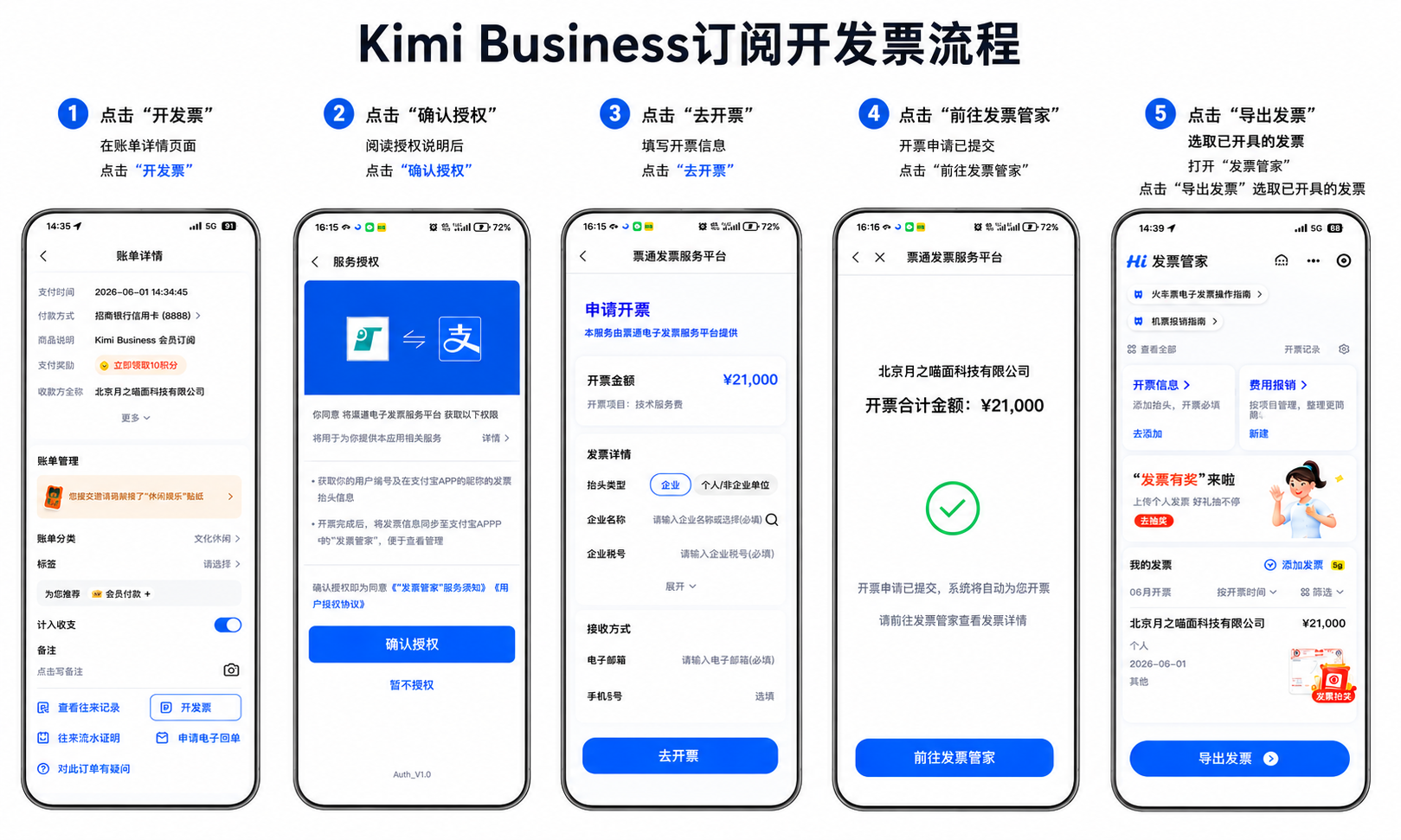
After a domestic order is paid, go to Alipay, open the bill details page for the corresponding order, find the “Request invoice” entry at the bottom of the page, then fill in the invoice information and submit the invoice request as prompted by Alipay. After the invoice is issued, you can view or export the electronic invoice in Alipay “Invoice Manager”.
How can Kimi Business be paid by corporate bank transfer?
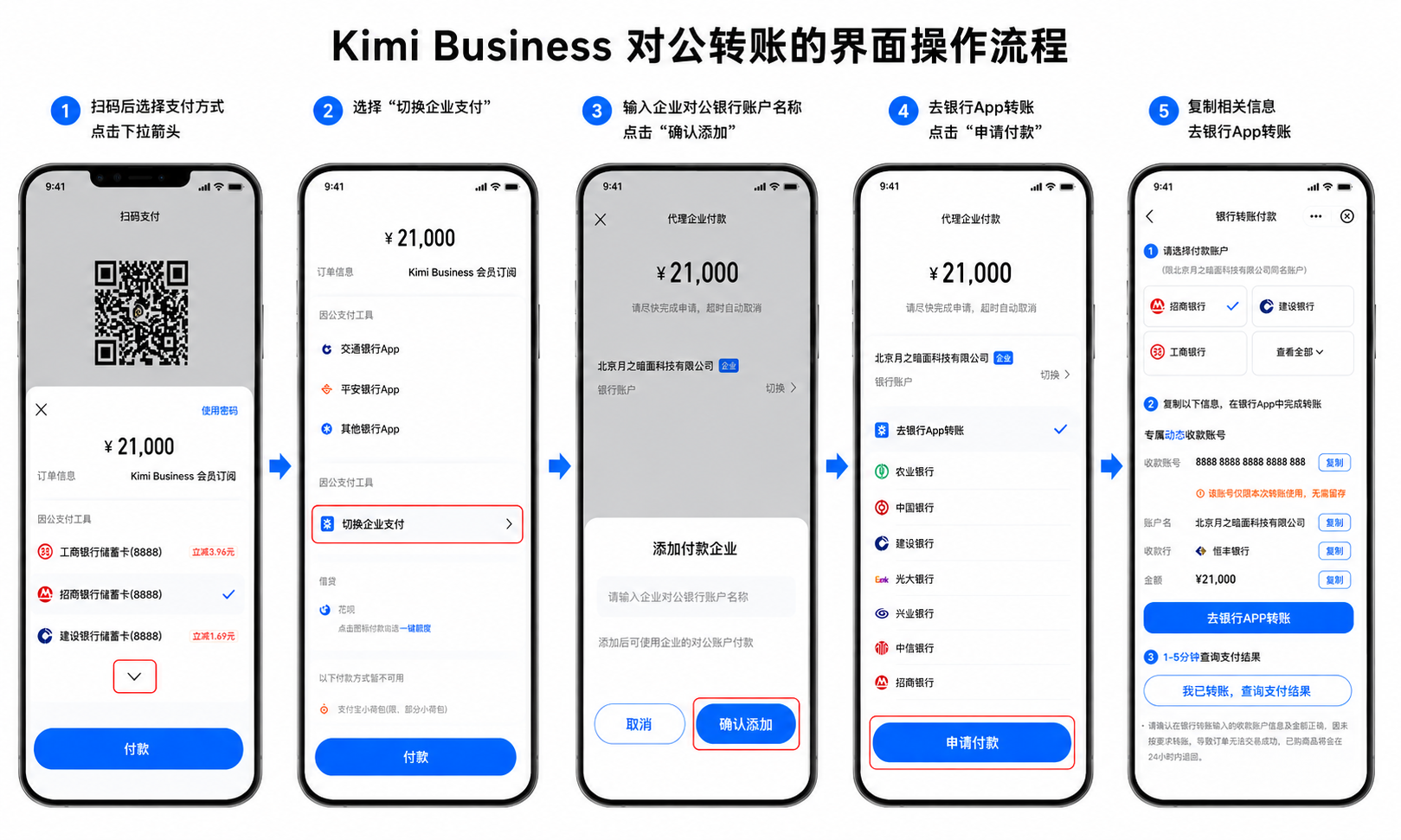
Corporate bank transfer is supported. Follow these steps:
-
Select a payment method
After scanning the code, go to the payment page and click the down arrow to expand the list of payment methods.
-
Switch to enterprise payment
Select the “Switch to enterprise payment” option.
-
Add the paying enterprise
Enter the enterprise’s corporate bank account name, then click “Confirm add”.
-
Complete the transfer
Copy the receiving account number, account name, receiving bank, amount, and other information, then go to your bank App to complete the transfer. Return to the page after 1–5 minutes to check the payment result.
Note: The receiving account number is only for this transfer and does not need to be saved. The transfer amount must match the order amount exactly (example: ¥21,000). If the order fails because the transfer was not made as required, the funds will be returned within 24 hours. If you have any questions, please contact customer support at [email protected].
Why does Kimi Business not show as a membership in the App? How do I use it on desktop?
Kimi App currently does not support Kimi Business features and only supports personal membership. The desktop client already supports Kimi Business. To use it:
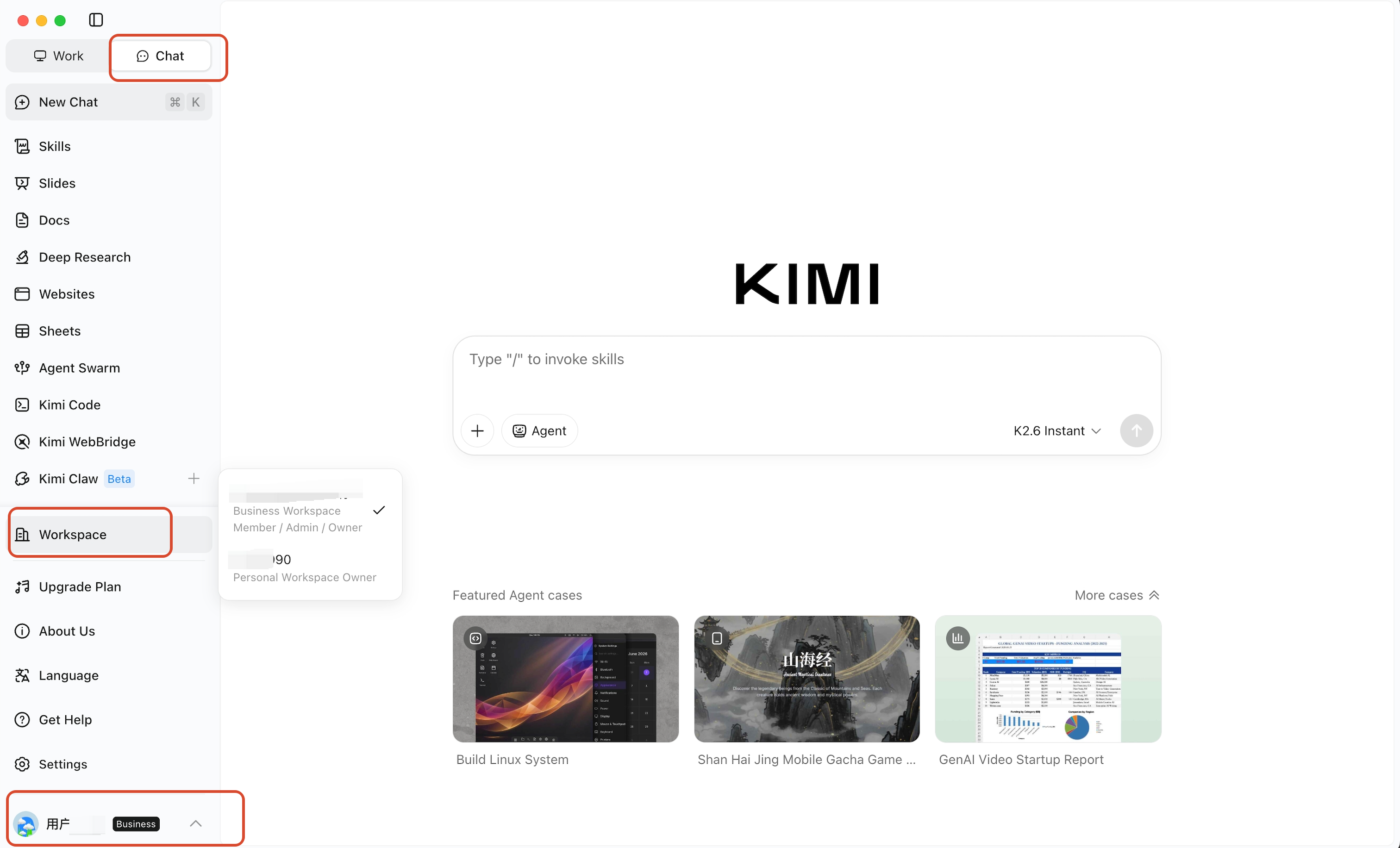
- Open the Kimi desktop client and sign in with an account that has joined the enterprise organization.
- In the upper-left corner, switch to Chat mode.
- Click the avatar / workspace entry, then switch to the enterprise workspace.
- After switching, you can use your Kimi Business benefits on desktop.
Personal and enterprise plans are independent. If you have activated a personal membership, you can still use your personal membership benefits normally in the App. On desktop, you can use either personal or enterprise benefits depending on the current workspace.
Where can I find information about Kimi Business authorization, agreements, compliance, and security?
For Kimi Business authorization, agreements, compliance, security, and related matters, please refer to the official Kimi agreements and public pages. You can start by reading the Kimi User Service Agreement and Kimi Paid Service Agreement to learn about account use, paid services, benefit scope, risk notices, limitations of liability, and related terms.
If you need an enterprise contract, compliance materials, or security-related documents, please contact sales or customer support for confirmation.
Was this article helpful?