Configure WeChat for Kimi Claw
Only Kimi Claw instances created after March 22, 2025 include the WeChat plugin and support one-click WeChat setup.
Setup Steps
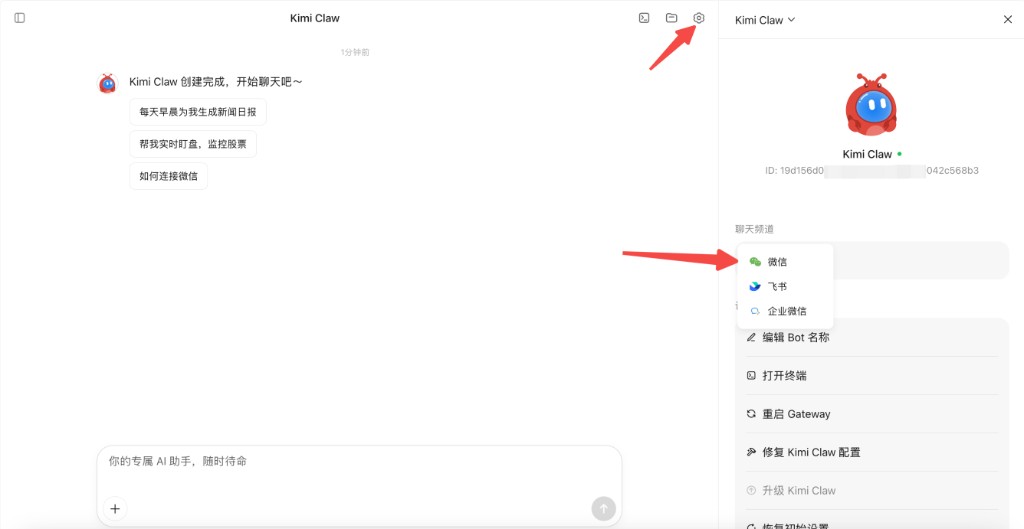
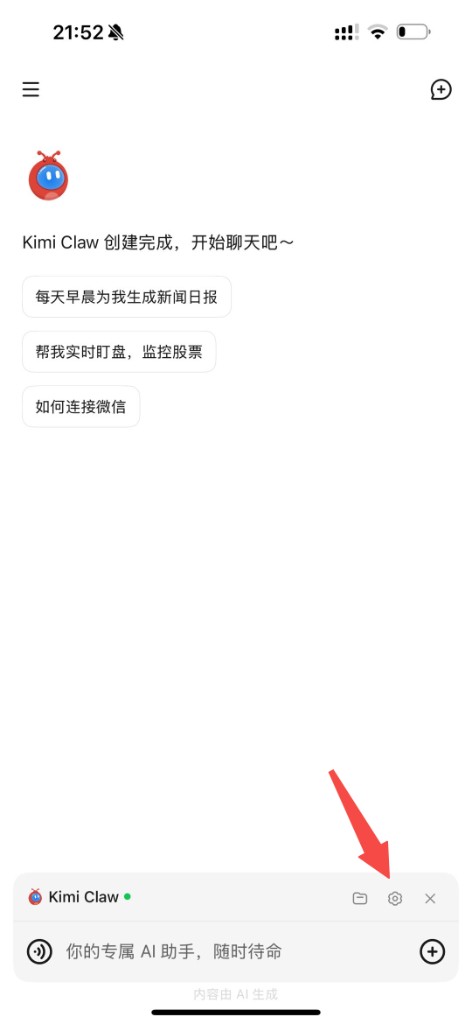
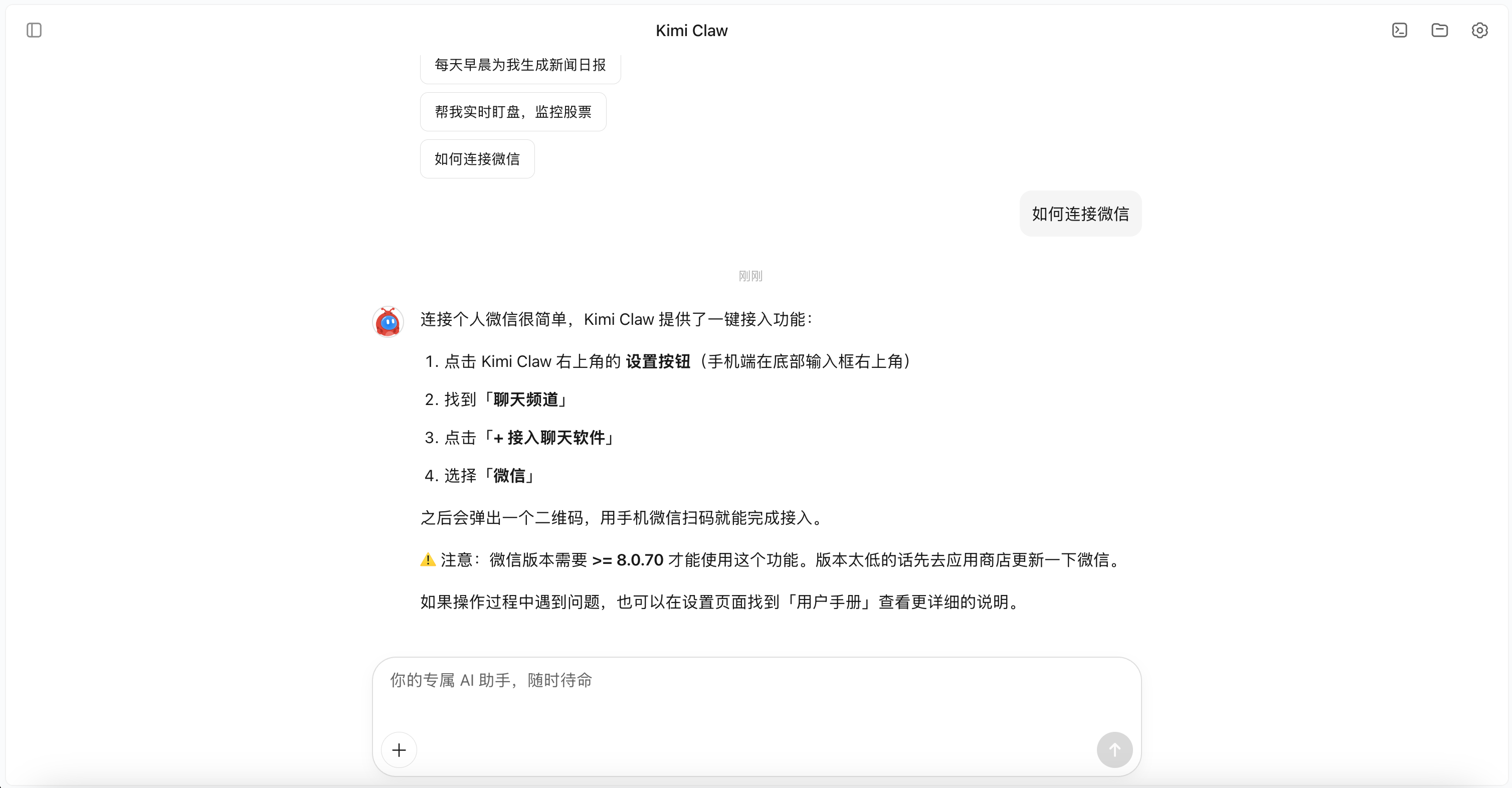
Step 1: Open the WeChat channel
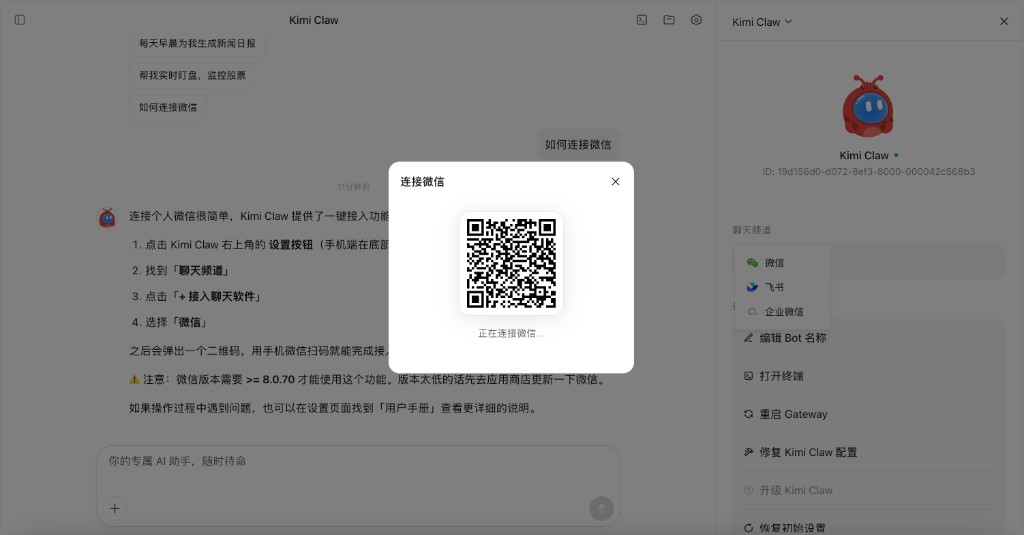
Open Kimi Claw settings, select “Chat Channels”, then select “WeChat”.
Step 2: Scan the connection QR code
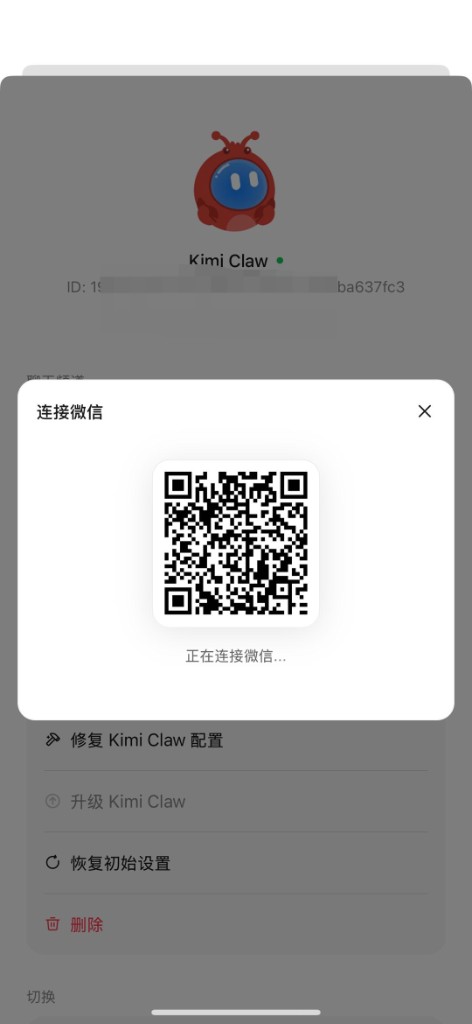
The page will display a WeChat connection QR code. Open WeChat and scan it.
If you are doing this on the same mobile phone, take a screenshot of the QR code and save it to your album first, then choose the album image in WeChat’s “Scan” to recognize it.
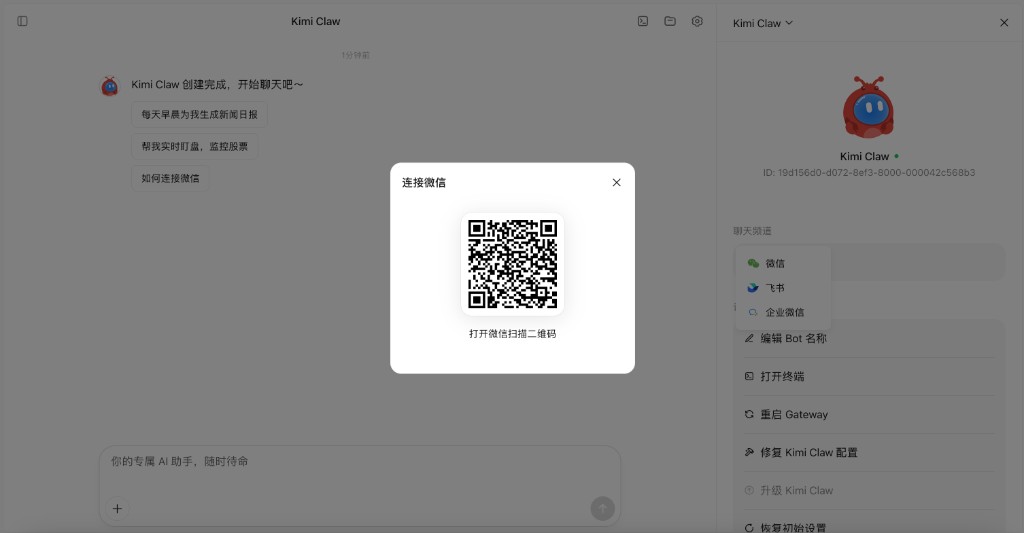
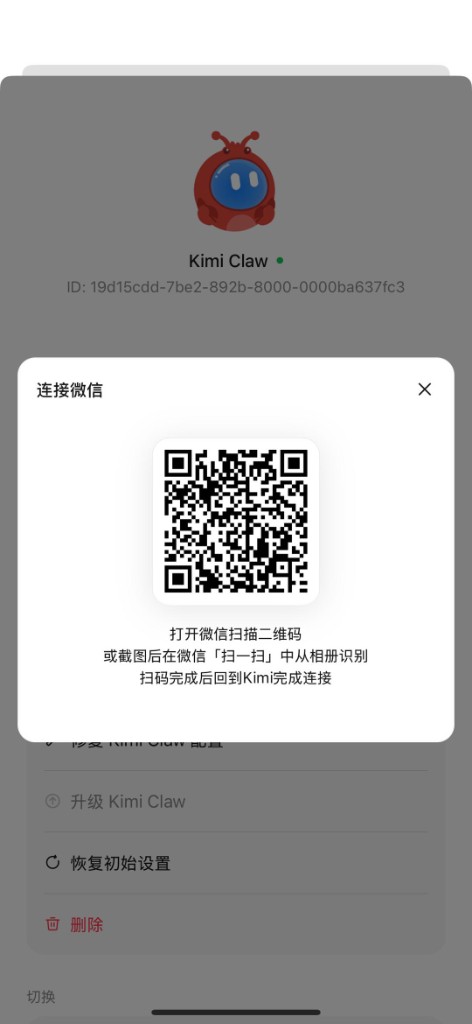
Step 3: Confirm the connection
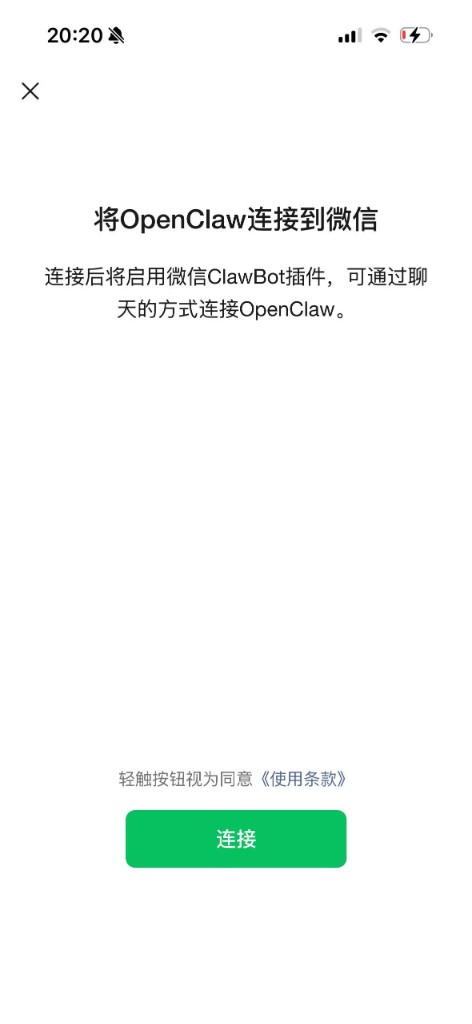
After scanning the code, you will see a connection page in WeChat. Tap “Connect”.
- Each WeChat account can bind only one Kimi Claw. Connecting a new one will overwrite the previous Kimi Claw.
- After tapping “Connect”, do not close the page. Wait until the WeChat connection is complete.
- If you are operating on mobile, switch back to the Kimi App and wait for the connection to complete.
Step 4: Start chatting
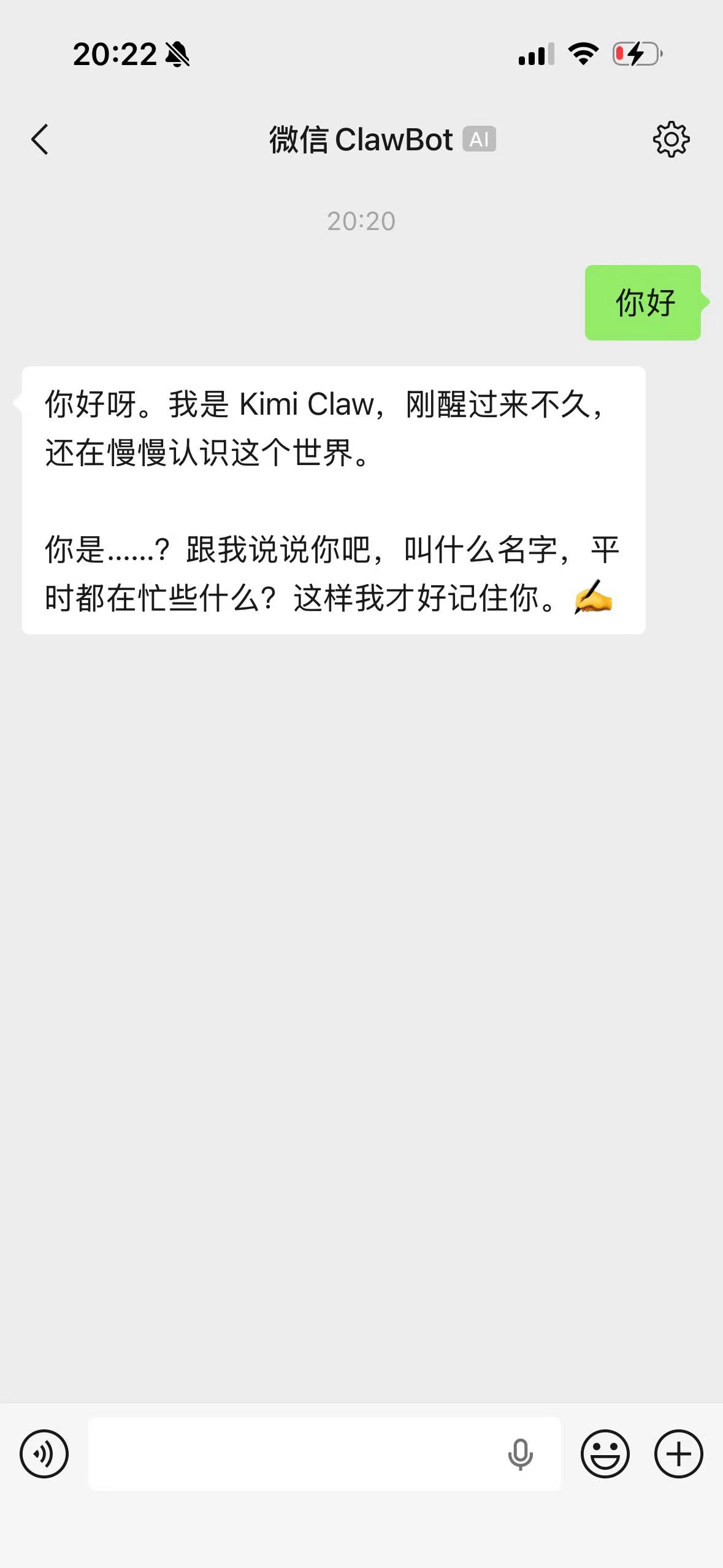
After the connection is complete, you can chat with Kimi Claw in WeChat. If you cannot find the chat entry, you can also ask directly in Kimi Claw.
Notes
- Each WeChat account can bind only one Kimi Claw. Connecting a new Kimi Claw will automatically overwrite the previous binding.
- If you need to switch the bound Kimi Claw, first disconnect WeChat in the original Kimi Claw, then scan the code again in the new Kimi Claw to bind it.
Was this article helpful?