Kimi 3D Make: Feature Guide
What is 3D Make?
Kimi 3D Make is Kimi's AI 3D creation product, powered by the Kimi K3.1 Pro model. Simply describe your idea in natural language (or upload a sketch or reference image), and Kimi turns it into a 3D creation: build interactive 3D websites and games, generate detailed 3D models, and export files ready for 3D printing.
No modeling software or coding required — from a single sentence to a previewable, editable, shareable 3D creation, the entire workflow happens inside Kimi.
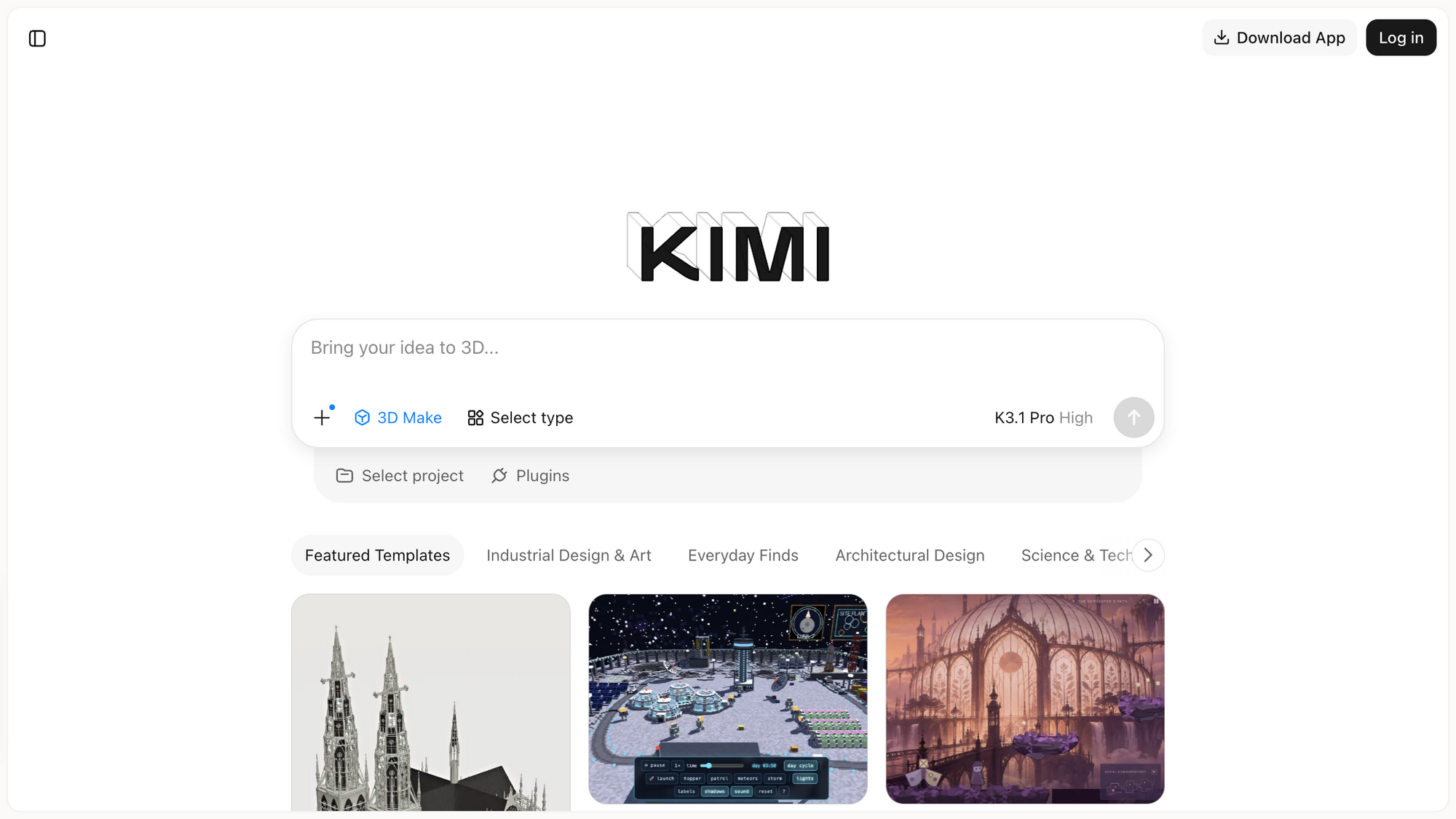
Feature Overview
| Feature | Description |
|---|---|
| 3D Web | Generate interactive 3D websites, web scenes, and web games from natural language, with online preview and sharing |
| 3D Modeling | Generate detailed 3D models from text descriptions, sketches, or reference images; preview and edit online |
| 3D Printing | Export generated models as files ready for 3D printing — download and send to your printer |
| Conversational creation | Describe what you want in the input box and AI generates the 3D creation |
| Image understanding | Upload a sketch or reference image and AI recreates it as a 3D creation |
| Featured templates | Official curated cases across categories like Industrial Design & Art, Everyday Finds, Architectural Design, Science & Tech, and Games |
| Remix | Reuse the complete Prompt behind a featured case, tweak the description, and quickly generate a work in the same style |
| Multi-turn editing | Iterate on your creation through ongoing conversation until you're satisfied |
| Export & share | Export print-ready files, videos, or Live Photos, and share your work via link |
How to Use
Option 1: Dedicated web page
- Open the 3D Make page in a mainstream browser (Chrome, Safari, Edge, etc.): https://www.kimi.com/en/make3d;
- Log in with your Kimi account (phone number or email registration supported);
- Describe the 3D work you want in the input box to start creating.
Option 2: Kimi homepage entries
On the Kimi homepage (https://www.kimi.com), there are two entries:
- In the feature bar below the input box, click "3D Make";
- In the left sidebar, click "3D Make" (marked New).
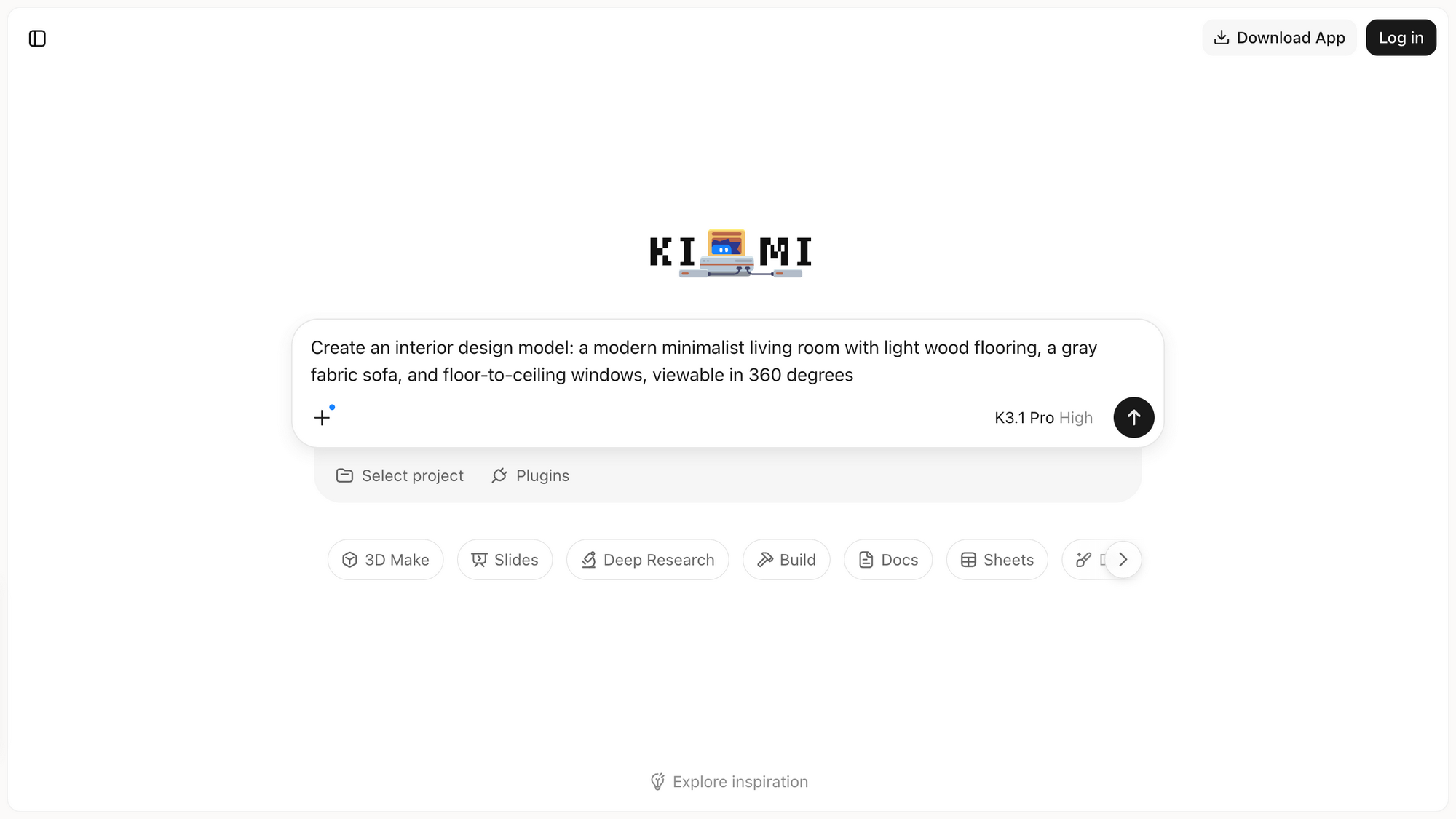
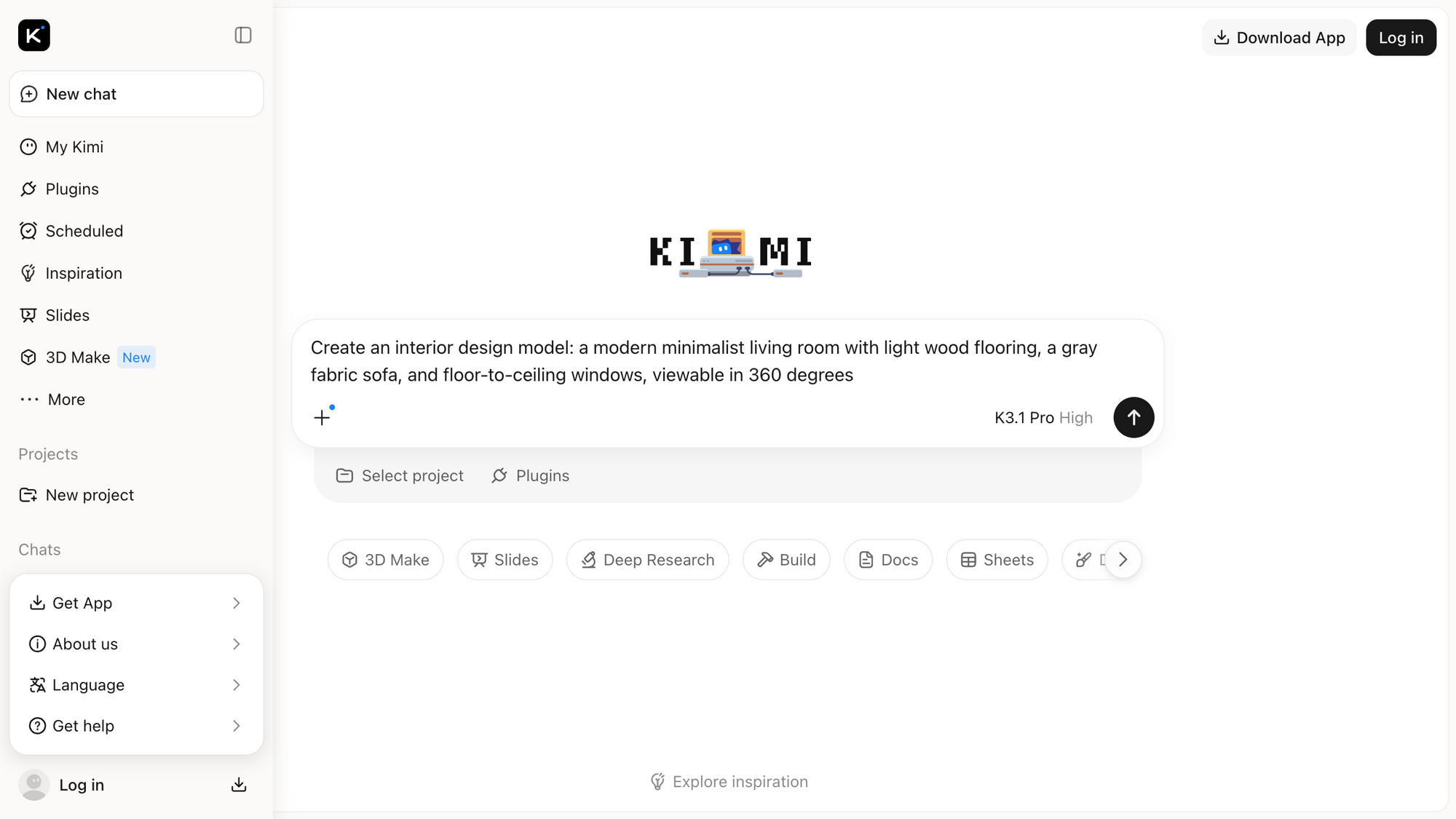
Option 3: Mobile app
The official Kimi app is available on iOS / Android / HarmonyOS. Open 3D Make inside the app to start creating.
Step-by-Step Guide
Step 1: Choose a creation type
Click "Select type" below the input box and choose one of the three types:
- 3D Web: generate interactive 3D websites and web games;
- 3D Modeling: generate 3D models you can preview and edit;
- 3D Printing: generate a model and export a print-ready file.
If you don't choose, Kimi infers the type from your description.
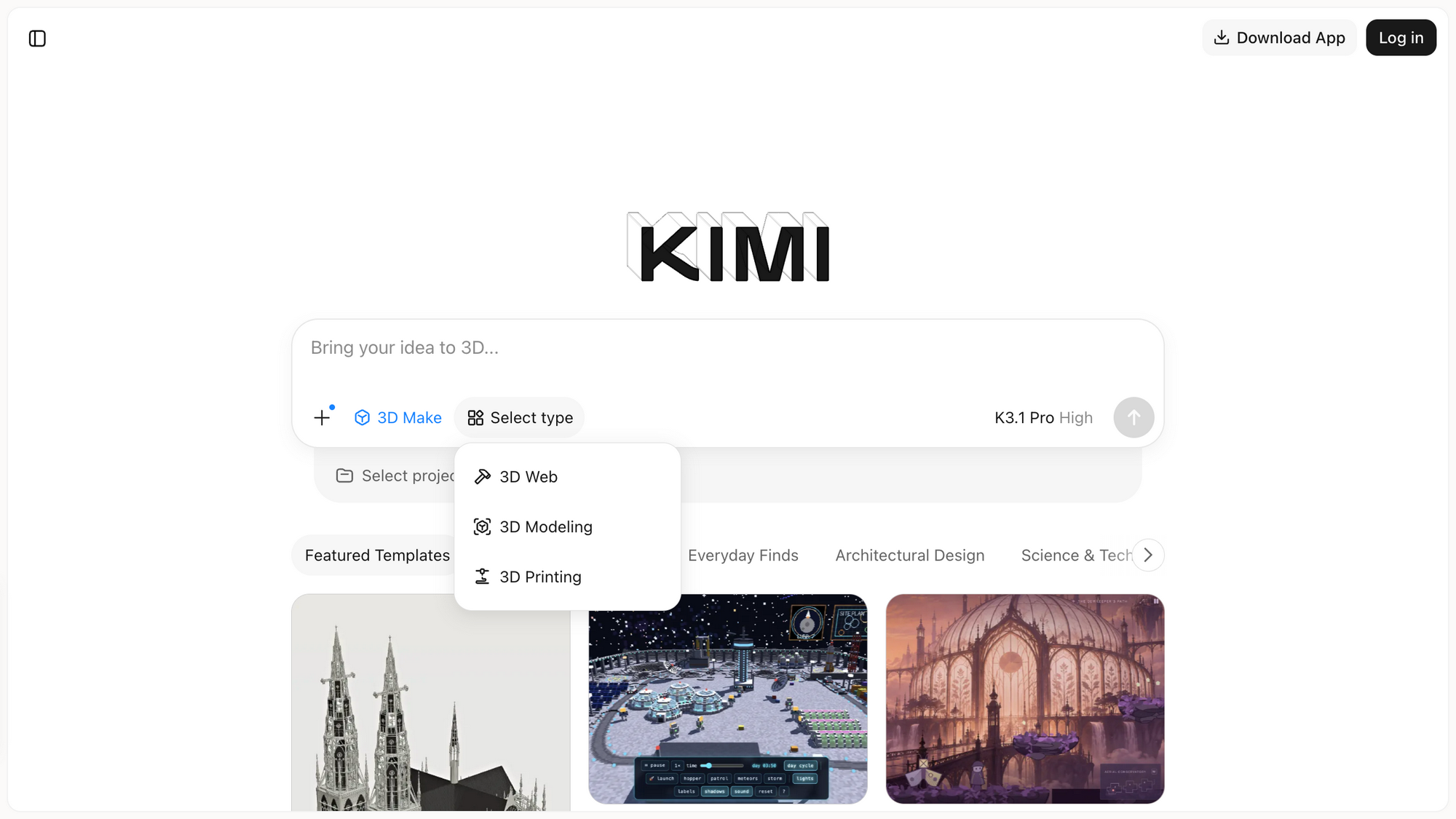
Step 2: Describe your idea
Describe what you want in natural language, for example:
You can also click "+" on the left of the input box to upload a sketch or reference image for Kimi to recreate.
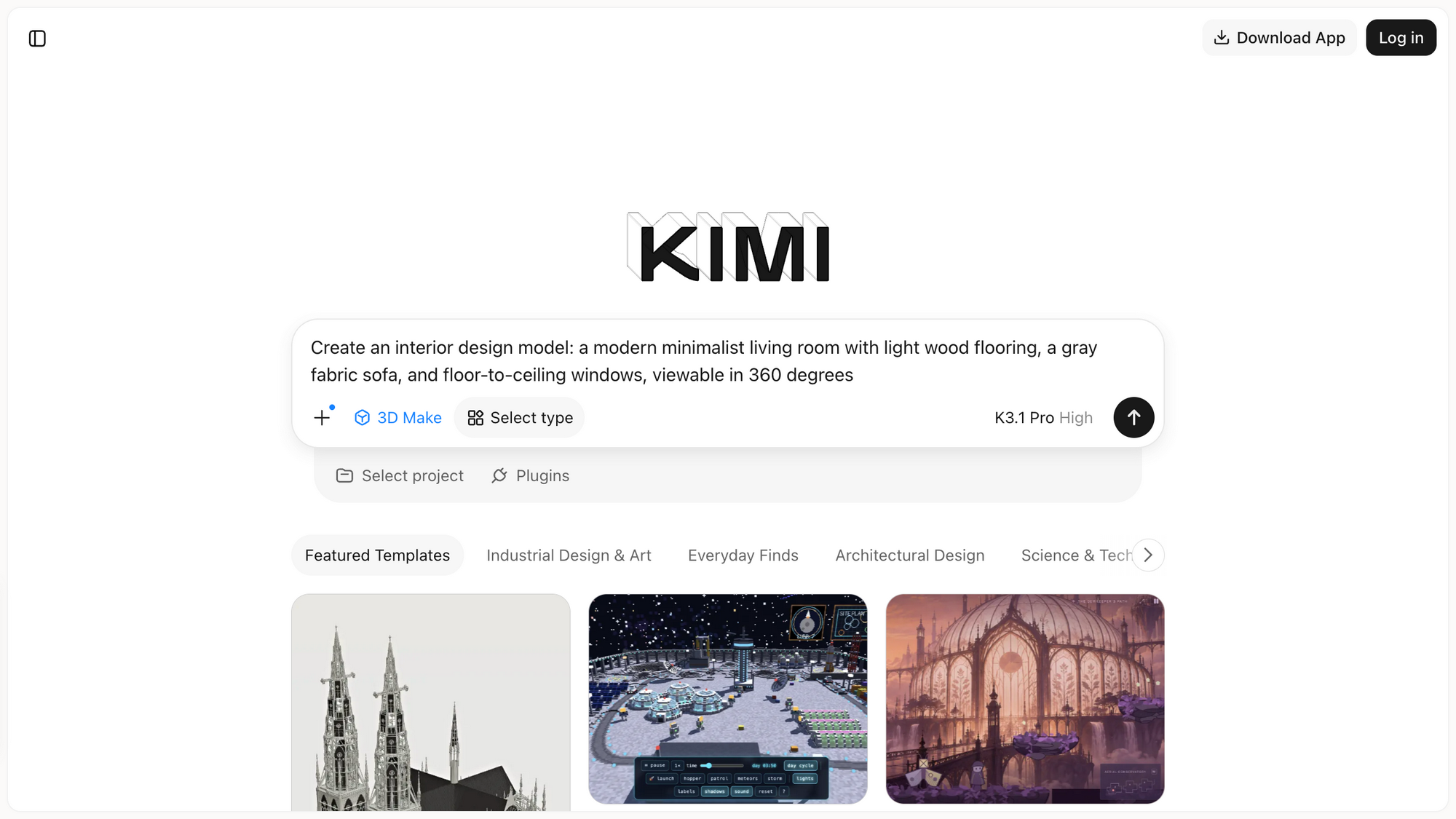
Step 3: Generate and preview in real time
After you send the request, Kimi starts building your 3D work. Once generated, you can rotate it 360° and zoom in and out directly on the page.
Step 4: Multi-turn editing
Not satisfied? Continue the conversation with revision requests, for example:
Step 5: Export and share
- 3D printing: download the print-ready file, import it into your slicing software, and print;
- Video / Live Photo: export your 3D work as a video or Live Photo for social sharing;
- Share link: generate a public link so others can view your 3D work online.
Featured Templates & Remix
Not sure where to start? The "Featured templates" section below the homepage offers official curated cases (marked "Selected by Kimi"), browsable by category:
- Industrial Design & Art
- Everyday Finds
- Architectural Design
- Science & Tech
- Games
- Others
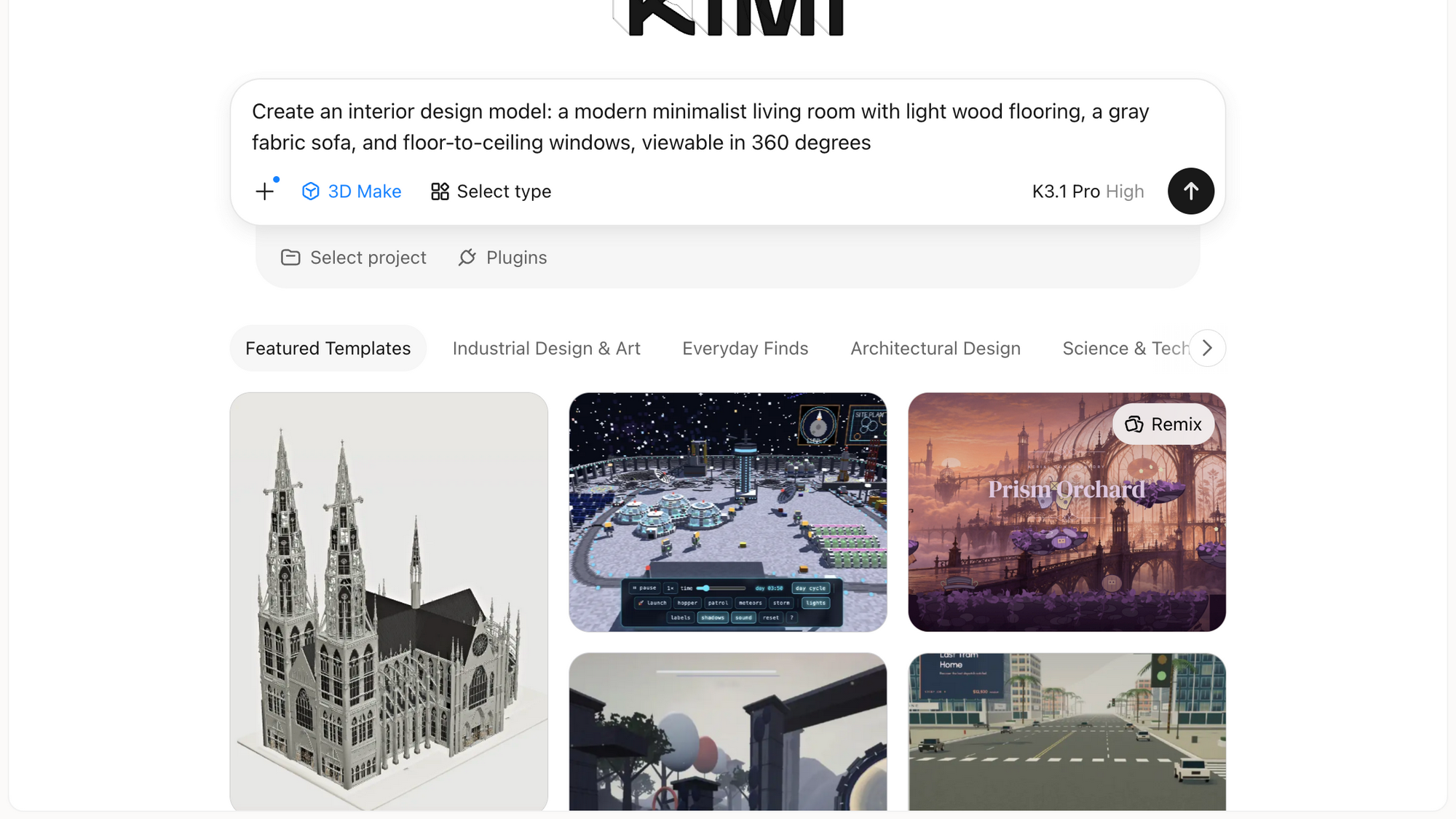
Remix: create fast from official cases
Each featured case comes with the complete, officially tuned Prompt behind it. Reuse and modify it to quickly make a work in the same style:
- Open the case details: click a template card (or hover over a card and click the "Remix" button that appears);
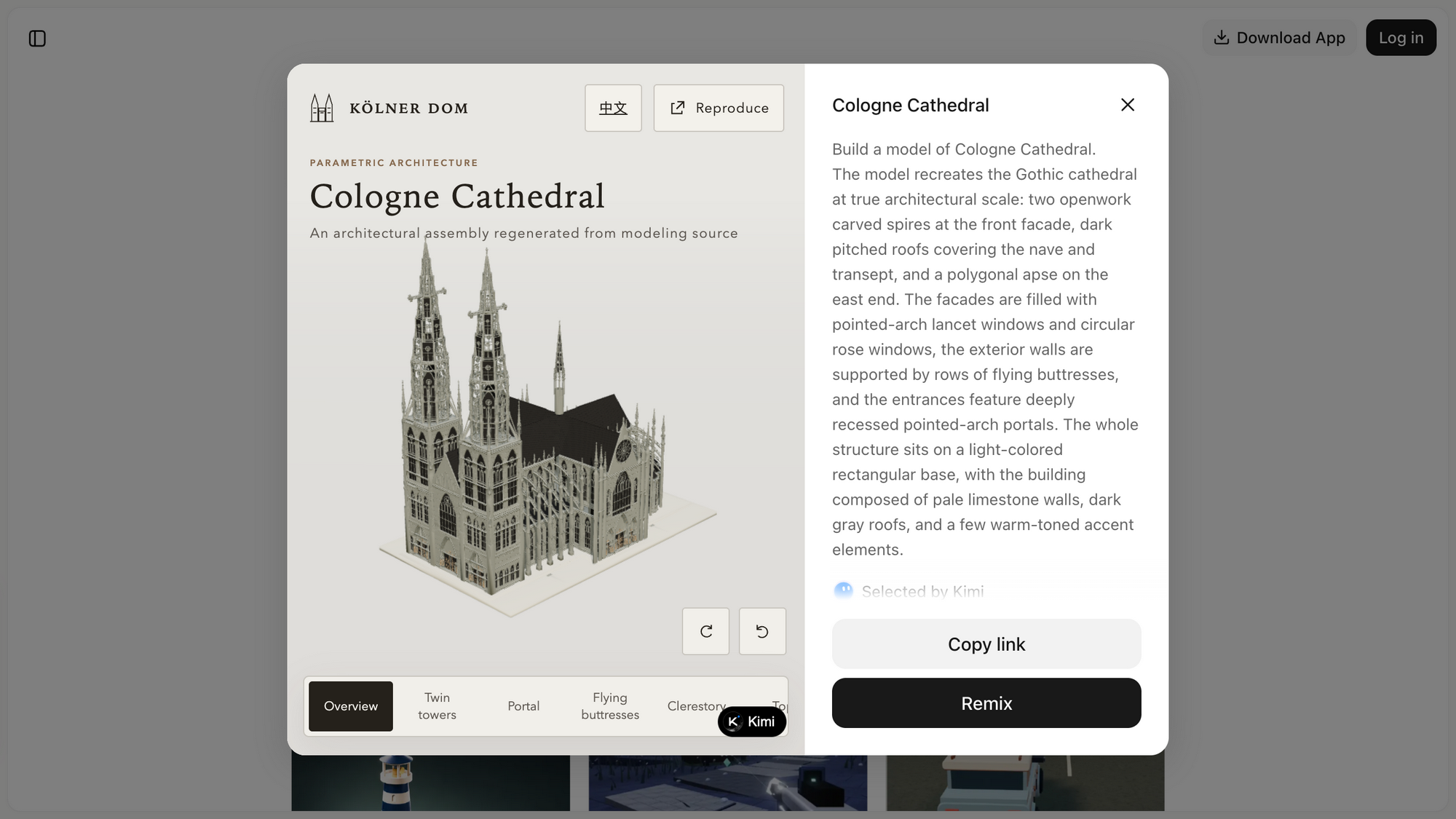
- View the original and its Prompt: the detail page shows an interactive 3D preview on the left (some models support component views such as "Overview / Twin towers / Portal"), and the full original Prompt on the right; click "Reproduce" to copy it, or switch between Chinese and English;
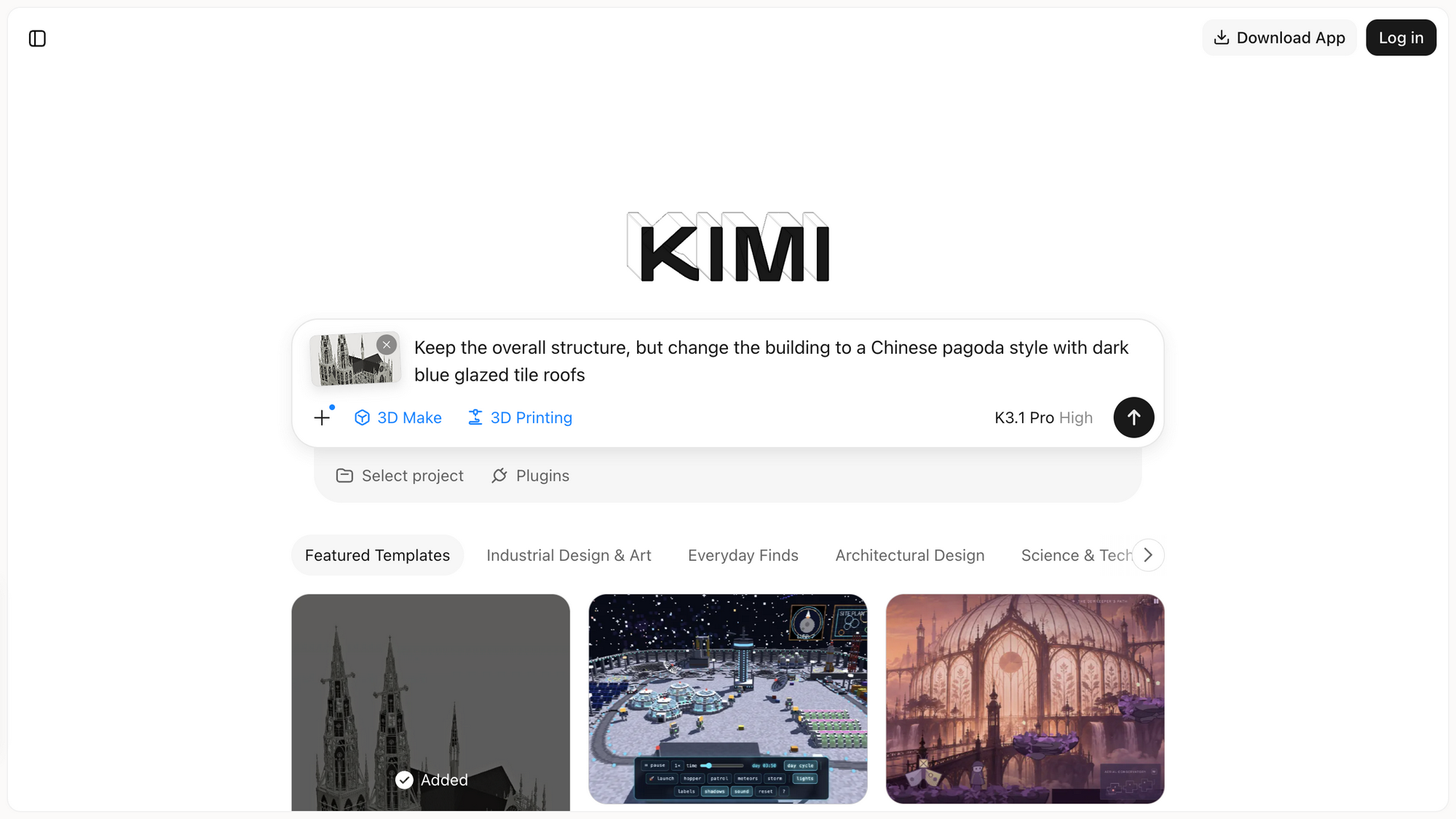
- Click "Remix": back on the homepage, the template thumbnail is automatically attached to the input box, and the creation type is matched automatically (an architecture model, for example, auto-selects "3D Printing");
- Adjust the Prompt: describe how you want to modify the template, for example:
- Send to generate: Kimi combines the original case's Prompt with your modifications to generate a new work in the same style.
Changed your mind? Click the "×" on the template thumbnail in the input box to remove it and return to free creation.
Who Is It For
- Designers and creators: turn ideas into presentable 3D prototypes quickly, no modeling software experience needed;
- 3D printing enthusiasts: go from idea to print-ready file, skipping the modeling stage;
- Teachers and students: create 3D teaching demos and course projects;
- Product managers and marketers: quickly produce interactive 3D showcase and campaign pages;
- General users: no coding or modeling knowledge required — just describe your idea.
Example Prompts
| Scenario | Example prompt |
|---|---|
| 3D web page | Create an interactive 3D web page of the solar system where clicking a planet shows its introduction, with rotation and zoom |
| Web game | Make a 3D web mini-game: pilot a spaceship weaving through an asteroid belt to dodge obstacles |
| Interior model | Create an interior design model: a modern minimalist living room with light wood flooring, a gray fabric sofa, and floor-to-ceiling windows |
| Architecture model | Generate a detailed 3D model of a Gothic cathedral, suitable for display |
| 3D printing | Design a desk stand that holds both a phone and a tablet, and export a 3D-printable file |
| Image recreation | [Upload a sketch] Turn this sketch into a 3D model, keeping the overall proportions |
Tips
- Be specific: state the purpose (web page / model / printing), style, materials, colors, and proportions — the more specific, the closer the result;
- Use reference images: when you have a sketch or an example you like, upload it — it's more accurate than text alone;
- Build complex works step by step: establish the overall structure first, then refine details over multiple turns;
- Check the model before printing: for 3D printing, preview the model online to confirm there are no holes and the proportions are right before exporting.
Notes
- Usage quota: 3D Make consumes Kimi's unified usage quota for both generation and edits. To check your quota: on the web, go to "Me → Settings → Subscription"; in the app, go to "Me → Membership → Subscription".
- Generation time: generating 3D works takes some time; complex works may take a few minutes. Please be patient.
- Content discretion: 3D content is AI-generated and for reference only — please review it carefully. For physically printed objects, pay attention to structural safety.
- Terms: 3D Make is subject to the Kimi User Service Agreement. If your input violates the usage rules, Kimi may suspend or stop providing the service.
Related Links
- Product page: Kimi 3D Make
Was this article helpful?