Use Skills in Agent Mode
How to Invoke Skills
In the input box of Kimi Agent mode, you can invoke Skills in three ways:
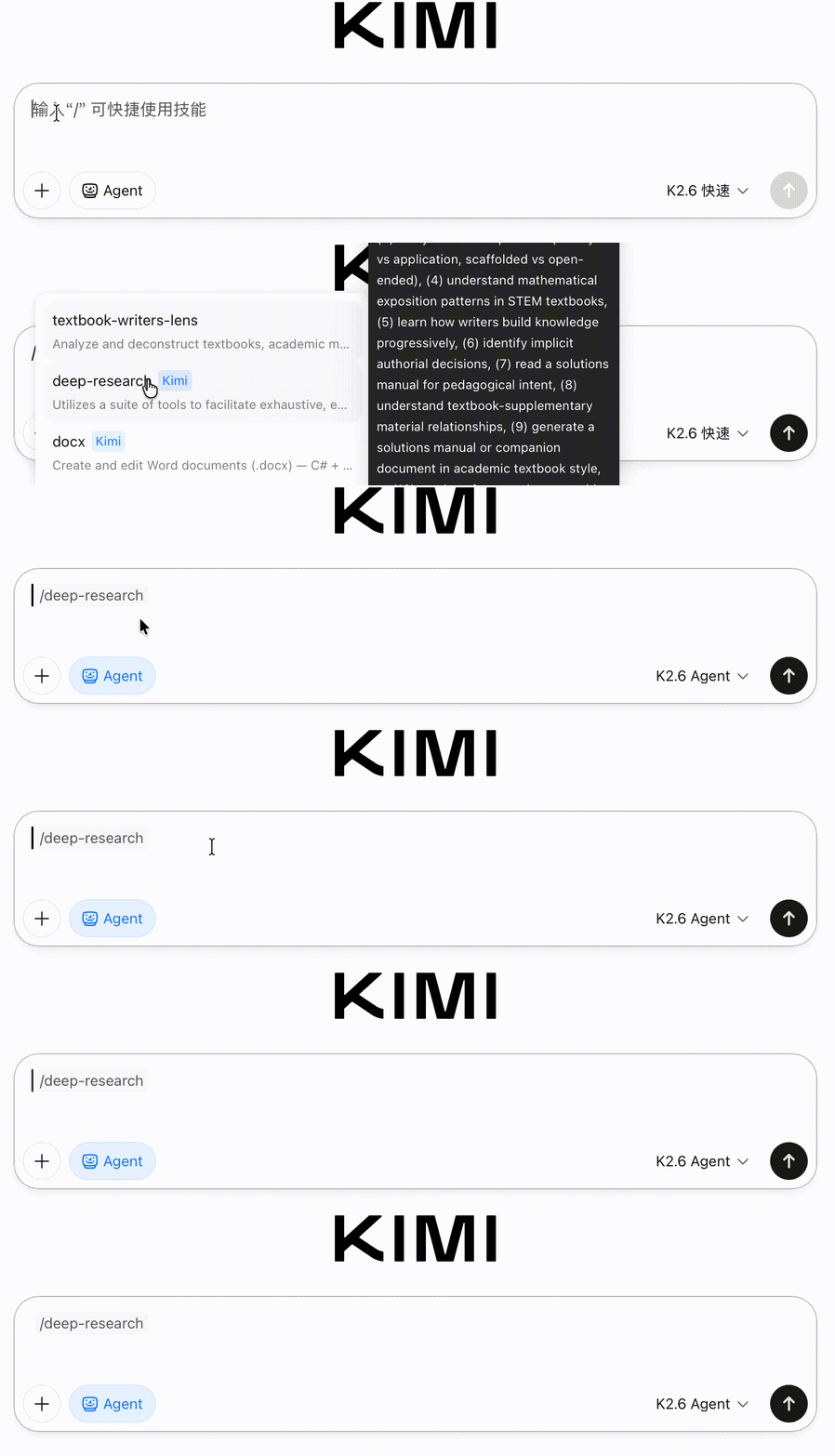
Method 1: Enter the / command
Type / in the input box to open the Skills list, then click the Skill you want to insert it automatically. You can also keep typing keywords after / to filter Skills.
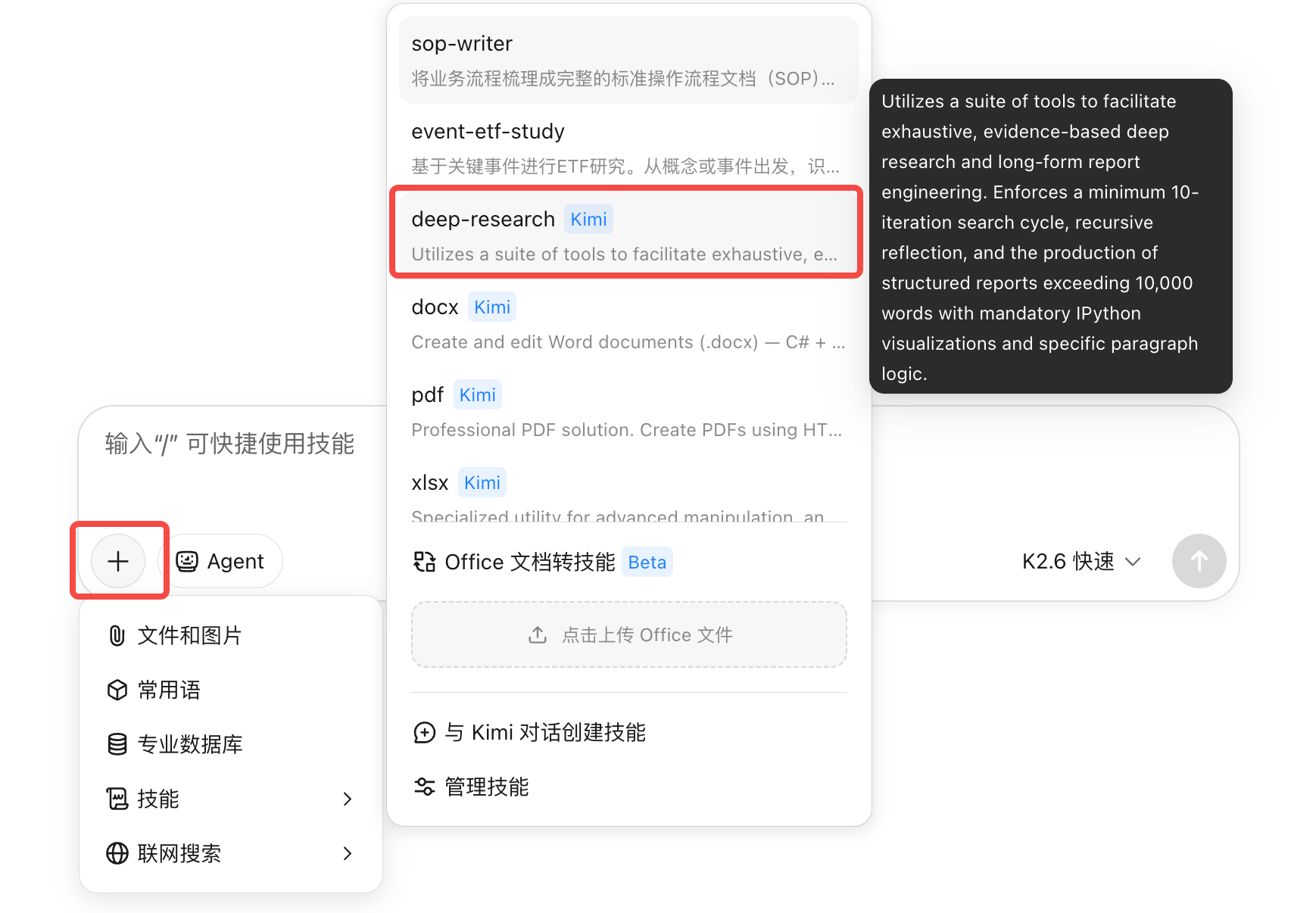
Method 2: ➕ menu
Click the ➕ button next to the input box and select a Skill from the menu. The Skill name will be inserted into the input box as text.
Method 3: Let Kimi Agent decide automatically
Simply describe what you need—no manual Skill selection required. Kimi will identify your task and invoke the most suitable Skill automatically.
Example: Quickly Generate an SEO Analysis Report with a Skill
Suppose you work in content operations and want to analyze your website’s SEO performance:
- Type
/in the input box, then find and select theseo-analyzerSkill. - Continue by entering:
Please analyze https://help.com/zh-cn/help's SEO performance, list the main issues and optimization suggestions.
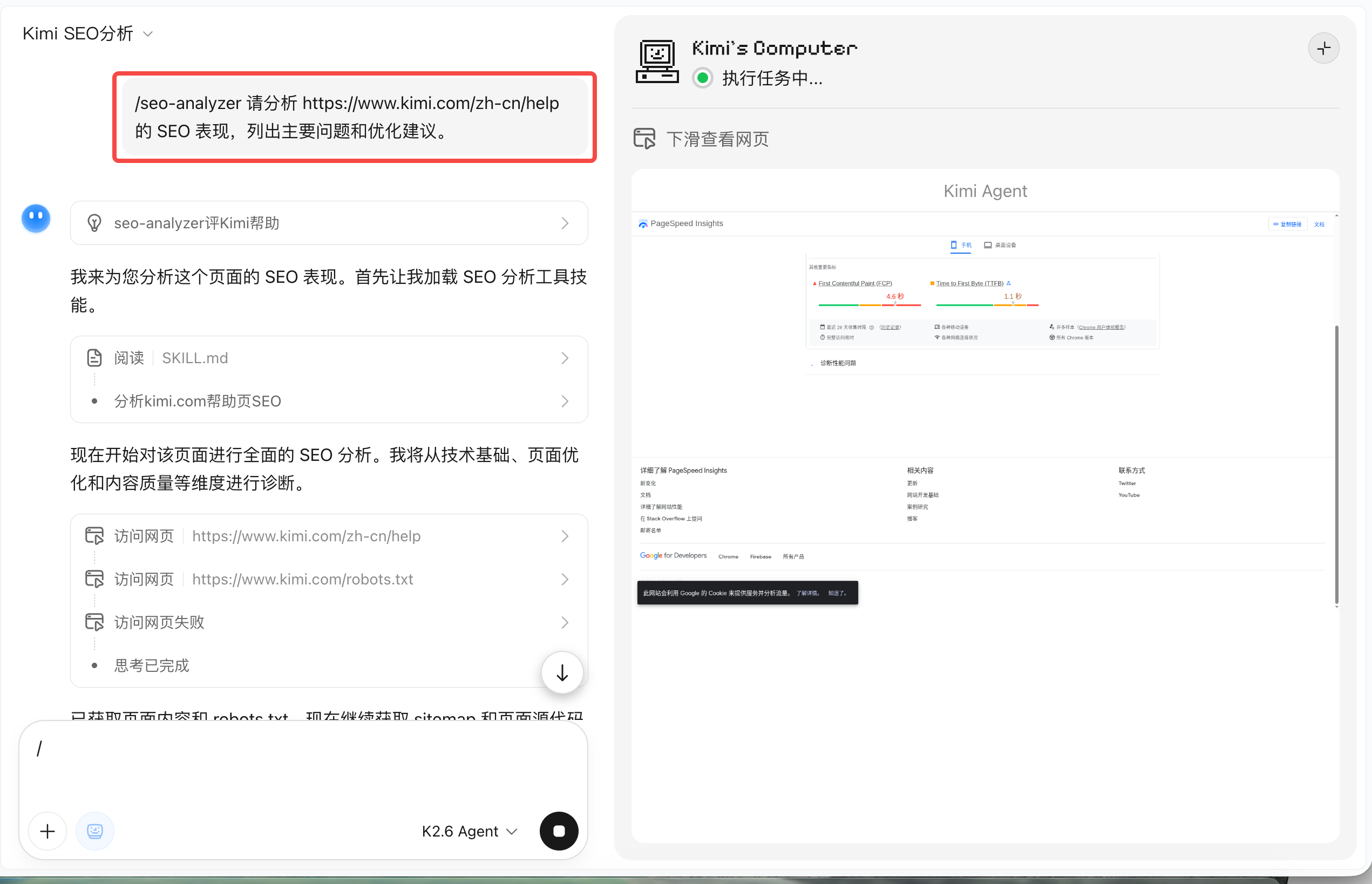
- After you send it, Kimi will follow the workflow of the SEO Analysis Skill to search, organize, and produce a structured report automatically.
You do not need to tell Kimi how to perform the analysis—the steps are already defined in the Skill.
Discover and Manage Skills
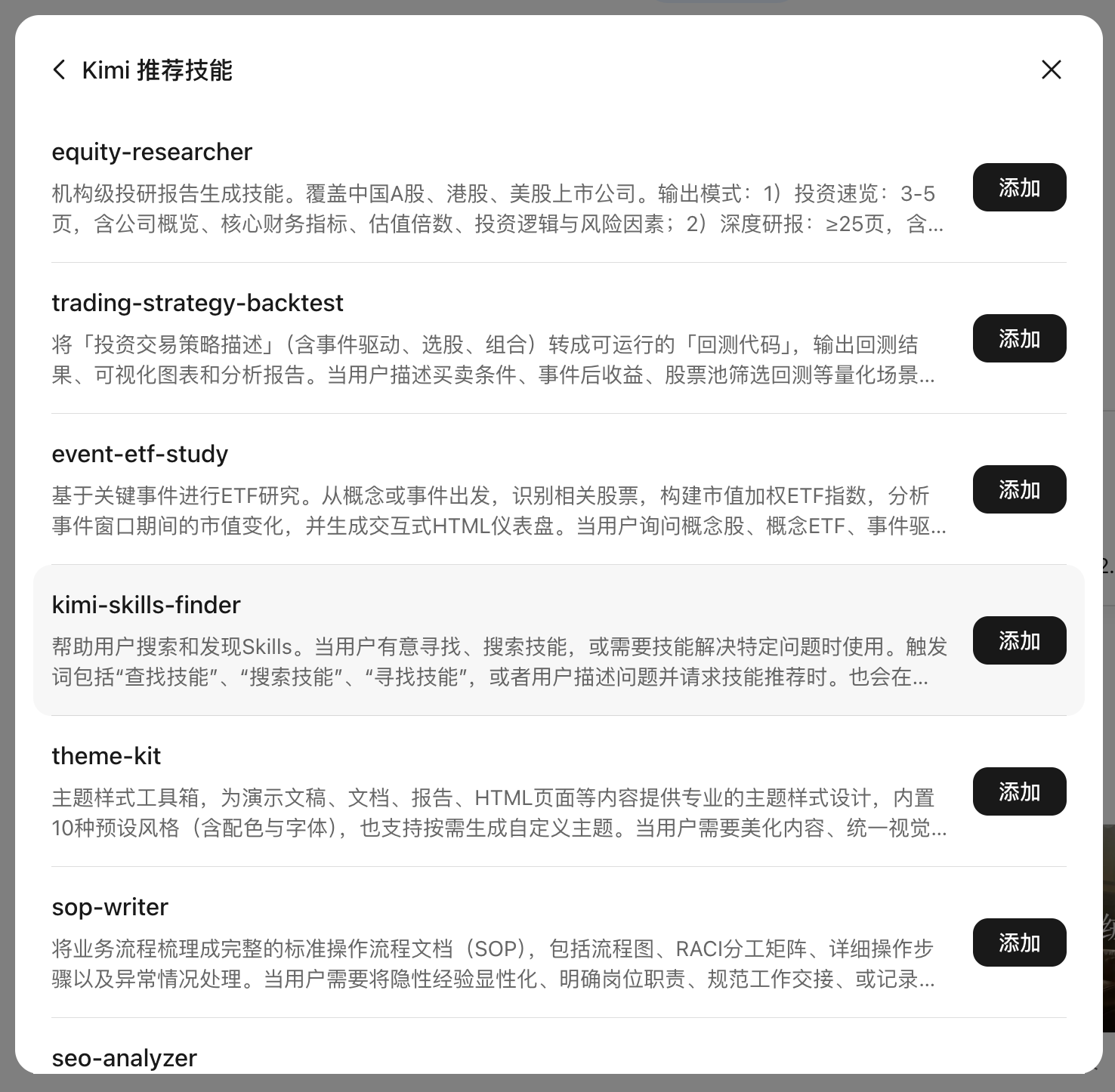
Kimi Recommended Skills
Kimi provides a set of ready-to-use recommended Skills. Click any of them to add it:
Custom Skills
If Kimi’s recommended Skills do not meet your needs, you can create Skills tailored to your own workflows.
When should you create a custom Skill?
- You have a fixed task you need to repeat regularly, such as a weekly competitor report
- You want Kimi to output content in your company’s specific format
- You have a work method you have refined yourself and want Kimi to follow directly
A good Skill does one thing, and does it well. Do not try to pack every requirement into a single Skill.
Method 1: Convert Office Documents into a Skill
If you already have work templates, specification documents, or example files, you can upload them directly and let Kimi learn from them to generate the corresponding Skill.
- In the Skills panel, select Convert Office Documents into a Skill.
- Click or drag files into the upload area. Supported formats:
docx,xlsx,pdf,pptx, and document screenshots. You can upload up to 3 files at a time, each no larger than 100 MB.
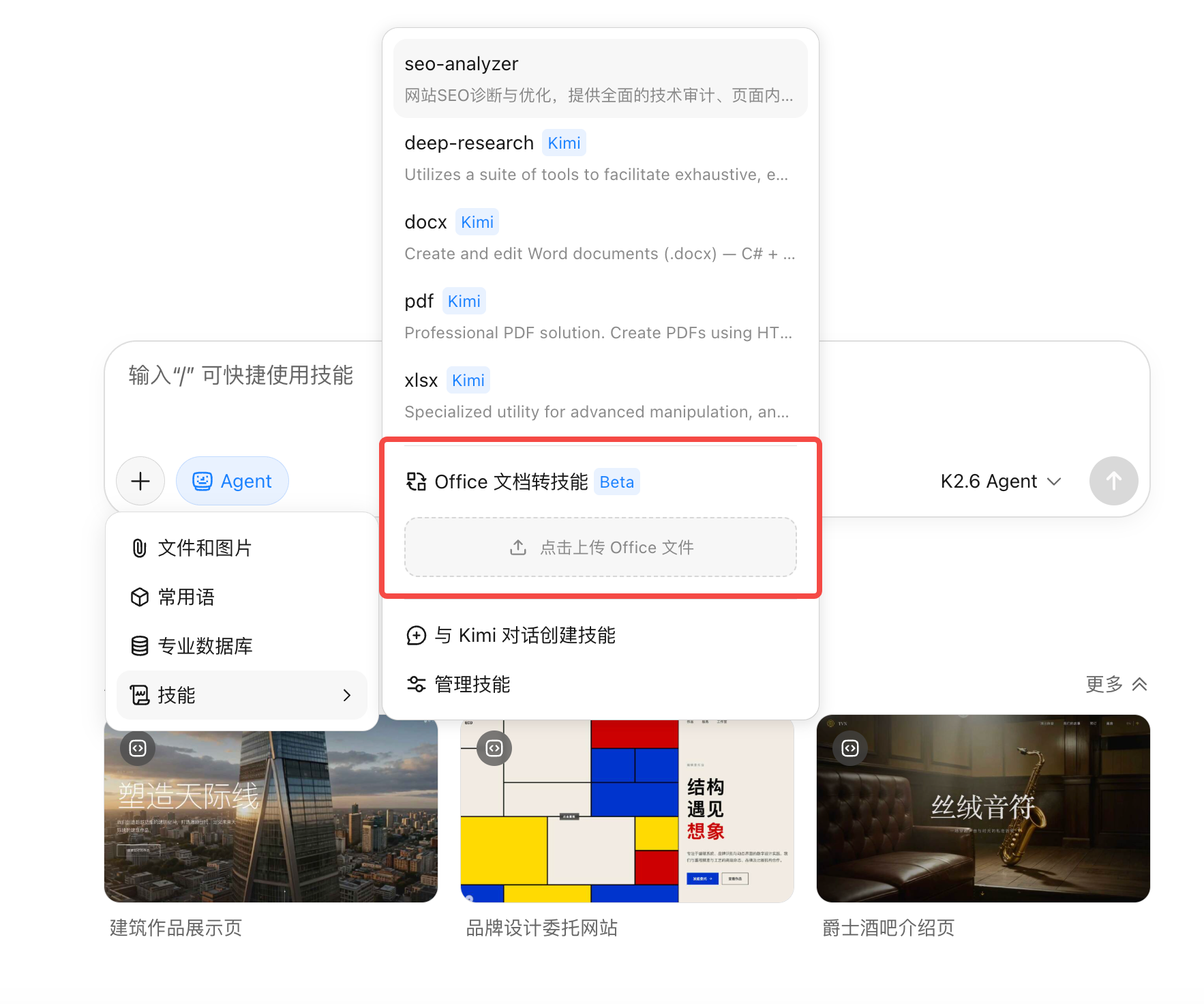
- Fill in the Skill description and tell Kimi what this Skill should do, for example: "Organize weekly sales data for me in the style and format of this template."
- Click Create Skill.
Method 2: Create a Skill Through Conversation
If you do not have existing documents, you can describe what you need in a conversation, and Kimi will guide you step by step to create the Skill.
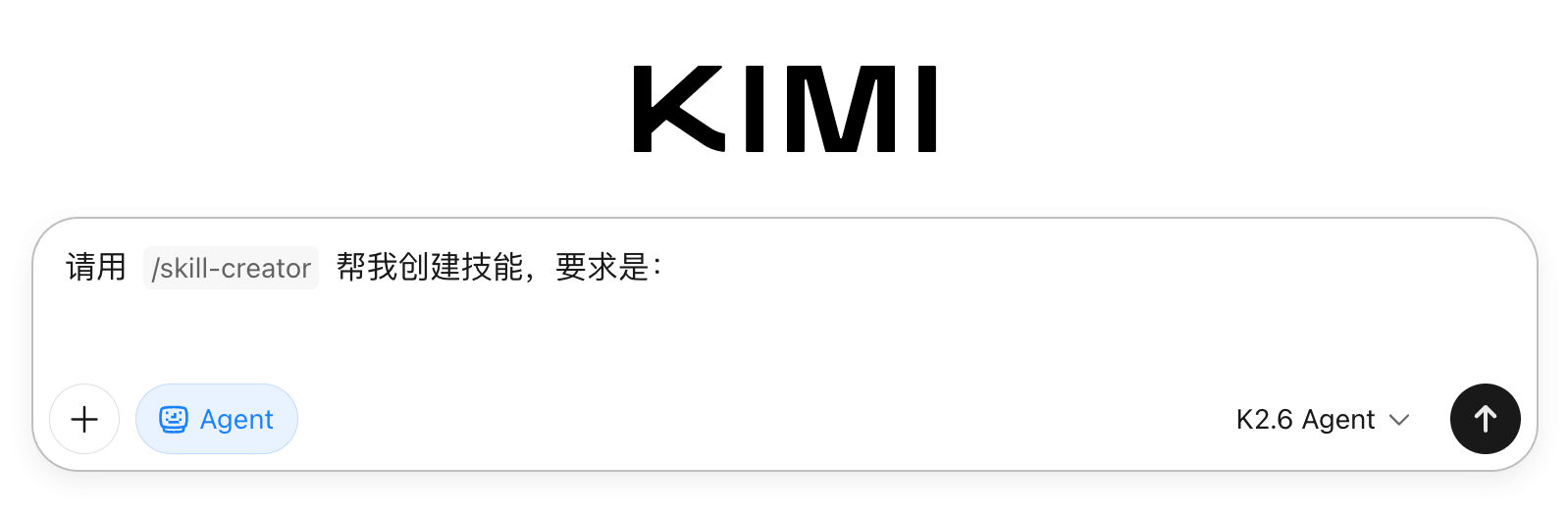
Enter /skill-creator in the input box, then describe what you want the Skill to do. Kimi will help turn your requirements into a complete Skill.
Manage Skills
In the Skills panel, switch to the Custom Skills tab to edit created Skills, update documents, or delete them.
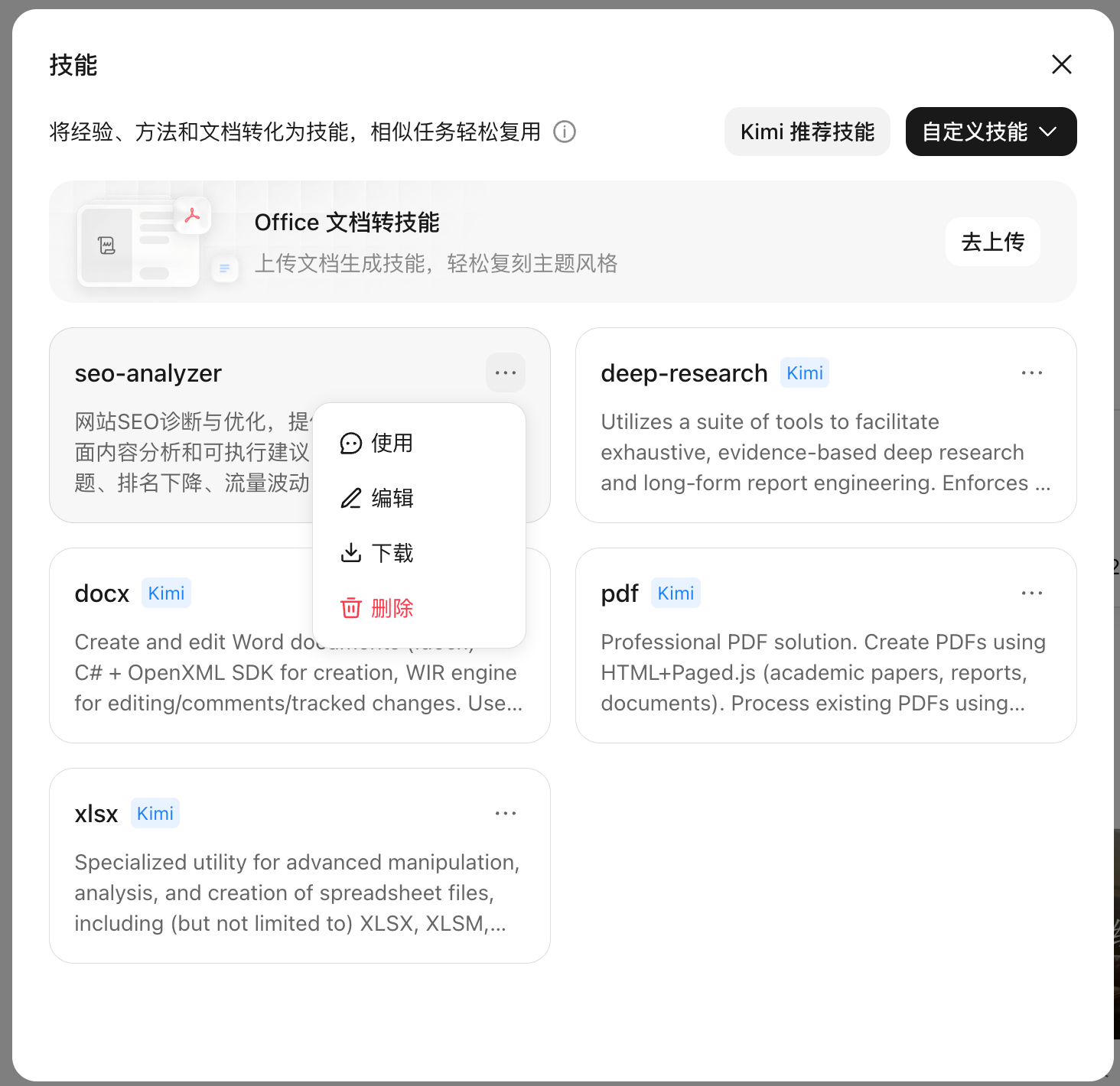
Skills can be used in Agent mode and Kimi Claw. Skills with the swarm suffix are available only in Swarm (Agent cluster) scenarios and will not appear in other scenarios.
How to Write Skill Descriptions
Kimi uses the Skill description to decide "when this Skill should be used". The clearer the description, the more accurately the Skill will be triggered.
A complete Skill description should include:
- The Skill’s core function
- The scenarios where it should be used
- Possible trigger words