Use Skills in Kimi Claw
Kimi Claw is an AI assistant with a distinct personality and long-term memory. It can run scheduled tasks in the background, collaborate across platforms, retain context over time, and automate tedious work such as information consolidation, monitoring, and notifications.
Get and manage Skills
Download Skills from Kimi
You can download official Skills or custom Skills from the Kimi platform to your local Claw app:
- Open Kimi Claw and go to Skills.
- Browse the Skill list, click the Skill you need, and select Download to Claw.
- Once downloaded, you can invoke it directly in Claw.
When a Skill is updated, it will not automatically overwrite your local version. To get the latest content, download it again manually.
Sync Skills from Kimi Agent
If you have already added Skills in Agent mode on the Kimi web app, Claw can display them through sync without any extra configuration.
When Claw detects that the Skill versions on the two sides are different, it will show a Needs update prompt next to the Skill. Click it to sync to the latest version.
Use the Clawhub Skill Library
Kimi Claw includes the Clawhub Skill Library, a collection of verified, high-quality Skills for a wide range of common work scenarios:
- Information organization: news roundups, competitor comparisons, meeting-minutes templates
- Analytical work: stock and industry reviews, data interpretation, risk-point extraction
- Workflow management: complete processes from requirement breakdown to final output
Go to the Skill Library, browse or search for Skills that fit your work scenario, and click to install.
Invoke Skills
In the Claw input box, you can invoke Skills in the same three ways as on the web app:
- Type
/and select a Skill from the pop-up list - Click the + button next to the input box and select one from the menu
- Enter the Skill name directly
Skill entry points are currently unavailable in third-party OpenClaw, local Claw, and desktop Claw.
Example
Suppose you need to summarize industry updates every day, but you have to repeat the required format each time:
- Type
/skill-creatorin the input box and tell Kimi: "When helping me summarize market information, first filter for authoritative sources, then organize the content into three dimensions: 'opportunities / risks / data', and finally provide one recommended action." - Kimi will turn this workflow into a custom Skill.
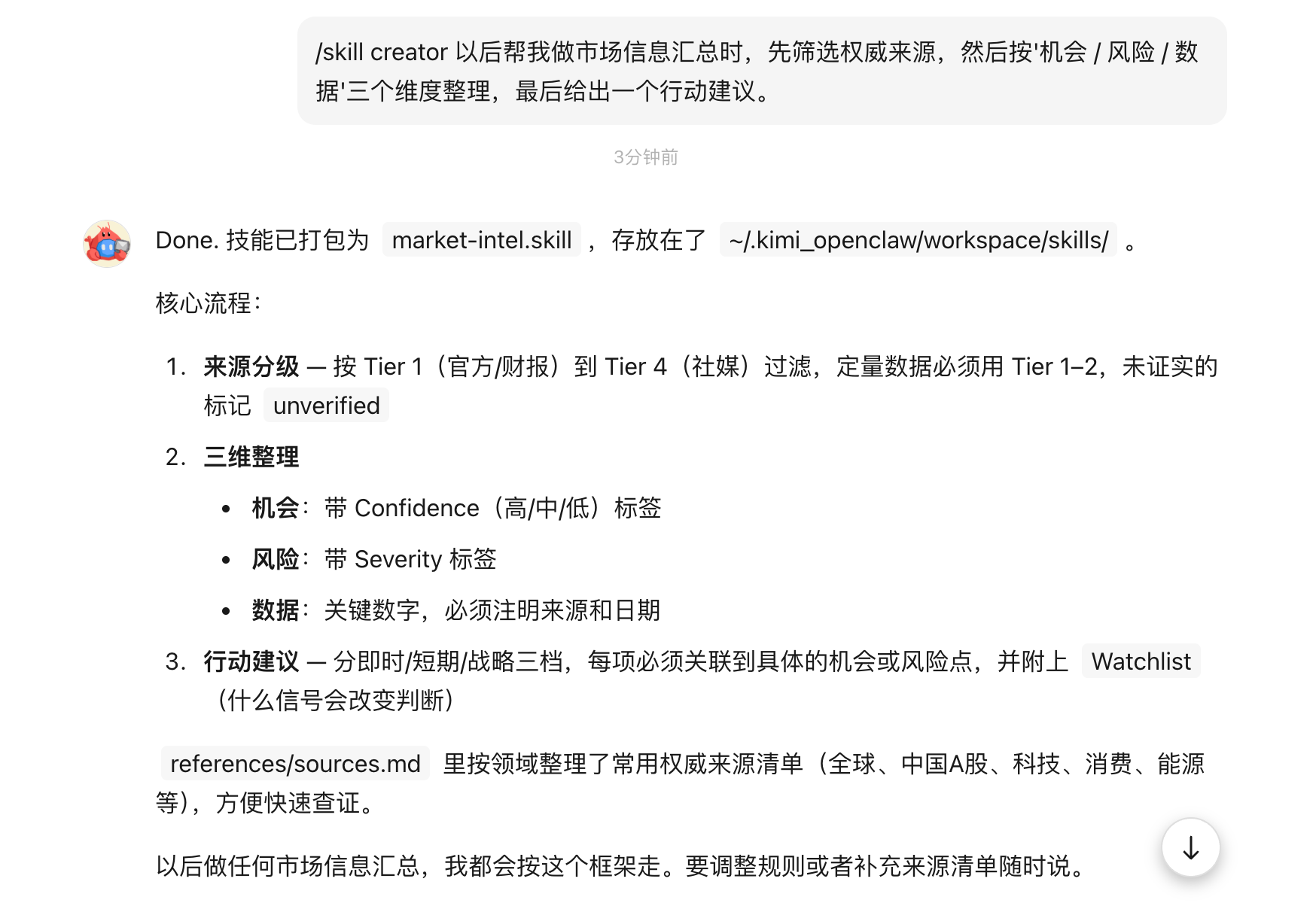
- Next time, you only need to say "Help me summarize today's updates in the new energy industry," and Claw will automatically produce the output in this structure, without you having to repeat the instructions.
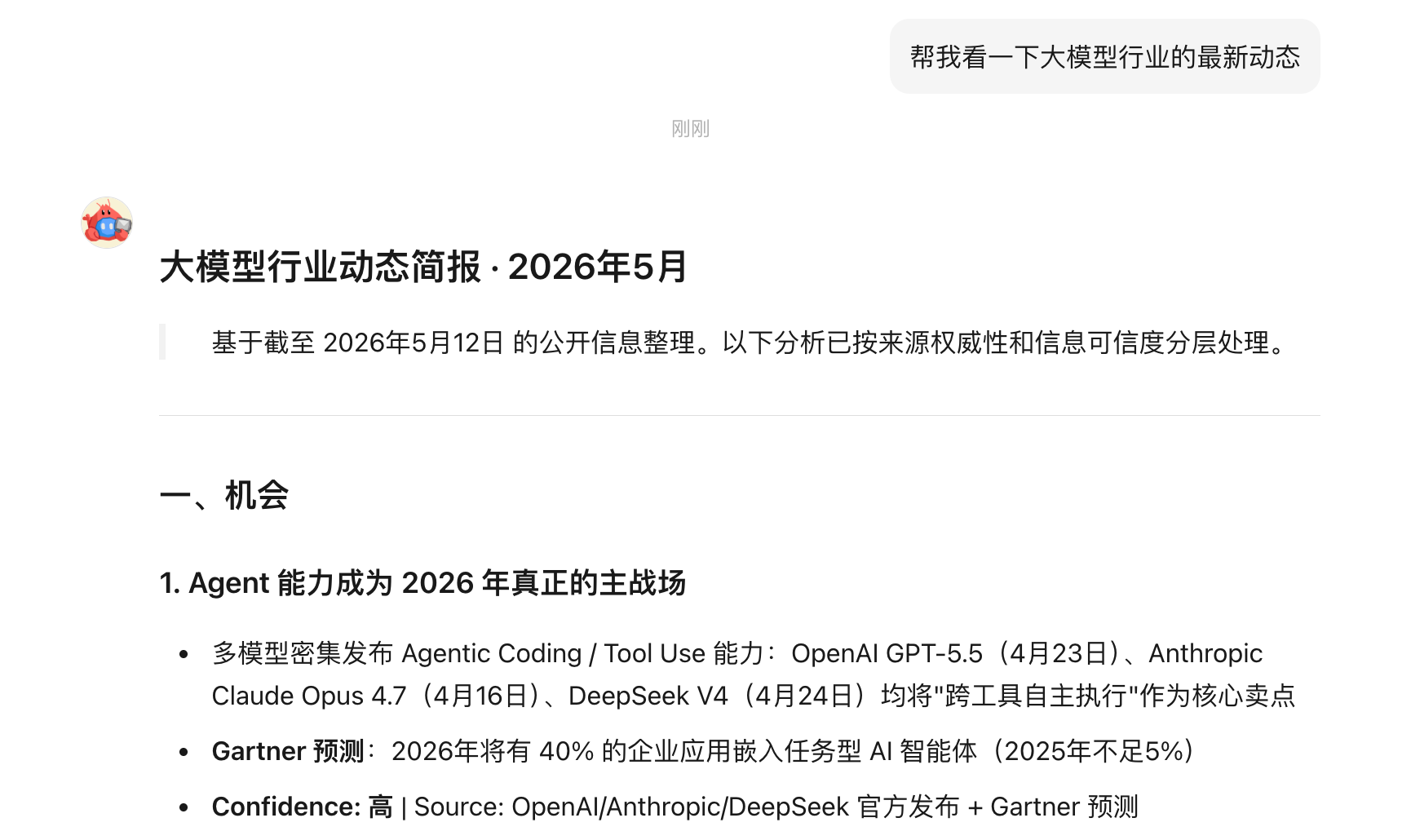
Let Claw learn how you work
Beyond using ready-made Skills, you can also "teach" Claw the experience and methods you have built up, so it can work according to your habits over the long term. There are three main ways to do this:
Provide a process: Tell Claw the exact steps you follow for a certain type of task.
Provide standards: Tell Claw what matters most to you—accuracy, speed, executability, or risk control.
Provide a template: Tell Claw the output format you want. For example, if your daily work report follows the structure "what I did today → problems encountered → plan for tomorrow → support needed," tell Claw directly, and it will organize future reports in that format.
Example
Suppose you are a product manager and need Claw to organize user feedback every week. You can teach Claw like this:
-
Process: "After collecting user feedback every Monday, first categorize it by feature module, then mark the priority (P0-P3), and finally extract high-frequency issues."
-
Standards: "I care most about authenticity and feasibility, so exclude duplicate opinions and keep only feedback with specific scenario descriptions."
-
Template: "Output format: Feature module | Feedback content | Priority | Number of users | Recommended solution"
Once you tell Claw "Help me organize this week's user feedback," it will automatically process the task according to these rules, without requiring repeated instructions each time.
By combining Skills with customized working methods, Kimi Claw can complete tasks faster and more accurately, while consistently generating results that match your habits.
Notes for mobile use
When using Skills on mobile, please note the following limitations:
- If you have added Skills on the web app, the plus menu will show the Skills entry. Tap it to insert the Skill into the input box as text.
- If no Skills have been added on the web app, the Skills entry will not appear in the mobile plus menu.
- If the chat history contains content generated by a Skill, a prompt will appear: Skill generated. Currently, adding Skills is only supported on the Kimi web app.
Some Skill management operations, such as creating, editing, and deleting, are best completed on the web app. Mobile is mainly intended for invoking existing Skills.