VS Code Core Operations
VS Code extension adaptation in progress
Kimi Code for VS Code is currently open for new installation only to users of the legacy Python CLI. Existing users who already have the extension installed can continue using it after upgrading to the new CLI. Other users of the TS version CLI are not supported for installation at this time.
Open the panel
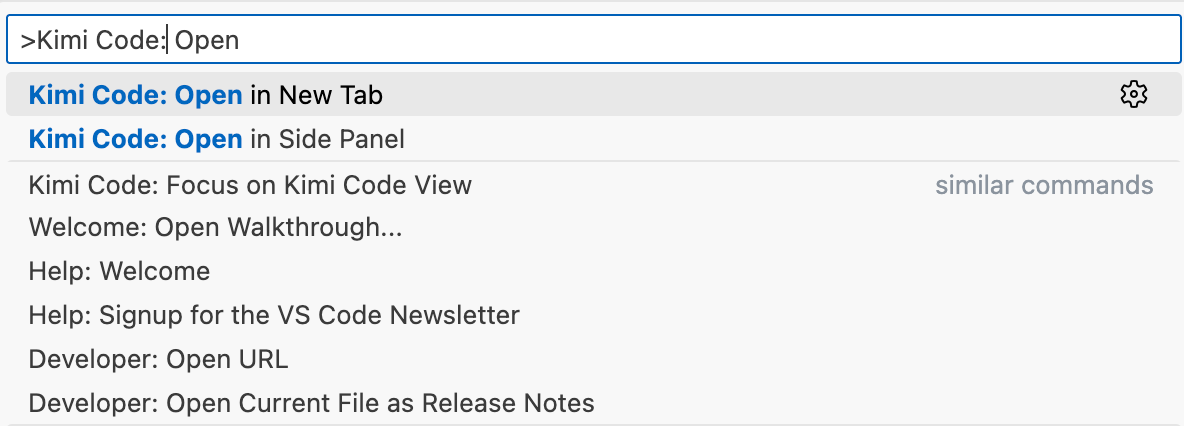
Click the Kimi icon in the Activity Bar, or run the "Kimi Code" command from the Command Palette.
Input and controls
File references
Type @, then select a file or folder name. For example, use @src/handlers/ to reference a folder, @app.ts to reference a file, or @src/app.ts:10-20 to reference a specific line range.
Press Alt+K to quickly insert the current file or selected code as a reference.
Slash commands
Type / to open the command menu. Use /init to scan the project and generate documentation, or /compact to compress an overly long context.
Input history
Press ↑ / ↓ in the input box to quickly browse your recently sent messages, making it easier to repeat or revise a question.
Media file input
You can paste, drag and drop, or select media files. Supported formats include image formats such as PNG, JPEG, GIF, WebP, and HEIC, as well as video formats such as MP4, WebM, and MOV.
- Paste / drag and drop: A single image can be up to 5MB in its original size. The system will automatically compress it, including converting HEIC to JPEG, resizing oversized images, and reducing quality to about 2MB.
- File picker: When selecting files through the "+" button in the input box or the
@menu, images can be up to 10MB and videos up to 20MB. - General limits: Each message can attach up to 9 files, with a total size of up to 80MB. When media files are attached, models that do not support multimodal input are automatically filtered out.
Message queue
While Kimi is responding, you can continue typing and sending messages in the input box. These messages will not be lost; instead, they are added to the message queue. The bottom toolbar shows the queue count, and you can click it to expand the queue panel:
- View the list of messages waiting to be sent
- Edit or delete messages in the queue
- Reorder messages
- While Kimi is responding, click the ⚡ icon on a queue item to insert that message immediately as a Steer, guiding Kimi to adjust the direction of the current response
Models and Thinking mode
Switch models from the dropdown menu in the input bar.
Some models support extended reasoning capabilities. The Thinking mode toggle has three states: hidden when the model does not support Thinking mode, manually enabled/disabled by the user, or always on for models such as k2-thinking.
After it is enabled, thinking steps are collapsed by default in the response. You can expand them to view the reasoning process. Enable kimi.alwaysExpandThinking in settings to expand the thinking process by default.
Work modes
Operation confirmation and tool execution
When Kimi proposes running a tool or writing to a file, a confirmation dialog appears with three options:
- Yes: Approve only the current operation
- Yes, for this session: Approve similar operations within the current session until a new session starts
- No: Refuse to execute the operation
Enable kimi.yoloMode in settings to automatically approve all tool calls. This is suitable when you trust the workflow and want higher efficiency.
Question Dialog
During execution, Kimi may ask you a question, such as asking you to choose an implementation approach. A question card will appear at the bottom. You can directly select a preset option, or choose "Custom response..." to enter your own reply. After you answer, Kimi continues executing.
Plan Mode
Click the 📋 icon on the left side of the input box to enter Plan Mode. When enabled, Kimi first outputs an expandable Plan Card before formal execution, listing the steps it intends to take. You can review the plan before letting it continue.
- The Plan Mode button keeps its previous setting for each new session.
- If Kimi is already streaming a response, exiting Plan Mode requires a second confirmation to avoid interrupting the current task.
File change tracking
After Kimi modifies files, all changes are tracked and shown in the "File Changes" section. You can view the list of modified files and their status, such as added, modified, or deleted, along with statistics for added and removed lines.
For each file, you can view changes in VS Code’s native diff view, restore it to the original state, or keep the changes to clear the tracking record. Batch operations are supported, so you can keep or discard all changes at once. The baseline state is captured the first time a file is modified in the session; reverting restores the file to that baseline version.
Context management
Session history
Click the history dropdown menu at the top of the panel to browse previous sessions. Session data is stored locally and supports keyword search. You can delete old sessions or load a session to continue a previous conversation.
The status bar shows the context usage percentage and input/output token counts. When context usage is high, use the /compact command to compress it.
Working directory switching
Click the gear icon (Action Menu) on the right side of the input box → Working Directory to switch the working directory among different subdirectories in the current Workspace. After switching, a new session starts automatically so that Kimi can work based on the new directory context. You can select a registered subdirectory directly, or use "Browse..." to browse any subfolder.
Action menu
Feature list
The gear icon on the right side of the input box opens the action menu, which includes the following features:
- Working Directory: Switch the current working directory (see "Working directory switching" above)
- MCP Servers: Open the MCP server configuration panel
- General Config: Open the Kimi configuration page in VS Code settings
- Show Logs: Open the Kimi Code output log panel for troubleshooting
- Reset Kimi: Reset the Kimi Webview, useful when the interface is frozen or unresponsive
- Sign out / Sign in: Sign out of or sign back in to your Kimi account
You can also run "Kimi Code: Run CLI" from the VS Code Command Palette to start Kimi Code CLI directly in the integrated terminal.
Was this article helpful?