Getting Ready
Before using Kimi Code, you’ll need to understand a few basic concepts. They will help you install and use Kimi Code more smoothly.
What is a terminal?
A terminal is a window where you operate your computer by typing text commands.
You can think of it as a “text-based file manager”: in a terminal, instead of clicking icons with your mouse, you type commands such as ls, cd, and mkdir to view folder contents, switch directories, create files, and more.
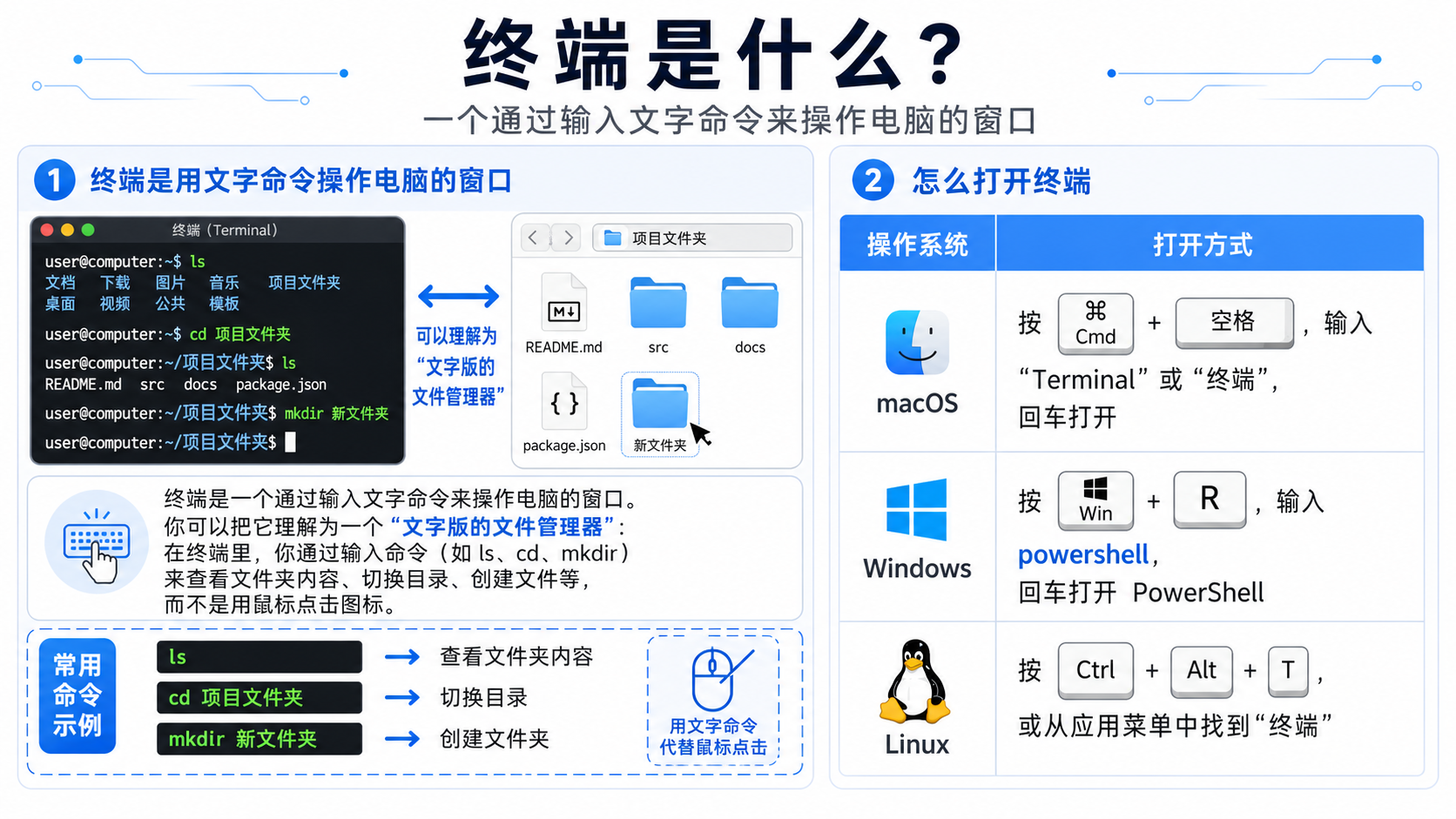
How to open a terminal
| Operating system | How to open it |
|---|---|
| macOS | Press Cmd + Space, enter "Terminal" or "终端", then press Enter |
| Windows | Press Win + R, enter powershell or wt;or search for "PowerShell"/"Terminal" in the Start menu |
| Linux | Press Ctrl + Alt + T, or find "Terminal" in the applications menu |
How to check your operating system
- macOS: Click the Apple icon in the upper-left corner of the screen → "About This Mac"
- Windows: Press
Win + Pause/Break, or right-click "This PC" → "Properties" - Linux: Run
uname -aorcat /etc/os-releasein the terminal
What is PowerShell?
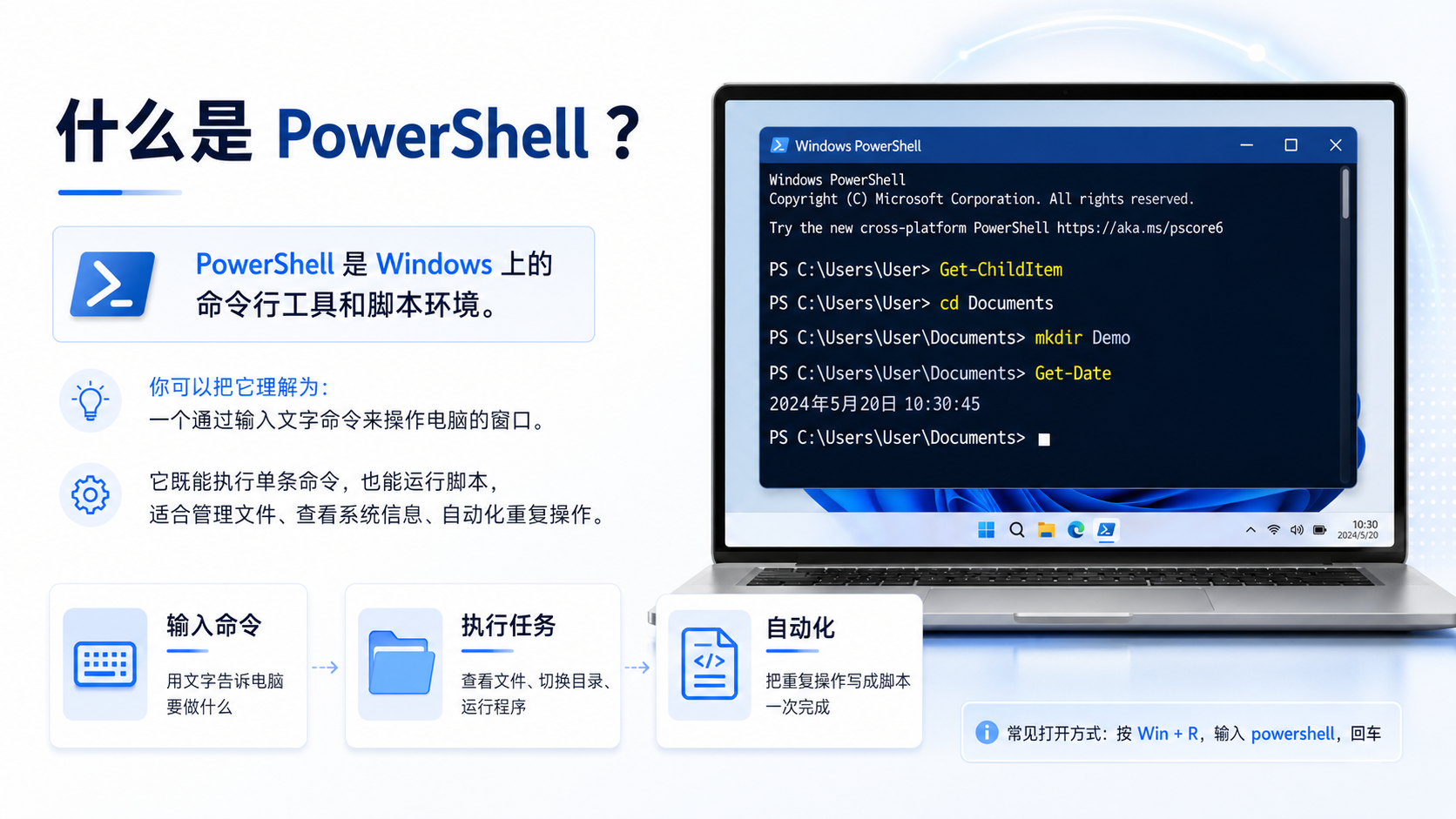
PowerShell is a commonly used terminal tool on Windows. It is more powerful than the standard Command Prompt (CMD). On Windows, Kimi Code CLI must be installed and used in PowerShell.
Windows has two different “command-line” tools. Do not confuse them:
| Tool | Description | Suitable? |
|---|---|---|
| CMD (Command Prompt) | The most basic command-line tool in Windows | ❌ Not recommended |
| PowerShell | A more powerful, modern command-line tool | ✅ Recommended |
Tip: The Kimi Code CLI installation command must be run in PowerShell. It may not run properly in CMD.
Working directory
When Kimi Code CLI starts, it uses your current folder as the working directory. It can only read and modify files inside that working directory.
Before starting, check the current path in your terminal:
- The terminal prompt usually shows the current directory, such as
~/projects/my-app$ - Enter
pwd(macOS/Linux) orcd(Windows) to view the full path - Use
cd <folder-name>to enter the target project directory, then runkimi
Example: Suppose your project is in
~/Documents/my-project. Start it as follows:
- Open the terminal
- Enter
cd ~/Documents/my-project- Enter
kimito start
How to run commands
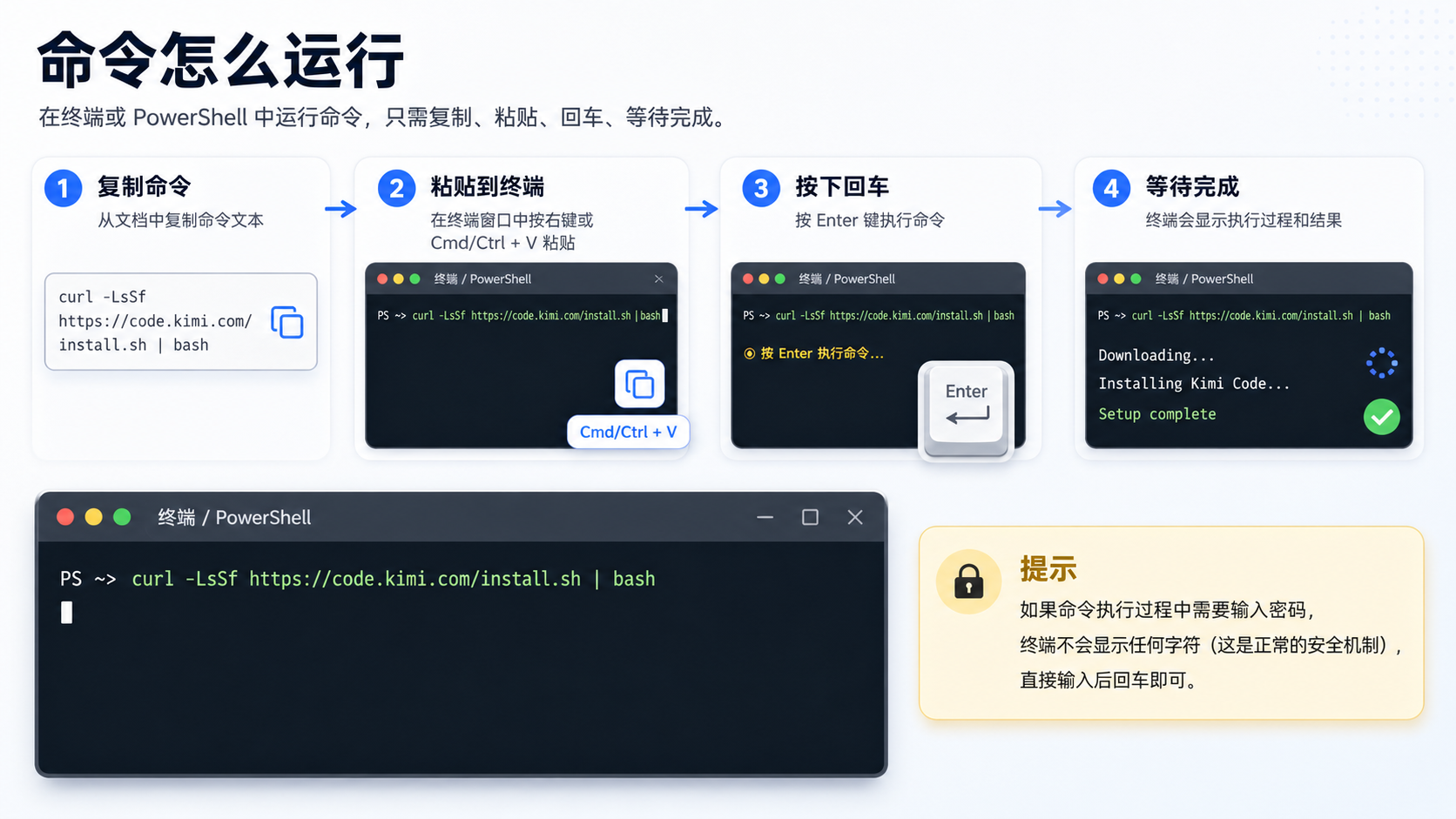
Running commands in a terminal or PowerShell is simple:
- Copy the command: Copy the command text from the documentation
- macOS/Linux:
curl -fsSL https://code.kimi.com/kimi-code/install.sh | bash - Windows:
irm https://code.kimi.com/kimi-code/install.ps1 | iex
- macOS/Linux:
- Paste it into the terminal: Right-click in the terminal window, or press
Cmd/Ctrl + Vto paste - Press Enter: Press the
Enterkey to run the command - Wait for it to finish: The terminal will show the execution process and result
Note: In a terminal,
Ctrl+Cusually interrupts the current command; it does not copy text. To copy, useCmd/Ctrl + Shift + C; to paste, useCmd/Ctrl + Shift + V; or use the right-click menu.
Tip: If you are asked to enter a password while a command is running, the terminal will not display any characters. This is a normal security mechanism. Just type the password and press Enter.
What is CLI?
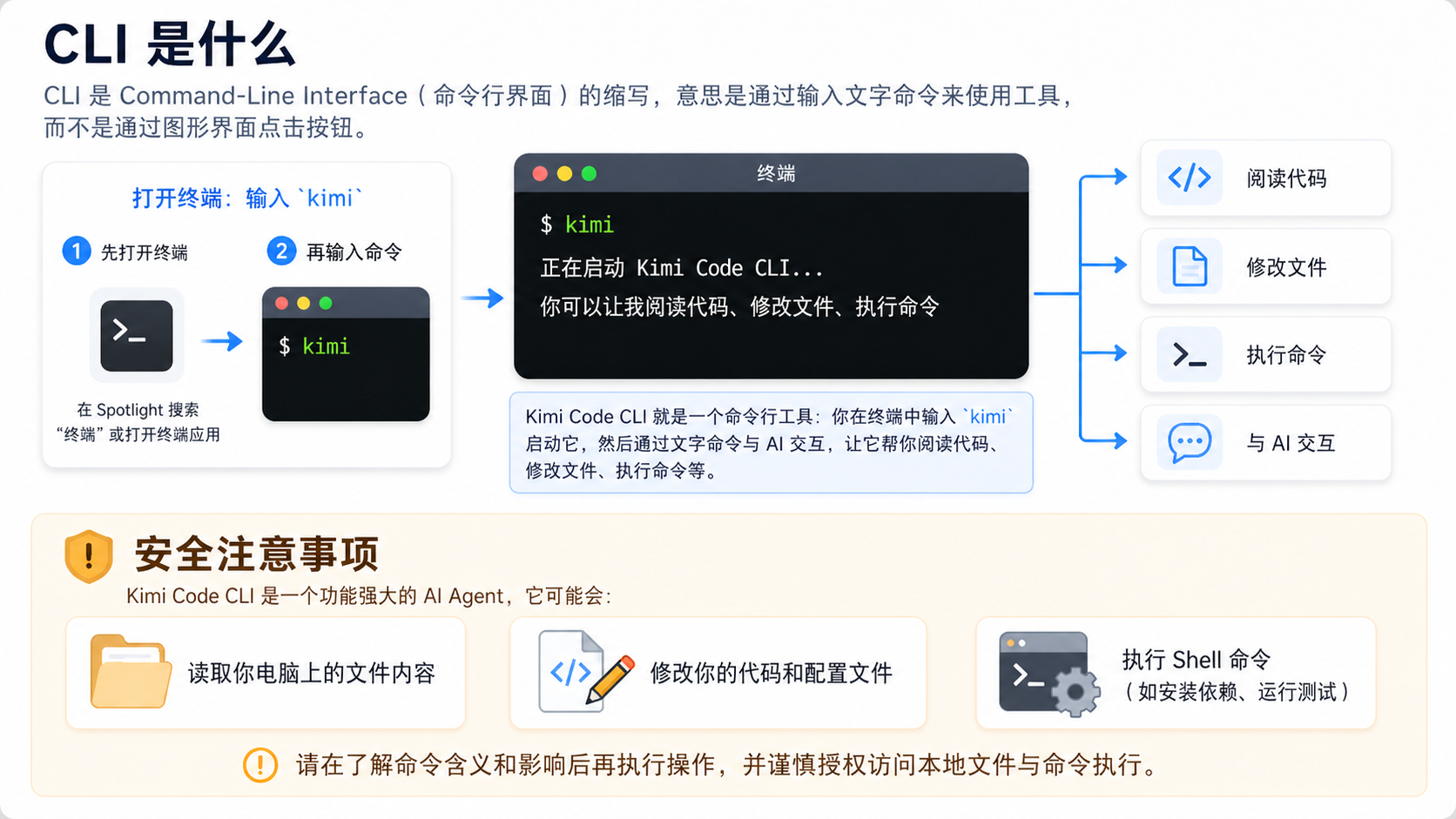
CLI stands for Command-Line Interface. It means using a tool by typing text commands instead of clicking buttons in a graphical interface.
Kimi Code CLI is a command-line tool: you enter kimi in the terminal to start it, then interact with AI through text commands so it can help you read code, modify files, run commands, and more.
Network environment
To use Kimi Code, you need access to Kimi servers. If your network environment has any of the following restrictions, you may need to adjust your settings:
- Company/school network: Some intranet environments may restrict access to external API. If you have a proxy, you can set the proxy address in the configuration.
- VPN/proxy: If you use a global proxy, make sure it does not intercept or interfere with requests to
api.kimi.comorapi.moonshot.cn. - Firewall: Check whether your system or router firewall is blocking network access from the terminal program.
Security considerations
Kimi Code CLI is a powerful AI Agent. It may:
- Read file contents on your computer
- Modify your code and configuration files
- Run Shell commands, such as installing dependencies or running tests
Please keep the following in mind when using it:
- Do not start it in sensitive directories: Avoid running Kimi Code CLI in directories that contain passwords, keys, or private personal files.
- Review actions carefully: Kimi Code will ask for your confirmation before modifying files or running commands. Do not click “Agree” out of habit.
- Understand before proceeding: If you are unsure about the impact of an action, ask Kimi Code to explain exactly what it will do before deciding whether to continue.
- Back up important code: Before using Kimi Code on an important project, we recommend committing your code to version control, such as Git, so you can roll back at any time.
Recommendation: When using it for the first time, try Kimi Code CLI in a test project or a copy of your project. Once you are familiar with how it works, use it in your production projects.
Was this article helpful?