Kimi Code for VS Code Quick Start
VS Code extension compatibility in progress
Kimi Code for VS Code is currently open for new installations only to users of the legacy Python CLI. Existing users who have installed the extension can continue using it after upgrading to the new CLI. Other users of the TS-version CLI cannot install it yet.
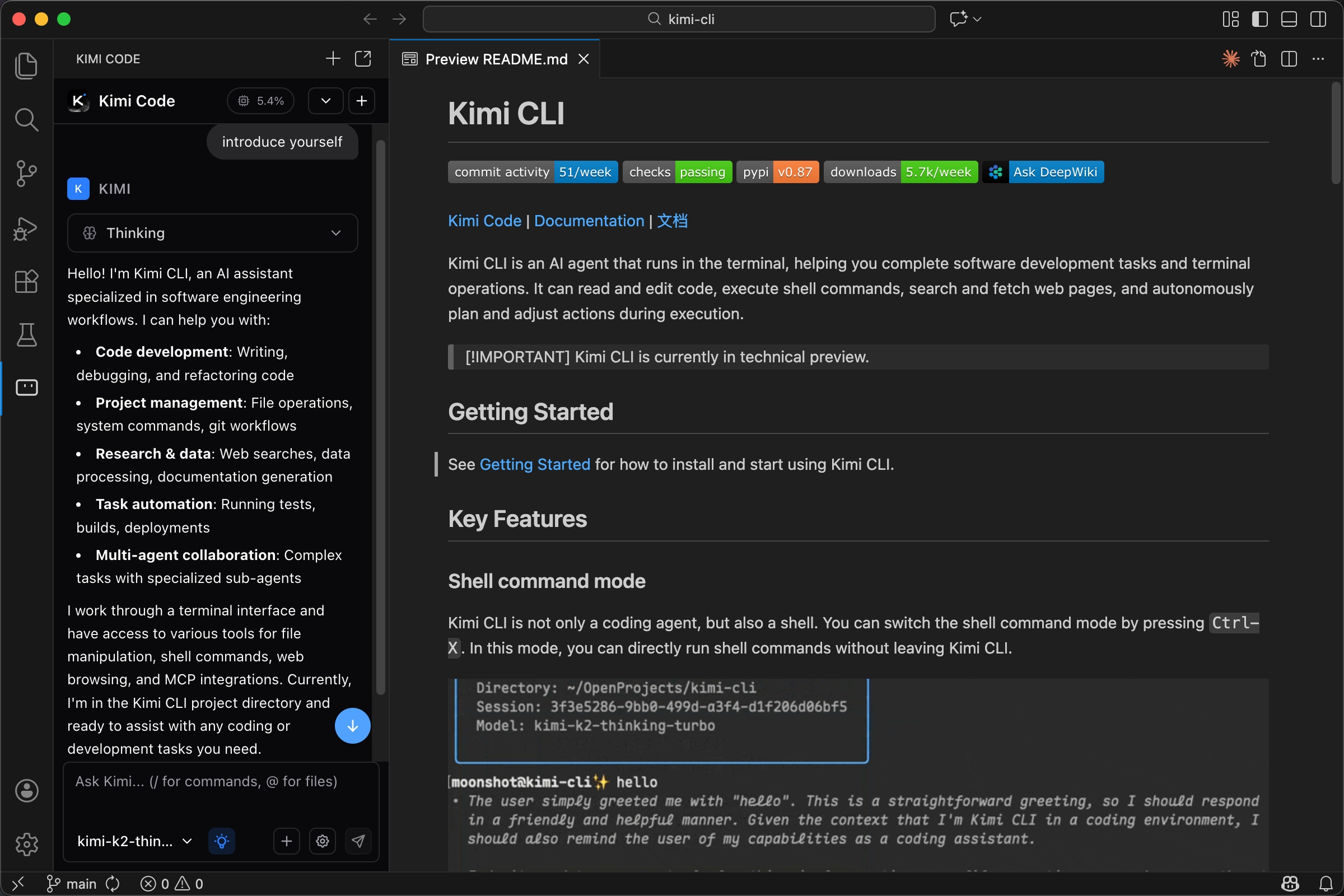
Kimi Code for VS Code is an extension integrated into Visual Studio Code. Once installed, you can ask questions, review code diffs, and submit changes directly in the editor. The extension can read files you reference, understand your project context, and provide more accurate coding assistance.
Installation
- Open VS Code.
- Go to the extension marketplace (shortcut:
Ctrl+Shift+X/Cmd+Shift+X). - Search for Kimi Code.
- Click Install.
If the extension does not appear, try restarting VS Code or run Developer: Reload Window from the command palette.
Sign-in setup
After installation, sign in to your Kimi account:
- Open the Kimi Code chat panel.
- Enter the
/logincommand. - Follow the prompts to complete authorization. The system will automatically bind your account.
Basic usage
Chat panel
Kimi Code provides a native chat panel in the VS Code sidebar. You can:
- Ask questions and chat: Enter your question directly, and the AI will answer using your project context.
- Reference files: Use the
@symbol to reference files or folders. The AI will read their contents as context. - Slash commands: Use
/commands to run project scans, manage context, and more.
Code changes
AI-generated code changes are shown in a diff view. You can:
- Review changes: View the AI-suggested edits line by line.
- Accept or reject: Apply some or all changes selectively.
- Revert operations: Revert changes that have already been applied.
MCP integration
The VS Code extension also supports MCP integration. You can configure MCP servers in your project to extend the AI’s capabilities.
Differences from CLI
| Feature | VS Code extension | CLI |
|---|---|---|
| Environment | Inside the VS Code editor | Terminal |
| Interaction | Graphical chat panel | Command-line conversation |
| Code changes | Diff view with revert support | Directly modifies files |
| File references | @ references with graphical selection | @ references with path completion |
| Shell commands | Executed by AI on your behalf | Supports direct execution in Shell mode |
| Session management | Managed in the panel | Managed with the /sessions command |
You can use either option as needed; they do not conflict. CLI is better suited to terminal-heavy users and automation scenarios, while the VS Code extension is a better fit for developers who prefer graphical workflows.
Was this article helpful?