Error Reference
This document covers server-side errors and tool call errors you may encounter when calling the Kimi Code API, including authentication, rate limiting, request format, and internal server issues. If you are experiencing client-side problems (such as CLI installation failures, IDE connection issues, MCP configuration errors, etc.), please refer to the FAQ.
Find the relevant entry in the table below based on the error message shown in your terminal or client, and follow the guidance provided.
Note
If you are using a third-party client such as OpenCode or Claude Code, the client may transform or re-wrap error codes, so the code you see may differ from what is documented here. In that case, focus on the text content of the error message and match keywords in the quick lookup table below.
Quick Lookup
Errors fall into two groups: model call errors occur while the model is generating a response (authentication, rate limiting, request format, etc.), while tool call errors occur while the AI is executing a tool call (such as reading a web page or processing an image). Match keywords in the corresponding table below based on where the error originates.
Model calls
| Error keyword | HTTP status | Jump to |
|---|---|---|
The API Key appears to be invalid or may have expired | 401 | Authentication Errors |
Invalid Authentication | 401 | Authentication Errors |
Your current subscription does not have access to k3 | 401 | Permission Errors |
Your current plan supports only kimi-k3 up to 256K context | 401 | Permission Errors |
Your current subscription does not have access to kimi-for-coding-highspeed | 401 | Permission Errors |
Your model id does not exist, recognized as other: | 401 | Permission Errors |
unable to verify your membership benefits | 402 | Membership Benefit Unavailable |
You've reached your 5-hour usage limit | 403 | Quota & Account Limits |
You've reached your weekly (7-day) usage limit | 403 | Quota & Account Limits |
You've reached your monthly usage limit for this billing cycle | 403 | Quota & Account Limits |
You've reached your concurrent request limit | 403 | Quota & Account Limits |
We're receiving too many requests | 429 | Rate Limits & Overload |
The engine is currently overloaded | 429 | Rate Limits & Overload |
total message size N exceeds limit 2097152 | 400 | Request Format Errors |
Your request exceeded model token limit: 262144 | 400 | Request Format Errors |
thinking is enabled but reasoning_content is missing | 400 | Request Format Errors |
unsupported image url | 400 | Request Format Errors |
function name ... is duplicated | 400 | Request Format Errors |
The request was rejected because it was considered high risk | 400 | Request Format Errors |
Not found the model kimi-for-coding or Permission denied | 404 | Resource Not Found |
method not found | 404 | Resource Not Found |
bot_id ... value does not match id_kinds | 500 | Internal Server Errors |
failed to connect to ... database=membership_ | 500 | Internal Server Errors |
FATAL: terminating connection due to administrator command | 500 | Internal Server Errors |
failed to evaluate rate limit script | 500 | Internal Server Errors |
i/o timeout / conn closed / bad connection | 500 | Internal Server Errors |
503 Service Unavailable / 504 Gateway Timeout / 502 Bad Gateway | 500 | Internal Server Errors |
Tool calls
| Error keyword | HTTP status | Jump to |
|---|---|---|
context canceled | 499 | Tool Call Errors |
url2text / spider checkUrl failed / invalid html | 500 | Tool Call Errors |
image_url:moderation request error | 500 | Tool Call Errors |
We consider the current URL poses a security risk | 403 | Tool Call Errors |
invalid_url: The provided URL is invalid | 400 | Tool Call Errors |
Authentication Errors
HTTP 401
The request did not carry valid credentials, or the credentials have expired. The server validates identity before processing any request — 401 means this step failed. Do not retry; fix the credentials and resend the request.
Invalid API Key
The API Key is incorrect, or the key has been revoked or expired in the console.
How to fix:
- Typo in key: Check for extra spaces or missing characters
- Key revoked or expired: Go to Console › API Keys and verify the key's status
- Environment variable override: Check whether a
KIMI_API_KEYorOPENAI_API_KEYenvironment variable is overriding your config file — runecho $KIMI_API_KEYto check
Invalid Authentication
The request did not carry valid credentials, or uses an unsupported authentication format.
How to fix:
The most common cause is accidentally using an API key or Base URL from the Kimi Open Platform. Kimi Code and the Kimi Open Platform are two separate systems — keys and Base URLs are not interchangeable:
- Kimi Code: get your key from the Console, Base URL is
https://api.kimi.ai/coding/v1(OpenAI protocol) orhttps://api.kimi.ai/coding/(Anthropic protocol) - Open Platform: get your key from platform.kimi.com, Base URL is
https://api.moonshot.ai/v1
Membership Benefit Unavailable
HTTP 402
The server cannot verify the subscription status of the current account. This is usually a temporary issue.
Unable to Verify Membership
How to fix:
- Confirm your Kimi Code subscription is still active
- Wait a moment and retry
- Check your subscription status in the Console
- If the issue persists, go to Kimi on the web, click your profile picture in the bottom-left corner, then select Get Help → User Feedback to consult our support team
Permission Errors
HTTP 401
The request is correctly formatted and identity is verified, but the current account's subscription tier does not include the requested capability (such as K3, 1M context, or the HighSpeed model). Retrying is pointless — upgrade your plan or adjust the request. For quota and concurrency issues, see Quota & Account Limits and Rate Limits & Overload.
No K3 Access
Your current subscription does not include access to k3. Calling K3 requires a Moderato / Plus plan or above.
How to fix:
- Upgrade to a Moderato / Plus plan or above to call
k3 - If you prefer not to upgrade, keep using the standard model
kimi-for-coding
No 1M Access
Your current plan only supports up to 256K context when calling k3. To use up to 1M context, upgrade to an Allegretto / Pro plan or above. When calling k3-256k directly with context over 256K, the server returns k3-256k supports only 256K context. — compact the context or switch to k3.
How to fix:
- Upgrade to an Allegretto / Pro plan or above to use
k3with up to 1M context - If you prefer not to upgrade, keep using
k3with 256K context, or switch to the standard modelkimi-for-coding
Model ID Does Not Exist
The model ID used in the request is not recognized by the model side. A common cause is using a format that's only valid in a specific scenario in an entry that doesn't support it. For example, the k3[1m] form (with surrounding quotes) is only needed in Claude Code environment-variable configurations to explicitly request a 1M context window. In API requests or other third-party tools' Model ID fields, use k3 directly.
How to fix:
- Check the actual model id shown after
recognized as other:in the error message and make sure it has no typos or extra symbols - If configuring Claude Code environment variables, make sure you followed the example in Using in More Third-Party Tools, including the surrounding quotes
- For API requests or other third-party tools, change the Model ID to the standard form (e.g.
k3,kimi-for-coding,kimi-for-coding-highspeed) instead of the Claude Code env-onlyk3[1m]form
HighSpeed Model Access Denied
Your current subscription does not include access to the high-speed model kimi-for-coding-highspeed. It is the same model as the standard kimi-for-coding, but with roughly 5–6x faster output, and requires an Allegretto / Pro plan or above.
How to fix:
- Upgrade to an Allegretto / Pro plan or above to unlock the high-speed model
- If you prefer not to upgrade, keep using the standard model
kimi-for-coding— identical capabilities, just slower output
Quota & Account Limits
HTTP 403
Account-side limits have been reached, in two kinds: quota errors are account usage issues — retrying is pointless; wait for the window to reset, purchase extra usage, or upgrade your plan. The concurrent request limit is triggered by risk-control policy, is unrelated to your remaining quota, and follows the appeal process.
5-Hour Rolling Quota Reached
The call volume within the current 5-hour rolling window has reached its limit.
How to fix:
- Wait for the current 5-hour window to end and the quota to reset; check the reset time in the Console
- Go to the Subscription page to purchase extra usage or upgrade your plan for a higher limit
Weekly (7-Day) Quota Exhausted
Kimi Code subscription quota refreshes every 7 days, and the quota in the current 7-day window has been fully used. This error only applies to existing members on legacy plans (Andante / Moderato / Allegretto / Allegro); new members (Go / Plus / Pro / Max / Ultra) are not subject to the weekly quota limit and never trigger this error.
How to fix:
- Wait for the current 7-day window to end and the quota to refresh; view usage details in the Console
- Go to the Subscription page to purchase extra usage or upgrade your plan for a higher quota
Monthly Kimi Quota Exhausted
Your Kimi monthly quota has been fully consumed.
All Kimi membership benefits — including PPT, Agent Cluster, Kimi Code, etc. — share the same monthly quota. Once the total quota is exhausted, further requests cannot be made even if Kimi Code still has remaining quota. You must wait for the quota to automatically reset next month or upgrade your plan. See Kimi Membership Credits for details. When the quota is exhausted, your account enters a frozen state, as shown below:
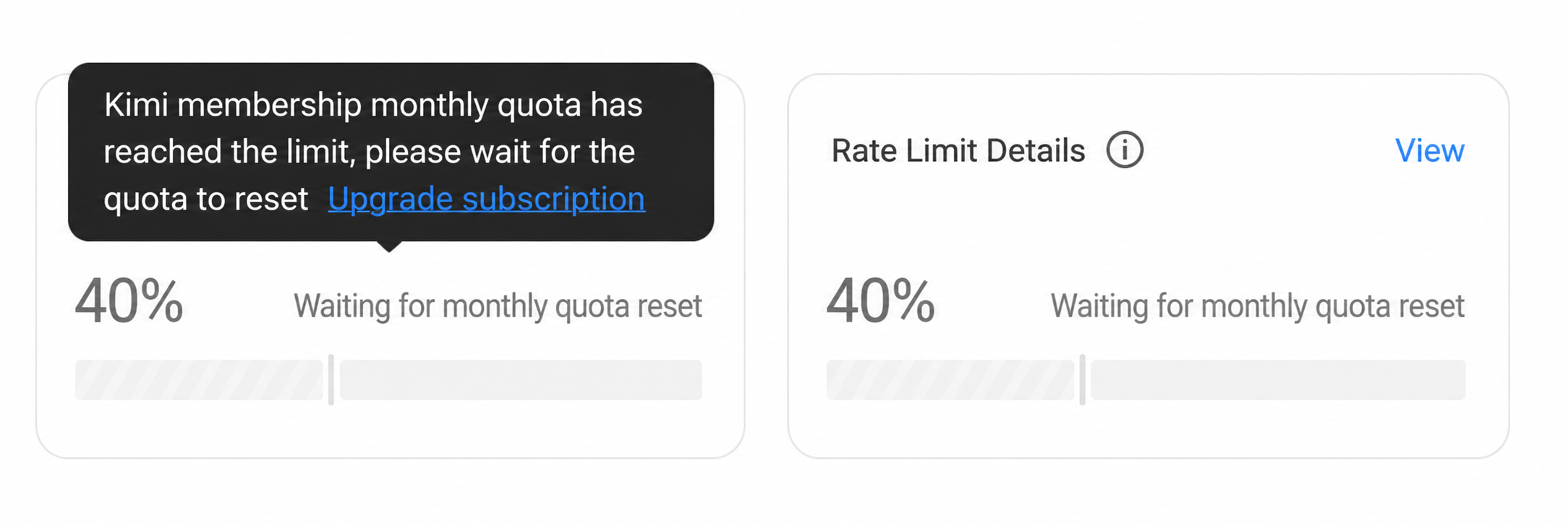
How to fix:
- Wait for automatic reset at the start of the next billing cycle
- Go to the Subscription page to purchase extra usage or upgrade your plan for a higher monthly quota
Concurrent Request Limit
The number of in-flight requests on the account has reached its limit. This limit is triggered by risk-control policy.
How to fix:
- Read the Kimi Code Community Guidelines to understand the violation and what is covered
- To appeal, email [email protected] and include your account ID, the time the limit was triggered, a description of your use case, and relevant screenshots
Rate Limits & Overload
HTTP 429
Transient limits — a short wait and retry recovers them: too many concurrent requests means the account sent too many requests in a short period; inference engine overload is a server capacity issue, not related to your personal quota or account status.
Too Many Concurrent Requests
Too many requests were sent in a short period, exceeding the account limit.
How to fix:
- Wait a moment and retry; avoid sending requests rapidly in succession
Inference Engine Overloaded
The server's current request volume exceeds inference capacity. Not related to your personal quota or account status. This may occur during peak hours (14:00–17:00 on weekdays). Kimi Code will address this promptly — you can also avoid peak hours.
How to fix:
- Wait a moment and retry
Request Format Errors
HTTP 400
The request content itself has a problem; the server rejects it during parsing or validation. Fix the request content — no need to wait or contact support.
Message Body Exceeds Context Limit
The total size of all messages (including conversation history, system prompt, and tool results) exceeds the 2 MB context limit. This is the most frequently occurring 400 error.
How to fix:
- Trim conversation history by removing unnecessary earlier turns
- Process long content in segments to keep each request within size limits
Token Limit Exceeded
The number of tokens in the request exceeds the model's single-request limit (262,144 tokens).
How to fix:
- Shorten the prompt or truncate conversation history
- Process long content across multiple requests
Missing Reasoning Content Field
Extended thinking (thinking mode) is enabled, but the reasoning_content field is missing from the tool call message. This is a Kimi Code-specific field required when thinking mode is active.
How to fix:
- Add the
reasoning_contentfield to the assistant message in tool calls - See the Providers and models for the field specification
Unsupported Image URL
The image URL format is not supported: local file paths, non-standard base64 prefixes, or unsupported external domains.
How to fix:
- Local paths must be uploaded to a publicly accessible URL
- Base64 images must use the standard format:
data:image/jpeg;base64,...
Duplicate Tool Name
The tools array contains duplicate tool definitions with the same name.
How to fix:
- Ensure every tool's
namefield is unique
Content Safety Rejection
The request content triggered content safety detection and was rejected by the server.
How to fix:
- Review your prompt for sensitive content and retry after modification
- If you believe this is a false positive, go to Kimi on the web, click your profile picture in the bottom-left corner, then select Get Help → User Feedback to contact our support team with the content that triggered the error
Resource Not Found
HTTP 404
The requested resource does not exist, or the current account does not have access. Verify the model name and endpoint path.
Model Not Found
How to fix:
- Confirm the model name is spelled correctly (
kimi-for-coding) - Confirm the account has Kimi Code access enabled
Endpoint Not Found
How to fix:
- Verify the request URL is correct. Kimi Code Base URL is
https://api.kimi.ai/coding/v1(OpenAI protocol) orhttps://api.kimi.ai/coding/(Anthropic protocol)
Internal Server Errors
HTTP 500
An unexpected error occurred on the server — not caused by request content or account status. In most cases, waiting a moment and retrying will resolve it. If the issue persists, go to Kimi on the web, click your profile picture in the bottom-left corner, then select Get Help → User Feedback to contact our support team.
Invalid bot_id Format
The bot_id is not a valid UUID v4. This field is automatically attached by client software when sending requests — it is normally managed by the client, not set manually by users.
How to fix:
- Update to the latest version of your client and retry
- If the issue persists after updating, go to Kimi on the web, click your profile picture in the bottom-left corner, then select Get Help → User Feedback to contact our support team with the full error message
Database Connection Failed
The server could not connect to the membership verification database, or the database is under maintenance. This is an infrastructure-level failure.
How to fix:
- Wait 1–2 minutes and retry
Internal Connection Error
Internal network connection anomaly on the server side, covering connection resets, I/O timeouts, Redis rate-limit script timeouts, and similar low-level errors. Usually a transient fault.
How to fix:
- Wait a moment and retry (start with 1 second, up to 3 retries)
Downstream Service Unavailable
The server received a 5xx response while calling a downstream model or infrastructure component.
How to fix:
- Wait a moment and retry
Account Status Abnormal
When the server queried the account, it found the account does not exist or is in an abnormal state.
How to fix:
- Account not found: confirm the account you are using has completed registration
- Account disabled/muted: email [email protected] to learn the reason and how to appeal
Tool Call Errors
The following errors occur during AI tool call execution (such as reading web pages or processing images). They do not affect the conversation itself — only the specific operation that failed.
If you see authentication or rate-limiting errors (e.g. 401, 429) in this context, refer to the corresponding sections above.
Request Canceled
HTTP 499
The client disconnected before receiving a result — typically caused by the user manually stopping the operation, a network interruption, or a client-side timeout. Not a server error.
How to fix:
- If manually stopped, no action needed
- If this happens frequently without being triggered manually, check whether your client's timeout setting is too short
Web Page Read Failed
HTTP 500
The AI failed to read the web page content. Common causes: target page response timeout, abnormal page structure, login required, URL on blocklist, or the target server itself returned an error.
How to fix:
- Timeout or server error: retry later
- Login-required pages (verify page): cannot be read via tool call — manually copy the content and paste it to the AI instead
- Blocklisted URL: the address is blocked by the system and cannot be accessed
Image Moderation Failed
HTTP 500
While the AI was processing an image, the image content moderation service returned an error or timed out.
How to fix:
非法输入(illegal input): the image content triggered content moderation — ensure the image complies with usage policies- Timeout: retry later, or check your network connection
URL Security Risk Blocked
HTTP 403
The URL passed in the tool call was flagged as a security risk, and the server refused to fetch it.
How to fix:
- Internal network addresses (e.g.
192.168.x.x,10.x.x.x) and known high-risk domains will be blocked - Pages that require login cannot be fetched via tool calls
Invalid URL Format
HTTP 400
The model passed a natural-language description or a malformed string as a URL to the tool — typically a descriptive phrase treated as an address, or a missing protocol prefix.
How to fix:
- Ensure the value passed is a real, accessible URL — not a text description of one
- The protocol prefix (
http://orhttps://) is required and cannot be omitted
Errors Not Covered Here
If none of the entries above match the error you encountered, go to Kimi on the web, click your profile picture in the bottom-left corner, then select Get Help → User Feedback to contact our support team, and include the full error message, Request ID, and the time of the request.
Was this article helpful?