快速开始
本页保留快速开始与基础操作;更多功能和最新变更,请参阅 Kimi Code 团队维护的完整文档。
Kimi Code for VS Code 是集成于 Visual Studio Code 的扩展插件。安装后,您可在编辑器内直接发起提问、审查代码 diff 并快速提交变更。插件能够读取您引用的文件内容,并通过可视化界面展示修改建议,经您确认后执行。整个流程由您掌控,同时显著提升开发效率。
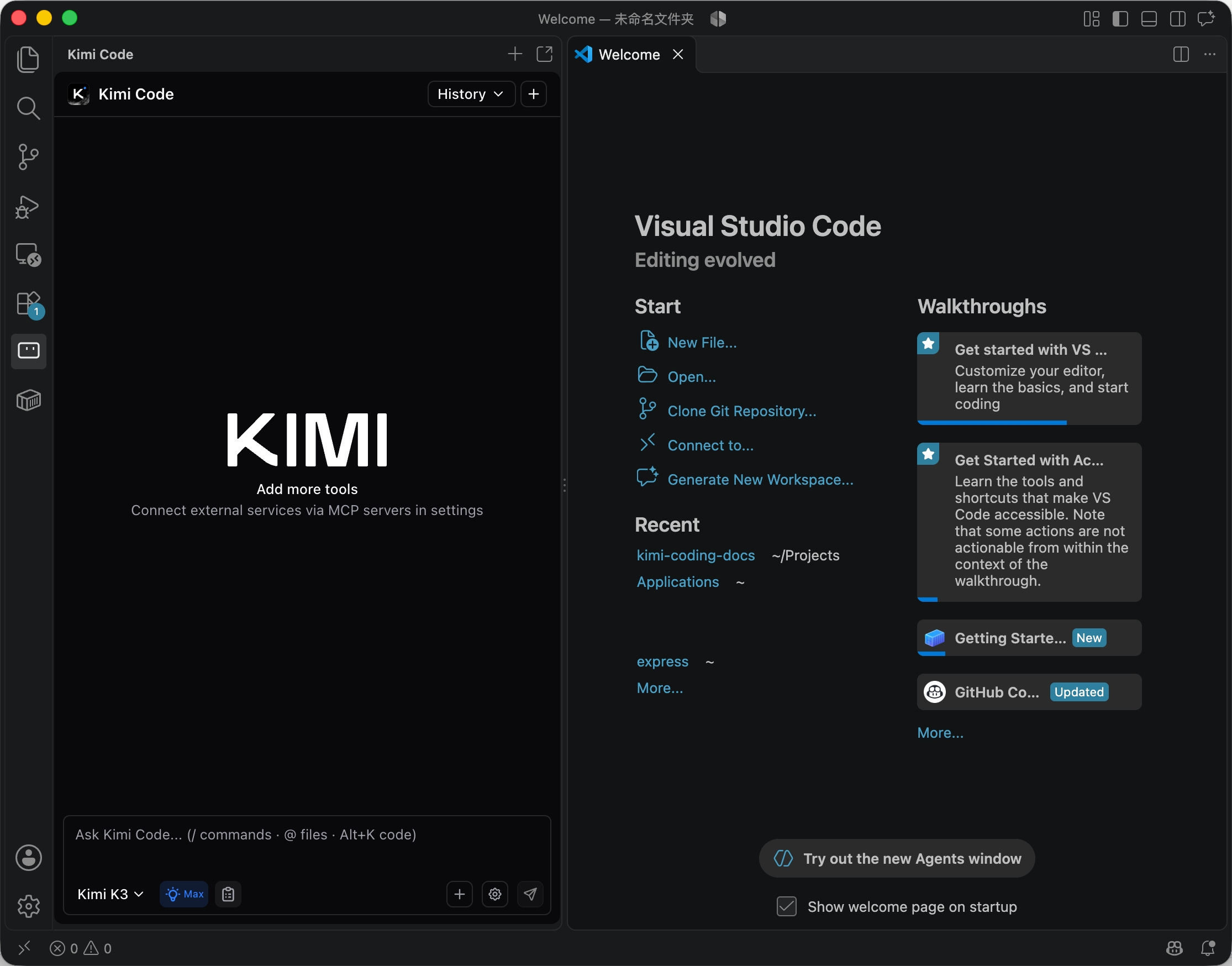
本扩展在 VS Code 中提供了原生聊天面板,支持通过 @ 符号引用文件或文件夹、/ 命令执行项目扫描与上下文管理、diff 视图展示文件变更并支持回退操作,同时支持集成 MCP 服务器以调用外部工具。聊天面板可置于活动栏、侧边栏或独立标签页中。
安装之前
需拥有 Kimi 账号订阅或 Kimi API 密钥。
安装方式
通过 VS Code Marketplace 安装。
若安装后未显示扩展,请重启 VS Code 或在命令面板中执行 "Developer: Reload Window" (Mac: Cmd+Shift+P, Windows/Linux: Ctrl+Shift+P)。
身份认证
Kimi Code 支持两种认证模式:
Kimi 账号模式:点击登录按钮,浏览器将打开授权页面,完成授权流程后返回 VS Code。
API Key 模式:若已配置 API Key,可点击跳过登录。插件将在此模式下运行。
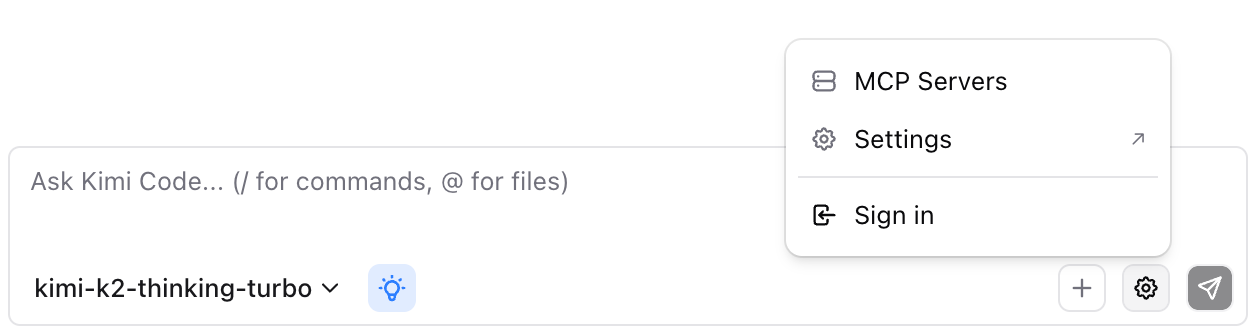
您可随时通过齿轮图标切换认证模式。登出后将返回登录界面。
典型工作流
代码解读:输入 @ 选择文件或文件夹,请求解释代码流程,可继续追问细节。
重构:引用目标代码如 @src/feature/,请求重构方案,审查 diff 并选择性批准,必要时使用回退。
调试:粘贴错误信息或堆栈跟踪,引用相关文件,请求诊断与修复,然后批准提议的变更。
项目概览:引用文件夹如 @src/services/,请求模块地图或架构摘要,可继续询问依赖关系或薄弱环节。
命令与快捷键
| 快捷键 | 功能 |
|---|---|
Ctrl+Shift+K / Cmd+Shift+K | 聚焦 Kimi 输入框 |
Alt+K | 插入当前文件引用 |
Ctrl+N / Cmd+N | 新建对话(需启用 kimi.enableNewConversationShortcut,启用后将占用系统默认的“新建文件”快捷键) |
↑ / ↓ | 在输入框中浏览输入历史 |
在命令面板中输入 "Kimi Code" 可访问更多命令:在新标签页打开、在侧边栏打开、新建对话等。
常见问题
VS Code 提示未打开工作区
请在 VS Code 中打开文件夹,Kimi Code VS Code 扩展需要工作区才能正常工作。
VS Code 提示找不到 CLI
请手动安装 Kimi Code CLI 并在 VS Code 设置中配置 kimi.executablePath,或确保内置 CLI 存在。
VS Code 登录失败
请尝试跳过登录使用 API 密钥模式,检查网络连接,或稍后通过 VS Code 扩展的操作菜单重试。
VS Code 发送消息无响应
请确认 Kimi Code CLI 可用、模型已配置且 VS Code 中已打开工作区文件夹。通过 "Kimi Code: Show Logs" 查看错误日志。
VS Code 连接超时
若 30 秒内无响应将超时。请检查网络后重试。
VS Code 发消息前报错
某些错误会阻止在 VS Code 中发送消息,如 Kimi Code CLI 未找到、版本过低、未登录或会话忙碌。错误将以 toast 提示,您的输入将被保留以便重试。
下一步
本文是否对你有帮助