Signing a PDF used to mean printing it, signing by hand, and scanning it back in, which is slow and not always practical when you're working from a phone or don't have a printer nearby. None of that is necessary anymore. This guide covers four ways to add a signature to a PDF document directly on screen, from a free built-in tool to a certificate-based option for documents that need identity verification.
How to add a signature to a PDF using Adobe Acrobat Reader
Acrobat Reader includes a built-in signing feature that handles most everyday signing tasks without needing the paid version of Acrobat. You can type your name, draw it with a mouse or trackpad, or upload a saved image of your handwritten signature. The result is placed directly on the PDF as a visual mark that travels with the file when you share it.
Step 1: Open the PDF in Adobe Acrobat Reader
Open your PDF file in Adobe Acrobat Reader. Go to the All Tools menu and select "Fill & Sign," or look for the E-Sign option in the toolbar.
Step 2: Create your signature
Click "Add Signature." A panel opens with three options: type your name in a script font, draw it using your mouse or trackpad, or upload an image of a handwritten signature. Choose the one that suits your needs and click "Save" to store it for future use.
Step 3: Place the signature on the document
Click the spot in the document where the signature should appear. The saved signature drops into place. Drag the corner handle to resize it if it's too large or too small relative to the surrounding content.
Step 4: Save the signed file
Go to File > Save or use Ctrl+S to save the signed document. The signature is now embedded in the PDF and will appear whenever the file is opened or printed.
Acrobat Reader's signing feature works on Windows, Mac, and mobile. The mobile app follows the same process, making it straightforward to add signature to PDF document from a phone or tablet.
How to insert signatures in PDF using an online tool
If you'd rather not install anything on your device, browser-based tools cover the same ground as Adobe Acrobat Reader without requiring a download. Smallpdf is one of the most commonly used options and doesn't require an account for basic signing. The process runs entirely in your browser, which makes it accessible from any device with an internet connection.
Step 1: Upload your PDF
Go to Smallpdf's Sign PDF tool and drag and drop the file you want to sign, or click to browse and select it from your device.
Step 2: Add your signature
Click "Add Signature," then choose to type, draw, or upload an image of your signature. Position it on the page and click "Finish & Sign" once it's placed where you want it.
Step 3: Download the signed PDF
Once the signature is applied, download the finished file to your device. The signed PDF is ready to send or store.
How to add a digital signature to PDF
A digital signature is a different category from typing or drawing your name. It uses a cryptographic certificate to verify who signed the document and confirm the file hasn't been altered since. If anything changes after signing, the signature shows as invalid.
Step 1: Open the Certificates tool
Open your PDF in Adobe Acrobat or Acrobat Reader. Go to All Tools and select "Use a Certificate," then choose "Digitally Sign."
Step 2: Select or create a digital certificate
If you already have a digital ID configured, select it from the list. If not, follow the on-screen prompts to create a self-signed certificate for internal use, or obtain one from a trusted Certificate Authority if the document will be shared externally.
Step 3: Draw the signature area and sign
Click and drag to draw a box in the document where the digital signature should appear. Acrobat prompts you to confirm the signing and apply for the certificate. The document is then locked against further changes unless the signature is explicitly removed.
Note that the Add Signature (Fill & Sign) feature is available in the free version, while the Digital Signature/Certificate feature is only available with the paid Acrobat Pro.
How to add a signature to a PDF document with Kimi Docs
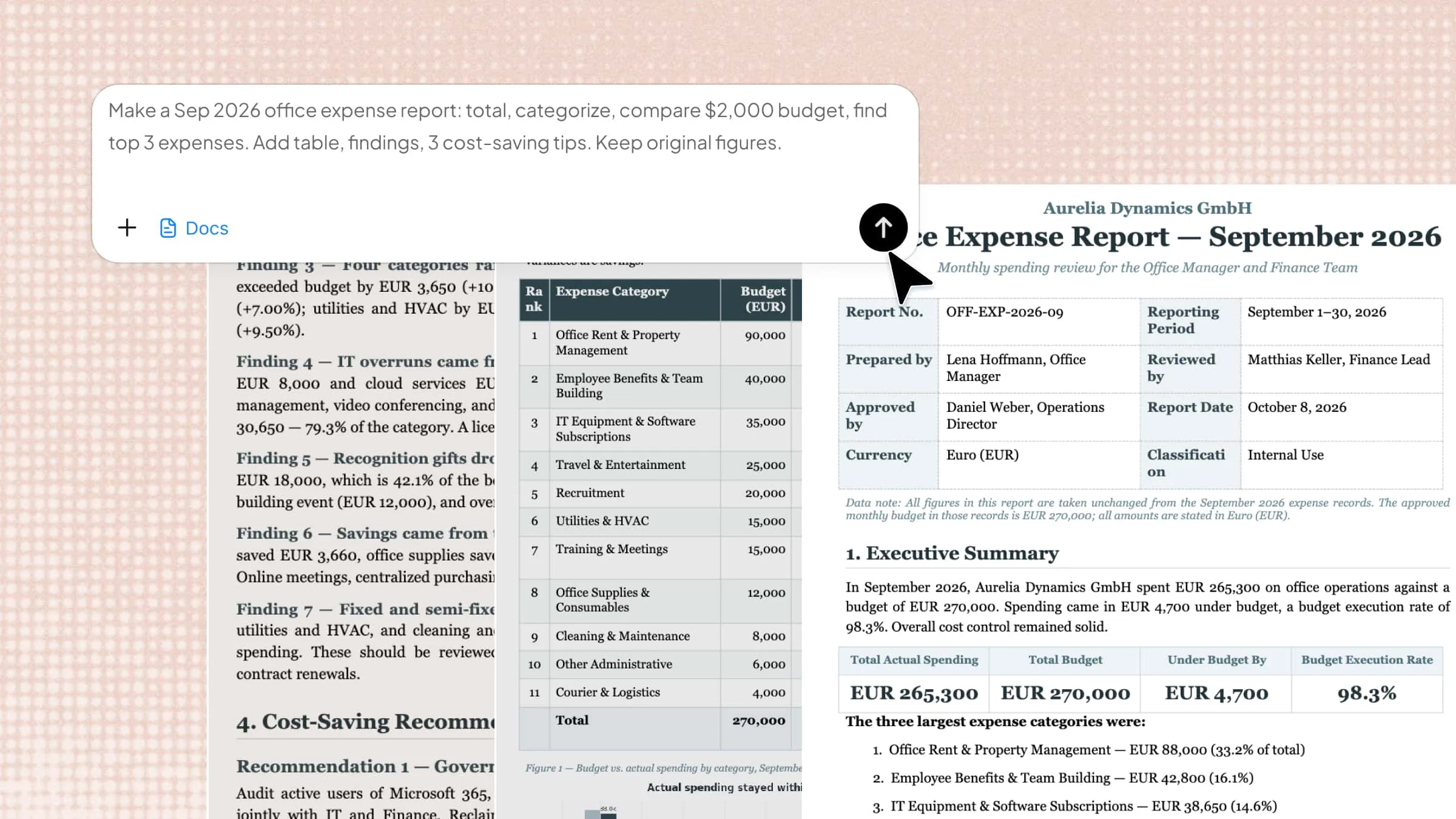
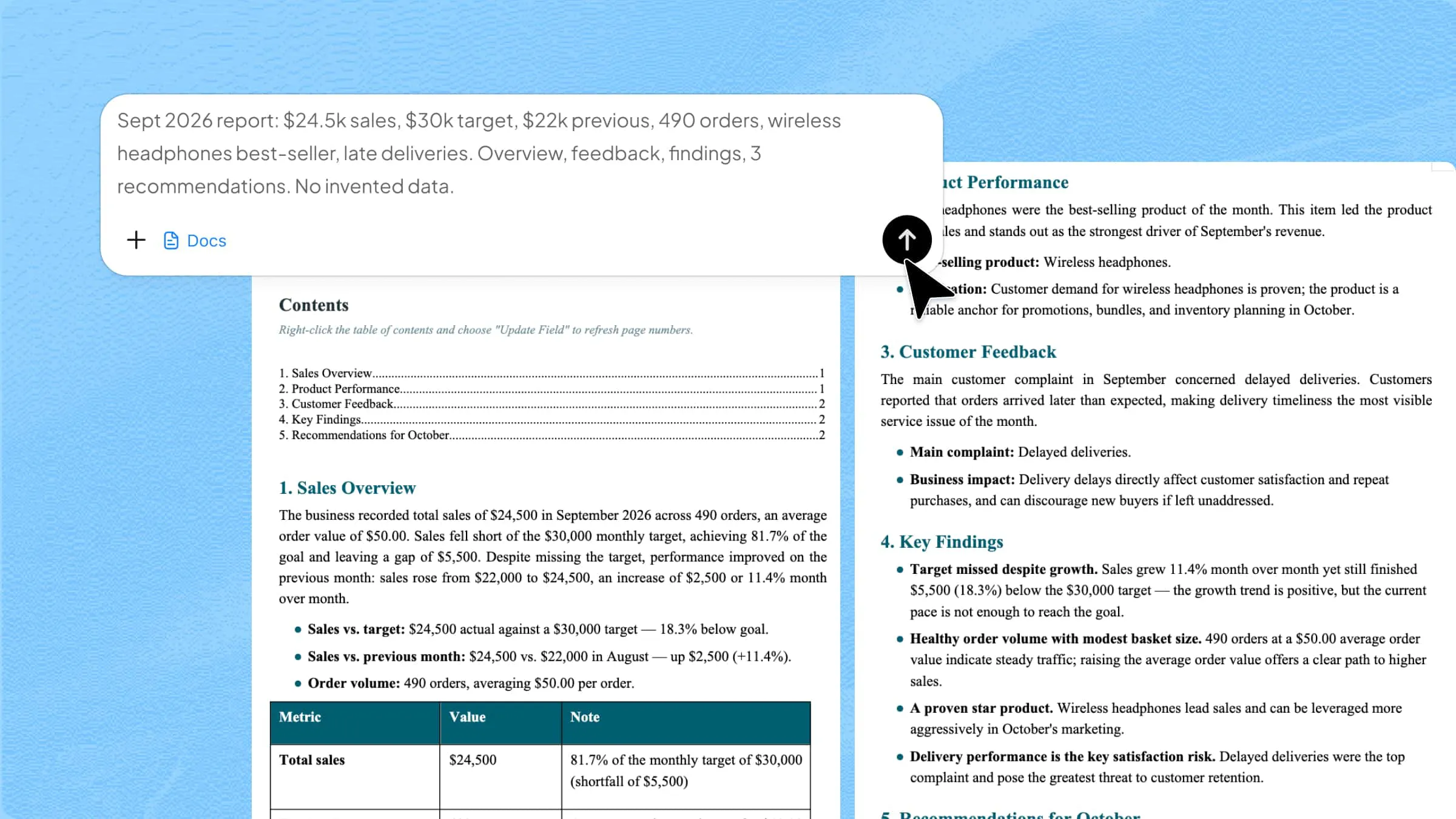
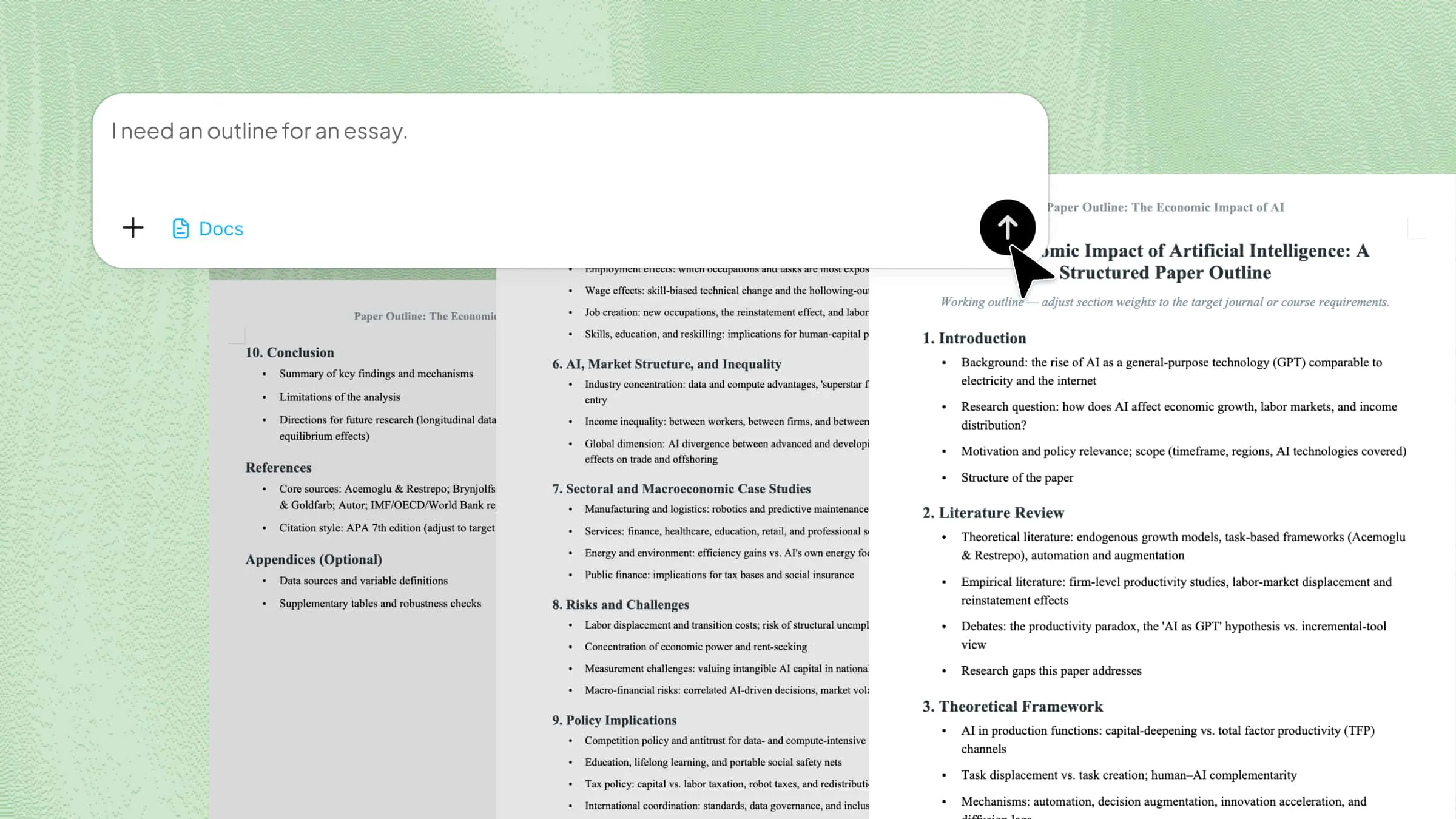
As a smart AI document agent, Kimi Docs eliminates manual formatting by letting you describe where the signature should go, and Kimi places it accordingly. This is particularly useful when you're signing multiple PDFs, or when the document also needs other edits at the same time as the signature. Rather than handling placement and formatting as separate tasks, Kimi handles both in a single step.
Step 1: Upload your PDF and your signature image
Upload the PDF document and an image of your signature to Kimi Docs.
Step 2: Describe where the signature should go
Tell Kimi where to place the signature and how it should be sized relative to the surrounding content.
Step 3: Review and download
Kimi places the signature as described and returns the finished PDF, ready to review or download.
Key features of Kimi Docs
No manual resizing needed: Describe how the signature should look and where it should sit, instead of dragging and adjusting it yourself. The placement comes from prompt rather than manual positioning.
Consistent placement across files: If you sign several PDFs the same way, the same description works each time. There's no need to repeat the drag, resize, and position steps for every document.
Work with any signature format: A typed name, a drawn signature, or a scanned image all work the same way once uploaded. You're not limited to one input format.
Edit alongside signing: Kimi can adjust formatting or fix other parts of the document in the same step as adding the signature, rather than treating them as separate tasks. This is useful for documents that need minor corrections before they're sent out.
Work across devices and platforms: Whether you're on a laptop, a tablet, or a phone, the workflow is identical. There's no separate process to learn for each device, and nothing to install on any of them.
Comparison: Which method should you use
| Method | Best for | Installation needed |
|---|---|---|
| Acrobat Reader Fill & Sign | Everyday signing | Yes, free download |
| Online tool for signature adding | Quick signing without installing anything | No |
| Digital signature (Acrobat) | Legal and compliance documents needing verification | Yes, Acrobat Pro |
| Kimi Docs | Consistent placement, batch signing, editing alongside signing | No |
Conclusion
The right way to add signature to PDF document depends on how the signed file will be used. Acrobat Reader's Fill & Sign covers most everyday needs at no cost. An online tool like Smallpdf handles the same task without any installation. A digital signature is the choice when the recipient needs to verify the signer's identity or confirm the file hasn't been altered. Kimi Docs is the most efficient option when placement needs to be precise, consistent, or combined with other document edits in the same step.