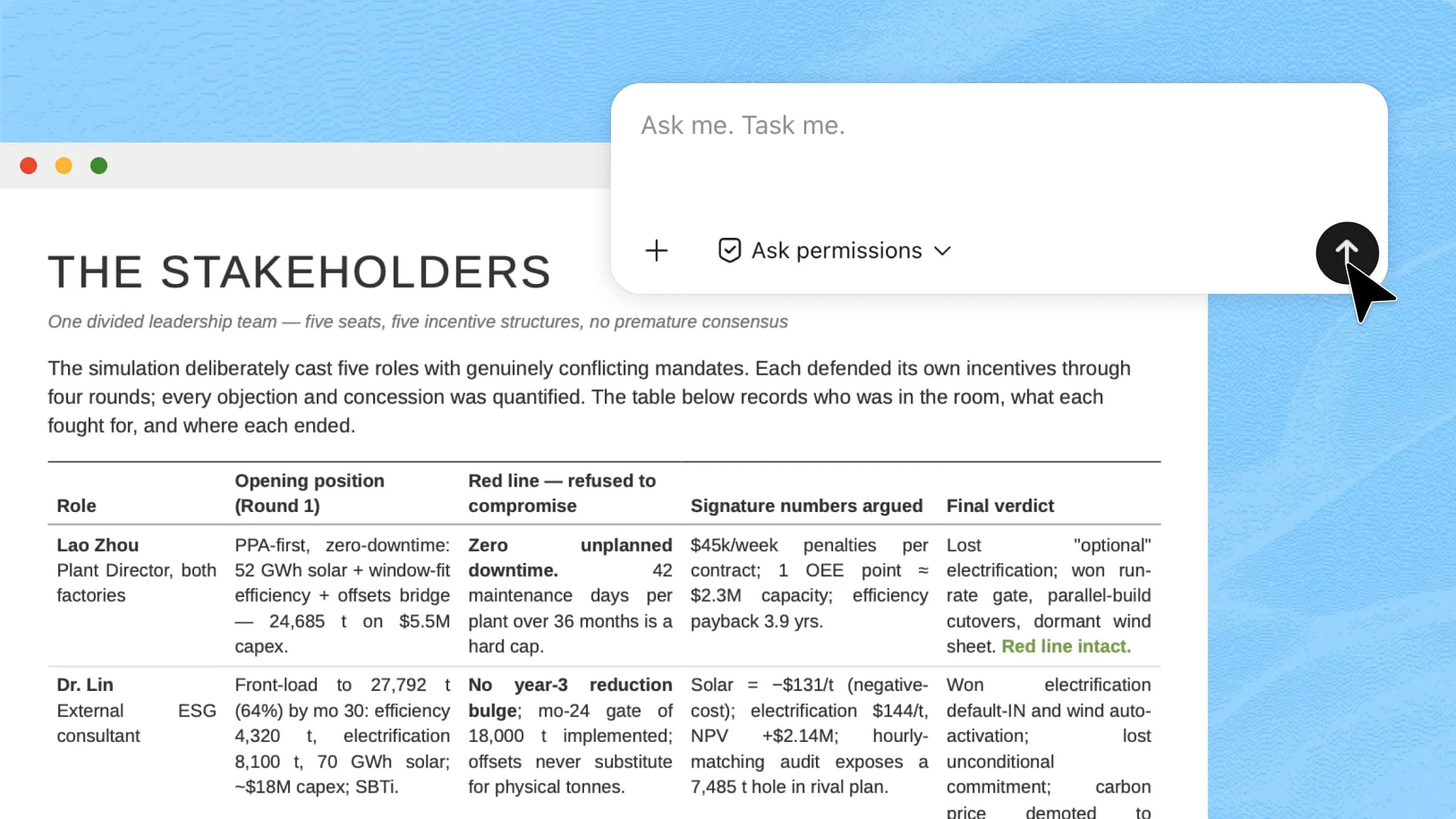
What Is an AI Excel Bot? Features, Benefits & Use Cases

Whether you're organizing data, creating formulas, or uncovering trends, an AI Excel bot can save hours of manual work. Among today's AI spreadsheet tools, Kimi Sheets stands out by turning natural language prompts into actionable insights with minimal manual effort.

10 min read2026-07-22
Best AI Excel Bot—Kimi Sheets

Managing spreadsheets can become challenging when dealing with large datasets, complex formulas, repetitive tasks, and time-consuming data processing. An AI Excel bot solves these challenges by automating spreadsheet workflows, analyzing data, and simplifying everyday Excel tasks. In this complete guide, you'll discover what an AI Excel bot can do and how it helps improve productivity and accuracy.

What is an AI Excel bot?

An AI Excel bot is an intelligent tool that helps automate spreadsheet tasks, analyze data, and simplify complex Excel workflows. It can understand user instructions, generate formulas, clean datasets, create insights, and reduce repetitive manual work. Unlike traditional spreadsheet tools, an AI Excel bot uses artificial intelligence to improve accuracy and speed. It helps users manage, analyze, and organize data more efficiently without requiring advanced Excel skills.

Meet Kimi Sheets: An AI Excel bot for smarter data analysis

Kimi Sheets is an AI Excel agent designed to simplify spreadsheet creation, data processing, and analysis through natural-language commands. It works as an intelligent Excel assistant that helps users automate tasks, manage complex data, and improve productivity with less manual effort.

  • Create spreadsheets from natural language

With this AI Excel bot, you can describe your requirements in simple words and generate structured spreadsheets automatically. Kimi Sheets understands your instructions and creates organized tables based on your workflow needs.

  • Generate accurate Excel formulas automatically

Kimi Sheets helps generate accurate formulas without requiring users to remember complex Excel functions. This AI-powered approach makes calculations faster and reduces errors in everyday spreadsheet tasks.

  • Clean and organize data with AI

As an AI Excel bot, Kimi Sheets can detect inconsistencies, remove unnecessary values, and organize messy datasets. It helps prepare cleaner data for analysis, reporting, and decision-making.

  • Analyze multi-sheet data and build pivot tables

Kimi Sheets can process data across multiple worksheets and summarize information efficiently. Its intelligent analysis features help create pivot tables and uncover important patterns from complex datasets.

  • Create charts and dashboards instantly

Generate visual reports, charts, and dashboards directly from your spreadsheet data. Compared with a traditional AI Excel bot extension, Kimi Sheets provides a more integrated workflow for analyzing and presenting data.

How to use Kimi Sheets for Excel analysis?

Kimi Sheets simplifies Excel analysis by helping users process, understand, and present data more efficiently. You can use it for different tasks, such as generating Excel formulas with AI, creating charts and visualizations automatically, and turning raw data into structured reports. It reduces manual work and helps you get meaningful insights from your spreadsheets faster.

Generate Excel formulas with AI

Kimi Sheets helps you create accurate Excel formulas by understanding your instructions and data requirements. Follow these simple steps to generate formulas faster without manually searching for complex functions.

Step 1: Import your data and enter a clear prompt

Open Kimi Sheets and click the "+" icon to upload your Excel file. Enter a clear prompt explaining the formula you need and the expected result.

Analyze the sales data in this spreadsheet and help me create accurate Excel formulas. Calculate total revenue, average sales, monthly growth rate, and sales performance by category. Identify the required columns, apply the correct formulas, and organize the results clearly in the worksheet. Make sure all calculations are accurate and easy to review.

Import your data and enter a clear prompt

Step 2: Let AI process and generate results

Kimi Sheets analyzes your data and automatically generates the required Excel formulas. It applies the formulas to your spreadsheet and helps simplify complex calculations.

Let AI process and generate results

Step 3: Preview and download the file

After Kimi Sheets completes the formula generation, click "Preview" to review the results and verify the calculations. Once everything looks correct, click "Download" to save the updated Excel file to your device.

Preview and download the file

Create charts and visualizations automatically

Kimi Sheets helps transform raw spreadsheet data into clear charts and visual reports using AI. Follow these steps to generate meaningful visualizations without manually creating graphs or selecting complex chart settings.

Step 1: Upload Excel and enter a clear prompt

Open Kimi Sheets and click the "+" icon to upload your Excel file. Enter a detailed prompt explaining the type of chart or visualization you need.

Analyze this sales dataset and create visual charts showing monthly revenue trends, top-performing products, and category-wise sales comparison. Choose suitable chart types and organize the visualizations clearly for easy understanding.

Upload Excel and enter a clear prompt

Step 2: Let AI process and generate results

Kimi Sheets analyzes your data, identifies important patterns, and automatically creates suitable charts and visualizations. It selects the right format to present your information clearly and effectively.

Let AI process and generate results

Step 3: Preview and download the file

Click "Preview" to review the generated charts and confirm that the visualizations accurately represent your data. If the results meet your requirements, click "Download" to save the updated Excel file.

Preview and download the file

Turn Excel data into a shareable report

Kimi Sheets helps convert complex Excel data into clear, structured reports in any format, like PDF, Word, or PPT, with AI assistance. It analyzes your spreadsheet, organizes key insights, and creates professional reports that are easier to understand and share.

Step 1: Import Excel and enter a clear prompt

Open Kimi Sheets and click the "+" icon to upload your Excel file. Enter a detailed prompt describing the type of report you need, including key sections, insights, or formatting preferences.

Analyze this Excel file and create a professional business report based on the available data. Include an executive summary, key performance metrics, important trends, and detailed insights. Identify the highest- and lowest-performing areas, compare results across different categories, and highlight any patterns or changes over time. Organize the report with clear sections, tables, and visual summaries where needed. Make the final report easy to understand, present, and share with stakeholders.

Import Excel and enter a clear prompt

Step 2: Let AI process and generate results

Kimi Sheets analyzes your Excel data and automatically generates a structured report based on your instructions. It identifies important information, summarizes findings, and organizes content into a readable format.

Let AI process and generate results

Step 3: Preview and download the file

Click "Preview" to review the generated report and check the accuracy of the insights and formatting. Once everything is ready, click "Download" to save the final report to your device.

Preview and download the file

Who can benefit from Kimi Sheets as an AI Excel bot?

Kimi Sheets helps different users simplify spreadsheet tasks, automate data workflows, and gain insights faster. From beginners to professionals, it reduces manual work and makes Excel-based tasks more efficient.

  • Excel beginners

New users can learn and manage spreadsheets without memorizing complex formulas or navigating advanced features. Kimi Sheets works as an AI Excel bot that helps complete common Excel tasks through simple instructions.

  • Educators and students

Students and teachers can organize research data, analyze survey results, create charts, and prepare learning materials more efficiently. Kimi Sheets simplifies spreadsheet work for academic projects and classroom needs.

  • Marketers and data analysts

Marketing teams and analysts can evaluate campaign performance, identify customer trends, and analyze business metrics faster. Kimi Sheets helps turn raw data into useful insights through AI-powered analysis and visualization.

  • Accountants and bankers

Financial professionals can simplify complex spreadsheet workflows, build reliable models, and reduce errors in calculations. Kimi Sheets helps create accurate, structured financial analysis while allowing experts to focus more on decision-making.

  • Project managers

Project managers often handle timelines, reports, data tracking, and frequent spreadsheet updates. As an Excel AI bot, Kimi Sheets helps automate repetitive tasks, organize project information, and keep reports accurate and up to date.

Expert tips for using Kimi Sheets as an Excel bot

To get the best results from Kimi Sheets, follow these practical tips for preparing data and creating effective AI workflows. Here are some simple ways to improve accuracy, efficiency, and overall spreadsheet performance.

  • Start with clean and structured data

Prepare your spreadsheet by removing duplicates, fixing formatting issues, and organizing columns clearly. A well-structured dataset helps Kimi Sheets understand your information and generate more accurate results.

  • Be specific in your prompts

Provide clear instructions instead of using general requests. This Excel AI bot works better when you explain exactly what you need, such as creating summaries, calculating growth rates, or identifying key trends.

  • Use descriptive column names

Clear column headers make it easier for Kimi Sheets to interpret your data correctly. Use specific names like "Sales Amount" or "Order Date" instead of unclear labels to improve analysis quality.

  • Use consistent data formats

Keep formats for dates, currencies, percentages, and numbers consistent throughout your spreadsheet. This helps the AI Excel bot process information correctly and reduces errors during analysis.

  • Break large tasks into smaller requests

Handle complex workflows step by step instead of combining multiple tasks in one prompt. For example, clean data first, generate formulas next, and create charts afterward for easier review.

  • Keep source data separate

Always maintain a copy of your original spreadsheet before applying AI-assisted changes. This allows you to compare results, verify calculations, and restore data if needed.

Conclusion

In short, an AI Excel bot makes spreadsheet management faster, smarter, and more efficient by automating repetitive tasks and simplifying data analysis. Kimi Sheets helps users generate formulas, clean data, create visualizations, and turn spreadsheets into actionable insights. With AI-powered assistance, it reduces manual effort and improves accuracy. Whether for personal or professional use, Kimi Sheets provides a more efficient way to handle everyday Excel workflows.

FAQ

Is there a free AI Excel bot Chrome extension?
Some AI Excel bot Chrome extensions offer free plans or limited features for basic spreadsheet assistance. However, advanced functions like complex analysis, automation, and large file processing may require paid access. Tools like Kimi Sheets provide AI-powered spreadsheet features without depending on a browser extension.
Does the AI Excel bot work with CSV and Excel files?
Yes. Kimi Sheets supports common spreadsheet formats, including Excel files and CSV data. Simply upload your files and give a natural language instruction, and Kimi Sheets can help organize, clean, transform, and analyze your data without complicated formulas or manual processing.
Can the AI Excel bot analyze multiple Excel files at once?
Yes. Kimi Sheets supports batch file processing, allowing you to upload multiple spreadsheets and work with data from different files efficiently. It can help merge, organize, and analyze information across multiple datasets, reducing repetitive manual tasks and making large-scale data processing faster.
You Might Also Like
How to Convert Text Files to Excel: 4 Easy Methods
2026-07-22
What is a Delimiter in Excel and How can Beginners Use It
2026-07-22
The Ultimate Guide to Convert JPG to Excel in iLovePDF
2026-07-22
Convert Text to Numbers in Excel: 5 Easy Methods
2026-07-22
How to Convert An Image to Excel: A Step-by-Step Guide
2026-07-22