Step-by-Step Guide to Combine PDFs Using iLovePDF

Combine PDFs using iLovePDF to quickly merge multiple files into a single clean document. For a faster, smarter approach, AI tools like Kimi Docs can also merge and organize documents effortlessly for well-structured results.

10 min read2026-05-29

Table of contents

Combining PDFs using iLovePDF enables users to merge multiple PDF files into a single, structured document for better organization and accessibility. Instead of handling several separate files, users can keep all important pages in one place, which improves readability, simplifies document management, and creates a more professional viewing and sharing experience.

In this guide, we'll cover the complete process of combining PDFs with the iLove PDF combiner tool while also highlighting how Kimi Docs helps simplify document organization and improve everyday workflow management.

When to use a merge PDF tool?

Here are some practical situations where iLove PDF combiner can help streamline document handling and keep multiple files properly organized in a single PDF document.

Simplify sharing multiple PDFs

A merge PDF tool is useful when you need to send reports, invoices, presentations, or study materials in one organized file instead of multiple attachments. Combining documents into a single PDF improves accessibility, reduces confusion, and creates a more professional sharing experience.

Collaborative projects

During collaborative work, different team members often create separate files such as drafts, research documents, or feedback sheets. Merging these PDFs helps maintain proper document flow, simplifies project review, and ensures that all important information stays together in one accessible file.

Organize personal projects

Personal tasks like travel planning, event preparation, budgeting, or study organization usually involve many separate documents. A merge PDF tool helps keep these files together in one place, which makes important information easier to store, access, and manage over time.

How to combine PDFs with iLovePDF?

Learning how to use the iLove PDF combiner helps you merge multiple PDF files quickly and efficiently without any confusion or hesitation. Below are two simple methods to guide you through the process.

Combine PDFs online

The online PDF combiner iLovePDF simplifies document management by allowing users to merge multiple PDF files into a single, organized document directly from a browser. It supports instant file uploads from local storage as well as cloud platforms, which enables users to easily collect documents from different sources in one place. Users can preview files before merging, rearrange pages to match the required structure, and remove unnecessary pages without affecting the rest of the document.

Step 1: Upload your PDF files

Open iLovePDF, choose the "Merge PDF" tool from the main screen. Click the "Select PDF file" button to upload all the PDF documents you want to merge. You can add files directly from your device or import them from cloud storage platforms for easier access and management.

Upload PDF files to iLove PDF combiner

Step 2: Arrange and organize pages

Once the files are uploaded, review the document order and rearrange pages as needed. This helps you create a properly structured file by placing reports, forms, presentations, or scanned pages in the correct sequence before merging.

Arrange and organize pages

Step 3: Merge and download the final document

Click the "Merge PDF" button to combine all selected PDFs into a single file. After processing is complete, download the merged document to your device and use it for sharing, printing, storage, or professional documentation.

Download the final merged document

Combine PDFs offline

The offline iLove PDF combiner provides a dedicated desktop-based workflow for managing PDF files more efficiently in everyday environments. It allows users to process large documents locally to reduce delays caused by browser limitations or unstable internet connections. The software also provides greater control over file handling, which makes it suitable for organizing confidential reports, legal paperwork, technical documents, and bulk records directly from the computer.

Step 1: Install and open the iLovePDF desktop application

Download and install the iLovePDF desktop software on your computer, then launch the application. From the left-hand panel, click "Tools" and select the "Merge PDF" option to start combining your PDF files.

Accessing the Merge PDF tool from the iLove PDF desktop application

Step 2: Import and organize PDF documents

Press the "Open file" button to add all the PDF files you want to combine, and arrange them in the required sequence. You can review document placement, adjust file order, and prepare the final structure before starting the merging process.

Importing a PDF document

Step 3: Merge and save the final PDF

Press the "Merge PDF" button, choose the location or name the file to save the merged PDF to your preferred folder for easier storage, sharing, printing, or professional record management.

Downloading final PDF

Why is iLovePDF PDF combiner not merging properly?

If the iLove PDF combiner is not merging files properly, understanding the possible reasons behind the issue can help make the merging process smoother and prevent interruptions while combining important documents. Here are some common reasons explained below.

Corrupt PDF files

Corrupted PDF files may contain broken formatting, missing data, or damaged file structures that prevent the combiner from processing them properly. Even if the document opens normally on a device, hidden file errors can still interrupt the merge process or create incomplete output files.

Unsupported formats

Some files may appear as PDFs but are actually created using unsupported conversion methods or uncommon software settings. These formatting inconsistencies can make it difficult for the PDF combiner to recognize the document structure and successfully combine all pages.

Large file size issues

PDFs containing high-resolution images, scanned pages, or complex graphics usually require more memory and processing power during merging. Uploading several large files at once can slow down the browser, increase processing time, or cause the merging task to fail unexpectedly.

Poor internet connection

Online PDF tools rely heavily on stable internet connectivity to upload and process files without interruption. A weak or fluctuating connection may stop file transfers midway, resulting in incomplete uploads, delayed processing, or unsuccessful merging attempts.

Password-protected PDFs

Password-protected PDFs include security restrictions that limit editing, copying, or document modification features. If these restrictions are not removed before uploading, the combiner may block the file entirely or fail to merge protected sections correctly.

Browser upload errors

Browser-related issues such as outdated software, overloaded cache memory, disabled permissions, or incompatible extensions can interfere with file uploads. These technical problems may prevent documents from loading properly into the combiner, even when the PDF files themselves are valid.

Server overload issues

When a large number of users access the platform simultaneously, the server may become overloaded and respond more slowly than usual. During high traffic periods, file processing can become delayed, unstable, or temporarily unavailable, which affects the overall merging experience.

AI-powered PDF merger for smooth workflow: Kimi Docs

Kimi Docs, an AI document agent, helps streamline document work by bringing multiple PDF tools into one convenient platform. Instead of switching between different apps for merging, arranging, or converting files, users can manage everything in a smoother and more organized way. Its AI-powered system helps reduce manual effort to make document handling quicker, cleaner, and easier for both personal and professional use.

How to combine PDF files using Kimi Docs?

If you want to combine PDF files, open Kimi Docs through the link below, then follow these simple steps to begin the merging process

Step 1: Upload your PDFs and enter the prompt

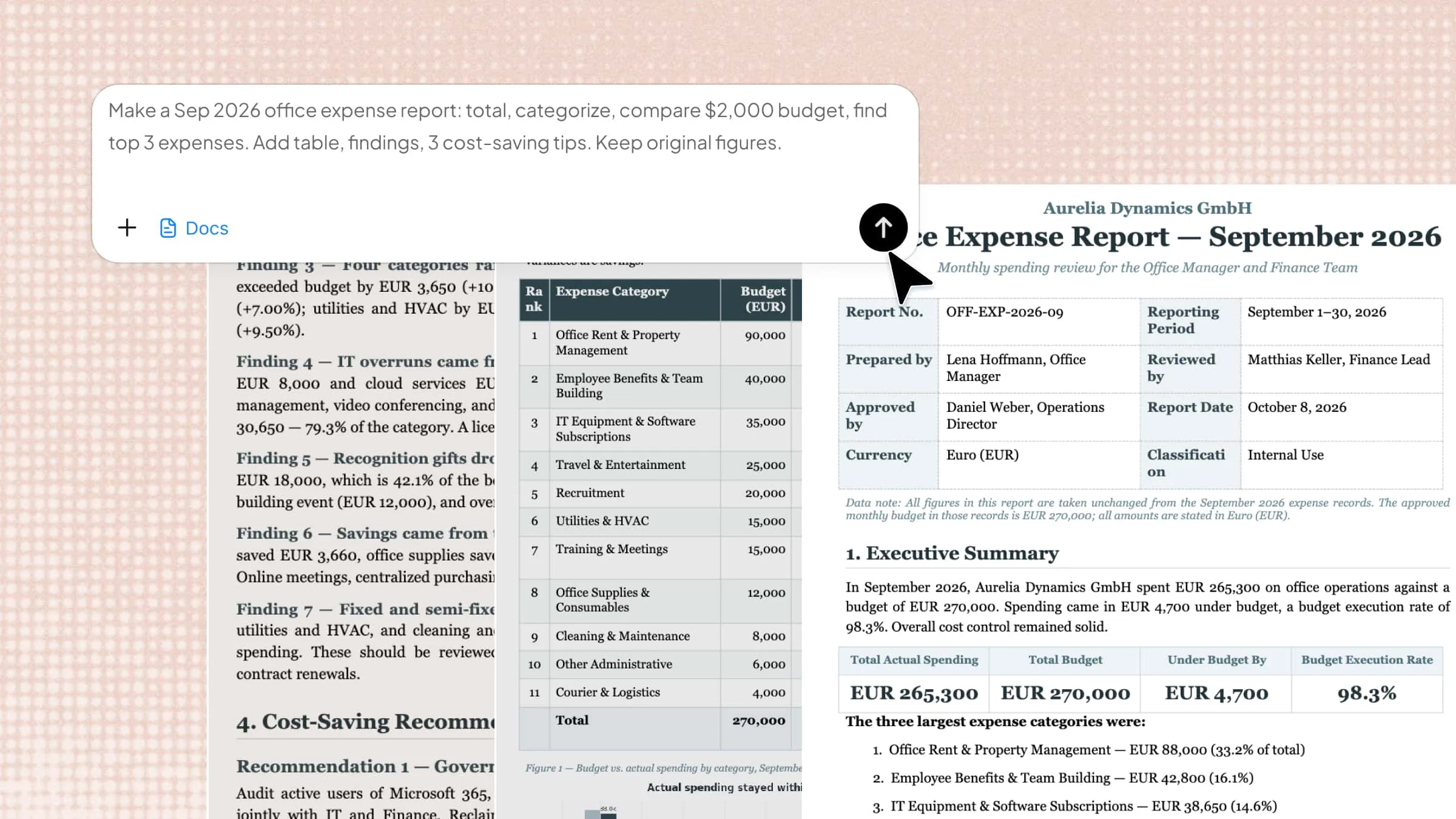
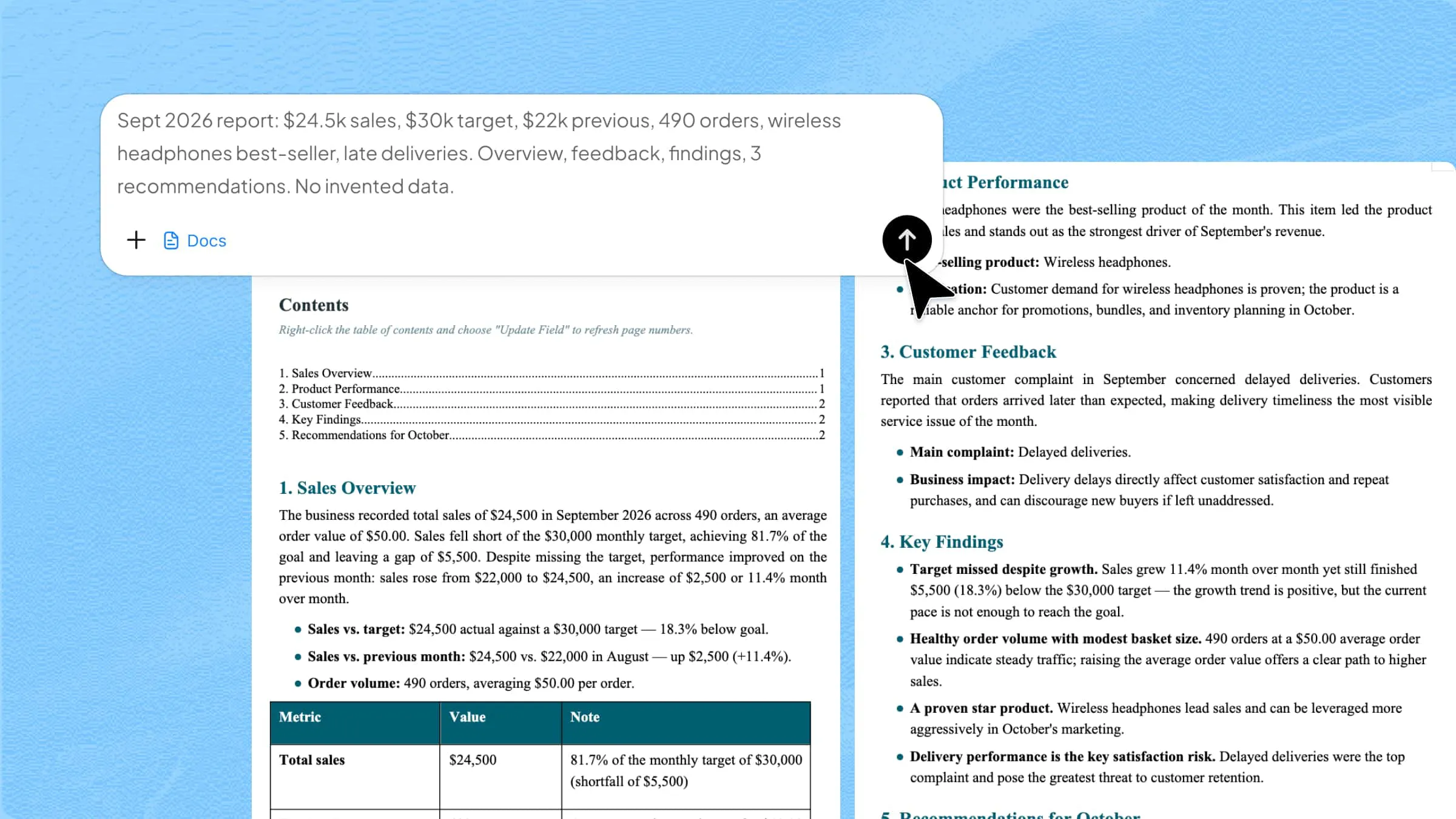
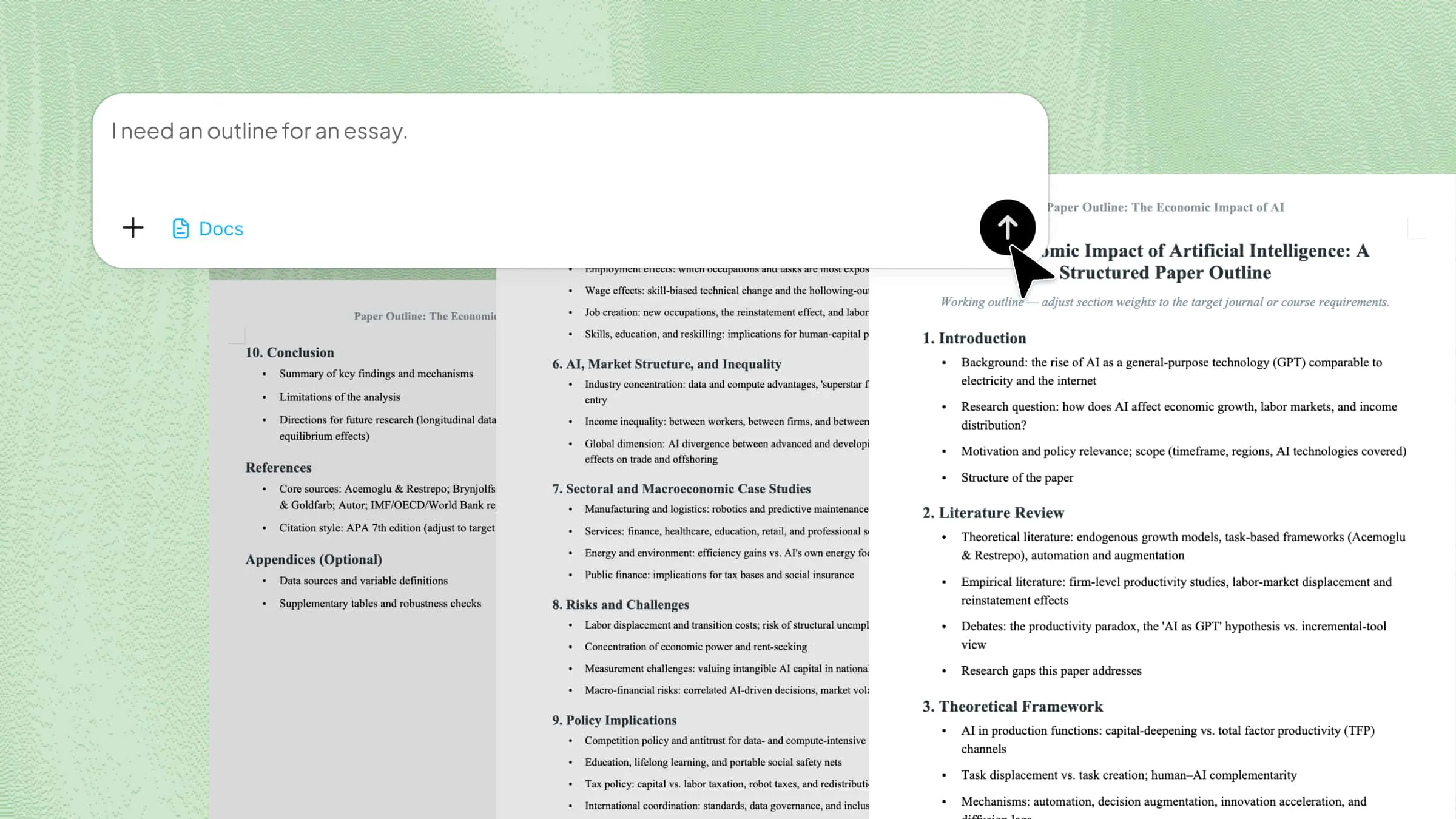
Launch Kimi Docs, then click the "+" button to upload the PDF files you want to combine. After uploading the files, enter your merging requirements in the prompt box to continue the process.

Combine the uploaded PDF files into one structured document showing a clear and logical flow of content, arranged in a proper sequence for better readability. Ensure consistent formatting across all pages, maintain clarity in layout, and produce a clean, professional final PDF with smooth organization and easy navigation.

Uploading PDF files

Step 2: Let Kimi process and generate results

Click the "Send" button to allow Kimi's AI to combine the PDF files based on your requirements and generate the final document.

Let Kimi process and generate results

Step 3: Download your PDF file

After generating results, click the "Preview" to review the generated result, make adjustments if needed, and then download your PDF.

Download your file

Download your PDF file from Kimi

Core features of Kimi Docs

Kimi Docs provides several useful features that enhance the user experience by making document management, editing, and organization more efficient and convenient.

Merge PDFs in minutes

Kimi Docs allows you to combine multiple PDF files into a single, organized document in just a few clicks. Whether you are managing reports, contracts, study materials, or presentations, the process stays fast and smooth without slowing down your workflow.

Keep formatting intact

Your original document quality remains unchanged after merging, converting, or editing files. Fonts, images, tables, spacing, and layouts are preserved accurately, which helps your documents maintain a clean and professional appearance across every page.

Smart format conversion

Easily convert PDF, Word, Excel, and PowerPoint files while maintaining the original content and structure. Kimi Docs handles conversions smoothly, so charts, text formatting, graphics, and tables stay properly aligned and ready to use immediately.

Intuitive interface

The platform is designed with a simple and user-friendly layout that makes every feature easy to access. From uploading files to editing and exporting documents, each step feels straightforward, helping both beginners and professionals work comfortably.

Conclusion

In conclusion, PDF merging solutions simplify file management by bringing separate documents into one well-structured PDF for easier review, storage, printing, and distribution. The iLove PDF combiner provides a rapid way to merge files, while platforms like Kimi Docs enhance the process with AI-powered organization, cleaner formatting, and more efficient workflow support. Adopting these tools can help create a smoother document-handling experience while improving accuracy, accessibility, and overall work efficiency.

FAQ

Is iLovePDF merge free to use?
Yes, the iLovePDF merge tool can be used for free to combine multiple PDF files into one document. Users can upload files, arrange them in the required order, and merge them online without installing additional software. However, some advanced tools and larger file limits may only be available in the premium version.
Is there a free way to combine PDF files?
Yes, several free PDF tools are available online that help users join multiple documents into one file. These platforms are useful for keeping documents together and making digital files easier to store or send.
How to combine 2 PDFs into 1 PDF?
Start by opening a PDF combiner tool and uploading both documents. Once the files appear on the screen, place them in the preferred sequence and begin the combining process to create a single PDF file.