Table of contents
- How to convert an image to PDF in iLovePDF?
- Why convert JPG to PDF?
- Which image formats can you convert to PDF?
- Smart AI solution for JPG to PDF Conversion: Kimi Docs
Whether you want to share images for school, work, or personal use, turning them into a PDF makes everything more organized and easier to send. One simple method is to use JPG to PDF in iLovePDF, which helps convert images into clean and neat PDF files in just a few steps. It keeps your file layout stable and ready for sharing without confusion or extra editing. Read the full article to learn the easy process and get started quickly.
How to convert an image to PDF in iLovePDF?
Changing an image into a PDF in iLovePDF is very simple and does not take much time. The tool is made to help you upload images and turn them into a clean PDF file with just a few clicks. Everything works online, so there is no need to install anything. Here's how you can get started with iLovePDF JPG to PDF converter.
Step 1: Open the tool
Go to the iLovePDF website and select the tool called "JPG to PDF". This option is specially made for image-to-PDF conversion and is easy to find on the main page.
Step 2: Upload your image
Click on "Select JPG images" and upload the image you want to convert. You can also drag and drop files directly into the upload area for faster access.
Step 3: Convert and download
After uploading, click on "Convert to PDF". Once the process is finished, press "Download PDF" to save your file on your device.
Why convert JPG to PDF?
Converting JPG images into a PDF is useful in many everyday tasks like sharing documents, saving files, and keeping everything organized. It also helps you manage multiple images in a cleaner format without confusion. Below are some key reasons why this conversion is helpful.
Need to combine multiple images in one PDF
When you merge pictures using iLovePDF's image to PDF tool, it becomes easy to place several images in a single file. You can arrange pages in the order you want and keep everything neat and organized. This is useful for notes, scanned pages, or photo collections in one document.
Easier sharing and printing
A PDF format makes sharing much smoother across different devices and platforms. Your images stay in the same layout, so nothing shifts when someone opens the file. Printing also becomes accurate because the formatting remains fixed and stable.
Reduce file size
Turning images into a PDF can also help in making files lighter and easier to manage. When you merge JPGs to PDF with iLovePDF, compression helps reduce heavy image sizes. This makes uploading, downloading, and storage faster and more convenient.
Cross-platform compatibility
PDF files work on almost every device without needing special apps or software. Whether on mobile, laptop, or tablet, the file opens the same way everywhere. This makes it a reliable format for both personal and professional use consistently and efficiently.
Annotation and editing support
A PDF gives more flexibility when you need to mark or edit content later. After you convert images, you can easily add notes, highlights, or small edits using PDF tools. This makes it useful for study material, reports, or work-related documents.
Which image formats can you convert to PDF?
Different devices and apps save images in different formats, so a converter needs to handle many types easily. iLovePDF supports a wide range of image files, making it simple to turn almost any picture into a clean PDF without extra steps. Here's the collection of image formats that you can convert to PDF with iLovePDF.
- JPG to PDF (common photos and pictures)
- PNG to PDF (images with transparency)
- WEBP to PDF (modern web images)
- HEIC to PDF (Apple device photos)
- BMP to PDF (basic bitmap images)
- TIF to PDF (high-quality scanned files)
- SVG to PDF (vector graphics and logos)
- RAW to PDF (camera raw image files)
- IMG to PDF (general image files)
Smart AI solution for JPG to PDF Conversion: Kimi Docs
Kimi Docs is a smart AI document agent designed to make document handling and conversion tasks much easier. It helps users organize, adjust, and prepare files in a clean format before converting them into PDFs. With its intelligent processing, it improves layout and readability, especially for large or complex image files. This makes JPG to PDF conversion smoother, faster, and more efficient for everyday use.
How to convert JPG to PDF with Kimi Docs?
Kimi Docs makes image handling simple by using AI to prepare files in a cleaner and more organized way before conversion. It helps improve layout, adjust structure, and reduce issues that can appear in large image files. Here's how you can use it for file conversions.
Step 1: Upload your JPG image and enter the prompt
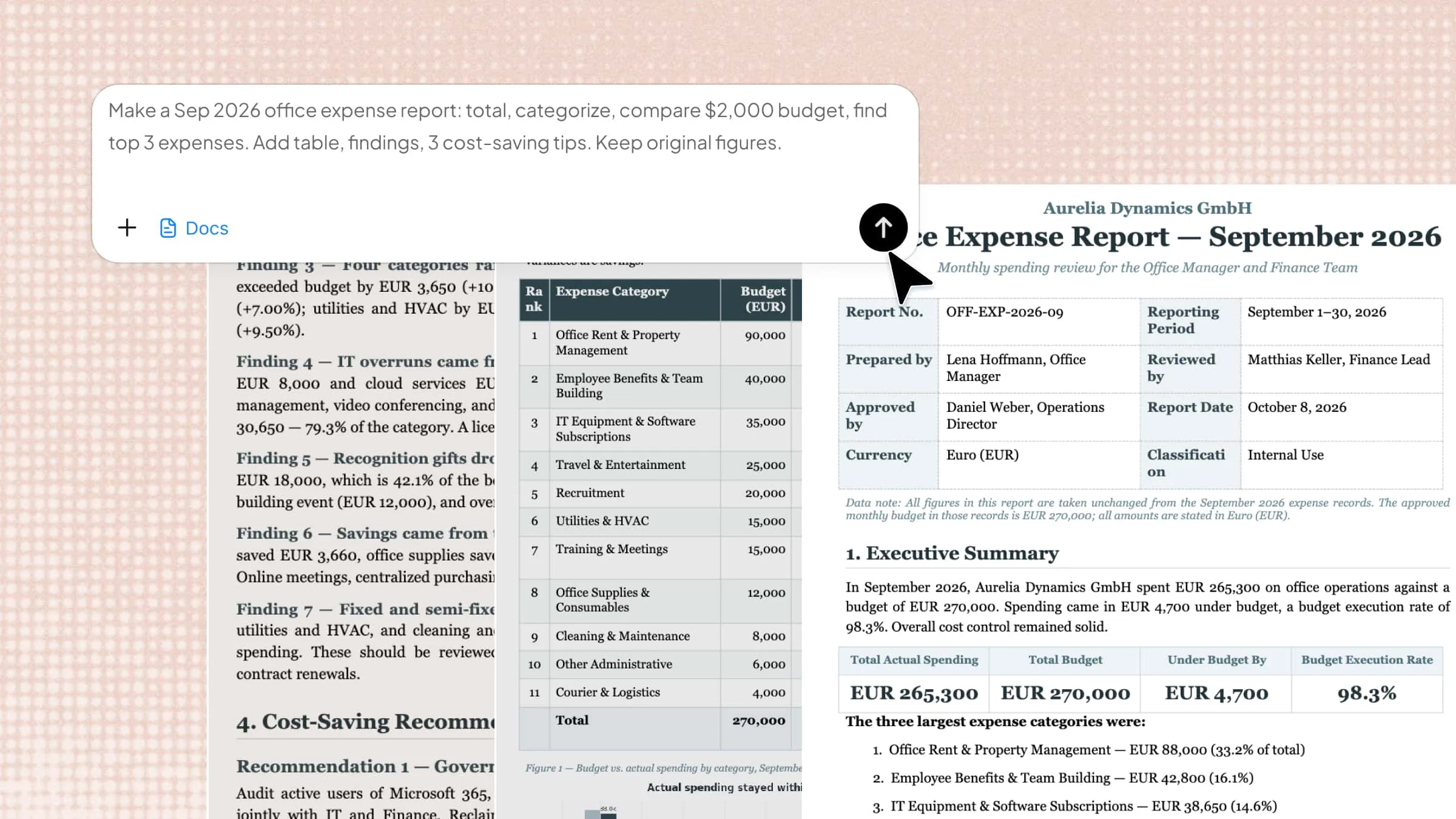
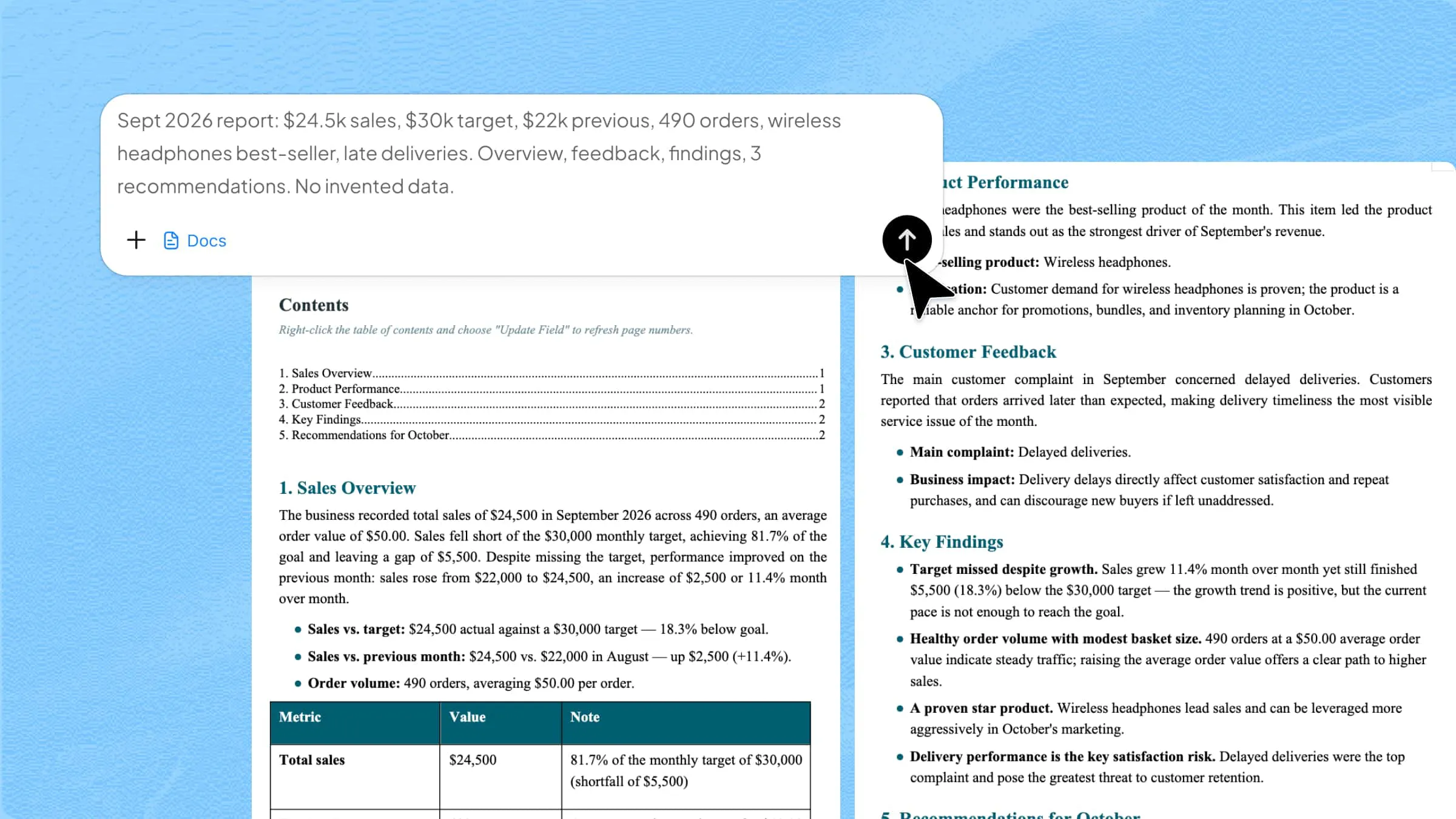
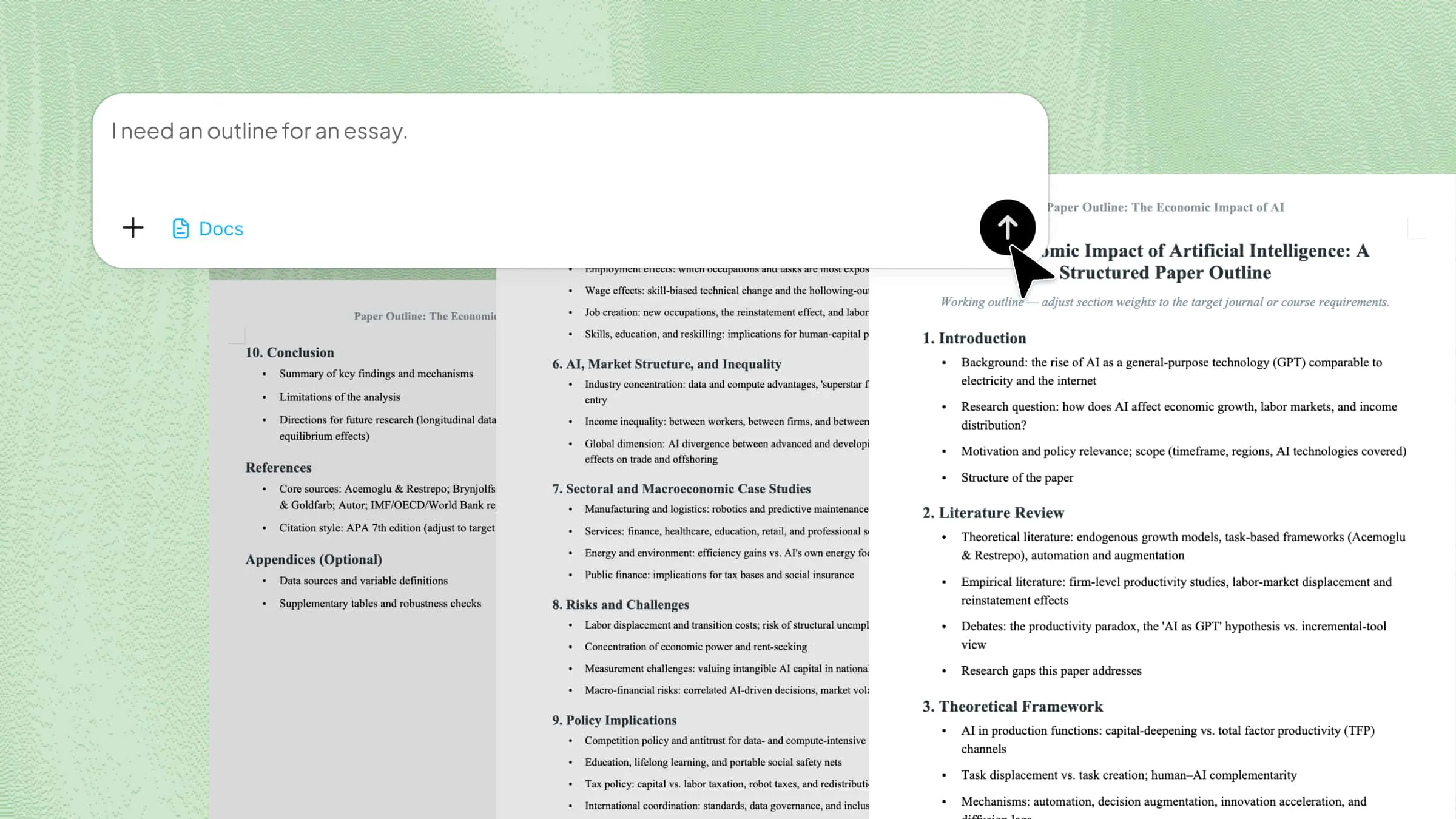
Open Kimi Docs and upload your JPG image into the workspace. Once the upload is complete, enter a simple prompt describing how you want the final PDF to look and how the layout should be arranged. Then click the submit button to let the AI begin processing.
Example prompt:
Step 2: Let AI process and generate results
Once your image and prompt are added, Kimi Docs uses AI to analyze and improve the file structure. It adjusts layout, enhances formatting, and prepares a clean version suitable for conversion. You just need to wait while the system generates the final output automatically.
Step 3: Download your PDF file
Once the PDF is generated, click "Preview" next to each file, then click the "Download" button to save the PDF to your PC.
Key features of Kimi Docs
- Fast and accurate file conversion: Kimi Docs quickly converts JPG images into PDF format without long waiting times. It also ensures the output stays accurate and properly structured.
- Reliable extraction of every element: The tool carefully reads all parts of your image, including text and visuals. Nothing important gets missed during the conversion process.
- Keeps formatting unchanged: Kimi Docs maintains the original layout of your image during conversion. Your content appears in the same clean structure inside the PDF.
- Supports multiple file types: It works with different image formats and document inputs easily. This makes it flexible for various conversion needs.
- Fast multi-file conversion: You can upload and convert several files at the same time without delay. This saves time when working with bulk images.
Conclusion
Using iLovePDF to convert JPG to a PDF makes the whole process simple, quick, and easy to handle for daily use. It helps you keep your images organized in a clean document that can be shared or stored without any trouble. With just a few steps, you can manage your files in a more structured way and save time in your work.
For a smarter and smoother experience, try Kimi Docs to prepare and improve your files before conversion. It can make your JPG to PDF process even easier with better results.