Table of contents
- How to convert JPG to PDF using Sejda?
- Common problems and solutions for turning images into PDFs in Sejda
- Bonus tip: Instant PDF conversion made easy with Kimi Docs
Want a simple way to turn your JPG images into a clean PDF without losing quality? Converting files becomes easy when you use the right tool like Sejda. It helps you keep images clear while giving control over layout and formatting. This article will guide you through quick steps to using the Sejda JPG to PDF tool to get smooth and high-quality PDF results.
How to convert JPG to PDF using Sejda?
Converting JPG images into a PDF helps you organize pictures in a clean and professional format. Sejda makes this process simple with both online and offline options for quick results. Let's go through the step-by-step process to convert JPG to PDF easily.
Convert JPG to PDF online
Before you start converting images, it helps to understand how the tool organizes everything for you. Sejda keeps the process simple, so you can upload files, adjust settings, and get a clean PDF in just a few clicks. Each option is placed in a clear order, so nothing feels confusing. Here's how to add an image to a PDF using Sejda online.
Step 1: Upload your files
Click the "Upload" button and select JPG images from your computer. You can also drag and drop files directly onto the page for faster upload. Files from "Dropbox" or "Google Drive" can be added through the upload dropdown as well.
Step 2: Choose settings
Select your preferred "Page size", such as A4 or fit to image. Adjust "Page orientation" to portrait or landscape based on image shape, and set "Image margins" if you want space around the image. These options help control how your final PDF looks.
Step 3: Convert and download
Now click "Convert to PDF" to let Sejda process the images and create a single PDF file. Once the file is generated, preview it to ensure everything looks correct. Then click "Download" to save the high-quality PDF to your PC.
Convert JPG to PDF offline
Working offline becomes useful when you don't want to upload files online or depend on the internet speed. Sejda also gives a desktop version that works directly on your computer, so your files stay local and secure. The process is almost the same as the online tool, just fully offline. Here's how you can use Sejda image to PDF editor offline.
Step 1: Open Sejda Desktop and choose the tool
Install and open "Sejda Desktop" on your computer. From the home screen, select the "JPG to PDF" tool to start the conversion process. This tool is designed for working completely offline.
Step 2: Add your JPG images
Click "Choose image files" to upload images from your computer. You can also drag and drop JPG files directly into the workspace. Arrange them in the correct order before moving ahead.
Step 3: Adjust settings and convert
Choose page options like size (A4 or fit to image), orientation (portrait or landscape), and margins if needed. After checking everything, click "Convert to PDF" and save your PDF file directly to your computer.
Common problems and solutions for turning images into PDFs in Sejda
Small issues can occur while using any online tool, especially when working with multiple images. Sejda usually performs well, but factors like file size or image quality can sometimes affect the results during JPG to PDF conversion. Below are some common problems you may face, along with their solutions.
Upload fails: Check file size limit
Upload may fail when your images are too large or exceed the tool's limit. Try reducing image size or compressing files before uploading. You can also upload fewer images at a time to avoid errors. This makes the process smoother and prevents repeated failures during conversion.
Images not loading: Refresh browser or retry upload
If images don't show, it may be a temporary glitch in the browser or a slow connection. Often, the problem can be resolved in a rapid time by refreshing the page. Close the browser and reopen if necessary, and upload again. This allows the proper load to be restored and stability to be enhanced.
Poor quality output: Use high-resolution JPG files
The PDF is likely to be blurry or pixelated if the images used to create it were not of high quality. Use clear, crisp, high-quality JPG images first. This way, your final PDF will look sharp and professional. The quality of the images also enhances the readability and visual appeal of the document.
Wrong order: Rearrange images before conversion
Images may not always stay in the correct sequence after upload. You can fix this by dragging and dropping thumbnails in the right order. Checking the order before converting keeps your PDF organized. This ensures your final document flows correctly and looks properly structured.
Conversion error: Clear cache and try again
Conversion errors often happen due to stored browser data or temporary glitches. Clearing your cache can remove these hidden issues. After that, reload Sejda and try the process again. This simple step often restores smooth performance and fixes unexpected technical problems.
Missing pages: Ensure all images are selected
Sometimes a file may not be included if it was not properly selected during upload. Always review your uploaded list before starting conversion. This helps make sure no page is missing in the final PDF. Careful checking prevents incomplete documents and repeated work.
Slow processing: Reduce the number of images
Processing can slow down when too many images are added at once. Split your files into smaller batches for faster results. This makes the process smoother when you turn PNG to PDF with Sejda. It also improves speed and reduces system load during conversion tasks.
Bonus tip: Instant PDF conversion made easy with Kimi Docs
Kimi Docs is an AI document agent designed for fast and accurate file conversion. It uses intelligent image recognition and layout detection to maintain structure during PDF creation. The system processes files in real time, ensuring minimal quality loss and consistent formatting across pages. It also supports multiple input formats, making it suitable for efficient and high-speed PDF generation workflows.
How to convert an image to PDF using Kimi Docs?
After exploring traditional tools, it helps to see a faster and more intelligent way of handling image conversion. Kimi Docs streamlines the process by automatically detecting image layout and optimizing PDF output. Now, let's go through the simple steps to convert an image to PDF using Kimi Docs.
Step 1: Upload your image and enter the prompt
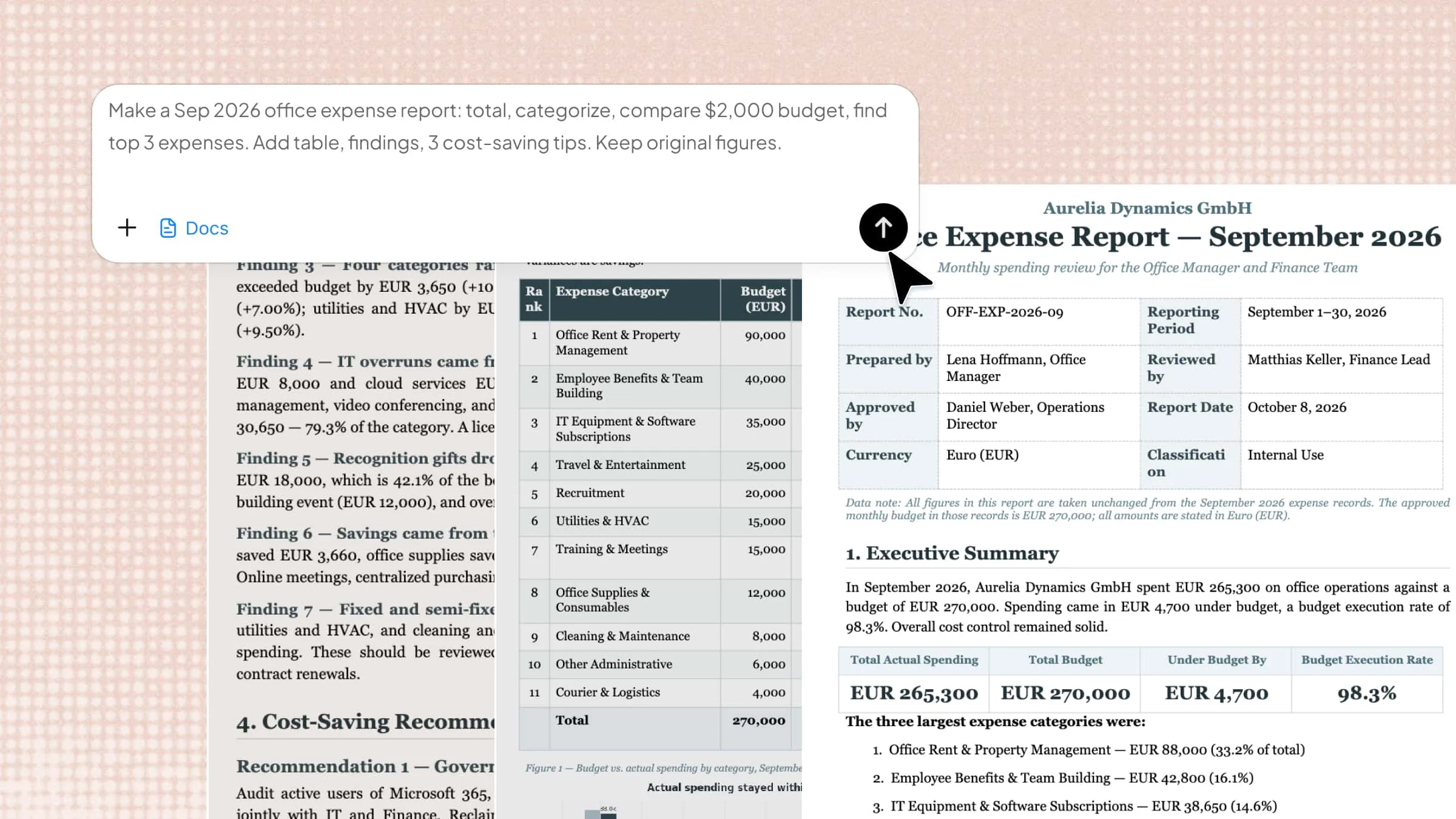
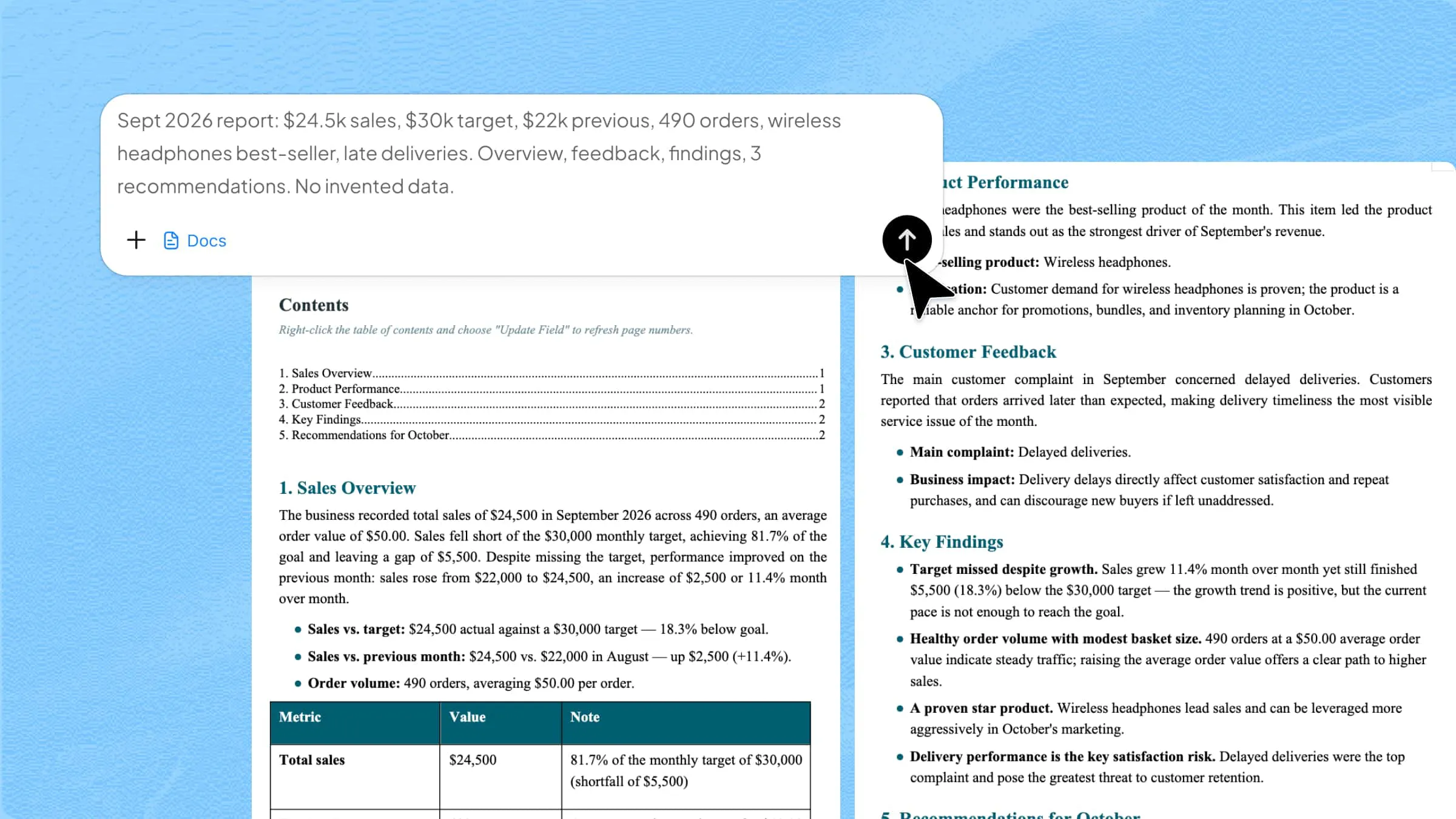
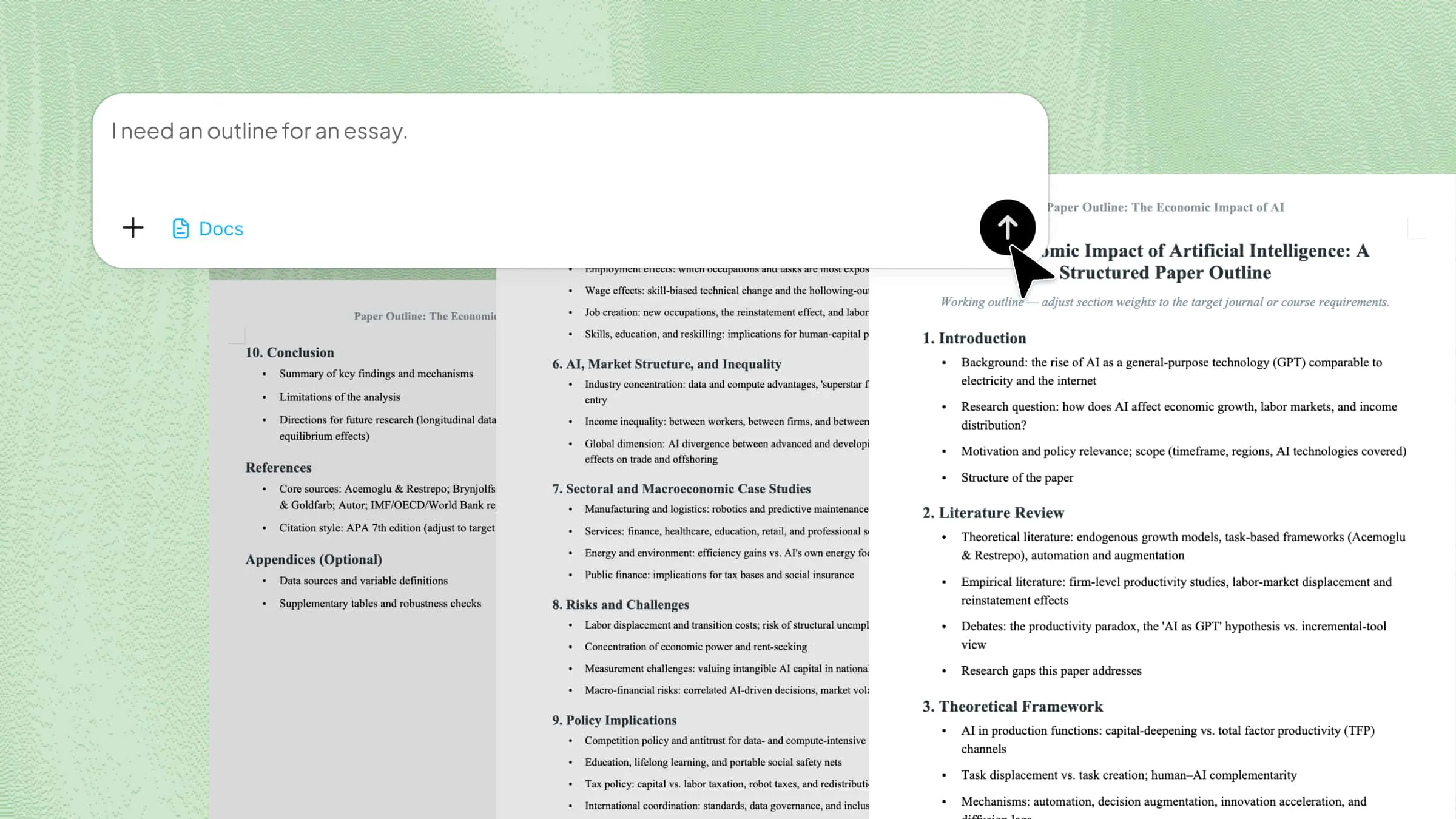
Open Kimi in your web browser and click "Docs" to access the workspace. In the workspace, click the "+" icon and upload the images you want to merge into a PDF. Then enter your prompt for the AI and click the "Submit" button to start the process.
Example prompt:
Step 2: Let AI process and generate results
After submission, Kimi Docs automatically analyzes your image content and structure. It applies intelligent formatting to maintain alignment, clarity, and visual balance. The system then generates a ready-to-use PDF file in the background without manual adjustments.
Step 3: Download and preview the PDF file
After generating the PDF, select "Preview" beside the file and then click the download button to save it to your PC.
You can open the PDF to verify that the images are correctly placed and the document is ready for sharing.
Key features of Kimi Docs
- AI-powered smart conversion: Kimi Docs uses AI to understand image content and structure automatically. It adjusts layout and formatting to create clean and accurate PDF results.
- Batch image processing: Multiple images can be uploaded and converted at the same time. This saves time and keeps large projects organized in one workflow.
- Preserve original quality and formatting: It keeps images sharp and avoids quality loss during conversion. It also maintains spacing, alignment, and overall document structure.
- Supports multiple file types: Kimi Docs works with different formats like images, PDFs, Word, and Excel. This makes it easy to handle all file conversions on one platform.
Conclusion
Converting images into PDFs becomes much easier when you follow the right steps and use the right tools. Sejda gives a simple way to manage files, adjust settings, and create clean documents without confusion. It works well for basic needs, while other smart tools can speed up the process even more. Choosing the right method depends on how often and how fast you need results. For a smoother experience beyond the Sejda JPG to PDF converter, try Kimi Docs for quick and intelligent conversions.