Table of contents
- Overview of 2 methods for converting a text document to PDF
- How to convert a text document to PDF with Kimi Docs
- How to turn a TXT file into a PDF using built-in Windows tools
- Why convert TXT to PDF?
- Things to know before converting a TXT file to a PDF
How to convert text to PDF quickly is an essential process for anyone handling digital content that needs better organization, accessibility, and compatibility. TXT files are simple to create, but they often lack visual structure and may display differently depending on the device or software being used. Converting them into PDF format helps preserve document appearance, improves readability, and makes file distribution more reliable. In this article, we'll explore practical techniques, built-in tools, and smart formatting approaches that simplify how to convert text to PDF online while enabling users to produce polished documents.
Overview of 2 methods for converting a text document to PDF
Different PDF conversion methods provide unique benefits depending on your document needs, device access, and formatting requirements. The comparison below explains how each method works and what makes it useful for creating refined PDF files efficiently.
| Aspect | Kimi Docs | Windows built-in tools (Notepad + Microsoft Print to PDF) |
|---|---|---|
| Setup | Web-based tool, no installation required | Pre-installed on the Windows system |
| Ease of use | Very easy, guided AI workflow | Moderate, requires manual steps |
| Conversion method | AI-assisted upload + prompt-based conversion | Manual printing to PDF via system settings |
| Formatting quality | AI automatically improves layout and structure | Depends on original file formatting |
| Speed | Fast, automated processing | Moderate, step-by-step process |
| Output quality | Clean, well-structured, and visually optimized PDFs | Basic PDF output with minimal formatting changes |
| Handling long text | Efficient for large and complex documents | May require manual adjustments for long files |
| Multilingual support | Supports multilingual content processing and optimization | Limited to original text formatting |
| Batch processing | Supported for multiple files | Not supported |
| Editing flexibility | AI can refine the structure during conversion | No editing during the conversion process |
How to convert a text document to PDF with Kimi Docs
Kimi Docs, an AI document agent, provides a simple and efficient way to manage documents and convert TXT files to PDF online without complicated steps or layout issues. Many text documents lose their structure or readability during conversion, especially when shared across different devices. Kimi Docs solves this problem by allowing users to quickly convert text documents into clean, well-formatted PDF files that are easy to share, store, and print.
Step 1: Upload your TXT document and enter a prompt
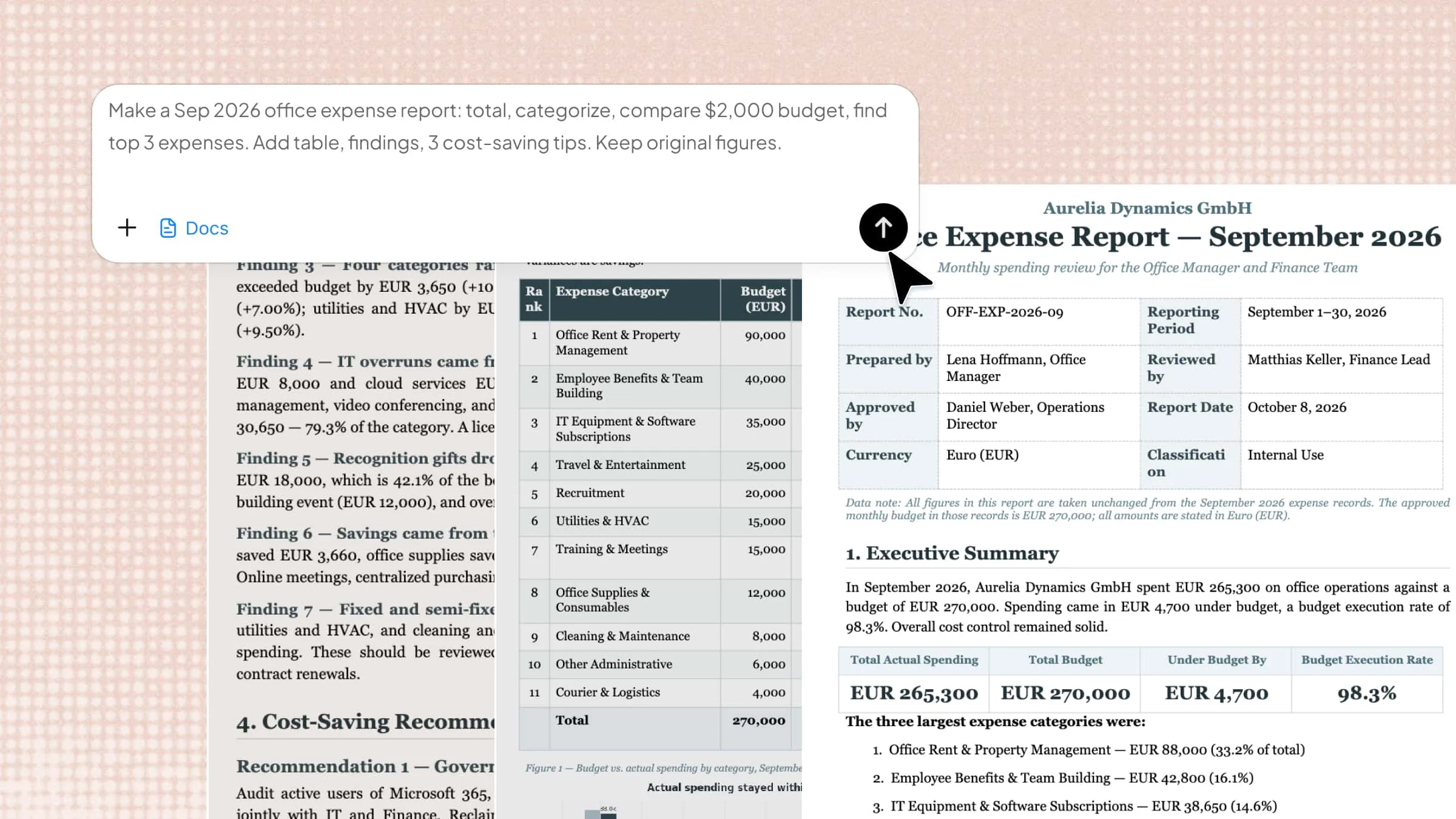
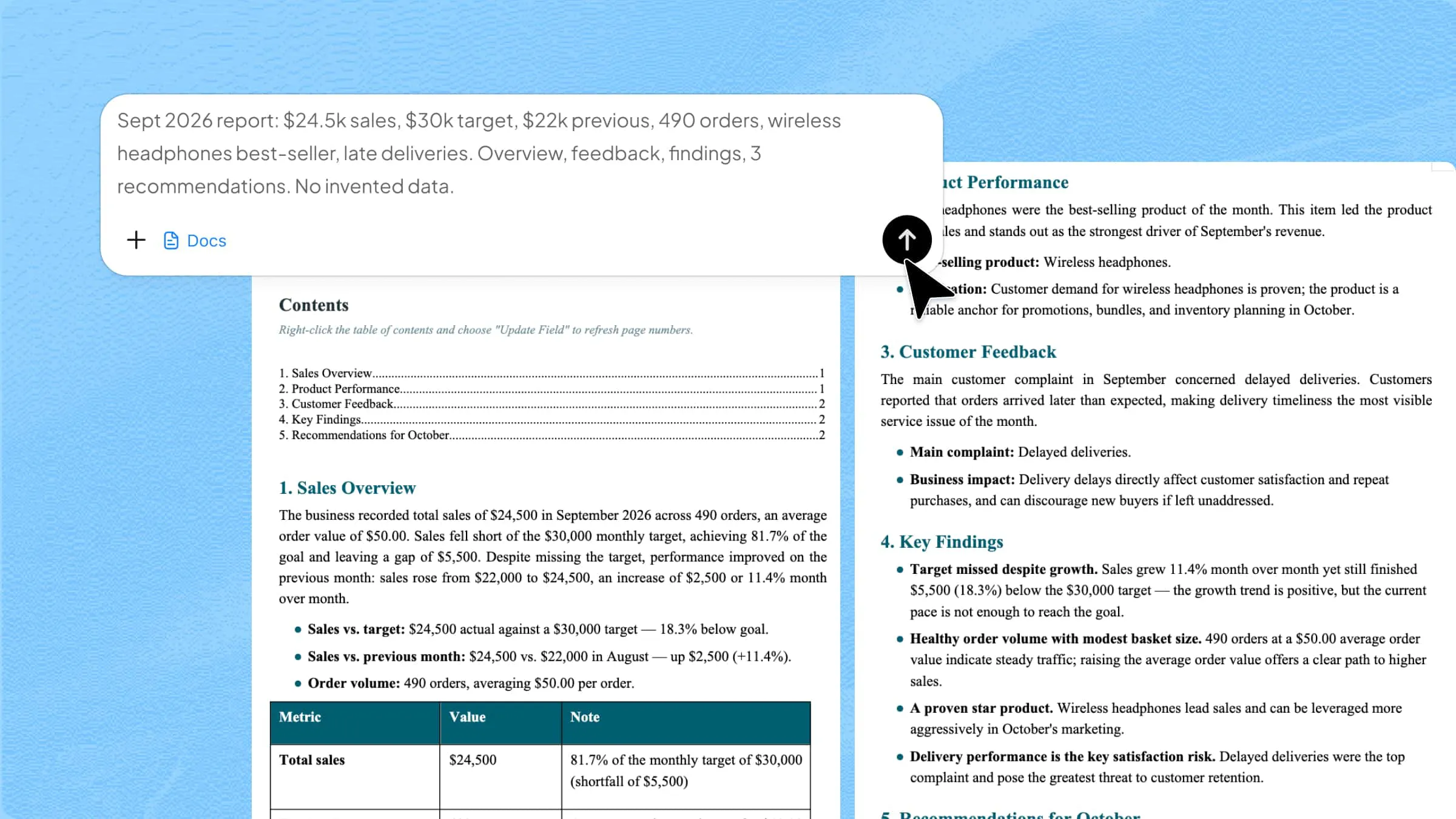
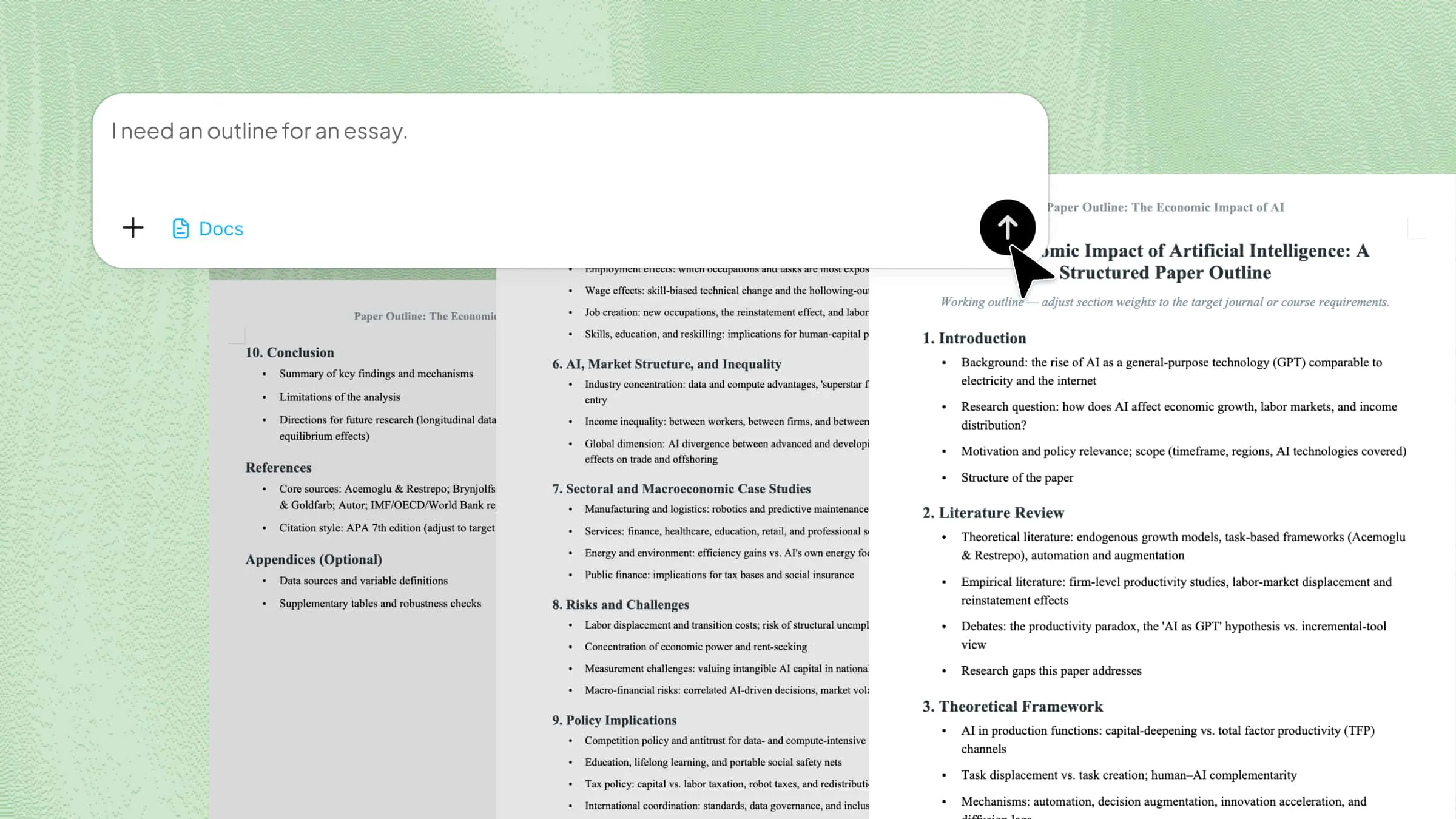
Launch Kimi Docs and click the "+" icon to upload your TXT file. Next, enter a clear and detailed prompt instructing Kimi to convert the document into a well-structured and professionally formatted PDF, then click the "Send" button.
Example Prompt:
Step 2: Let AI process and generate results
Kimi Dos's AI will analyze the uploaded content and generate a polished PDF with improved formatting, organized sections, and a visually balanced layout.
Step 3: Preview and download the PDF file
Click the "Preview" button to review the document layout, formatting, and content structure before exporting. Once the document is finalized, click the "Download" button in the upper-right corner to download the completed PDF file.
Key features of Kimi Docs
Here are several advanced features mentioned that make it easy for users to convert txt to PDF online and help them work with large or multilingual text files.
Fast TXT to PDF conversion
Kimi Docs streamlines the process of converting text files to PDF by generating high-quality PDF documents within seconds while maintaining consistent arrangements. This allows users to manage professional documents more efficiently without spending extra time on manual styling corrections.
AI-driven formatting and layout optimization
With built-in AI formatting support, the platform automatically improves document alignment, spacing, and layout organization during conversion. As a result, the PDF files appear cleaner, more balanced, and visually appealing.
Clear structure with preserved readability
Unlike many standard converters, Kimi Docs maintains paragraph flow, text positioning, and document consistency throughout the conversion process. Readers can easily view the final PDF across different devices.
Effortless processing of long-form documents
Handling large documents becomes easier because the platform is designed to process lengthy text files without affecting content flow.
Smooth and accurate multi-language translation
Multilingual text can be translated accurately while preserving formati quality and overall content flow. International files become easier to manage without disrupting readability or structural organization.
Batch conversion capability
Instead of converting files one by one, users can refine multiple text documents into PDF format simultaneously through batch conversion. This reduces repetitive work and helps improve productivity when managing large numbers of files.
How to turn a TXT file into a PDF using built-in Windows tools
Windows includes integrated document management features that provide a reliable way to convert Notepad to PDF format without third-party applications. By using built-in tools such as Notepad and Microsoft Print to PDF, users can generate professionally structured PDF documents while maintaining text clarity, reliability, and document accessibility. If you are unsure how to convert a Notepad file to PDF on a laptop, follow the steps below.
Step 1: Open the TXT file in Notepad
Locate the TXT file on your computer and open it with Notepad. Review the content carefully to fix uneven spacing, broken lines, or misplaced paragraphs before starting the conversion process.
Step 2: Select the Microsoft Print to PDF feature
Go to the "File" tab and select the "Print" option to access the Windows printing settings. From the available printer options, select "Microsoft Print to PDF".
Step 3: Save the PDF file
After confirming the settings, click "Print" and select the destination folder for the new file. Add a suitable document name and save the PDF file.
Why convert TXT to PDF?
If you want to understand why users turn texts into PDF formats, the main benefits are explained below:
Preserves formatting consistency
Converting a TXT to a PDF online ensures the document keeps the same appearance regardless of the device or software being used. This helps avoid layout shifts, broken spacing, or missing text formatting.
Improves readability
PDFs present content more cleanly and coherently than plain text files. Proper page structure and balanced spacing make long documents easier to read comfortably.
Ensures professional presentation
A PDF file gives documents a refined and polished look that suits professional communication. It is commonly preferred for resumes, reports, proposals, and business documentation.
Better for printing
The format keeps pages properly arranged to deliver accurate print results. It improves consistent margins, page flow, and text positioning on paper.
Supports structured content organization
PDFs make it easier to arrange content using headings, sections, bullet points, images, and tables. This structure improves navigation and enables readers to instantly understand the information.
More suitable for official use
Many organizations use PDF files because they provide a more stable and secure document format. Their professional appearance makes them suitable for formal submissions and record management.
Things to know before converting a TXT file to a PDF
Before converting a TXT file to PDF online, it is important to follow a few preparation steps to achieve a smooth composition result. While creating the PDF, keep the following points in mind.
Check text structure first
A logically organized document allows readers to navigate information more efficiently. Proper separation between headings, sections, and paragraphs also enhances visual clarity.
Watch for line breaks and formatting
Irregular spacing and misplaced line breaks can disrupt the document's visual flow after conversion. Refining these elements beforehand helps maintain a cleaner and more cohesive format.
Choose the right page layout
Selecting appropriate margins, orientation, and page dimensions improves content alignment within the document. A balanced structure contributes to a more refined and reader-friendly presentation.
Avoid overly long, unformatted text blocks
Large, uninterrupted sections of text can reduce engagement and make information difficult to process. Structuring content into shorter segments improves readability and content absorption
Verify font consistency
Uniform typography strengthens the document's visual identity and creates a more professional appearance. Consistent font usage also improves readability across multiple pages.
Consider file size impact
Excessively large PDF files may affect upload speed, storage efficiency, and sharing convenience. Optimizing document elements enhances user experience across digital platforms.
Preview before exporting
A final preview helps you spot formatting issues such as layout inconsistencies, alignment problems, or display errors before exporting. This ensures the final PDF is clean, well-structured, and presentation-ready.
Ensure compatibility for sharing
Testing the PDF on different devices and applications confirms that the document structure remains stable in various environments. This helps deliver a smoother viewing experience for all recipients.
Conclusion
In conclusion, converting TXT files into PDF format strengthens document integrity by preserving layout consistency, improving visual hierarchy, and ensuring reliable rendering across diverse devices and operating systems. It also enhances usability by making content easier to distribute, archive, and present in a standardized professional format. Contemporary AI-driven tools like Kimi Docs further refine the process by generating clean, publication-ready documents with minimal manual adjustment.