How to Turn TXT into PDF in iLovePDF Quickly and Easily

Convert TXT to PDF in iLovePDF with a quick, simple process for cleaner document sharing and printing. For AI-assisted TXT conversion with improved formatting and document structure, Kimi Docs helps to create cleaner PDF files with better readability and layouts.

10 min read2026-05-29
How to Turn TXT into PDF in iLovePDF Quickly and Easily

Table of contents

TXT to PDF iLovePDF conversion delivers a simple way to transform plain text files into polished, easy-to-share documents within seconds. Raw TXT files often appear cluttered and confusing, especially when opened on different devices or platforms. With iLovePDF, users can handle the entire process quickly through a smooth online interface without dealing with complicated software or formatting issues. In this guide, we will examine different methods to convert TXT files into PDF documents efficiently using iLovePDF and other convenient tools.

How to convert TXT to PDF in iLovePDF?

If you want to turn a TXT file into a clean and shareable PDF, iLovePDF makes the process instant and easy. You can upload your text file, convert it in just a few clicks, and download a professional-looking PDF without needing any advanced tools or technical skills. Below are two easy methods that help users convert TXT files to PDF without any hassle.

Convert TXT to PDF online

The following steps guide users through the complete TXT to PDF online conversion process smoothly and efficiently.

Step 1: Open the TXT to PDF Tool

Go to the iLovePDF website and open the "Word to PDF" converter tool. Click the "Select Word file" button and choose the text file you want to convert from your computer or cloud storage.

Uploading a TXT file into the iLovePDF tool

Step 2: Start the conversion process

Once the TXT file is uploaded, review the file and click the "Convert to PDF" button. iLovePDF will automatically process the text file and turn it into a PDF document within a few seconds.

Starting to convert the txt to PDF in iLovePDF

Step 3: Download the Converted PDF

After the conversion is complete, click the "Download PDF" button to save the file to your device. You can also share the PDF directly or store it in Google Drive or Dropbox for easy access later.

Download the converted PDF

Convert TXT to PDF offline

To convert a TXT to PDF, download and install iLove PDF desktop software, then follow these steps.

Step 1: Upload the TXT file

Launch iLovePDF on your computer, click the "Tools" option from the main screen, and select the "Word to PDF" tool. Next, click the "Open File" button, locate your file, and upload it to iLovePDF. Before uploading the TXT file, edit the document by adding headings, changing font styles, adjusting spacing, or organizing paragraphs to improve readability.

Access the Word to PDF tool to convert a notepad to PDF in iLovePDF

Step 2: Converting TXT to PDF

After uploading the TXT file, press the "Word to PDF" button to let iLovePDF process the TXT file and convert it to PDF in just a minute.

Converting the TXT file to PDF

Step 3: Save the PDF to Your Device

Click the "File" menu at the top of the screen and select "Save As". Next, choose "PDF" as the output format, select the folder where you want to save the file, and click "Save." Your TXT file will then be converted into a PDF document that you can easily print, share, or access on different devices.

Saving the final PDF from iLove PDF offline

Why is my iLovePDF TXT-to-PDF converter not working?

If the iLovePDF TXT-to-PDF converter stops working or fails to process your file, several common issues may be causing the problem. Checking the possible reasons below can help you quickly identify the issue and complete the conversion process smoothly.

Large file or format issue: Shrink or use UTF-8

Large TXT files or unsupported text formats can slow down the conversion process or cause upload errors. Saving the file in UTF-8 format and removing unnecessary content can improve compatibility.

Browser glitch: Clear cache and reload

An overloaded browser cache or a temporary browser issue may prevent the converter from working properly. Refreshing the page, clearing cache files, or updating the browser can help fix the problem.

Weak internet: Switch to a stable connection

The TXT-to-PDF tool needs a stable internet connection to upload and process files correctly. If the connection drops during conversion, the process may stop or fail.

Corrupted file: Fix text and re-save

Damaged text files or unsupported characters can create errors during conversion. Opening the file in a text editor and saving a fresh copy often helps restore the file properly.

Wrong encoding: Convert to UTF-8

Incorrect encoding may cause symbols, broken characters, or unreadable text in the final PDF. Converting the TXT file to UTF-8 encoding keeps the content clear and properly formatted.

Server error: Retry after some time

At times, iLovePDF servers may experience heavy traffic or temporary maintenance. Waiting a short time and retrying the conversion usually resolves the issue without additional changes.

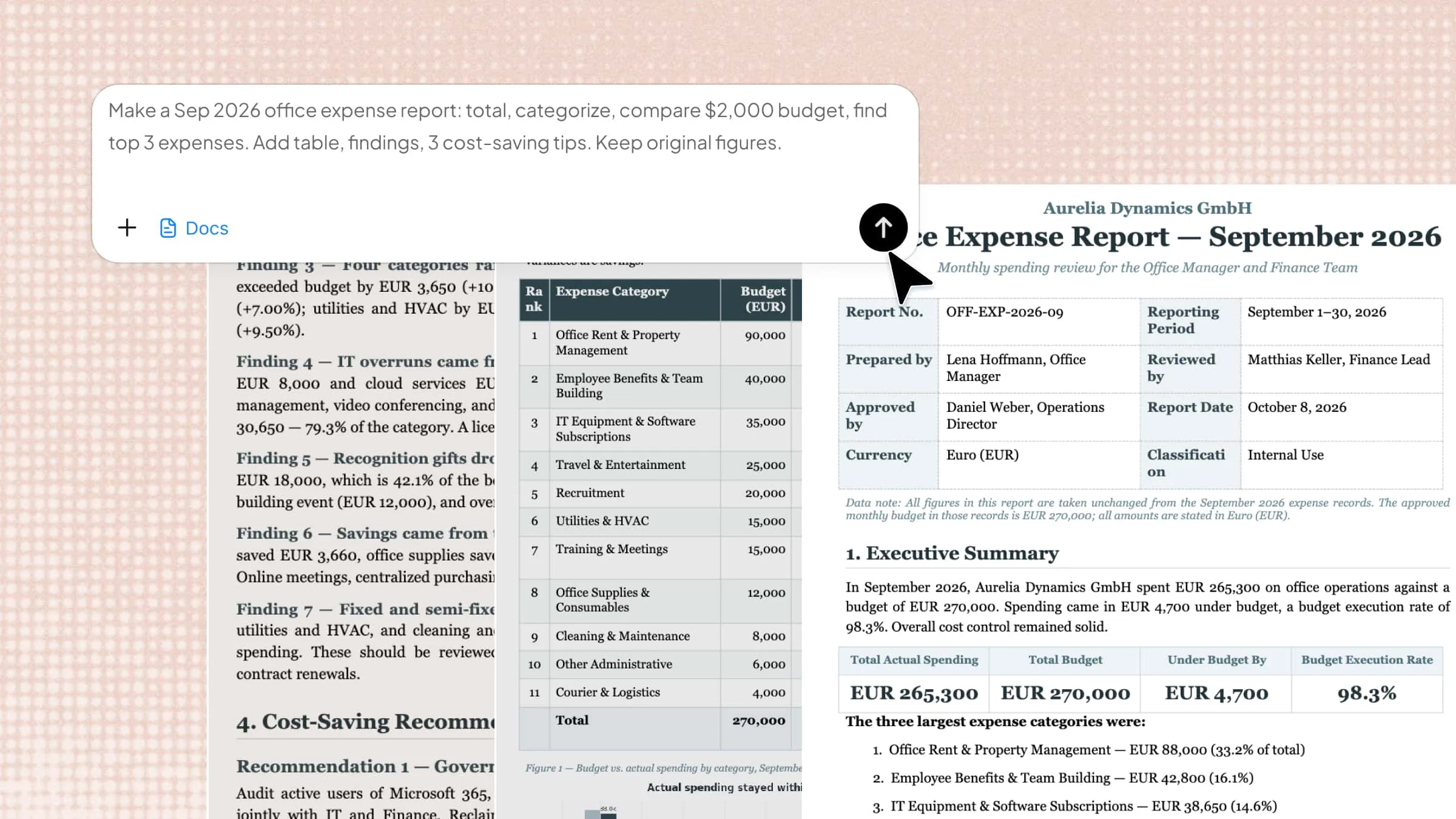
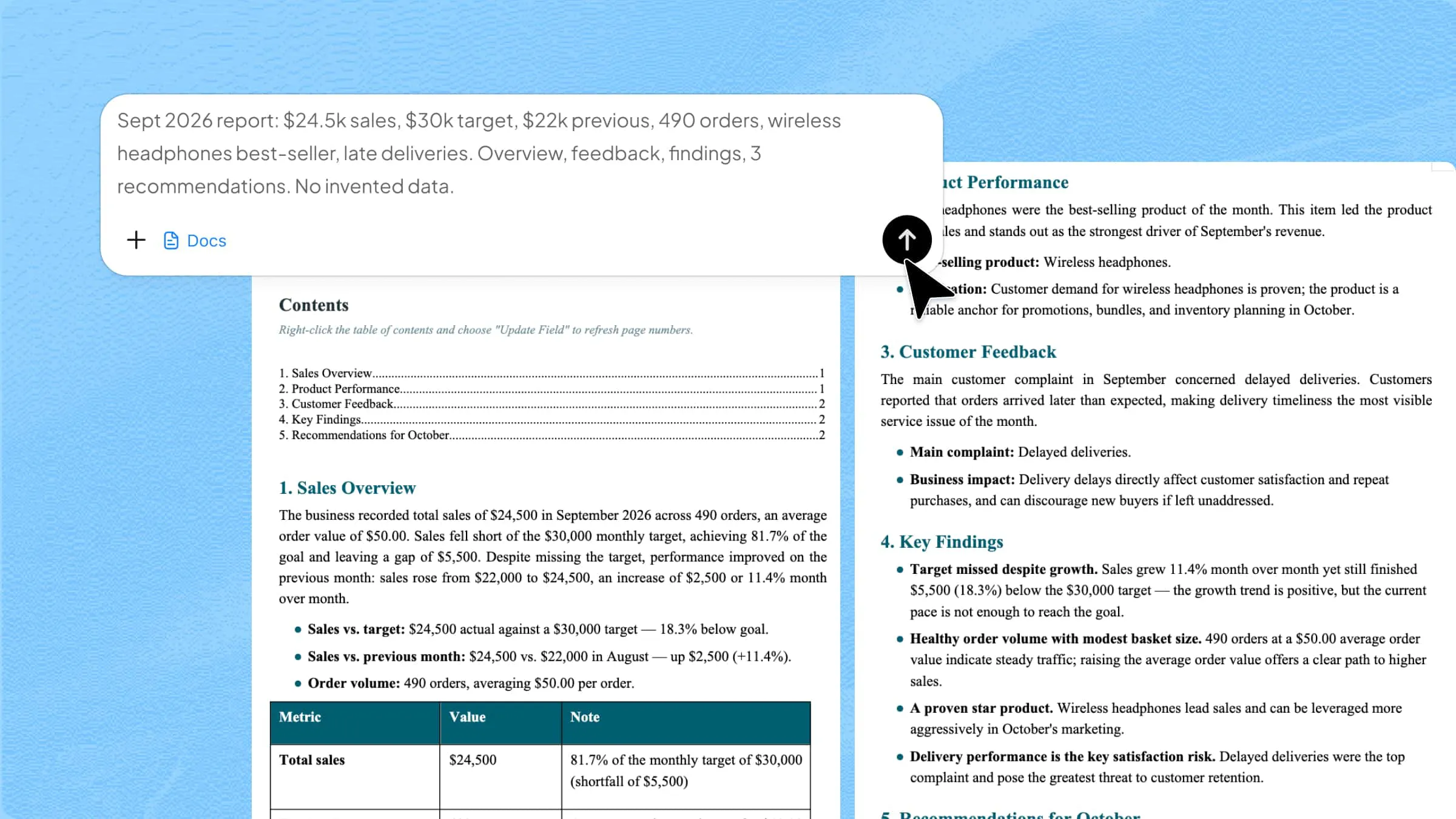
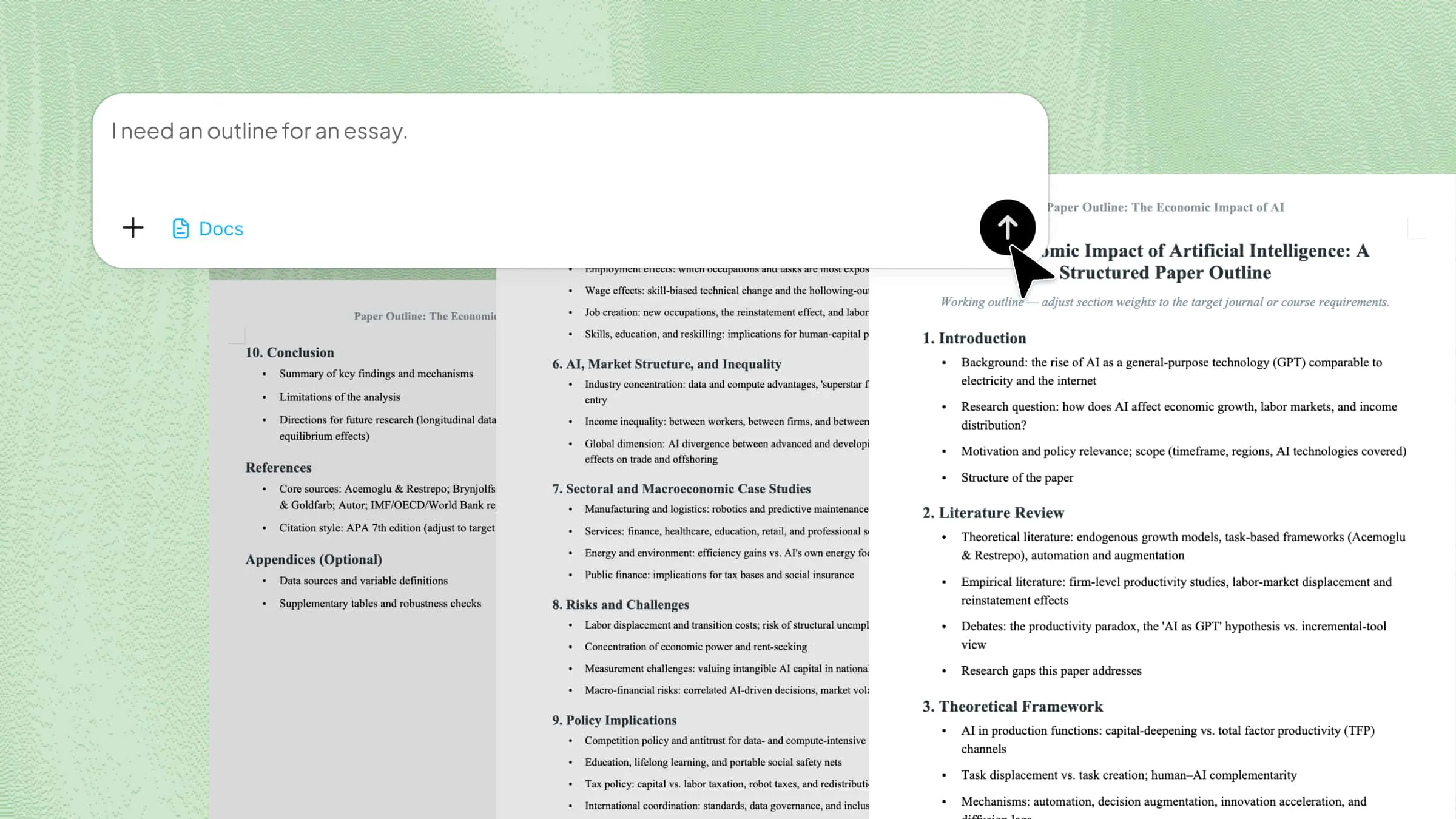
A smarter AI-powered TXT to PDF converter: Kimi Docs

Kimi Docs is an AI document agent platform that helps users convert TXT files into well-structured PDF documents with better readability and document presentation. The tool intelligently handles text arrangement, spacing, and formatting to create a more organized output suitable for reports, notes, assignments, and professional records. Its browser-based workflow also allows users to upload, process, and download files rapidly without installing additional software or managing complex conversion settings.

How to convert a TXT file to a PDF file with Kimi Docs?

To convert a TXT file to PDF using Kimi Docs, open the Kimi website, select "Docs" to get started, and then follow the steps below.

Step 1: Upload your TXT document and enter the prompt

Click the "+" icon, select the "Add file & photos" option from the drop-down menu. Next, write a detailed prompt to clearly define your requirements.

Convert the uploaded TXT file into a structured PDF document that presents the content in a clear and organized manner. Improve readability by adjusting spacing, aligning text properly, and arranging information in a logical flow. Include suitable headings and a consistent format to make the document easier to navigate. Ensure the final output is clean, polished, and appropriate for both academic and professional use.

Uploading a TXT document

Step 2: Let AI process and generate results

Click the "Upward arrow" button to allow the AI document agent to process the TXT file and generate the final output according to your requirements.

Let AI process and generate results

Step 3: Download your PDF file

To download your PDF, click the "Download" icon in the upper-right corner to save the final file for future use

Download your final PDF file from Kimi Docs

Key features of Kimi Docs

Below are some standout features of Kimi Docs that help users create, format, convert, and manage documents more efficiently through AI-powered document processing and smart editing support.

Instant, precise conversion with formatting preserved

Kimi Docs quickly and accurately converts documents while keeping original formatting intact. Headings, fonts, paragraph spacing, margins, and layouts remain consistent, ensuring a clean, professional appearance across all file formats.

Precise extraction of all details

The platform accurately recognizes and extracts essential elements such as structured text, tables, numerical data, and embedded content. This minimizes information loss and improves document reliability during processing.

Wide file format compatibility

Support for multiple file types enables smoother transitions between PDFs, Word documents, spreadsheets, presentations, and text files. Managing mixed document formats becomes simpler without relying on additional conversion tools.

Bulk conversion capability

Large batches of files can be processed simultaneously, helping users save considerable time during repetitive document tasks. High-volume conversion support improves productivity for teams, offices, and enterprise-level workflows.

Large-scale document generation

Kimi Docs handles extensive document creation, supporting Word or PDF files with up to 10,000 words while preserving formatting accuracy. It can also generate hundreds of short documents, such as invoices, certificates, or payslips, in a single automated workflow without compromising content quality.

Conclusion

In short, turning TXT files into PDF documents makes text content more organized, accessible, and suitable for professional sharing or storage. Tools like iLovePDF and Kimi Docs simplify the process with fast conversion, flexible formatting options, and efficient file management features. Whether handling notes, reports, or business documents, these platforms help improve document quality while reducing manual work. Choosing the right solution can make everyday document tasks quicker, smoother, and more efficient.

FAQ

Is iLovePDF free to use for converting TXT to PDF?
Yes, iLovePDF provides a free web-based TXT to PDF conversion service that enables users to transform plain text files into refined, structured PDF documents without requiring additional software. The platform is suitable for routine document processing, which provides a fast and accessible solution for students, professionals, and general users. While the free version supports standard conversion tasks, certain premium features, such as extended file limits and advanced document tools, may require a subscription.
Can I convert multiple TXT files to PDF in iLovePDF?
Yes, iLovePDF supports multi-file processing, which allows users to manage several TXT documents within a single workflow. This functionality improves productivity by reducing repetitive upload and conversion steps, especially when working with reports, notes, research material, or bulk documentation. It also helps users maintain a more organized and efficient document management process.
Can I convert TXT to PDF without software?
Yes, the entire conversion process can be completed online without installing any dedicated software or browser extensions. Since iLovePDF operates through a cloud-based browser environment, users can upload TXT files, process conversions instantly, and download finalized PDF documents directly to their devices. This provides greater accessibility and convenience across desktops, laptops, tablets, and smartphones.