Table of contents
- Overview of 4 methods for creating a template in Word
- How to create a template in Word using Kimi Docs?
- How to customize a document template in Word?
- How to create a fillable Word document template?
- How to create a Word template with the Styles tool?
- Expert practices when creating a Word doc template
Whether you want to save time or make your work look neat, using a proper setup can make document work much easier. A Word template helps you keep styles, margins, and layouts ready, so you do not have to repeat the same steps again and again. It makes your work faster, cleaner, and more organized for daily or office use. Read further in this article to learn how to create a Word document template simply.
Overview of 4 methods for creating a template in Word
Different methods for creating Word templates serve different needs. Some focus on speed and automation, while others provide greater control over formatting, branding, or interactivity. The comparison below highlights several common approaches, including AI-powered document generation with Kimi Docs, to help users choose the most suitable workflow for their projects.
| Method | Core approach | Main advantage | Use case |
|---|---|---|---|
| AI template generation with Kimi Docs | Uses AI prompts to create structured Word templates automatically | Fast creation with minimal manual work | Quick document and template generation |
| Manual customization in Word | Adjusts layouts, headers, fonts, and formatting manually | Full design flexibility and control | Company-specific or personalized templates |
| Fillable form creation | Uses Word Developer tools to insert interactive fields | Creates editable and user-friendly forms | Surveys, applications, and data collection |
| Styles-based formatting | Applies Word Styles for headings, colors, and typography | Maintains consistent branding and formatting | Professional reports and standardized documents |
How to create a template in Word using Kimi Docs?
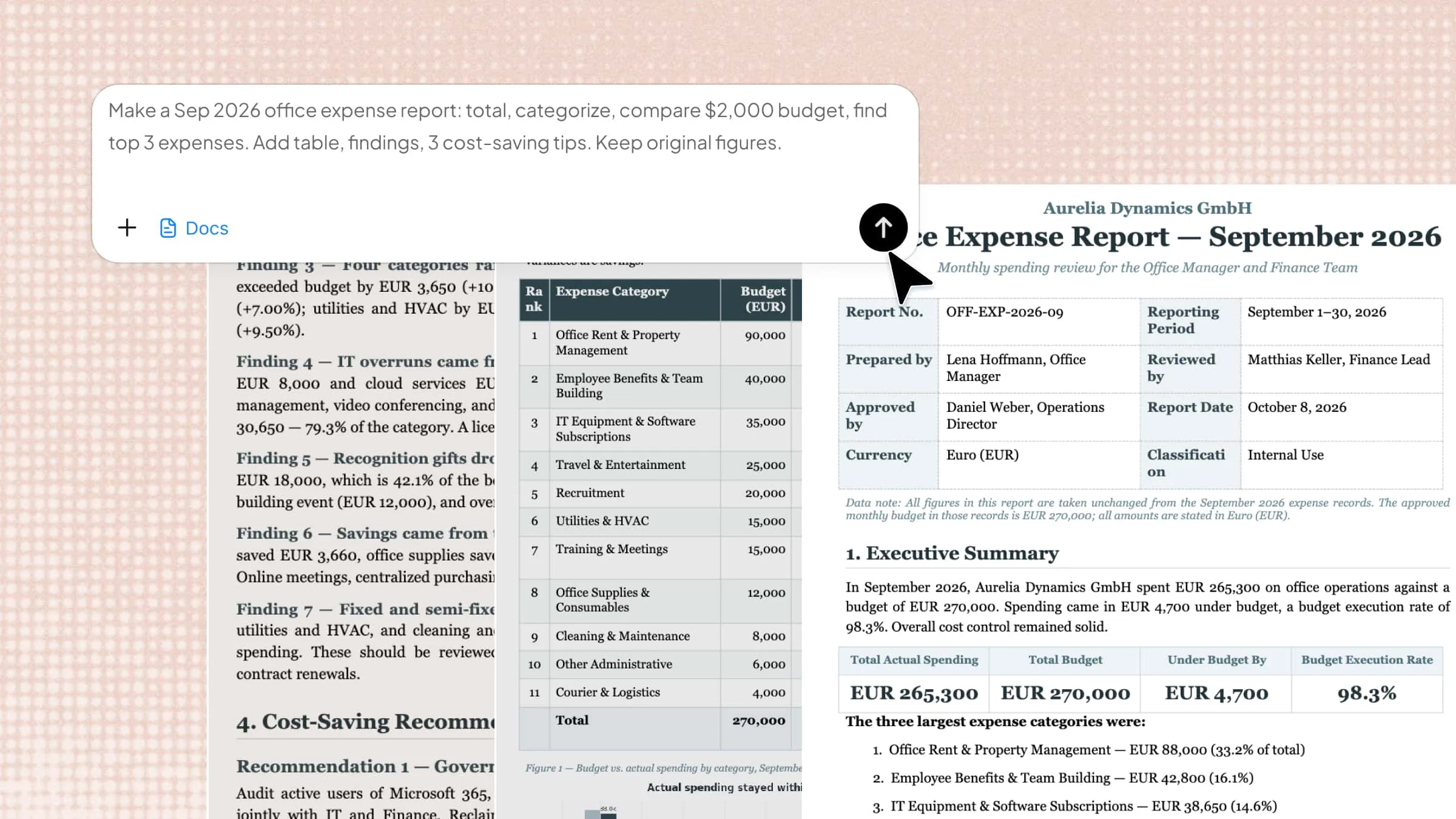
Kimi Docs is an AI document agent that helps users create and manage Word templates easily. It generates structured documents using simple prompts instead of manual formatting. The tool supports layout control, styling, and reusable templates for consistent design. It makes template creation faster and more accurate for technical and professional work.
Step 1: Enter a clear prompt
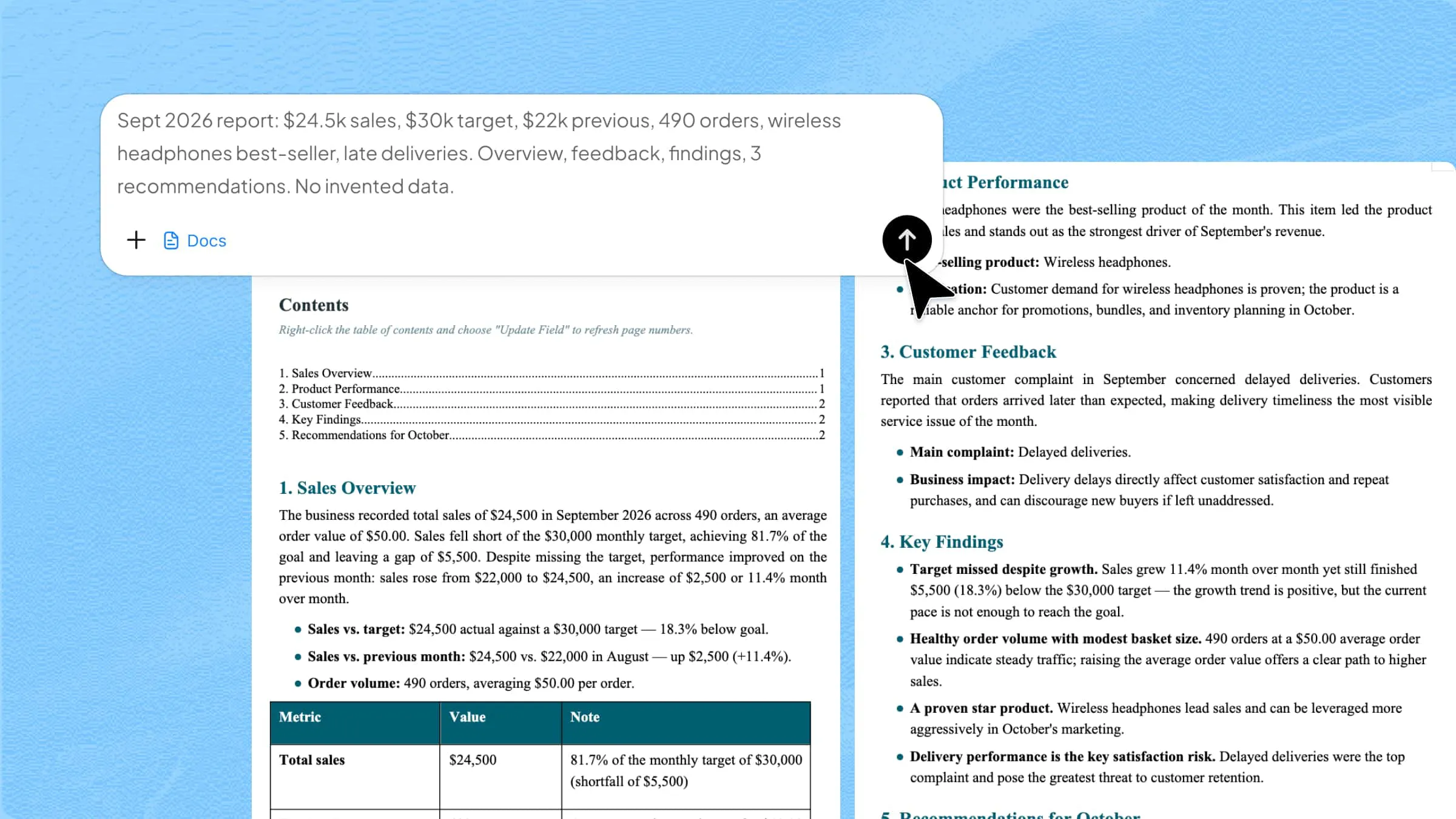
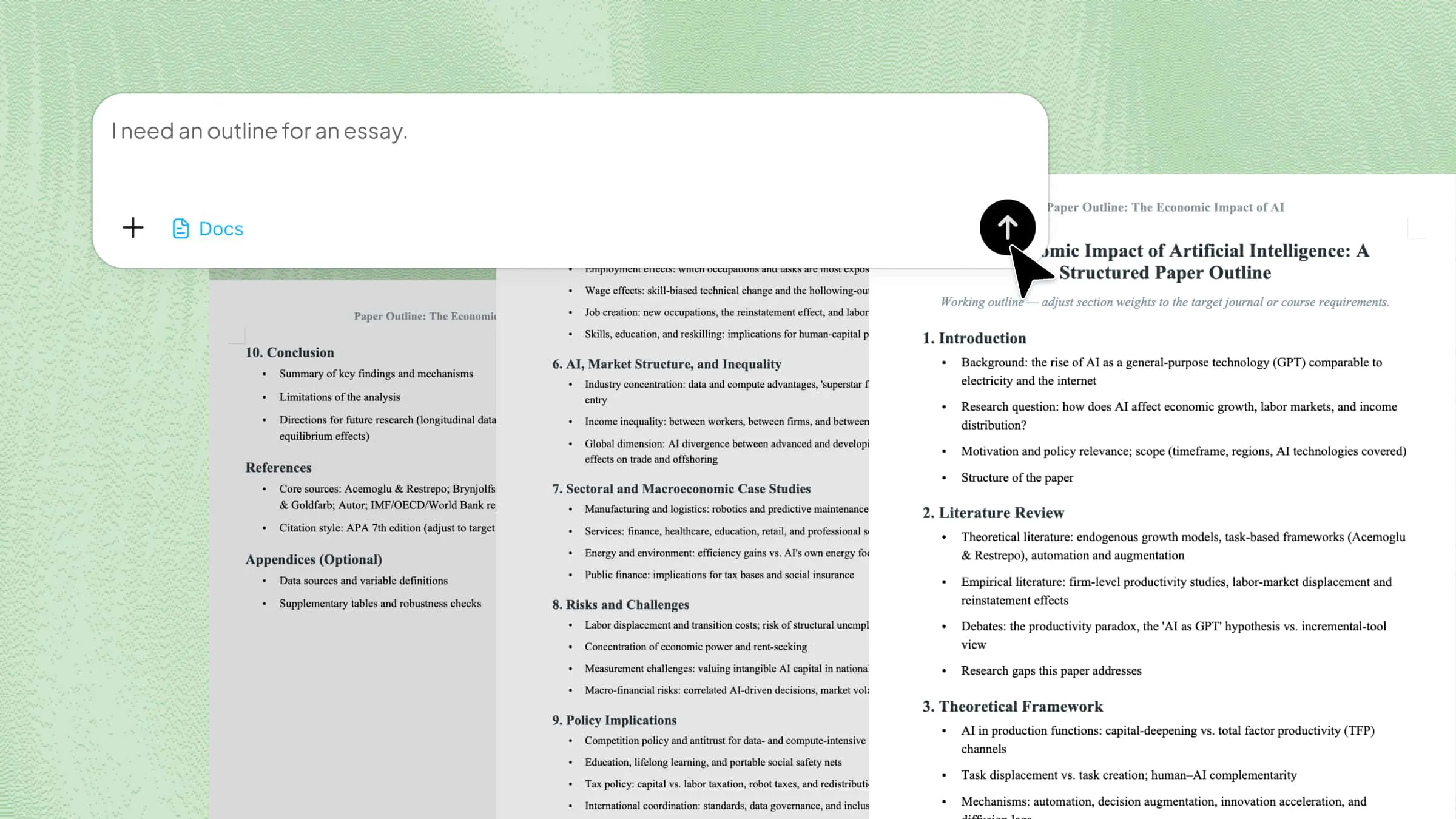
Add your case-specific prompt to Kimi Docs so the AI can understand the exact template structure you want. Then click the submit button to start generating the template.
Example prompt:
Step 2: Let AI process and generate results
Kimi Docs will automatically structure your Word document template based on the prompt. It builds headings, formatting, and reusable styles in a few seconds.
Step 3: Export your file to Word
After reviewing the generated template, export it directly to Word format. You can then edit or reuse it for future documents without starting from scratch.
Key features of Kimi Docs
These features help users create high-quality documents without spending time on manual design work and adjustments.
Multi-type professional document generation
Kimi Docs can instantly create resumes, reports, whitepapers, financial statements, and other business documents efficiently. It applies clean and standardized formatting to each type automatically. This makes documents ready for sharing or submission without extra editing effort required.
Professional layout automation
The tool automatically adjusts headings, spacing, and structure based on the selected document type. It removes the need for manual formatting work completely. This keeps every document visually consistent, neat, and well-organized throughout.
Editable and reusable templates
Users can modify templates anytime using simple AI instructions. Unsatisfactory results can be quickly refined until they meet requirements, and templates can be saved for repeated use to ensure consistency.
Supports long-form document creation
Kimi Docs can generate large documents—up to 10,000 words—or hundreds of short files at once, keeping structure and content intact. Ideal for reports, research papers, business proposals, or payroll batches.
Multi-format content import
The platform supports importing content from different file formats seamlessly without complications. It helps combine existing data into new structured documents quickly and accurately. This makes the workflow faster, easier, and more flexible overall for users.
How to customize a document template in Word?
Customizing a document template in Word helps you create consistent and professional files for repeated use. It allows you to control layout, styles, headers, and structure in one place. This makes every new document based on the template look the same and saves time. Here's how you can do it in simple steps.
Step 1: Open and edit the template design
Go to "File" > "New" > "Personal" and open your saved template. From here, you can adjust styles, fonts, colors, and overall layout as needed. Make changes like heading styles, spacing, and document formatting to match your requirements. These updates will apply to every new document created from this template.
Step 2: Add headers, footers, and document properties
Navigate to "Insert" > "Header" / "Footer" > "Edit Header" to add repeated information like title, author, or page numbers. Use "Insert" > "Quick Parts" > "Document Property" for dynamic fields. These elements automatically update across the document when values change.
Step 3: Save and reuse the customized template
Go to "File" > "Save As" > "Browse" and select "Word Template (*.dotx)" as the file type. Save it in the default Custom Office Templates folder. Now your updated template will appear under "File" > "New" > "Personal" for future use. Each time you open it, Word creates a new document based on your customized design.
How to create a fillable Word document template?
Creating a fillable Word template helps you collect information in a structured way, such as for surveys, forms, or data entry. Word's Developer Tools allow you to add interactive fields and control how users edit the document. Here's how to create a template in Word with fillable fields.
Step 1: Enable the Developer tab
Go to "File" > "Options" > "Customize Ribbon" and tick the "Developer" option. Click "OK" to activate the Developer tab in the main menu. This tab gives access to all form tools like text fields, check boxes, and dropdowns. Without it, you cannot create a fillable form in Word.
Step 2: Insert form fields
Open the "Developer" tab and choose controls like text box, drop-down list, check box, or date picker. Place them next to labels like name, department, or date. Use "Properties" to edit options such as dropdown values or field names. These controls allow users to enter structured information easily.
Step 3: Restrict editing and save the form
Go to "Developer" > "Restrict Editing" and select "Filling in forms" only. This ensures users can only fill fields and not change the structure. Then save the file using "File" > "Save As" and store it as a Word document template. The form is now ready for repeated use with consistent formatting.
How to create a Word template with the Styles tool?
Making a Word template with the Styles tool helps maintain a consistent and professional look across all documents. Here's how to create a template document in Word using the Styles tool.
Step 1: Save a new Word template
Go to "File" > "Save As" and choose a name for your template file. From "Save as type", select "Word Template" before saving. This creates a base file where all style settings can be stored. It ensures your formatting changes stay reusable for future documents.
Step 2: Modify styles using the Styles tool
Open the "Home" > "Styles" section and click the small arrow to open the Styles pane. Select any style, like Title or Heading, then click "Modify". Here you can change font, size, and color, such as setting the title to orange. These changes control how text appears across the whole document.
Step 3: Apply and save changes to the template
After editing styles, select "New documents based on this template" before confirming changes. Then click "OK" and save the file again. Now every new document created from this template will automatically follow your updated style settings. Simply open the template to start a new formatted document.
Expert practices when creating a Word doc template
A well-designed Word template makes document creation faster and more consistent for every use. Proper setup ensures formatting stays stable across all pages and sections. These expert practices help you create Word templates online and offline for efficient and professional results.
Set page size and margins first
Start by setting the correct page size and margins before adding any content. Go to "Layout" > "Size" and "Margins" to adjust them. This ensures the document structure stays stable from the beginning and avoids layout issues later with printing and sharing across devices and platforms.
Use heading styles, not manual formatting
Apply built-in heading styles from "Home" > "Styles" instead of manually changing fonts. This helps maintain consistency and improves navigation in long documents. It also allows automatic table of contents generation for better document structure and easier professional readability.
Save the file in .dotx format
Go to "File" > "Save As" and select "Word Template (*.dotx)". This format keeps your design reusable without changing the original template. Every new file created from it stays structured and consistent for all future professional document creation tasks.
Use section breaks for layout control
Insert section breaks from "Layout" > "Breaks" to control different page layouts. This is useful when you need different headers, footers, or orientations. It keeps complex templates well-organized and prevents formatting issues across multiple sections and document pages.
Add content controls for editable fields
Enable the "Developer" tab and use text boxes, dropdowns, or check boxes. These controls make specific areas editable while protecting the rest of the design. It improves form-like interaction in templates and ensures users only edit the required sections safely.
Test with real content before finalizing
Fill the template with sample text to check spacing and alignment. This helps identify layout issues before sharing them with others. Testing ensures the template works properly in real situations and performs well under different content lengths and formatting conditions.
Use tables instead of tabs or spaces
Create layouts using tables from "Insert" > "Table" instead of manual spacing. Tables keep alignment stable and avoid formatting errors. This makes the template more professional and easier to edit while maintaining a consistent structure across all document sections.
Conclusion
Knowing how to create templates in Microsoft Word gives you a simple way to stay organized and work faster in any writing task. It also helps you choose the right method based on your needs, whether you want full control, automation, or structured forms. Each approach can fit different situations and makes the document work more consistently and easily to manage. If you want a quicker and smarter way to build templates without much manual effort, try Kimi Docs to get started in a simple way.