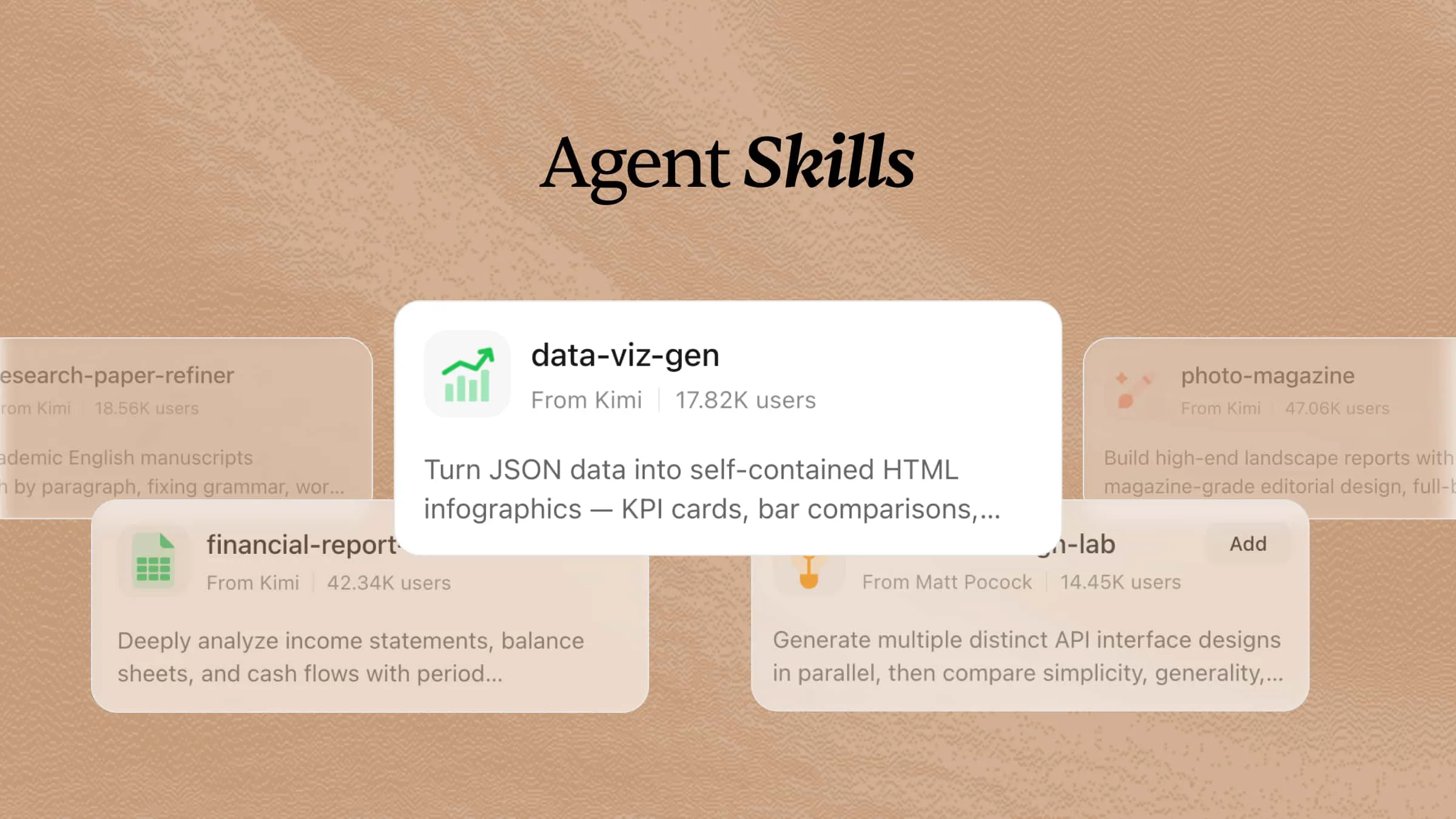
AI is transforming design by helping creators generate ideas, streamline workflows, and produce high-quality visuals faster. With the right AI design skills, creators can achieve better results, improve efficiency, and make the most of AI-powered tools. As new technologies continue to evolve, mastering practical skills is essential. This guide covers 20 AI design skills to help you create professional visuals with greater speed and confidence.
What are AI design skills?
AI design skills are specialized skill modules that help AI agents perform design-related tasks more effectively. They provide agents with structured design knowledge, workflows, and guidelines for tasks such as user research, UX analysis, interface design, prototyping, design reviews, and visual system creation. By integrating design principles, references, and processes, these reusable skills enable AI agents to generate more consistent and high-quality design outputs across different projects.
10 AI design skills for creators in Kimi
Kimi provides a wide range of built-in AI design skills that turn text prompts, images, and data into high-quality visual content for different creative workflows. From generating charts and infographics to building UI designs, presentations, landing pages, and branded documents, these skills automate complex design tasks while reducing manual effort. Here are 10 Kimi AI design skills you can explore.
| Skill name | Description |
|---|---|
| chart-image | Generate publication-quality PNG chart images from data, supporting line, bar, area, candlestick, pie, and heatmap charts. Triggers when the user asks to visualize data, create a graph, plot a time series, or generate a chart for a report, alert, or dashboard. Runs as a lightweight, headless Node.js process without a browser. |
| data-viz-renderer | Generate self-contained HTML/SVG infographics from JSON data, including stat cards, bar charts, flow diagrams, and mixed dashboards. Offers 8 color palettes and built-in icons with no external dependencies. Triggered when users request data visualization, infographics, charts, or dashboards. |
| design-system-builder | Extract design systems from reference UI images and generate implementation-ready UI design prompts. Use it when users provide UI screenshots/mockups and want to create consistent designs, generate design systems, or build MVP UIs matching reference aesthetics. |
| fashion-sketch | Create professional apparel technical specification packages (tech packs) with collection overviews, style specs, construction details, measurement charts, fabric libraries, bills of materials, quality standards, and sign-off pages. Use for apparel, footwear, accessories, and any category requiring a structured, professional technical documentation format. |
| geo-magazine-slides | Create stunning geographic magazine-style presentation decks (PPTX) with editorial-quality layouts, large hero imagery, data-driven charts, and a luxury aesthetic. Use for location collections, luxury real estate showcases, travel destination presentations, map-themed curation, architecture portfolios, and editorial grid overviews with chapter dividers. |
| journalistic-portrait | Create magazine-style HTML pages replicating the visual design of Southern People Weekly. Use for feature article layouts, cover pages with red border frames, table-of-contents pages with portrait photography, and dual-column inner pages with editorial section headings, replicating Chinese weekly magazine typography and color palettes. |
| landing-page-scaffold | Generate a self-contained landing page HTML prototype with five standard sections (Hero → Social Proof → Features → Pricing → CTA), outputting a single inlined HTML file ready to preview in any browser. Triggered when the user asks to build, generate, or scaffold a landing page, wireframe, or marketing page prototype, or mentions specific sections like hero, pricing, or CTA. |
| photo-magazine | Create premium landscape documents with magazine-quality editorial design. Produces visually rich reports featuring bold typography, full-bleed photography, data visualization cards, and narrative layout. Use for enterprise, research, or creative reports requiring editorial aesthetics, multi-column layouts, large-font data dashboards, and section-based navigation that blends storytelling with data. |
| retro-tech-illustration | Create retro tech art style visual content including images, illustrations, and design documents. Covers Synthwave, Vaporwave, Cyberpunk, retro comics, and retro-futuristic aesthetics. Use for neon-grid landscapes, pixel art, vaporwave scenes, CRT and halftone effects, color palettes and typography systems, serving 80/90s tech-noir themed projects. |
| theme-factory | Toolkit for styling artifacts with a theme. These artifacts can be slides, docs, reports, HTML landing pages, etc. There are 10 pre-set themes with colors/fonts that you can apply to any artifact that has been created, or you can generate a new theme on-the-fly. |
How to get started with Kimi's AI design skills?
Kimi's AI design skills are easy to use, even if you have no design experience. Follow the steps below to access a skill, enter your request, and generate professional-quality designs in minutes.
Step 1: Enter a skill command
Type a design skill command, such as /landing-page-scaffold, in the input box to quickly find and activate the AI design skill you need.
Step 2: Start your research task
Enter your design requirements, and Kimi will use the selected skill to generate visual assets based on your instructions, whether you need a landing page, infographic, presentation, chart, UI concept, or other creative content.
Example prompt:
Kimi will then interpret your request, apply the selected skill, and generate a structured, editable design that you can further refine or customize as needed.
Step 3: Check and download your document
Review the generated design by clicking the "Preview" icon, make any necessary refinements, and ensure the final output meets your requirements.
Once completed, click the "Download" icon to save the file as an HTML document for further editing, testing, or implementation.
Unlock 10 more open-source design skills
While Kimi comes with powerful built-in AI design skills, you can enhance your workflow with open-source skills designed for specific creative tasks. These community-built skills cover every stage of the design process, including research, wireframing, branding, accessibility, and frontend development. You can install and use these open-source skills in Kimi.
| Skill name | Description | URL |
|---|---|---|
| designer-skills | Collection of 97 design skills and 30 commands across 9 plugins, covering the full design lifecycle, including user research, design systems, UI design, interaction design, prototyping, and design operations. | https://github.com/Owl-Listener/designer-skills |
| inclusive-design-skills | Collection of 40 skills and 18 commands focused on accessible and inclusive product design, covering cognitive accessibility, inclusive interaction patterns, accessible content structures, adaptive interfaces, and accessibility decisions. | https://github.com/Owl-Listener/inclusive-design-skills |
| wireframer-skill | Generates low-fidelity web wireframes as clickable prototypes with sketch-style visuals. Supports React, Vue, Svelte, and vanilla HTML for rapid concept validation and design sprint prototyping. | https://github.com/agilek/wireframer-skill |
| motion-design-skill | Provides AI agents with motion design principles covering timing, easing, choreography, UI animations, and interaction feedback patterns. Supports CSS, Framer Motion, GSAP, and Lottie workflows. | https://github.com/LottieFiles/motion-design-skill |
| color-expert-skill | Provides color design expertise with references covering color spaces, accessibility standards, palette generation, pigment systems, and practical color tools. | https://github.com/meodai/skill.color-expert |
| icon-generator-skill | Agent skill for generating Android and iOS app icon sets from a single source image. Exports Android launcher icons across mipmap sizes, iOS AppIcon.appiconset PNGs with Contents.json, and Android adaptive icon assets. Supports custom padding, rounded corners, and multiple fitting modes. | https://github.com/anhao/icon-generator-skill |
| responsive-craft | Helps AI agents audit existing websites, create responsive layouts, and optimize designs across different screen sizes using modern responsive techniques. | https://github.com/kylezantos/responsive-craft |
| brand-to-design-md-skill | Converts public brand resources into structured DESIGN.md files by extracting visual guidelines, design tokens, component rules, and responsive design references. | https://github.com/shaom/brand-to-design-md-skill |
| ux-flow-designer | Generates UX flow diagrams, wireframes, use case documentation, and clickable prototypes from product requirements or feature descriptions. | https://github.com/ThomasPraun/ux-flow-designer |
| frontend-designer-skill | Provides frontend design guidance covering CSS architecture, design tokens, responsive layouts, accessibility standards, animations, and AI design-to-code workflows. | https://github.com/kozz36/frontend-designer-skill |
How to install and use these open-source design skills in Kimi?
Here are the steps to install and start using open-source design skills in Kimi.
Step 1: Enter a prompt
Open Kimi Chat and enter a prompt with the GitHub URL of the open-source AI design skill you want to install.
Example prompt:
Step 2: Let AI install the skill automatically
Kimi automatically downloads and configures the selected AI design skill from the provided GitHub repository. Once the installation is complete, the skill will be added to your Kimi workspace and ready to use.
Step 3: Use the skill
Click "Add to My Skills" to save the installed skill to your Kimi workspace, then select "Try it" to launch it. After the skill opens, enter your design request to generate UI layouts, wireframes, branding assets, landing pages, design systems, or other supported visual content.
Take a step further: personalize your AI design skills
Kimi allows you to personalize AI design skills by combining multiple skills, customizing prompts, and creating reusable workflows for different design projects. As your creative needs grow, you can refine outputs, adapt designs to your brand, and build a more efficient workflow that consistently delivers high-quality results. Here are a few ways to personalize Kimi's AI design skills for your creative workflow.
Step 1: Access the "Document to skills" tool
Open the Kimi Skills section, then select "Document to skills" to open the tool and start creating a custom AI design skill.
Step 2: Upload the files
Click the "Upload" button and add the design resources you want to turn into a reusable skill, such as brand guidelines, design systems, or style guides. Kimi analyzes the uploaded content and transforms it into a custom AI design skill that you can use consistently across future projects.
Step 3: Create and use your skills
Once processing is complete, your custom AI design skill is ready to use. Apply it to create consistent UI designs, branding assets, layouts, and other visual content based on your uploaded design resources.
Edit the skill anytime to match your workflow, then export it as an .md file for reuse in future projects.
Tips for using AI design skills
Keep these best practices in mind to use AI design skills more effectively.
Write detailed prompts with clear design requirements
Explain the purpose of your project, target audience, preferred style, layout, colors, typography, and any essential features. The more context you provide, the easier it is for AI to interpret your ideas and deliver results that closely match your expectations.
Use AI for rapid design exploration and iteration
Experiment with different concepts instead of relying on a single version. Testing multiple layouts, color schemes, and visual styles allows you to compare creative directions and identify the strongest solution before finalizing your work.
Provide reference materials to improve design accuracy
Share wireframes, brand guidelines, screenshots, mood boards, or similar examples whenever possible. These references give AI a clear visual direction to capture your brand identity, preferred style, and project requirements more effectively.
Combine AI-generated designs with human design judgment
Use AI to speed up the creative process, but rely on your expertise to make final decisions. Check whether the design communicates the right message, supports user needs, and aligns with your brand standards before publishing.
Create reusable design workflows with AI skills
Turn successful prompts into repeatable workflows for tasks like landing pages, presentations, UI components, or marketing assets. A structured workflow reduces repetitive work, improves team collaboration, and keeps projects consistent from start to finish.
Refine designs through continuous feedback and prompts
Improve the initial output by giving clear follow-up instructions for elements such as spacing, typography, colors, icons, or content placement. Each revision helps shape the concept into a polished final version without starting the project from scratch.
Conclusion
In conclusion, combining strong design skills with AI can change the way you create visual content, from simple graphics to UI designs and presentations. As AI continues to evolve, learning specialized AI design skills will help you work more efficiently, maintain design consistency, and bring creative ideas to life with less manual effort. Kimi provides access to a growing collection of AI design skills, making it easier to create professional-quality visuals through simple, natural prompts.