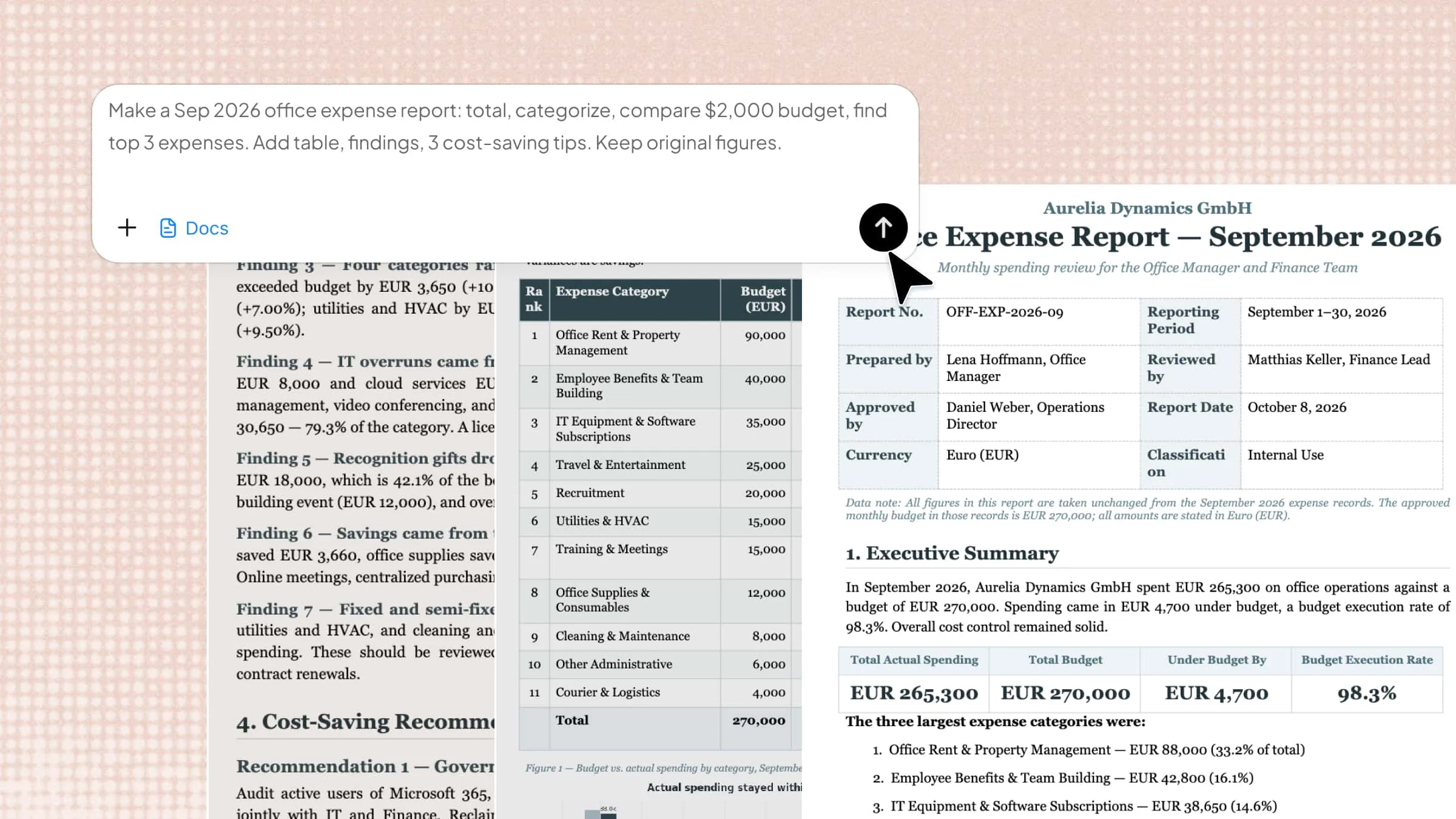
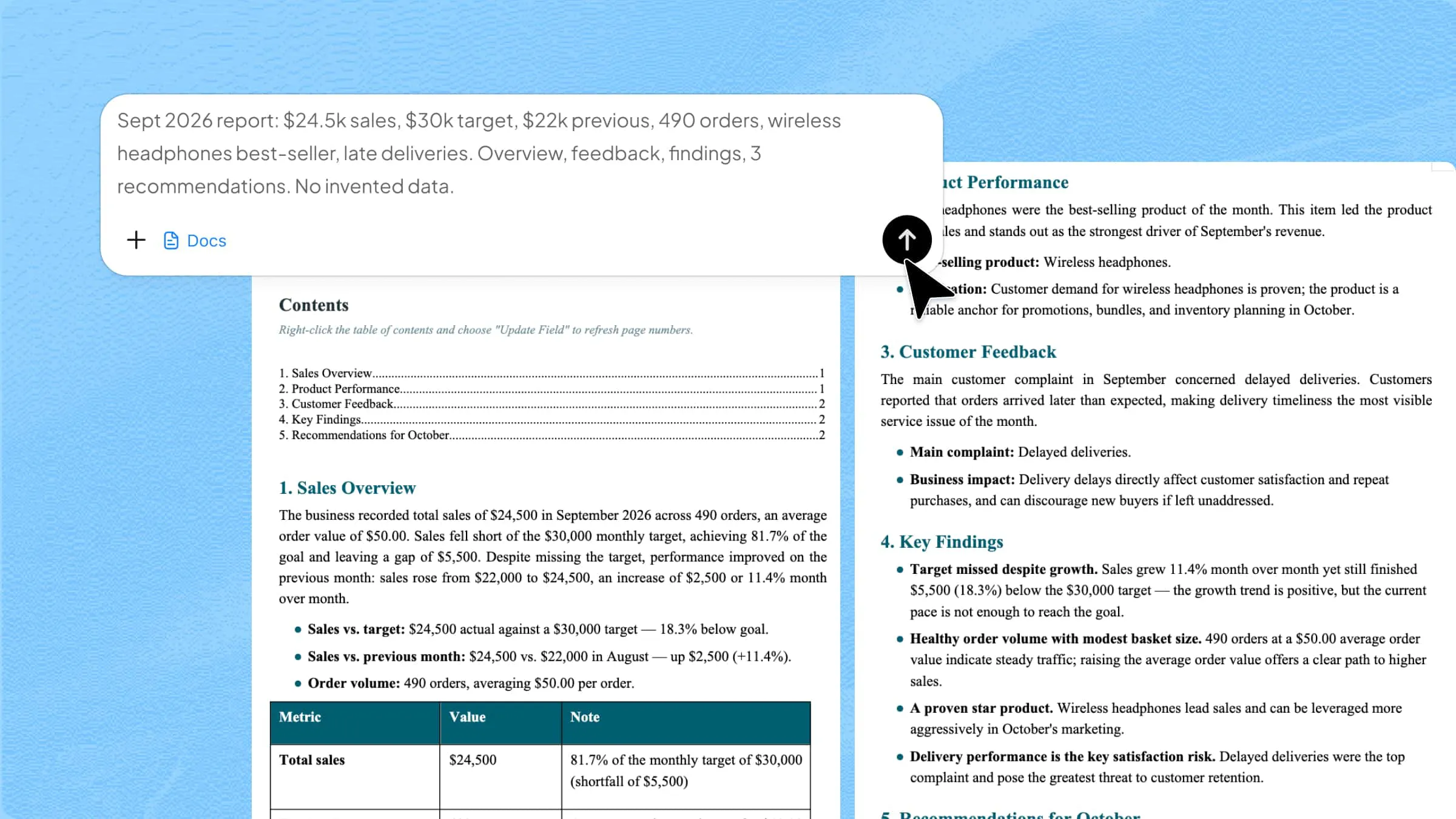
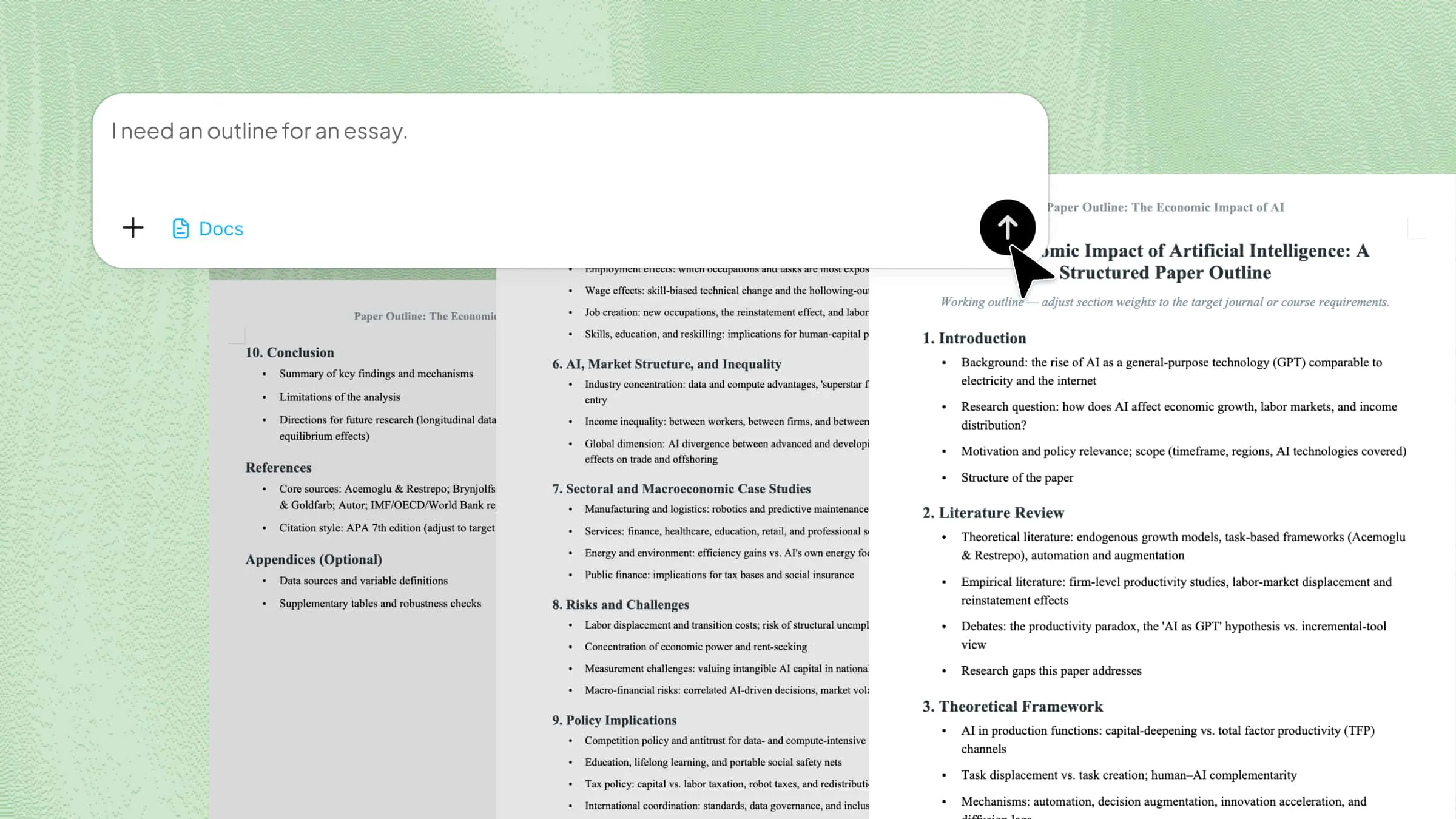
How to Combine PDF files in a Few Simple Steps

Learn how to combine PDF files into a single clean document without losing layout or quality. For a smarter, more efficient way, use Kimi Docs to merge multiple PDFs while keeping formatting intact and streamlining your workflow.

10 min read2026-05-29

Table of contents

Managing several PDF files can quickly become confusing, especially when important pages are spread across different documents. Formatting issues and messy layouts can also make the process harder than expected. This article explains how to combine PDF files into one clean document without losing quality or structure. Keep reading to learn the easiest steps for merging PDFs smoothly and saving time.

Overview of 2 methods to merge multiple PDFs

Whether you need a quick AI-powered workflow or a built-in offline solution, both methods below make it easy to combine multiple PDF files into a single document. The ideal option depends on your device, preferred workflow, and whether you want automation or manual control.

MethodPlatformBest forKey approachOutput type
Web (Kimi Docs)Windows, MacFast AI-based mergingUpload files and let AI process and merge automaticallyStructured merged PDF with preserved formatting
Mac built-in method (Finder + Preview)MacOffline control and editingUse "Quick Actions" in Finder or "Thumbnails" in Preview to merge PDFsSingle editable merged PDF

How to merge multiple PDF files on PC & Web

Kimi Docs is an AI document agent designed to handle PDFs and other files efficiently across PC and web environments. It supports PDF merging while preserving original layouts, images, fonts, and document structure. The platform also includes cloud-based processing, fast file handling, and workflow features that help users manage multiple documents with better speed and accuracy.

Step 1: Upload your PDF files and enter a prompt

Open Kimi on the web and click "Docs" to access the workspace. In the workspace, select the "+" icon and upload the PDF files you want to merge. Then prompt the AI to combine them and click the Submit button to begin the process.

Example prompt:

Combine the two uploaded PDF files into a single document while maintaining the original formatting. Keep all headings, subheadings, fonts, spacing, tables, and images exactly as they are. Ensure the content flows smoothly from the first file to the second without changing or removing any information. The final document should look clean, consistent, and professionally structured as one file.

Upload your PDF files and enter a prompt

Step 2: Let AI process and generate results

Once the files and prompts are submitted, Kimi Docs analyzes and combines the PDFs. The AI processes page order, formatting, fonts, images, and document structure to generate a clean merged file. This step usually takes only a few moments, depending on file size.

Let AI process and generate results

Step 3: Preview and download the combined PDF file

After the PDF is created, click "Preview" next to the file to check that all images and content are correctly placed. Once everything looks right, download the PDF to your computer, ready to share.

Preview and download the combined PDF file

Key features of Kimi Docs

Kimi Docs is built to make PDF handling faster and more structured by combining automation with clean document processing. It focuses on reducing manual effort while keeping files well-formatted and easy to manage across web workflows.

  • Combine multiple PDFs in minutes: Kimi Docs quickly merges several PDF files into a single document using AI-based processing, saving time when handling large or multiple files.
  • Keep original formatting intact: The system preserves fonts, images, spacing, and layout, so the final PDF looks exactly like the original documents without distortion.
  • Organize PDF pages in the right order: Users can arrange and structure pages before or during merging, ensuring a logical flow in the final document.
  • User-friendly interface: The interface is simple and clean, making it easy to upload files, process them, and download results without technical steps.

How to combine PDF files into one document on Mac

Combining PDF files on a Mac is a simple task, but many users still struggle with finding the right method. Different tools and built-in options can make the process confusing or time-consuming. The following are some methods to combine PDF files into one document on a Mac easily and clearly.

Using Finder

Mac already includes built-in tools that make PDF merging quick and hassle-free. Instead of using external apps, you can combine files directly from your system in just a few clicks. This keeps everything simple, fast, and accessible from your desktop. Here's how to combine PDF documents using Finder on Mac.

Step 1: Select the PDF files in Finder

Open Finder and locate the PDF files you want to merge. Hold Command to select multiple non-adjacent files, or use Shift to select a range of files. The order you select them determines the final merge order.

Select your PDF files

Step 2: Open the Quick Actions menu

Right-click (or Control-click / two-finger click on trackpad) on one of the selected files to open the context menu. Look for "Quick Actions". In Quick Actions, click "Create PDF".

Use the quick action menu

Step 3: Rename and preview the merged file

Locate the newly created PDF in Finder, rename it if needed, and use "Quick Look (Space bar)" to preview the merged result and check page order and content.

Use the quick action menu

Using Preview

Combining PDF files on a Mac is very easy with the built-in Preview app. It helps you merge multiple documents without installing any extra software. The process is simple, and you can also edit page order if needed. Here's how to combine PDF files into one file using Preview.

Step 1: Open the PDF in Preview

Locate the PDF file in Finder and open it with Preview. If Preview is not the default app, right-click the file, select "Open With", and choose "Preview".

Open PDF in "Preview"

Then enable "Thumbnails" from the sidebar or by going to "View" > "Thumbnails".

Enable "Thumbnails" from the sidebar

Step 2: Insert another PDF file

Select the page after which you want to add new pages. Click the "+" button at the bottom of the thumbnail sidebar, choose "Insert Page from File", and select the PDF you want to merge.

Insert another PDF file by choosing "Insert Page from File"

Step 3: Rearrange and save the merged PDF

Drag and drop page thumbnails to adjust the page order if needed. Once everything looks correct, save the merged PDF file from the "File" menu.

Rearrange and save the merged PDF

Why you may need to combine PDF files?

Combining PDF files helps bring related documents together in one organized place, making them easier to access and manage. It saves time when reviewing multiple files and improves overall document flow. Let's look at why this process can be useful in different situations.

Easier document management

Combining PDFs keeps all related information in one file, so you don't have to open many documents separately. It helps you track and handle important content more easily in one place. This makes overall document handling simpler, controlled, and less stressful for users.

Better file organization

Merged PDFs keep your files structured in a clean order, which makes them easier to sort and store. You can arrange pages logically instead of searching through multiple files. This improves workflow, reduces confusion, and keeps everything properly organized.

Simplified sharing process

Sending one combined PDF is easier than attaching several separate files. It reduces the chance of missing pages or sending the wrong document. This makes sharing faster, more reliable, and more convenient for both sender and receiver every time.

Faster document access

A single PDF is quicker to open and search compared to multiple files. You can find information faster without switching between documents. This improves efficiency during work or study and saves valuable time when handling important tasks regularly.

Advanced practices to combine multiple PDFs

Working with multiple PDF files can become messy when documents are scattered and hard to manage. Combining them into one file helps create a smoother workflow and improves overall document handling. The following practices ensure better quality, structure, and accuracy in the final output every time.

Use reliable tools for lossless merging

When merging PDFs, always use trusted PDF tools that preserve the quality of your PDF. These tools ensure that there is no compression problem or formatting loss. This will help you to ensure your PDF is clear, sharp, professional, and suitable for official use anywhere without any distortion.

Reorder pages before final export if needed

Check and adjust page order before merging or exporting the final PDF, since the output becomes a fixed structure that cannot be easily edited afterward. Ensuring the correct sequence in advance helps maintain a logical flow, improves readability, and prevents the need to recreate the file for later changes.

Check file resolution before combining

Check the quality of each PDF before putting them together. Low-resolution files may have a significant impact on the final output. Good quality means that the document is clear and readable throughout every single page, with sharp text and images that are clearly and consistently displayed.

Keep original formatting settings enabled

Always preserve fonts, spacing, and layout settings during merging. This prevents unwanted changes in structure. It helps maintain a consistent, professional look across all pages of the final combined document without any formatting issues appearing later.

Use batch processing for large files

Use batch processing tools to work with multiple PDFs. This is time-saving and greatly diminishes the work involved. It is also more efficient to use it when dealing with numerous files daily in professional or academic work, smoothly.

Verify final PDF for layout consistency

It is always important to check the combined file after processing. Please take care to verify alignment, spacing, and page order. This will help to ensure that the final document is not only accurate, complete, and consistent before it is shared, printed, or safely stored and professionally presented anywhere.

Conclusion

Knowing how to combine PDF files into one makes everyday document handling much simpler and more organized. It helps you stay productive without dealing with scattered or hard-to-manage files. With the right approach, you can work faster and keep your documents clean and easy to share. Try Kimi Docs for a smoother way to merge PDFs with better control and results.

FAQ

Can I merge PDF files for free?
Yes, you can merge PDF files for free using built-in tools on Mac and various online platforms. These options usually let you combine documents without extra cost. Some tools may have limits on file size or features. Kimi Docs also provides free credits that can help you merge PDFs with a smooth workflow experience.
Can Al merge PDF files?
Yes, AI tools can merge PDF files by automatically combining pages and maintaining structure. They reduce manual effort and help process files faster. This is useful when handling multiple or large documents. Kimi Docs uses AI-based processing to keep formatting clean and organized during merging.
How many PDFs can I merge?
The number of PDFs you can merge depends on the tool you are using. Some basic tools support only a few files, while advanced ones handle larger batches. File size and system limits also play a role. AI tools like Kimi Docs support multiple file merging with efficient processing for a better workflow.
What is the PDF merge tool for PC?
A PDF merge tool for PC is software that helps combine multiple PDF files into one document. It is commonly used through built-in features like Preview on Mac or third-party desktop applications on Windows. These tools help keep files organized and easy to manage. They also maintain layout and formatting during the process.