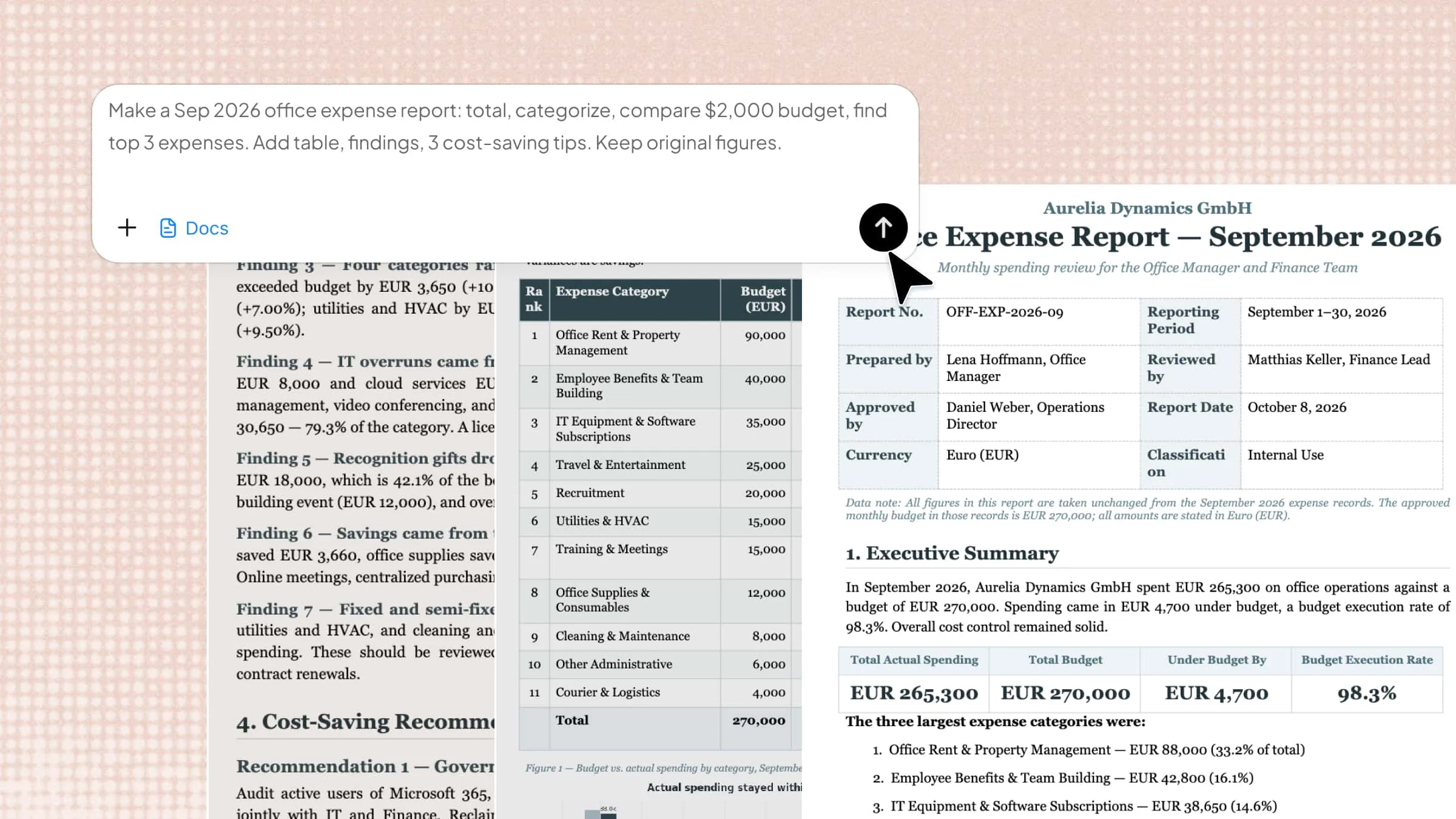
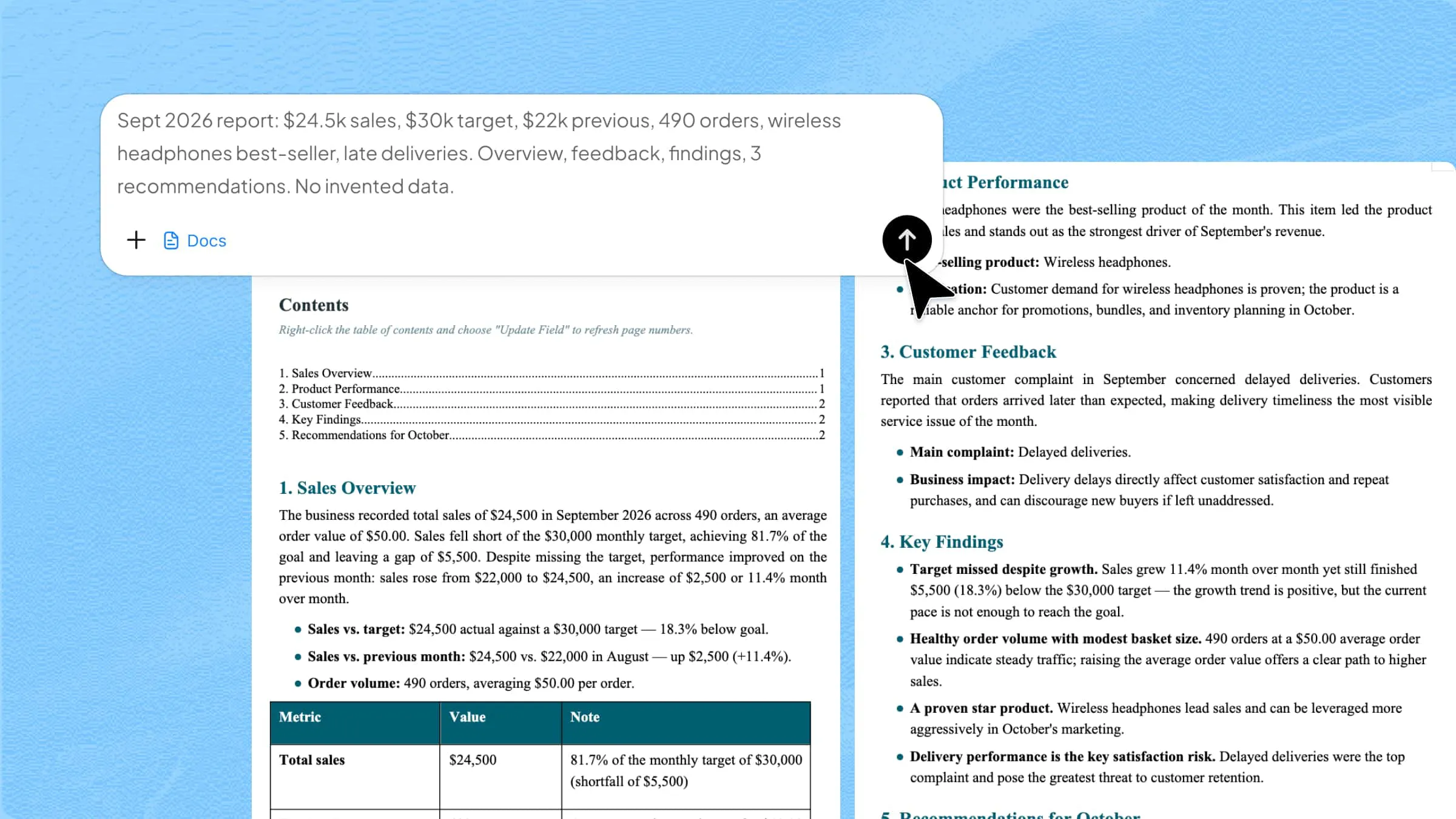
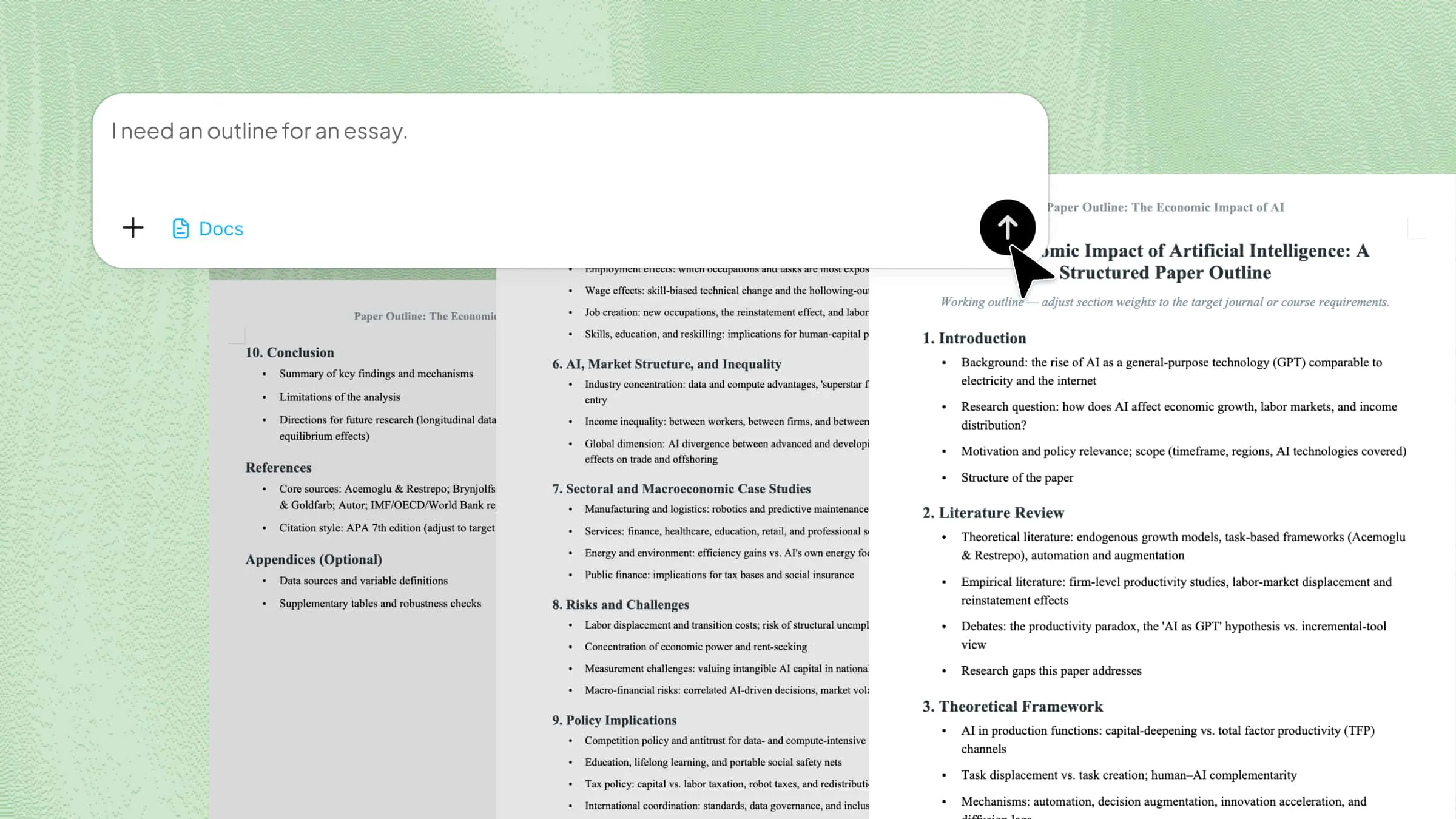
How to Convert CSV to PDF with 3 Easy Methods

Discover how to convert CSV to PDF using simple and reliable methods that keep your data accurate. For a faster option, try Kimi Docs to convert your CSV files while keeping everything clean, organized, and ready to share.

8 min read2026-07-23
How to Convert CSV to PDF with Kimi Docs

CSV files are useful for storing and managing data, but they are not always ideal for sharing or presenting information. Converting CSV to PDF helps preserve the layout, improve readability, and create professional documents that are easy to distribute. This guide covers three simple methods to convert CSV files into PDFs, from online tools to built-in solutions, helping you choose the right approach for your needs.

Overview of 3 methods to convert CSV to PDF

You can convert CSV files to PDF using different tools, from AI-powered document converters to spreadsheet applications. Each method offers different levels of automation, customization, and control over the final output. The comparison below highlights three popular options to help you choose the best approach for your needs.

FeatureKimi DocsGoogle SheetsMicrosoft Excel
How it worksUses AI to automatically format CSV data and generate polished PDF documentsImports CSV files and exports them as PDFs through online spreadsheet toolsOpens CSV files and converts them into PDFs using spreadsheet editing and export features
Key featuresAI-powered formatting, automatic data organization, quick PDF creation, professional document stylingOnline editing, cloud access, real-time sharing, basic layout customizationAdvanced formulas, spreadsheet formatting, page layout control, PDF export options
Ease of useVery EasyEasyMedium
Suitable forUsers who need fast conversion with minimal manual workUsers who prefer browser-based editing and cloud collaborationUsers who need detailed reports and precise data presentation

How to convert a CSV file to PDF using Kimi Docs?

Kimi Docs is an AI document agent designed to create, edit, and format documents efficiently. It can analyze uploaded files, organize unstructured information, and automatically generate well-formatted documents with the help of AI. With its intelligent formatting capabilities, Kimi Docs makes it easier to transform CSV data into professional PDF files without complex manual adjustments.

Step 1: Upload your CSV file and enter a prompt

Access Kimi Docs and click the "+" icon to upload your CSV file. After uploading, enter a clear prompt explaining how you want the data formatted and organized in the final document. A detailed prompt helps the AI understand the structure, layout, and presentation requirements.

Convert this CSV file into a professionally formatted PDF document. Organize the data into clear tables with proper headings and alignment. Adjust spacing, improve readability, and ensure the final document is suitable for sharing or reporting.
Upload your CSV file and enter a prompt in Kimi

Step 2: Let AI process and generate results

Kimi Docs analyzes the CSV data, identifies the structure, and automatically formats the content into a well-organized document. The AI handles table arrangement, spacing, and layout adjustments to create a polished output.

Let AI process and generate results

Step 3: Download your Word file

After the conversion is complete, click "Preview" to review the extracted data and ensure all rows, columns, and formatting are correct. If the output looks accurate, click "Download" to save the converted Excel file to your device.

Download your Word file

Main features of Kimi Docs

  • Preserve table structure automatically

Kimi Docs keeps rows, columns, headers, and table layouts organized during conversion. This reduces formatting issues and ensures your data remains accurate when exported as a PDF.

  • Turn spreadsheet data into readable documents

Instead of displaying raw spreadsheet data, Kimi Docs transforms CSV content into a structured document with clear sections, headings, and consistent formatting for better readability.

  • Generate AI summaries from your data

Kimi Docs can analyze your data and create summaries of key insights, trends, and important metrics. This helps readers understand the main points without reviewing every row manually.

  • Add charts to support your analysis

The tool can generate visual charts, such as pie charts and line charts, to present data trends and comparisons more effectively. These visuals make reports easier to understand and more engaging.

  • Edit the report with natural language

You can describe the changes you want in simple words, and Kimi Docs will automatically update the document. This makes editing faster without requiring manual formatting adjustments.

How to convert a CSV file to a PDF using Google Sheets?

If you don't have Microsoft Excel, Google Sheets offers a free and convenient way to learn how to turn a CSV into a PDF using your browser. It allows you to upload CSV data, improve the layout, apply formatting, and export it as a professional PDF document.

Follow the steps below to learn how to convert CSV to PDF online using Google Sheets quickly and easily.

Step 1: Upload your CSV file to Google Sheets

Open Google Sheets and use the "Open a file" > "Upload" option to upload your CSV file. Once uploaded, Google Sheets will automatically convert the CSV data into a spreadsheet format.

Upload your CSV file to Google Sheets

Step 2: Format and organize your data

Adjust column widths, apply number or date formatting, and make any necessary edits to improve the appearance of your spreadsheet. This helps create a cleaner and more professional PDF output.

Format and organize your data

Step 3: Download the spreadsheet as a PDF

Go to "File" > "Download" > "PDF" to open the export settings. Review the preview, adjust page settings if needed, and click "Export" to save your CSV data as a PDF file.

Download the spreadsheet as a PDF

How to turn a CSV into a PDF using Microsoft Excel?

Microsoft Excel provides a simple and reliable way to learn convert a CSV to PDF while keeping your data structure and formatting intact. Follow the steps below to learn how to convert a CSV to PDF for free using Microsoft Excel.

Step 1: Open the CSV file in Microsoft Excel

Locate your CSV file, right-click it, and choose "Open with" > "Excel." The file will open as a spreadsheet with the data arranged into rows and columns.

Open the CSV file in Microsoft Excel

Step 2: Choose the "Save As" option

Go to the "File" tab in the Excel ribbon and select "Save As." Choose the location where you want to store the converted PDF file.

Choose the Save As option

Step 3: Select PDF format and save the file

In the "Save as type" drop-down menu, select "PDF" and enter a name for your file. Click "Save" to convert the CSV data into a PDF document.

Select PDF format and save the file

Step 4: Review the converted PDF

Open the saved PDF file to check that the tables, formatting, and data are displayed correctly. The file is now ready for sharing, printing, or presentation.

Review the converted PDF

Tips for converting a CSV into a PDF

Before converting your CSV data into a PDF, preparing the file properly can help maintain accuracy and improve the final presentation. These simple practices ensure your converted document is clean, readable, and ready for sharing. Here are some useful tips to get better results when you convert a CSV to PDF.

  • Clean your data before converting

Remove duplicate entries, fix missing values, and check that all information is complete before exporting. A clean CSV file helps create a more accurate and professional-looking PDF.

  • Format your table for readability

Adjust column widths, align text properly, and apply consistent fonts, dates, or number formats. Proper formatting ensures the PDF is easier to read and understand.

  • Add clear headers and titles

Include meaningful column names and add a clear title to explain the purpose of your document. Well-organized labels help readers quickly understand the information in the PDF.

  • Choose the right page layout

Select portrait or landscape orientation based on the size of your table and the number of columns. Using the correct layout prevents data from being cut off or displayed incorrectly.

  • Preview the PDF before sharing

Review the final PDF to check for formatting issues, missing content, or incorrect page breaks. A quick preview ensures your document looks professional on different devices.

Conclusion

Converting CSV files into PDFs makes data easier to share, present, and review in a professional format. While tools like Google Sheets and Microsoft Excel provide convenient conversion options, Kimi Docs offers a faster AI-powered solution. It automatically organizes, formats, and converts CSV data into polished PDF documents, reducing manual work and improving efficiency.

FAQ

Which is the ideal CSV to PDF converter?
The ideal converter depends on your needs, but AI-powered tools like Kimi Docs provide a faster and more efficient way to learn how to convert a CSV file to PDF. It automatically organizes data, improves formatting, and creates professional-looking documents without requiring extensive manual adjustments.
Why does data misalign when you convert a CSV to a PDF?
Data misalignment usually occurs due to incorrect column widths, missing formatting, or improper page layout settings during conversion. Before exporting, adjust the table structure, review spacing, and ensure the data is properly organized to maintain accuracy in the final PDF.
Can I convert CSV to PDF in bulk?
Yes, bulk conversion is possible with tools that support multiple file processing. AI-based solutions like Kimi Docs can help manage large amounts of data more efficiently by organizing and formatting multiple CSV files for PDF conversion, saving time compared to manual methods.
You Might Also Like
How to Edit Footer in Word: Easy Step-by-Step Guide
2026-07-22
A User-Friendly Guide to Convert JPG to Word with Smallpdf
2026-07-22
How to Insert a Section Break in Word: A Complete Guide
2026-07-22
How to Remove a Section Break in Word: 5 Ways
2026-07-22
How to Insert a Page Break in Word: 4 Ways
2026-07-22