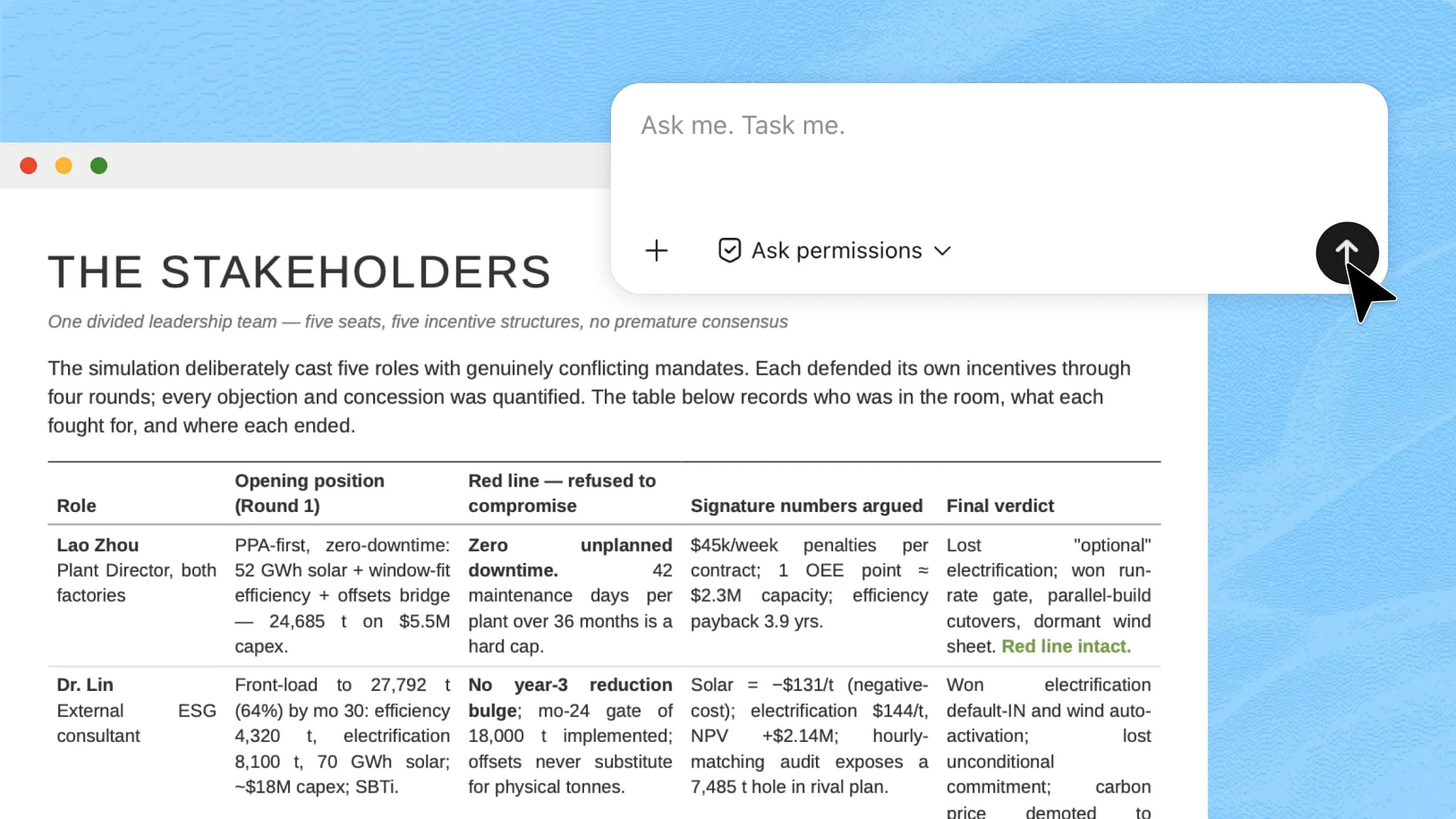
Manually extracting data from images into spreadsheets is time-consuming and often leads to errors, especially when dealing with tables, receipts, or scanned documents. Converting this information into structured Excel files usually requires repetitive copying or complex tools. In this guide on how to convert images to Excel, you'll learn simple and effective methods to turn images into editable spreadsheets on any platform.
Overview of 3 ways to convert images to Excel
There are multiple ways to turn images into editable spreadsheets depending on your device and needs. Below is a quick comparison of the three most common methods to help you choose the right approach.
| Method | Platform | Advantages | Suitable for |
|---|---|---|---|
| AI Converter (Kimi Sheets) | Web browser, desktop app, mobile app | AI extracts table data accurately, requires no installation required, and converts images into editable Excel spreadsheets in seconds | Fast, hassle-free conversions from any device |
| Desktop App (Microsoft Excel) | Windows / macOS | The built-in Data From Picture feature lets you review recognized data before inserting it into a worksheet for further editing and analysis | Users already working in Excel who want to edit and analyze converted data |
| Mobile App (Microsoft Excel) | iOS / Android | Scan printed tables with your phone's camera and convert them directly into editable Excel worksheets | Capturing and converting tables while away from a computer |
How to convert images to an Excel file online?
Kimi Sheets is an AI Excel agent that transforms raw data into well-structured spreadsheets using natural language instructions. It can automatically sort and filter data, compare datasets, fill in missing values, and reorganize information with minimal effort. It also identifies patterns, cleans data, and prepares spreadsheets for analysis and reporting, eliminating the need for complex formulas or advanced Excel skills.
Here is a step-by-step guide to convert a JPG into an Excel spreadsheet:
Step 1: Upload your image and enter a prompt
Access Kimi Sheets using the link below. Click "Sheets", then select the "+" icon to upload the image you want to convert. Finally, enter a clear prompt describing how you'd like the image to be processed.
Example prompt
Step 2: Let AI process and generate results
Click the "upward-pointing arrow" to submit your image and prompt. Kimi's AI agents will analyze the image, extract the required data, and convert it into an Excel spreadsheet based on your instructions.
Step 3: Preview and download your Excel file
Once the conversion is complete, click the "Preview" button to check that the data has been extracted accurately and arranged in the correct rows and columns. If everything looks correct, simply click the "Download" button to save the Excel file to your device.
Key features of Kimi Sheets
AI-powered image-to-Excel conversion
Kimi Sheets uses advanced AI to convert images into structured Excel data automatically. It detects tables, numbers, and layouts, reducing the need for manual data entry.
Accurate table extraction
The system precisely identifies rows, columns, and table boundaries from images. This ensures your extracted Excel data remains clean, organized, and easy to work with.
Handwritten text recognition
Kimi Sheets can read and convert handwritten notes into editable spreadsheet text. It improves accessibility and helps digitize even non-printed information.
Automatic data cleaning
The tool removes noise, fixes formatting issues, and standardizes data automatically. This results in a more accurate and analysis-ready Excel file.
Built-in spreadsheet editing
You can directly edit, sort, and refine your converted data within Kimi Sheets. This makes it easier to adjust results without switching to external tools.
While AI-powered tools like Kimi Sheets provide a faster and more flexible way to convert images into Excel files online, some users may prefer using official Microsoft solutions for better integration with the Excel ecosystem. If you want to use Microsoft's built-in tools, follow the steps below to learn how to convert images to Excel on a desktop.
How to convert images to Excel on a desktop with Microsoft's official tool?
Converting images into Excel on a desktop is a rapid and efficient way to transform printed tables, invoices, receipts, and screenshots into spreadsheets. Instead of entering data manually, desktop tools can automatically extract text and organize it into rows and columns. Moreover, working on a desktop provides more screen space to review, edit, and format the converted data.
Follow the steps below to learn how to convert an image to Excel on a laptop:
Step 1: Import the image into Excel
Open Microsoft Excel on your desktop, go to the "Get & Transform Data" tab, and select "Picture From File". Then choose the image you want to convert into an editable Excel table.
Step 2: Let Excel extract the data
After you upload the image, Excel automatically scans it and detects the table, text, and cell structure. Wait a few moments while the data is processed and prepared for review.
Step 3: Review and insert the extracted data
Click "Review" to verify that all values have been recognized correctly. If Excel highlights any uncertain entries, make the necessary corrections, then click "Insert" to add the data to your worksheet.
Once inserted, the data will appear in a structured Excel table where you can easily sort, filter, and analyze it.
How to convert images to Excel on a phone with Microsoft's official tool?
Converting images into Excel on a phone lets you capture and organize data wherever you are. Using the Excel mobile app, you can import a photo from your gallery or scan a document with your camera and turn it into a spreadsheet. Moreover, you can review the extracted data before adding it to your workbook.
Here is how to convert images into Excel on a phone step by step:
Step 1: Open the Microsoft Excel mobile app
Download and open the Microsoft Excel app on your mobile device. Tap the "+" icon in the upper-right corner and select Blank workbook. Next, tap the "Sheet navigator" icon in the bottom-left corner, then choose the "Data from Picture" option.
Step 2: Capture or upload your image
Select an image from your gallery or use your phone's camera to scan a document. Adjust the crop so the entire table fits within the frame, then tap "Review and Edit" to let the app analyze the image and extract the table data.
Step 3: Review the extracted data
Once the conversion is complete, tap "Review all" to verify that the rows, columns, and values have been recognized correctly. Make any necessary edits, then tap "Open Anyway" to insert the extracted data into the worksheet.
Common use cases for image-to-Excel conversion
Image-to-Excel conversion is useful in many everyday situations where printed or image-based data needs to be turned into editable spreadsheets. Here are some of the most common use cases.
Scanned documents
Organizations often store reports, applications, and printed records as scanned files. Converting them into Excel makes the data searchable, editable, and easier to integrate into digital workflows.
Financial statements and invoices
Banks, accounting teams, and businesses often process hundreds of invoices and financial statements every month. Extracting key details such as invoice numbers, payment amounts, dates, and tax values into Excel simplifies auditing, expense tracking, and month-end reporting.
Screenshots of tables
Important business data is frequently shared as screenshots in emails, dashboards, research papers, and presentations. Converting these tables into Excel enables users to validate figures, perform calculations, combine datasets, and generate custom reports.
Handwritten forms and notes
Industries such as healthcare, logistics, education, and field services still rely on handwritten forms for daily operations. Turning these records into Excel helps centralize information, improve record management, and make historical data easier to search and analyze.
Inventory and business records
Retailers, warehouses, and manufacturers regularly work with inventory lists, stock audits, and operational records. Importing this information into Excel supports inventory forecasting, stock reconciliation, purchasing decisions, and performance tracking with greater efficiency.
Conclusion
In short, converting visual data into spreadsheets is now much simpler with modern tools designed for speed and accuracy. With smart automation, you can handle data extraction more efficiently and keep your workflow smooth across any device. Kimi provides a reliable approach to learning how to convert an image to Excel, making the process faster, more accurate, and easier to manage without manual effort.