Converting images into PDF files can be frustrating when you need to submit documents quickly for official work. You may struggle with blurry image quality, oversized files, and unsupported formats. There are some methods and tools that enable you to convert images into PDFs. However, not all of them deliver the speed, quality, and convenience users actually need. Some reduce image clarity, while others require complicated steps or unnecessary downloads. Read this blog to explore how to convert an image to PDF quickly, easily, and without hassle.
Overview of 5 methods for converting an image to PDF
Image format conversion has become a simple and essential task for everyday users. Depending on your device and needs, there are multiple ways to do it quickly without losing quality. Here is a quick overview of the five methods on how you can convert JPG to PDF.
| Method | Platform | Suitable for |
|---|---|---|
| Kimi Docs (AI Tool) | Windows, Mac, iPhone, Android | Smart AI-based conversion |
| Microsoft Print to PDF | Windows | Offline quick conversion |
| Quick Actions (Create PDF) | Mac | Fast local file conversion |
| Photos App Print Option | iPhone | Simple mobile conversion |
| Google Photos / Gallery Print | Android | Everyday image conversion |
How to convert a JPG to a PDF online using an AI tool?
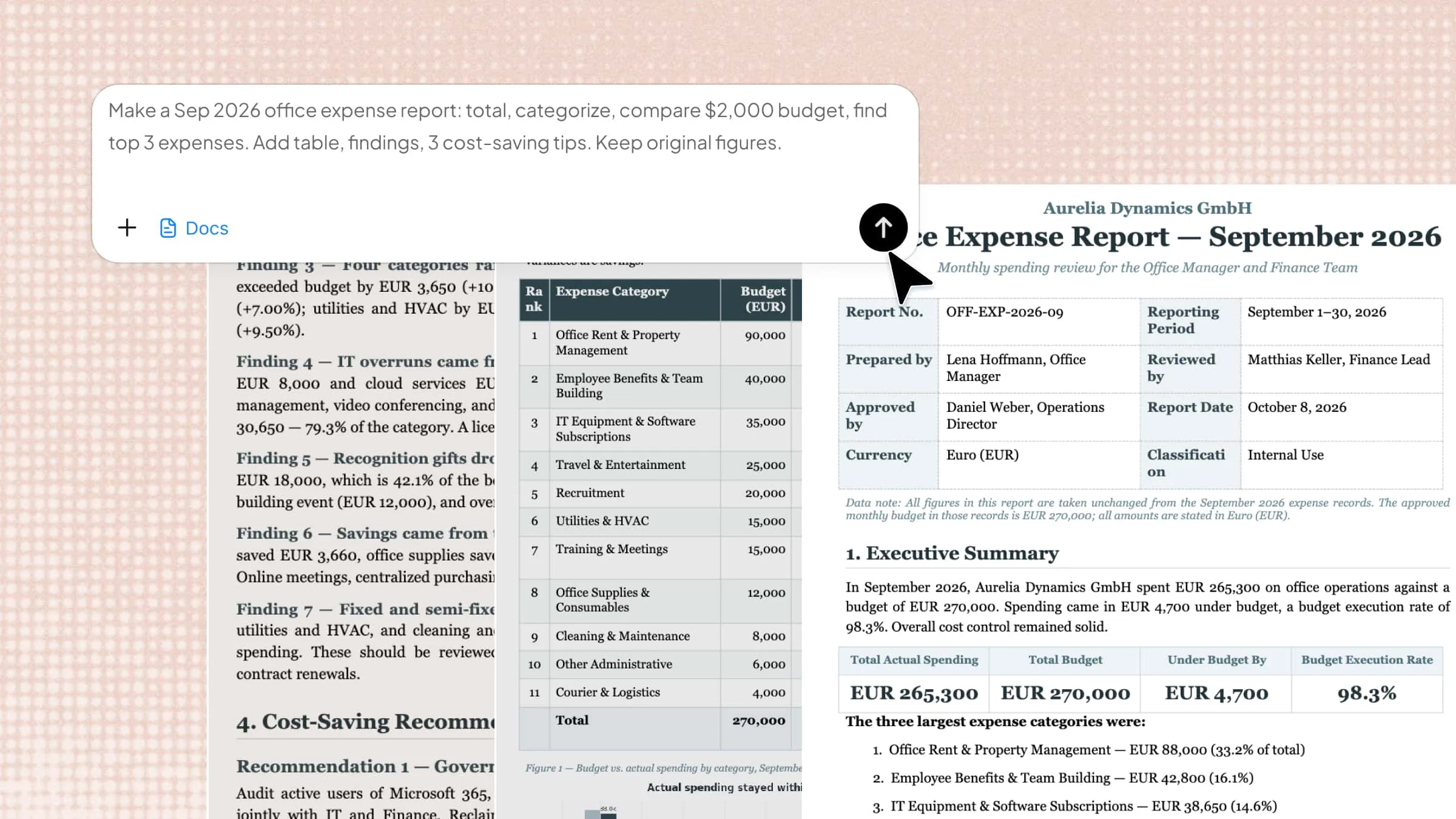
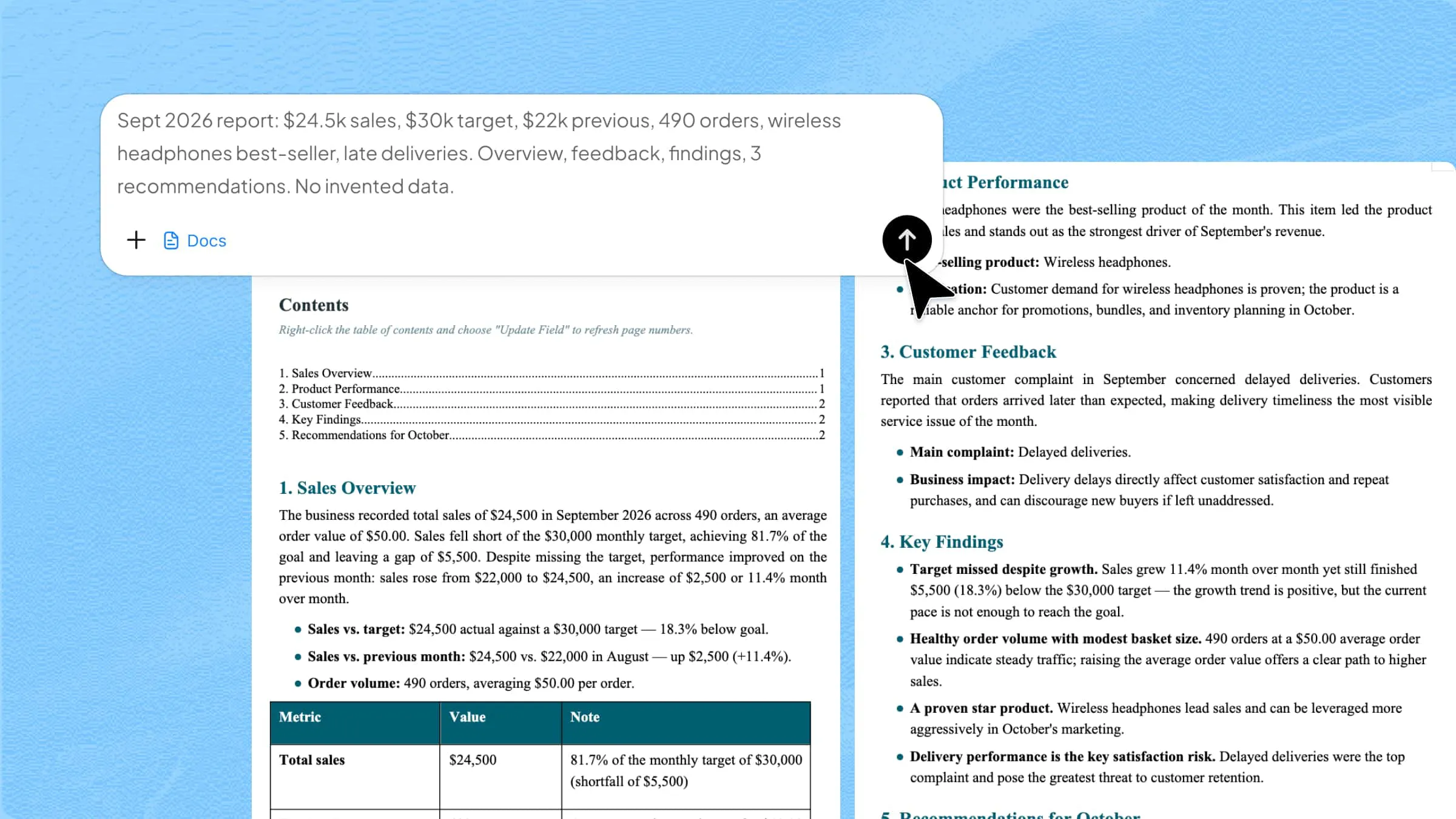
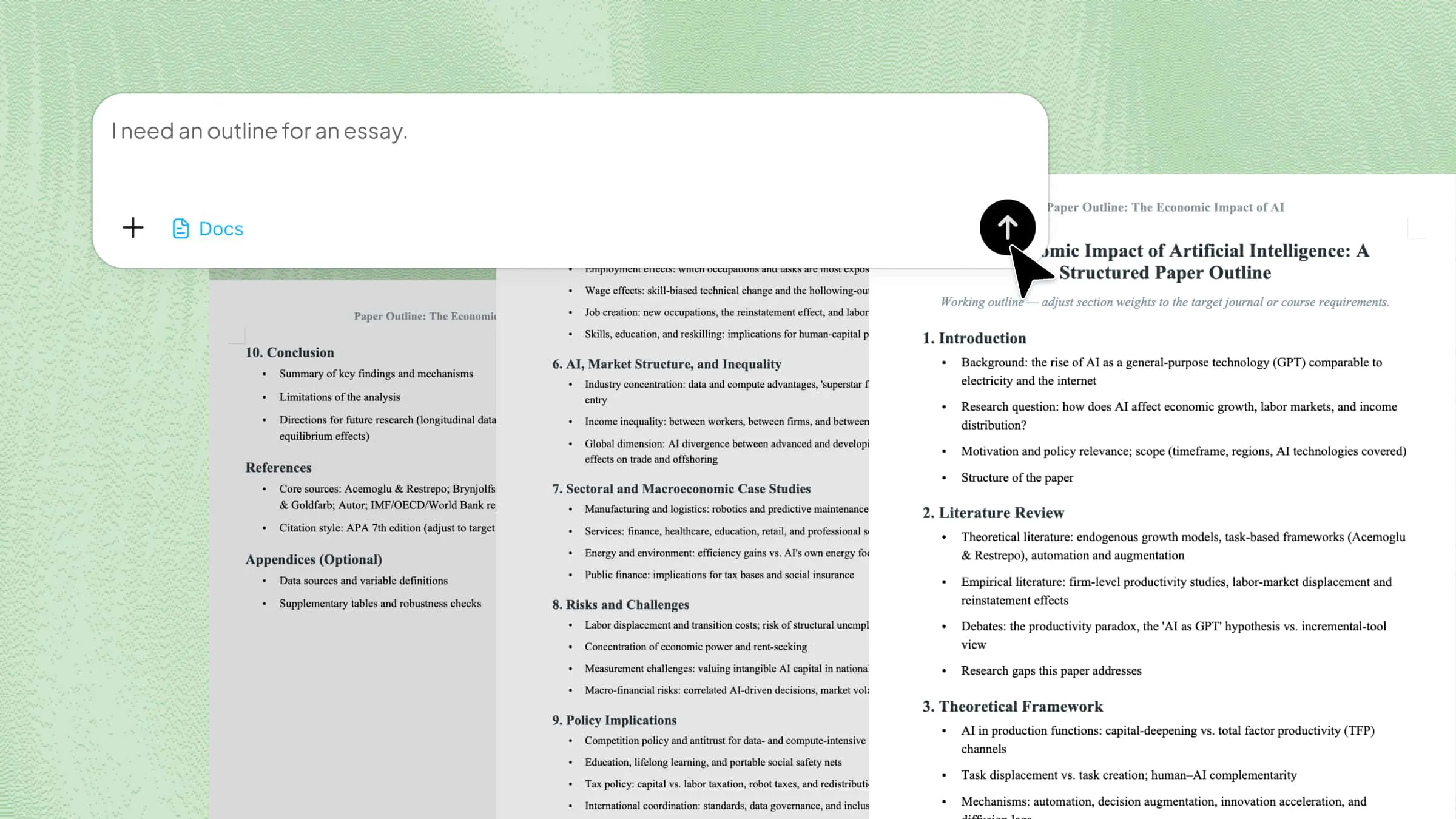
Kimi Docs is an AI document agent, which is mainly designed to help you manage, organize, and convert files easily. This platform can process images, extract content, and understand prompts. Then it generates polished PDF documents within seconds. Its user-friendly interface makes it suitable for professionals and freelancers to handle digital documents online. Here is how to convert JPG to PDF.
Step 1: Upload your JPG image and enter a prompt
Open "Kimi Docs" and upload your JPG image. Once the image is uploaded, provide a clear prompt.
Step 2: Let AI process and generate results
Kimi's AI system will analyze the uploaded JPG file and start processing it automatically. The tool organizes the image content and converts the file into a PDF document.
Step 3: Preview and download the PDF file
In just a few minutes, the Kimi Docs will generate a preview of the PDF file. You can review the formatting, layout, and overall image quality before saving it. Once you are satisfied with the final result, simply click the "Download" button to save the PDF file to your device.
Key features of Kimi Docs
Mostly, the Kimi Docs is designed to simplify the conversion of images into PDF documents. This platform provides several features that make file conversion faster, smoother, and more efficient.
AI-powered intelligent conversion
Well, the Kimi Docs uses advanced AI technology. In just a few minutes, this tool analyzes and converts JPG images into PDF files automatically. Instead of simply placing images into a document. This tool intelligently processes the content to improve readability. You can create a cleaner final output. It reduces manual editing and formatting work.
Batch conversion support
If you are dealing with multiple image files, Kimi Docs provides batch conversion support. It enables several JPG images to be converted into a single PDF document at once. This feature is especially useful for office paperwork. Therefore, it eliminates the need to convert files individually. This makes the workflow more organized.
Preserves image quality and layout
To be very honest, some tools change the image quality. The Kimi Docs helps preserve the quality, resolution, and layout of uploaded images during the conversion process. Your final PDF maintains a professional appearance. This tool ensures that text, graphics, and scanned documents are properly aligned.
Share-ready PDF output
Once your image is processed, the Kimi Docs generates a clean PDF file. This file is ready for sharing, printing, uploading, and storing immediately. The output format is compatible with most devices. Furthermore, this makes it easier for you to send documents through email.
How to convert an image to PDF on Windows
Windows also enables you to change your image format without any tool subscription. This method works smoothly on both Windows 10 and Windows 11. It is ideal for creating professional-looking PDF files for sharing and printing. Here is detailed step-by-step guidance on how to change JPG to PDF.
Step 1: Select the image and open the print menu
First of all, open "File Explorer" and go to the folder containing your image files. Here, select the image, right-click on it, and choose the "Print" option from the context menu.
Step 2: Choose Microsoft Print to PDF and adjust layout settings
In the "Print" window, you have to click the "Printer" dropdown menu and select "Microsoft Print to PDF". Next, select your paper size and adjust its layout.
Step 3: Save the image as a PDF file
Once your setting finalize, click the "Print" button. A "Save Print Output As" dialog box will appear. Here, choose the location to save the PDF file, enter a file name, and click "Save."
How to convert images to PDF on Mac
If you are a Mac user, you can easily convert your images into PDF files using its super-simple feature. This method works directly through Finder. Therefore, it is ideal to create clean, share-ready PDF files in just a few clicks.
Step 1: Locate and select the images
First of all, open "Finder" and go to the folder that contains the images you want to convert. Here, select the images and arrange them in order.
Step 2: Open "Quick Actions" from the right-click menu
After selecting the images, hold the control key and click. A context menu will appear on the screen. From the menu, select the "Quick Actions".
Step 3: Click "Create PDF" to generate the file
Inside the "Quick Actions" menu, click the "Create PDF" option. macOS will automatically create a PDF file in the same folder location.
How to convert an image to a PDF file on an iPhone
As an iPhone user, you can easily change your image format to PDF files. The method is simple, fast, and ideal for sharing multiple documents in just a few seconds. You can easily store files and submit images in PDF format.
Step 1: Open the image and access the "Share" menu
Open the Photos app on your iPhone and select the image you want to convert into a PDF. Once the image is open, tap the "..." button.
Step 2: Open the "Print" option
Then, scroll down through the sharing options and click the "Print" option. It will open the "Print Options" screen on your iPhone.
Step 3: Save the image as a PDF file
On the"Print Options" screen, select "Save to Files" and choose your preferred folder location to store the PDF document.
How to convert an image to PDF on Android
Generally, Android devices provide an easier way to convert your images into PDF files. You don't need to install any extra apps. Their system already includes a print-to-PDF feature. This is perfect for changing images into printable PDF documents.
Step 1: Open the image in the gallery
First of all, start by opening the image from your Photos app. Make sure the image is clearly visible.
Step 2: Access the "Print" option
Then, tap the three-dot menu icon in the top-right corner of the screen. From the available options, select "Print" to open the print settings screen.
Step 3: Save as PDF and Download File
In the printer selection menu, choose "Save as PDF". Then tap the PDF download icon to generate the file. Finally, select your storage location, rename the file, and tap "Save" to store your PDF.
Tips and tricks for image-to-PDF conversion
The process of learning how to convert images to PDF can be much more efficient when you do it with the right approach. You have to make some small adjustments before and after the conversion. It improves quality, reduces file size, and enhances readability.
Choose high-resolution images before converting
It is best to start with high-quality images. Remember, the clarity of your final PDF depends directly on the source image. Low-resolution files often become blurry after conversion. You have to choose a high-quality and sharp image. This is especially important for certificates and scanned pages.
Use PDF compressors to reduce file size
Once you convert your images into a PDF, your file size can become large. This makes it difficult to upload. Therefore, you may need to use a PDF compressor. This helps you to reduce file size without affecting image quality. It also saves storage space on your device.
Arrange image order before starting conversion
Before changing your file format, make sure all the images are arranged in the correct order. This is important for documents. Especially if you have notes, reports, or multi-page records. Always remember, a proper arrangement ensures your final PDF flows logically. Furthermore, it is easy to understand.
Crop unnecessary whitespace for cleaner pages
It is best to remove unwanted white spaces before conversion. This improves the overall appearance of your PDF. You have the option to crop images. This makes your image more focused and professional. It also ensures that important content takes center stage.
Convert in bulk to save more time
If you have multiple images, you can use the bulk conversion feature. It saves a lot of time and effort. Instead of converting each image one by one, you can combine them into a single PDF. It enables you to organize your files and reduces repetitive work. It is ideal for office tasks and study materials.
Pick PDF tools that preserve image quality
As you already know, not all tools maintain image clarity during conversion. Therefore, the selection of the right one is important. A good PDF tool will keep your images clear and formatted. Furthermore, poor tools may compress or distort images. It reduces overall quality.
Use OCR to make images text-searchable
The factor OCR (Optical Character Recognition) enables your text inside images to become searchable. You can even edit your PDF. It is especially useful for scanned documents. It helps you quickly find information without manually reading through pages.
Always preview your PDF before downloading
Before you save your file, make sure to preview its PDF version. This ensures the image looks correct. It is best to always check image clarity, alignment, and page order. This helps you remove any mistakes before sharing. A quick preview of the docs provides a professional final output.
Conclusion
To conclude, learning how to convert an image to PDF helps you manage and share documents more easily in daily life. With built-in tools on phones, Windows, and Mac devices, you can quickly turn images into organized PDF files while maintaining good quality. If you want a faster and smarter way to handle documents, try Kimi Docs for smooth PDF creation and document management.