Text trapped inside a JPG can't be copied, edited, or searched. Whether you're working from a scanned contract, a photo of a printed page, or a screenshot of an email, the content stays locked inside the image until you convert it to Word. Knowing how to convert JPG to Word opens it up, turning a static image into a document you can search, copy, and format. This guide covers four ways to do it.
Overview of 4 ways to convert JPG to Word
| Aspect | Kimi Docs | Online OCR Tool | Google Drive | Microsoft Word |
|---|---|---|---|---|
| Main workflow | Upload → Prompt → Review → Download | Upload → Convert → Download | Upload → Open with Google Docs → Export | Insert image → Save as PDF → Open in Word |
| OCR / editable text | Yes | Limited / inconsistent | Yes | Limited / inconsistent |
| Software installation | Not required | Requires Microsoft Word | Not required | Requires Microsoft Word |
| Cost | Free credits available | Free | Free (Google account) | Requires Word license |
| Best for | Fast, AI-assisted conversion with clean formatting | Quick one-off conversions | Users already using Google Drive | Users who only have Word and no other tools |
How to convert JPG to Word using Kimi Docs
For the fastest way to turn a JPG into a clean, editable Word document, Kimi Docs acts as your AI document agent to extract and structure text automatically. Skip the tedious, error-prone manual retyping. This intelligent platform seamlessly recognizes complex layouts, handles multi-column formats, and preserves essential spacing. In just seconds, you can transform static images or scanned paperwork into fully formatted, highly accurate files ready for immediate editing and sharing.
Step 1: Upload your JPG and enter the prompt
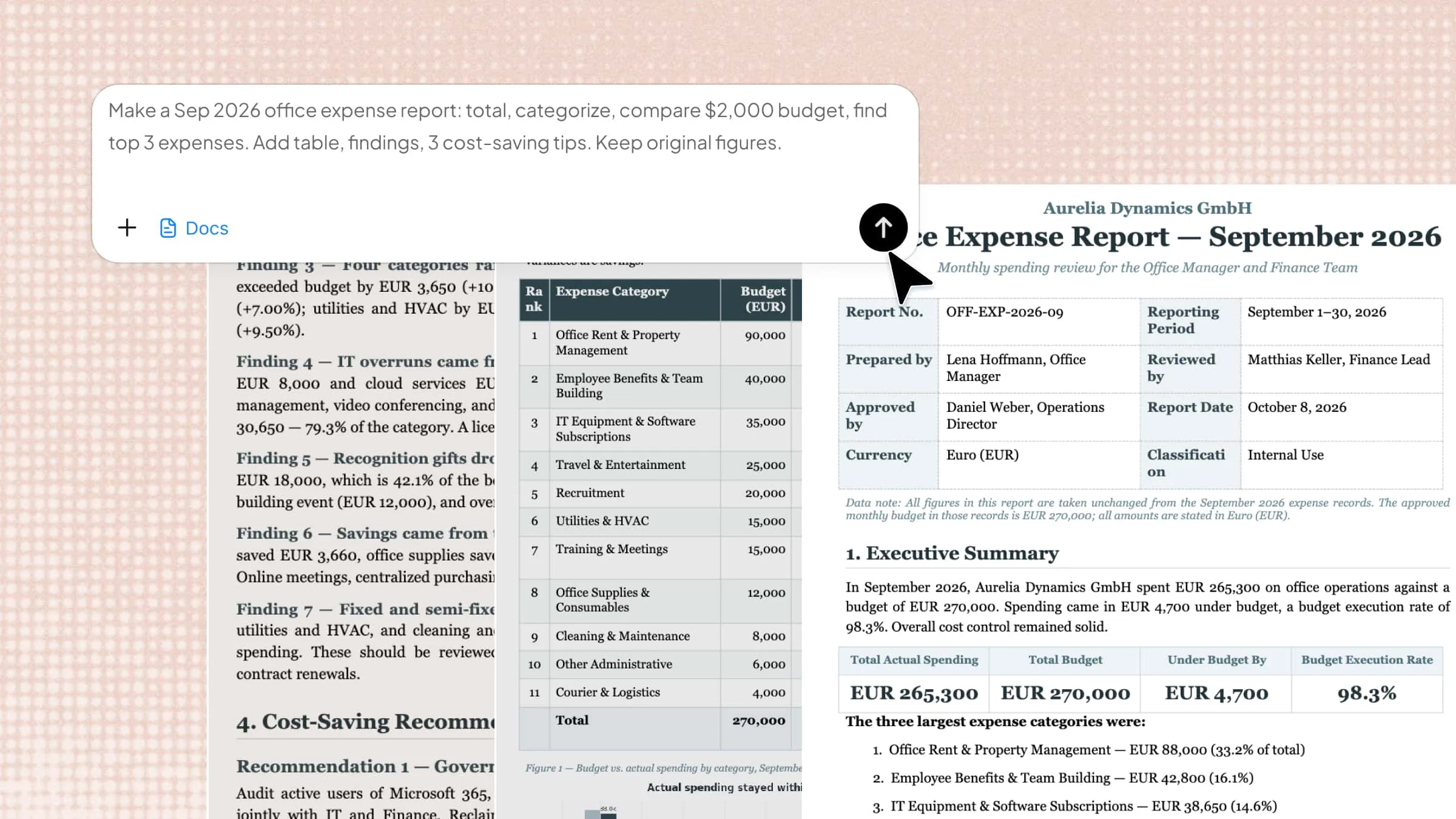
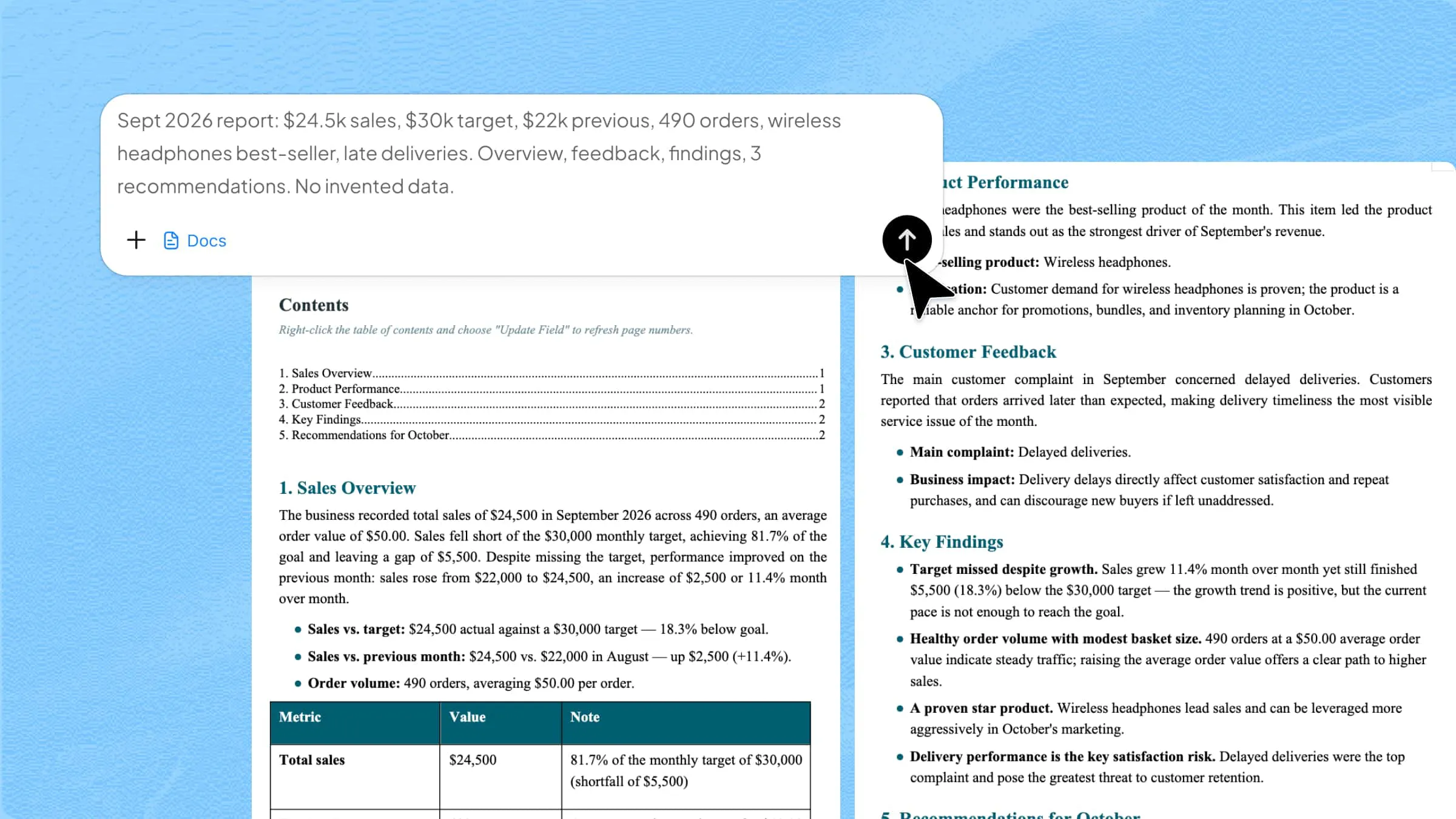
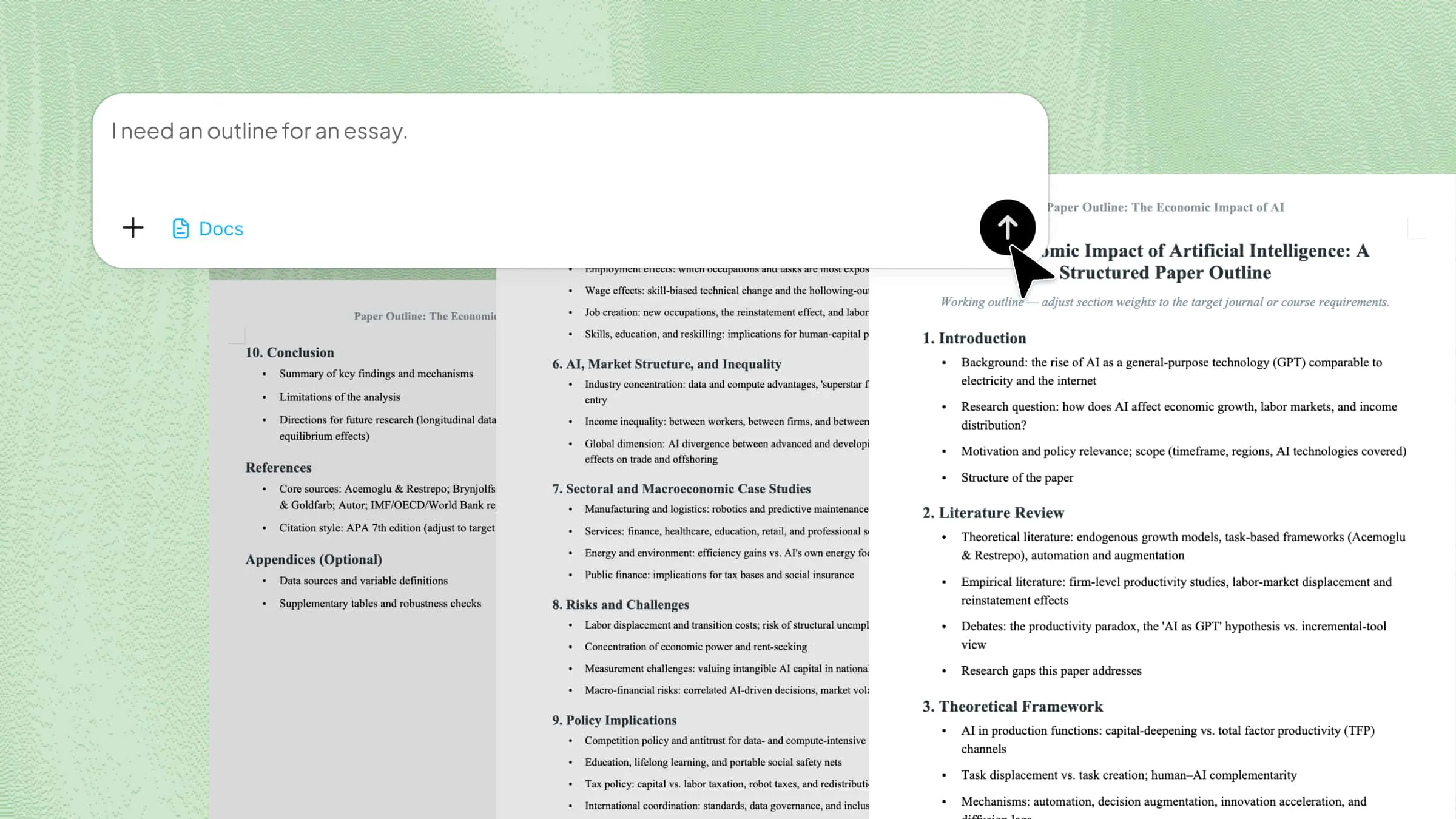
Open Kimi Docs, click the "+" button to upload your JPG image, and enter a prompt describing what you want.
Example prompt:
Step 2: Let Kimi process and generate results
Kimi Docs analyzes the image, extracts the text, and structures it into a properly formatted Word document, adjusting headings, spacing, and layout automatically.
Step 3: Download your Word document
Once processing is complete, download the final Word file directly from the platform, ready for editing, formatting, or sharing.
How to convert JPG to Word online using an OCR tool
Browser-based OCR tools are the most common solution for converting JPG to Word online. They require no installation, and most offer free basic tiers that cover typical single-image conversion needs.
Step 1: Open a JPG to Word OCR converter
In your browser, go to a online JPG to Word converter that supports OCR.
Step 2: Upload your JPG image
Drag and drop your JPG file into the upload area, or click to browse and select it from your device.
Step 3: Enable OCR and convert
Make sure OCR (or “text recognition”) is enabled, then click “Convert.” “ The tool will scan the image and extract any text it finds.
Step 4: Download your Word file
Once the conversion is complete, click “Download” to save the Word document to your device, ready to open and edit.
How to convert JPG to Word using Google Drive
If you already use Google Drive, its built-in OCR feature can extract text from a JPG and let you export it as a Word file, with no extra tools needed. This is one of the simplest ways to convert JPG to a Word document using tools you likely already have access to.
Step 1: Upload your JPG to Google Drive
Go to Google Drive and upload the JPG image you want to convert.
Step 2: Open the image with Google Docs
Right-click the uploaded JPG, select “Open with,” then choose “Google Docs.” Google Drive will create a new document containing the image along with any text it recognized below it.
Step 3: Review the extracted text
Check the text Google Docs extracted below the image and correct any recognition errors, since formatting may need adjustment.
Step 4: Download as a Word document
Go to File > Download > Microsoft Word (.docx) to save the extracted content as an editable Word file.
How to convert JPG to Word using Microsoft Word
Microsoft Word isn't a dedicated OCR tool, but for simple images or screenshots, this workaround can extract text by converting the image to a PDF first.
Step 1: Insert the JPG into a Word document
Open a blank Word document, go to Insert > Pictures, and select your JPG file. Keep the image readable and avoid heavy compression or cropping out important content.
Step 2: Save the document as a PDF
Go to File > Save As, choose PDF as the file type, and save the document.
Step 3: Reopen the PDF in Word
Open Word again, then use File > Open to select the PDF you just saved. Word will prompt you to convert it into an editable Word document.
Step 4: Review the converted text
Check the resulting document for accuracy. This method works best for simple images or screenshots, and may not extract text correctly from scanned pages, handwriting, or low-quality photos.
Tips for getting better results when converting JPG to Word
A few simple habits can significantly improve text recognition accuracy, no matter which method you use.
Use a sharp, high-resolution image: Blurry or low-quality JPGs are the most common cause of OCR errors and missing text.
Check image orientation: Make sure the image is right-side up and not rotated, as this can cause text to be misread or skipped.
Proofread after conversion: OCR isn't perfect, especially with handwriting, tables, or unusual fonts, always review the converted Word document before using it.
Use AI for complex layouts: For images with mixed text, tables, or multiple columns, AI tools such as Kimi Docs can help structure the result more accurately than basic OCR tools.
Conclusion
Whether you use Kimi Docs, an online OCR tool, Google Drive, or Microsoft Word, you can convert JPG to Word and get an editable document in just a few steps. For straightforward images, any of these methods works well. For pages with complex formatting, multiple columns, or dense layouts, Kimi Docs gives you a cleaner result with less manual cleanup afterward.