Table of contents
- How to create a document in Word?
- How to create a Word document from a template?
- How do I create a Word document using AI?
- Tips for making a Word document look professional
Creating a professional file can feel confusing for beginners, especially when formatting tools, layouts, and document settings are unfamiliar. Learning how to create a Word Document provides a simple and structured way to start writing, organizing, and editing documents without frustration. This step-by-step guide will help you create clean, professional Word documents quickly and efficiently.
How to create a document in Word?
Creating a Word document is a simple process that allows you to write, edit, and organize content for school, work, or personal use. Microsoft Word provides an easy interface where you can quickly start with a blank page and save your work in just a few clicks. Follow the steps below to learn how to create a Word document easily.
Step 1: Open Word and create a blank document
Click the Start menu, search for "Word," and open the Microsoft Word application. From the home screen, select "Blank Document" to start writing immediately in a new file.
Step 2: Write and edit your document
Start typing your text and use Word's formatting tools to add headings, adjust fonts, or organize content. This helps you create a clean and professional document.
Step 3: Save your document
Click on the "File" tab and choose "Save As" to save your work. Select a folder, enter a file name, and save the document so you can access and edit it later.
How to create a Word document from a template?
Using templates in Microsoft Word makes document creation faster and more professional by providing ready-made layouts for resumes, invitations, reports, and more. Instead of starting from a blank page, you can choose a design and customize it with your own information. Follow the steps below to learn how to create a new document in Word for free using templates.
Step 1: Open Microsoft Word and access the "New" tab
Launch Microsoft Word and click on the "File" menu in the top-left corner. Then select "New" to view the available templates and blank document options.
Step 2: Search for a template
Browse the template categories or use the search bar to find a specific template like a resume, invitation, or business document. Word will display multiple template designs related to your search.
Step 3: Select and open the template
Choose the template you want to use and click on it to open. Word will automatically create a new editable document based on the selected design.
Step 4: Customize and save the document
Replace the sample text, images, or details with your own content. Once finished, save the file to your computer so you can edit or use it later.
How do I create a Word document using AI?
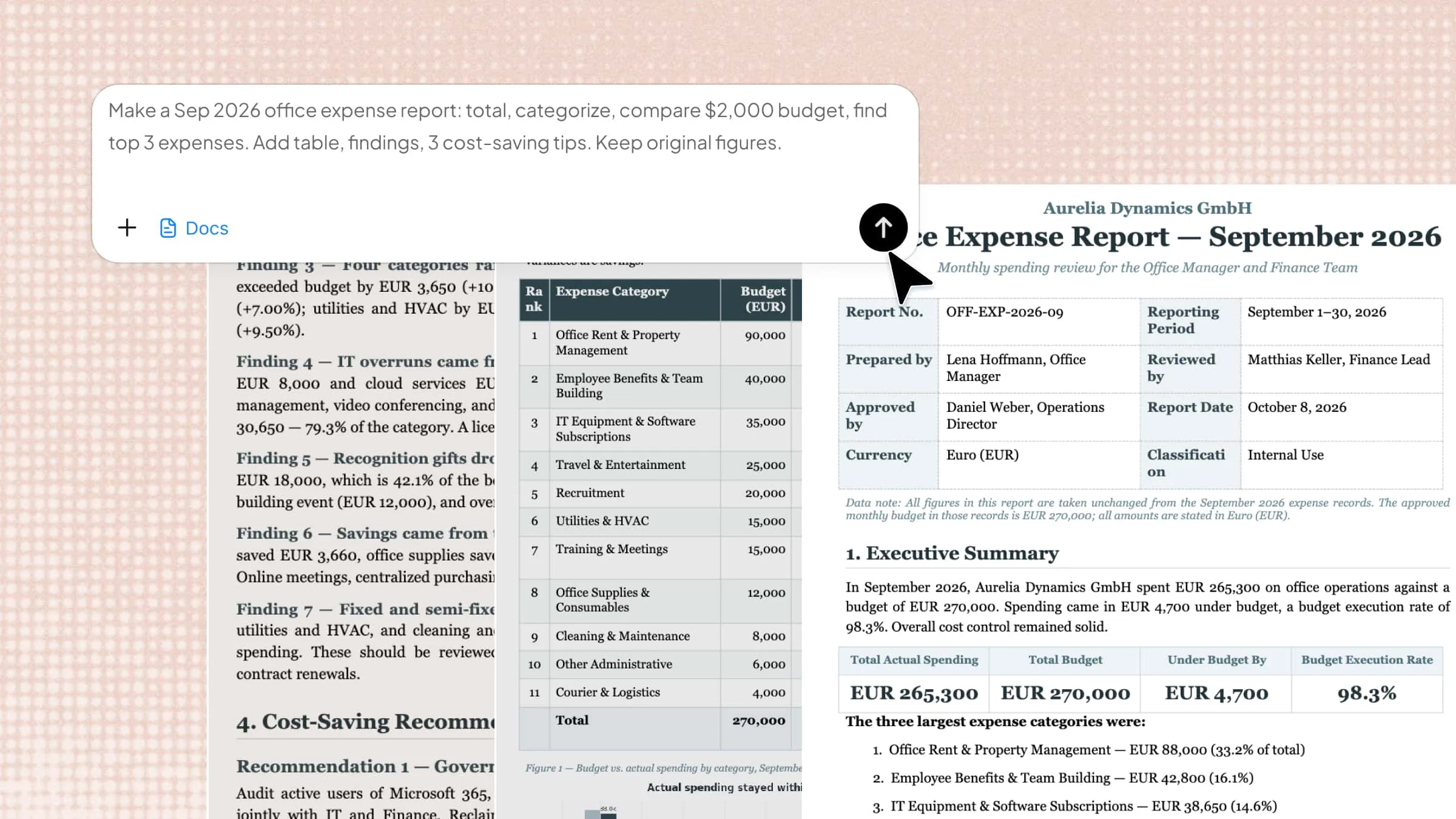
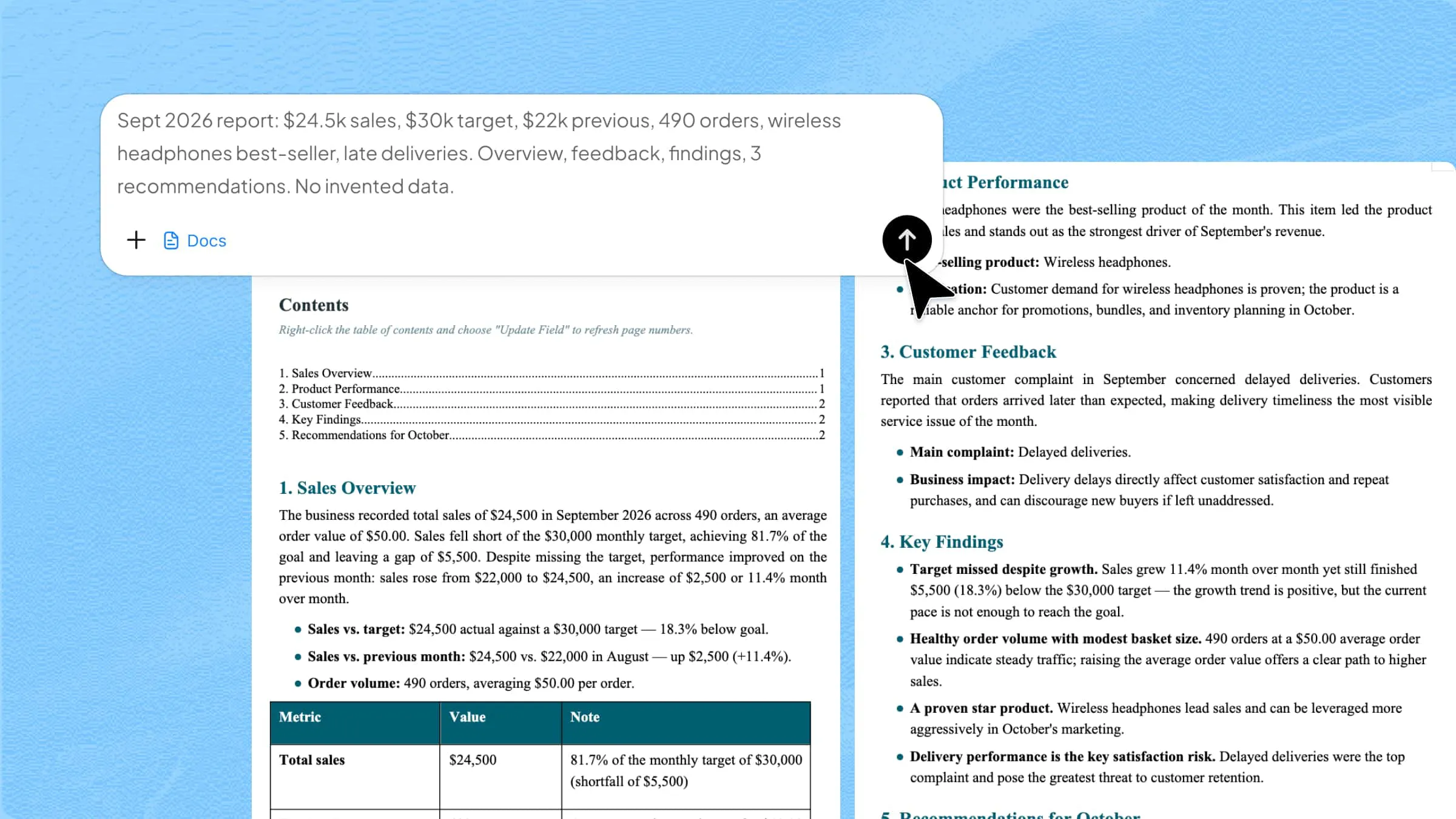
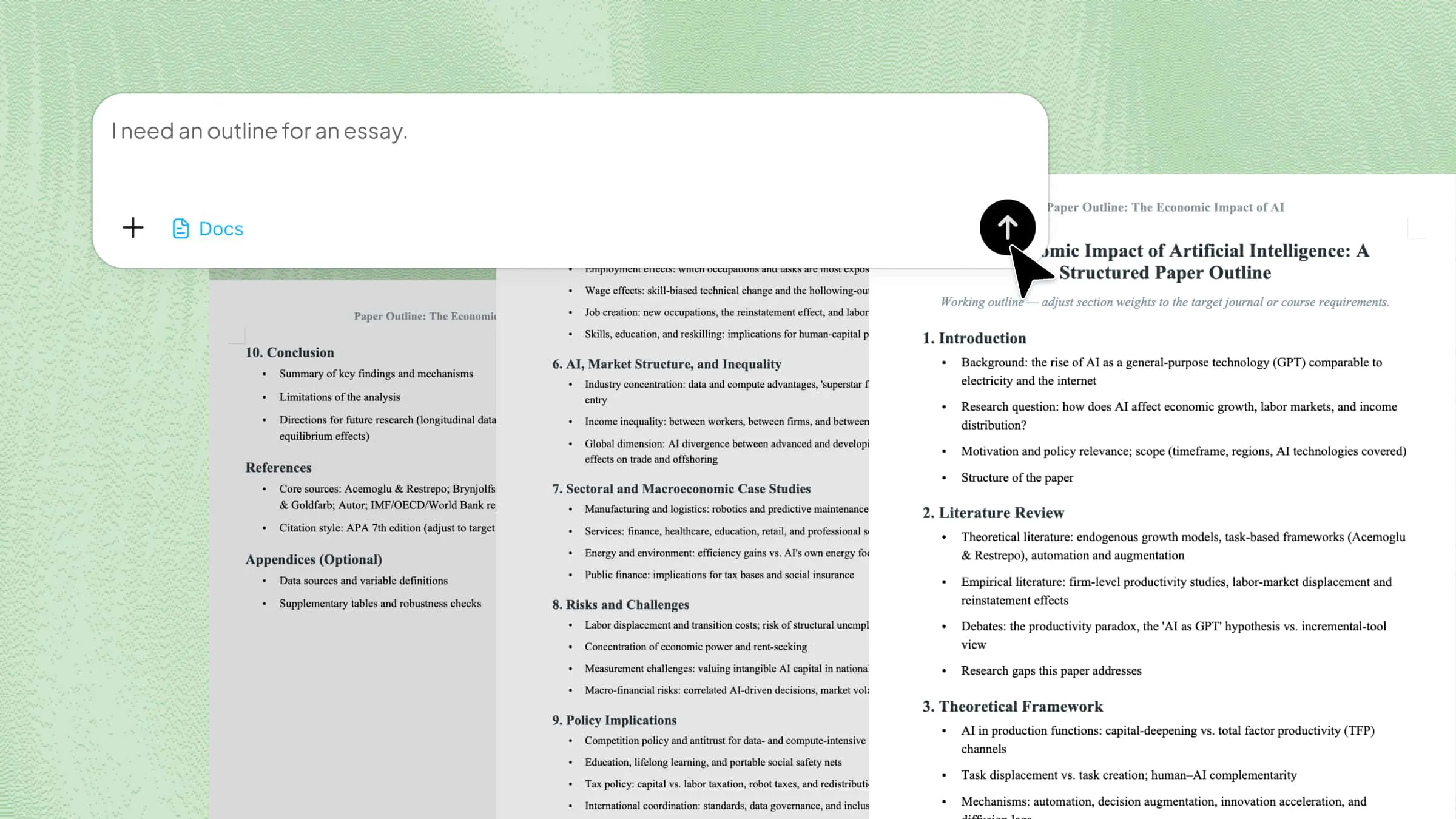
AI tools have made document creation faster and easier by automatically generating structured content, formatting layouts, and organizing information. Kimi Docs, an AI document agent, is an AI-powered platform that helps users create professional Word documents with minimal manual effort. You simply enter your instructions or content idea, and the tool generates a clean, editable document within seconds. It is especially useful for reports, resumes, letters, notes, and other professional writing tasks.
Step 1: Enter a clear prompt
Open Kimi Docs and enter a clear instruction prompt describing the type of Word document you want to create, along with the preferred structure and formatting style.
Step 2: Let Kimi process and generate results
Once the prompt is submitted, Kimi will analyze your instructions and automatically generate a structured Word document. It organizes headings, content flow, and formatting to create a polished and editable file.
Step 3: Download your Word file
After processing, preview the generated document to check the formatting and structure. If everything looks correct, download the final Word file for editing, sharing, or printing.
Key features of Kimi Docs
Here are some of the most useful features that make Kimi Docs a powerful AI-assisted document creation tool.
Generate content instantly
Kimi Docs can quickly create structured content from simple prompts or instructions. This helps users save time while producing organized and professional documents.
Apply professional formatting
The tool automatically formats headings, spacing, and layouts to improve readability. This ensures documents look polished without requiring manual adjustments.
Large-scale document creation
Kimi Docs can handle long and detailed documents without affecting structure or clarity. It is useful for reports, research files, and professional writing projects.
Multiple professional document types
Users can create resumes, reports, proposals, letters, and many other document formats. The AI adapts the structure based on the type of document requested.
Visual enhancement and design
The platform improves document appearance with clean layouts and organized formatting. This helps create visually appealing and easy-to-read files.
Export in multiple formats
Kimi Docs supports exporting files in different formats for sharing or editing. This provides flexibility for both professional and personal use.
Tips for making a Word document look professional
After learning how to create a new document in Word, creating a clean and professional Word document is also essential, as it is not just about writing good content, but also about presenting it in a structured and visually appealing way. Proper formatting, spacing, and layout choices can significantly improve readability and impact. Here are some of the key practices to follow. Here are some of the important tips you should keep in mind for creating a Word document that looks professional.
Use consistent styles
Apply the same heading styles, font sizes, and formatting throughout the document. This helps maintain uniformity and gives your file a polished, professional appearance.
Set proper margins and spacing
Adjust margins and line spacing to ensure the document does not look crowded. Proper spacing improves readability and makes the content easier to follow.
Choose readable fonts
Use simple and professional fonts like Arial, Calibri, or Times New Roman. Avoid decorative fonts that can reduce clarity and look unprofessional.
Organize content with lists
Use bullet points or numbered lists to break down complex information. This makes your document easier to scan and understand.
Add headers and footers
Include headers and footers for titles, page numbers, or document details. This gives your document a structured and official look.
Align text and visuals
Ensure text, images, and other elements are properly aligned. Good alignment improves visual balance and overall presentation quality.
Proofread and review
Always review your document for spelling, grammar, and formatting errors. A final check ensures your Word file looks clean and professional.
Conclusion
Creating a professional Word document becomes much easier when you follow the right structure, formatting rules, and design practices from the start. These techniques can improve readability, enhance presentation quality, and make your documents more effective for both personal and professional use.
Therefore, you should apply these tips consistently in learning how to create a Word document to create clean and well-organized files every time. For faster and smarter results, Kimi Docs can also help you generate and format Word documents effortlessly using AI.