Table of contents
- Overview: AI and manual methods to format a Word document
- How to format a Word document using AI?
- How to format a document in Word manually?
- Quick tips for professionally formatting a Word document
You may experience wrong spacing, uneven margins, and moving images while working in Microsoft Word. This is a common problem you may face many times. A font size may suddenly change, or the text may not line up properly. These small issues can make your document look unprofessional. They consume quality time when you try to fix them. The knowledge of how to format document in Word can help you keep your work professional. In this article, you will explore the exact steps on how to format document in Word that enables you to create organized documents easily.
Overview: AI and manual methods to format a Word document
Both AI tools and manual steps help you format a Word document in different ways. But AI gives fast results. On the other hand, manual work gives full control. Advanced tools help with deep formatting needs. The table below shows a simple overview of how to format Word documents automatically and with AI.
| Method | How it works | Suitable for |
|---|---|---|
| AI formatting | AI tools fix layout, spacing, fonts, and headings after you give a simple prompt. | Fast editing and quick clean-up |
| Basic manual formatting | You change fonts, spacing, alignment, and styles using Home tab tools in Microsoft Word. | Simple documents and everyday work |
| Advanced formatting | You use features like styles, sections, page numbers, and a table of contents for full document control. | Long reports and professional files |
How to format a Word document using AI?
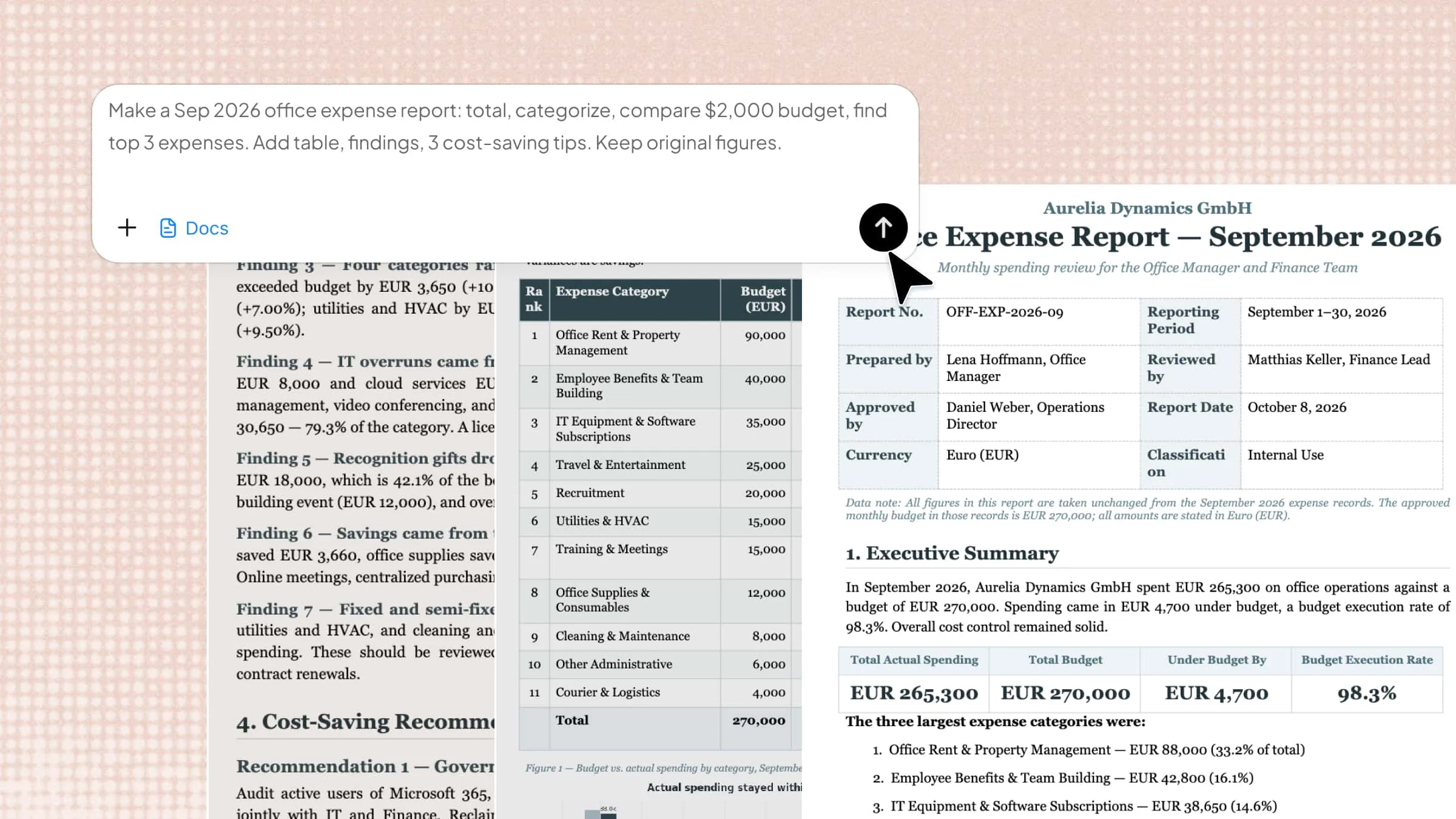
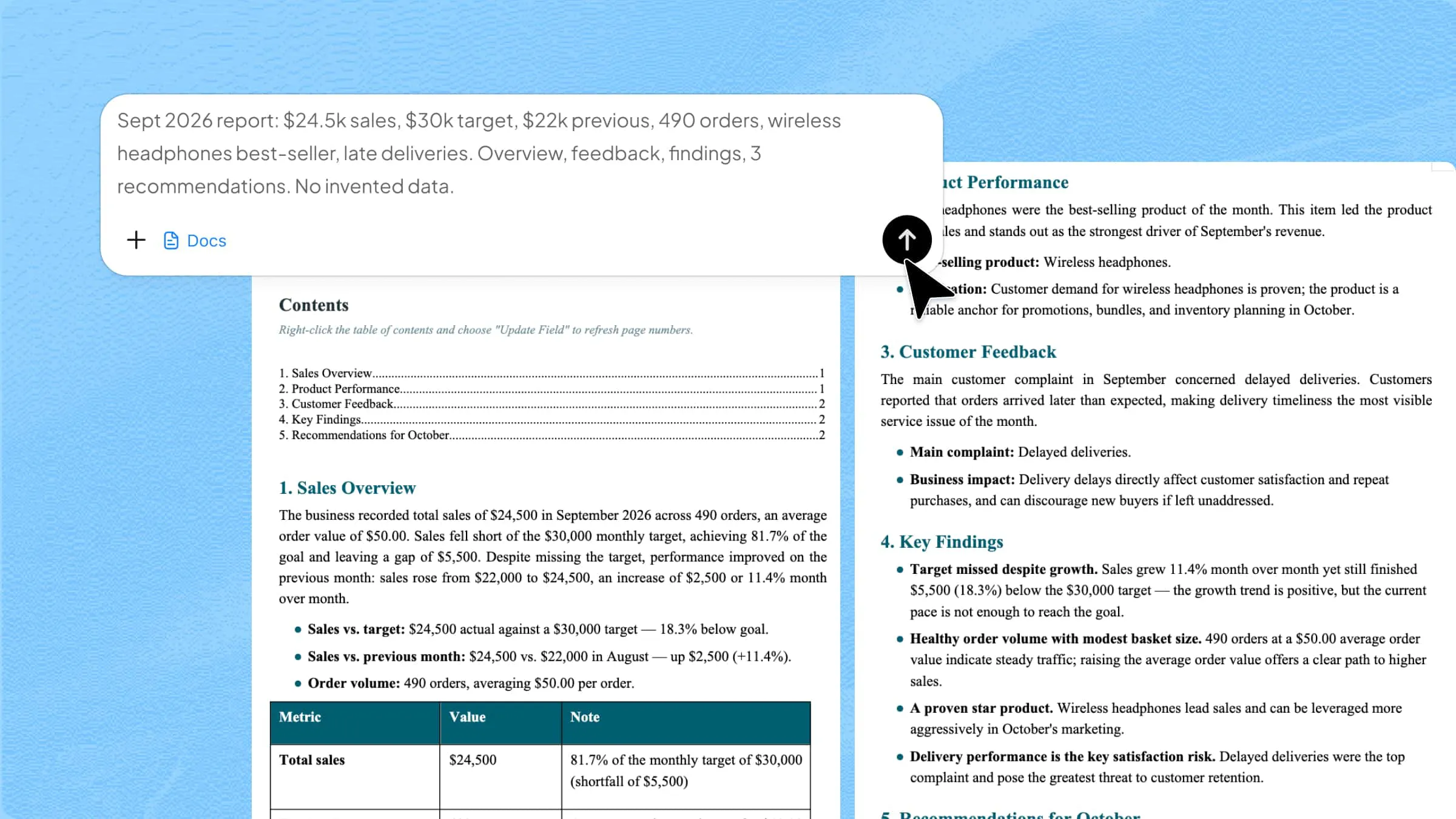
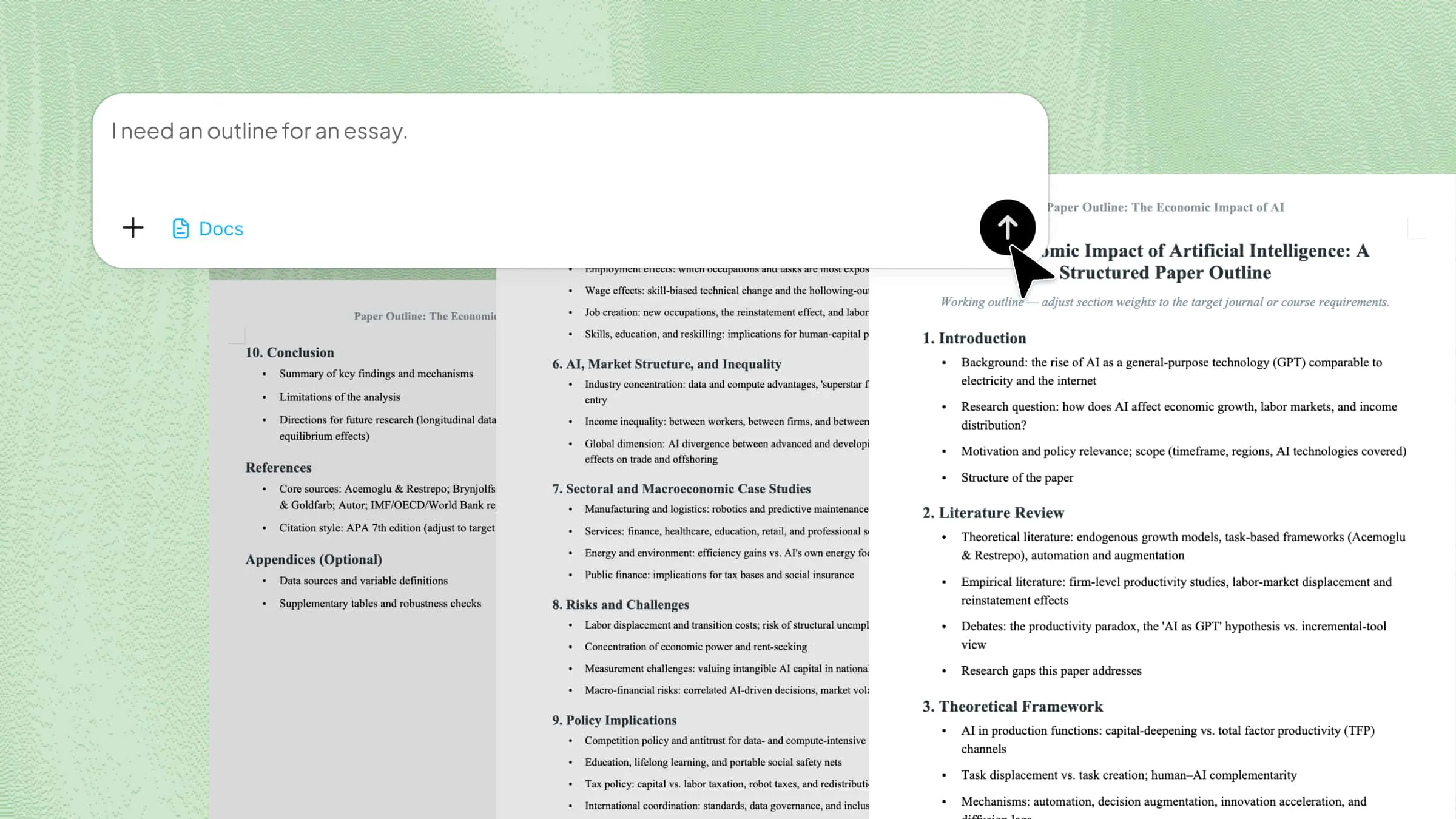
Basically, Kimi Docs is a smart AI document agent that is made to help you work with Word files easily. You can use it to clean up formatting, fix spacing, improve headings, and organize text. This makes documents look neat and professional. The tool is simple to use for beginners. You only need to upload your file, give a clear prompt, and the tool does the work.
Step 1: Upload your Word and enter the prompt
First, open Kimi Docs on your browser and click on the "+" icon to upload your existing document. After the file uploads, type a clear prompt in the chat box.
Step 2: Let AI process and generate results
After you send the prompt, Kimi begins making the changes inside it. It can adjust your text font sizes, spacing, headings, and page formatting. Make sure to carefully check the updated document once the results appear.
Step 3: Download your Word file
When everything looks good, click the "Download" icon to save the updated Word file to your computer.
Key features of Kimi Docs
Instant style application
Kimi Docs can apply the same formatting across the entire document automatically. It adjusts headings, fonts, and colors together to maintain a consistent and professional look.
Smart layout adjustments
The tool automatically fixes spacing, alignment, and margin issues. This helps keep your document neat, balanced, and easier to read.
Grammar and clarity enhancer
Kimi Docs checks grammar mistakes and improves sentence clarity. It helps make your writing more professional and easier to understand.
Bullet and numbering optimizer
The platform organizes bullet points and numbered lists evenly throughout the document. Clean list formatting improves readability and page appearance.
Automatic header and footer setup
Kimi Docs can automatically place headers, footers, and page numbers correctly. This gives documents a more organized and polished structure.
Table and spacing alignment
The tool adjusts table layouts and spacing automatically for better presentation. Proper alignment makes information easier to read and understand.
Fast review & refinement
Kimi Docs quickly scans documents to identify formatting and layout issues. This helps users refine files faster before sharing or exporting.
Bulk document handling
The platform supports working on multiple documents efficiently at the same time. It helps maintain consistent formatting across large projects and files.
How to format a document in Word manually?
Many users prefer to format documents by hand for better control. Sometimes, manual formatting also helps you understand how tools work in Microsoft Word. With a few simple steps, you can make your document ready for presentation.
Basic formatting steps
Basically, most formatting tools are designed for easy finding in Word. You can use the Home and Layout tabs to change text, spacing, and page design at any time. Follow these simple instructions below on how to format a Word document.
Apply styles
Open the "Home" tab and look for the "Styles" section. Choose styles like Title, Heading, or Subheading for different parts of the document. This keeps the same look on every page.
Modify styles
Then, right-click a style from the "Styles" section and select "Modify". You can change the font and color from one place. The changes will appear across the document.
Text formatting
The next step is to select the text you want to edit. Use the tools on the "Home" tab to change font style, size, color, bold, italics, or underline. These options make the document easier to read.
Paragraph settings
In this step, you can use the "Paragraph" section on the "Home" tab to adjust spacing and alignment. You can choose left, center, and justified alignment. Make sure to adjust the line spacing also for a balanced look.
Page layout
Open the "Layout" tab to change page settings. You can set margins, change page orientation, and add columns. These tools help improve the page structure.
Advanced formatting
Some official documents need extra formatting tools for better structure. These features help large files look more organized and easier for presentation. You can find these tools in different tabs of Microsoft Word. Here is how to format a document in Word for advanced formatting:
Page numbers/headers
Open the "Insert" tab and choose "Page Number" or "header/Footer". Page numbers help readers move through the document easily. Furthermore, the headers and footers can show titles, dates, or names on every page.
Create a table of contents
Then go to the "References" tab and select "Table of Contents." Before this, use heading styles in your document. So, the word will automatically create a list of headings with page numbers.
Sections
The final step is to open the "Layout" tab and click "Breaks". Sections enable you to use different formatting in documents. You can change margins, page numbers, or page layout for one section only.
Quick tips for professionally formatting a Word document
You know a clean document helps your readers stay focused on your message. In some cases, small formatting choices can also make your work easy to read. The quick tips below can help you create a professional document in Microsoft Word.
Maintain Consistent formatting
First of all, you have to use the same style from the first page to the last page. Always keep headings, font sizes, and colors the same across inside signle document. A unified style like APA or MLA helps your work look clean. It also makes the content easier to follow. Therefore, consistent formatting gives readers a better reading experience.
Set margins and spacing
Next, you have to correct margins inside your document for a balanced look. A wide or narrow space on lines or text can make pages look strange. So, make sure to use equal spacing between lines and paragraphs. This helps the text look clear and neat. Moreover, proper spacing also keeps the page scannable.
Choose readable fonts
Then, your basic task is to use a simple font that is easier to read. Fonts like Arial or Times New Roman work well for professional documents. It is best to keep the font size clear and not too small. Dark text on a light page also improves readability. A clean font helps readers stay focused on your written content.
Organize content with lists
In any docs, a list helps break large text into small parts. Sometimes, bullet points and numbers make information easier to scan. Furthermore, your readers can quickly find key details without confusion. Clean lists also improve page structure.
Insert headers and footers
You have to insert clean headers and footers. This enables your readers to understand the document better. You can add page numbers, titles, or dates in these sections. This keeps every page connected and organized. It also gives long files a professional touch. In addition, this feature enables your readers to move through the document more easily.
Check alignment and layout
On any page, a text that does not line up properly breaks your reader's flow. Make sure to check if headings, images, and paragraphs stay in the right place. A balanced layout makes the page look smooth. Furthermore, a proper alignment also helps readers focus better.
Proofread before finalizing
It's safe practice to read the document one last time before sharing it with anyone. You have to carefully look for spelling mistakes, wrong spacing, or missing words. You know that small errors can affect the quality of your work. A final check helps your document look complete. It also gives you more confidence before submission to authority.
Conclusion
To sum up, the knowledge on how to format a document in Word can help you create documents that are ready to share. Basically, simple formatting tools in Microsoft Word can improve headings, spacing, and overall layout without much effort. Furthermore, a well-formatted document is easier to read and leaves a better impression on readers. So, this tool reduces formatting mistakes and makes your work look more organized. You can start using these formatting methods today to create neat documents with more confidence and ease.