How to Make a Letterhead in Word Easily in Simple Steps

Learn how to make a letterhead in Word with expert ease. Create professional, branded documents effortlessly. For faster results, try Kimi Docs, the AI tool that builds polished letterheads in minutes, saving you time and formatting stress.

10 min read2026-05-29

Table of contents

Struggling to make your documents look professional without design skills? Many people find it difficult to create a clean and branded header that truly reflects their work. The good news is that there is a simple way to design creative letterheads in Word using easy formatting tools and basic layout steps. Read the full article to learn how to make letterhead in Word with a logo to solve this problem with ease.

Why is it important to use a letterhead?

A letterhead is not just decoration at the top of a page. It quietly shapes how people see your work and how seriously they take your message. It plays an important role in building trust and giving your communication a more professional feel. Here's why it holds real value in communication.

Builds professional brand identity

A letterhead helps build a strong and clear brand identity. When your logo, name, and contact details appear on every document, people start recognizing your business more quickly. It creates a steady visual identity that ties all your communication together.

Makes documents look official

It makes your documents look official and properly structured. A plain page can feel informal, but a letterhead instantly adds structure and purpose. It gives your letters, invoices, and proposals a more formal appearance. This small detail can completely change how your document is received.

Increases business credibility

A letterhead increases business credibility in the eyes of clients and partners. It shows that your communication is authentic and connected to a real organization. People are more likely to trust documents that carry a clear business identity, and this trust can make a big difference in professional relationships.

Keeps communication consistent

It also keeps your communication consistent across all platforms, so you should make every document follow the same style, layout, and branding elements. This creates a uniform look that makes your business easy to recognize anywhere. Consistency like this builds reliability over time.

Leaves a lasting impression

A letterhead leaves a lasting impression on anyone who reads your documents. A neat and well-designed header stays in the reader's mind even after they move on. It adds a touch of professionalism that makes your work stand out. Small visual details like this often shape long-term perception.

Reflects company professionalism

It reflects overall professionalism in a simple but powerful way. A carefully designed letterhead shows that attention has been given to even the smallest detail. It tells people that your business values quality and presentation. That impression often speaks louder than the content itself.

Quick review of 3 methods to make letterheads in Word

There are several ways to create a letterhead in Word, depending on your skill level and needs. Below is a quick comparison of three common methods to help you choose the most suitable one.

MethodSkill levelCustomizationOutput styleSuitable for
AI tool (Kimi Docs)BeginnerHighSmart auto-generated designInstant polished results
Manual designIntermediateVery highFully custom professional layoutFull creative control
TemplatesBeginnerMediumPre-designed professional formatQuick and easy setup

How to create a letterhead in Word using an AI tool?

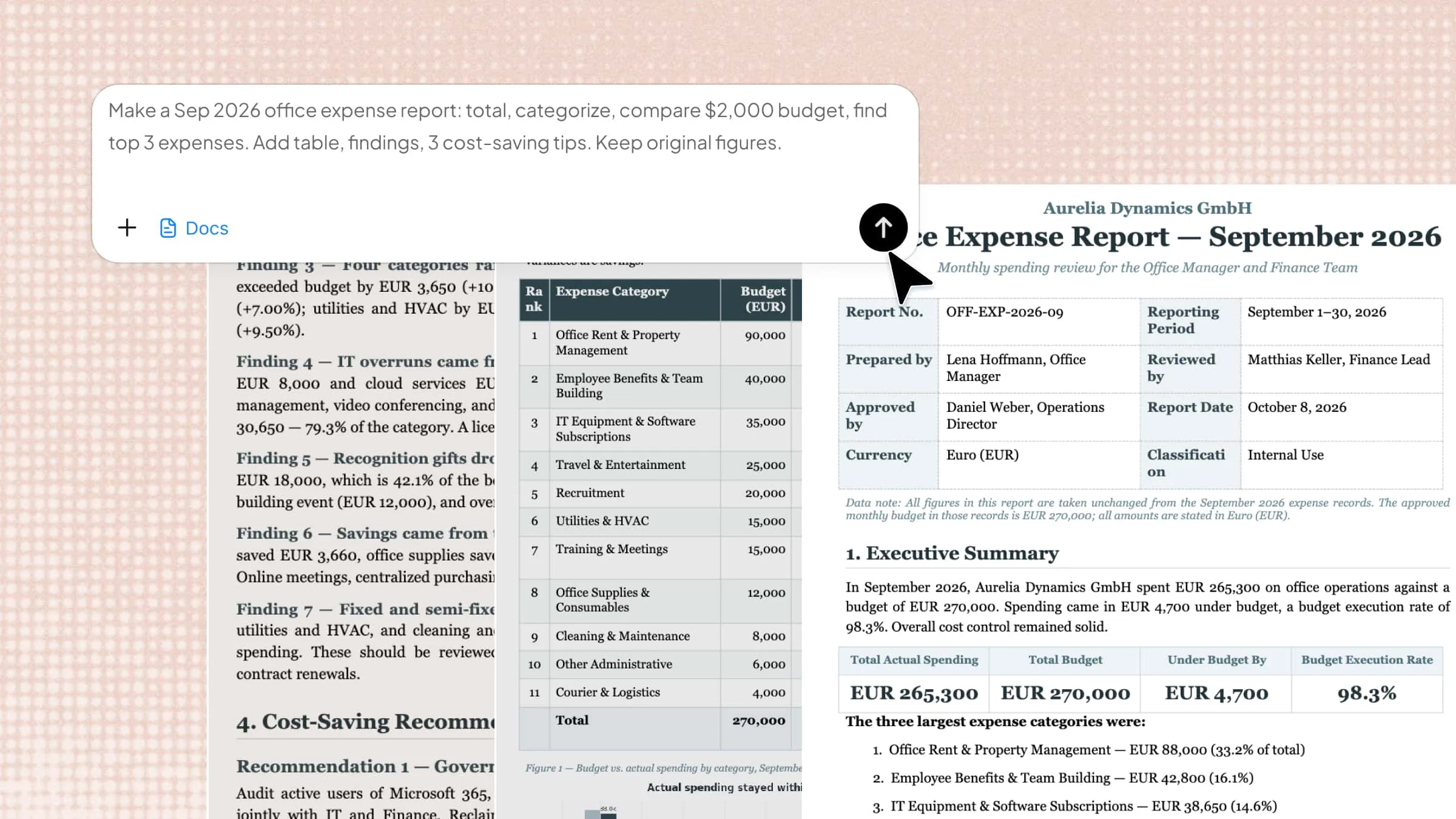
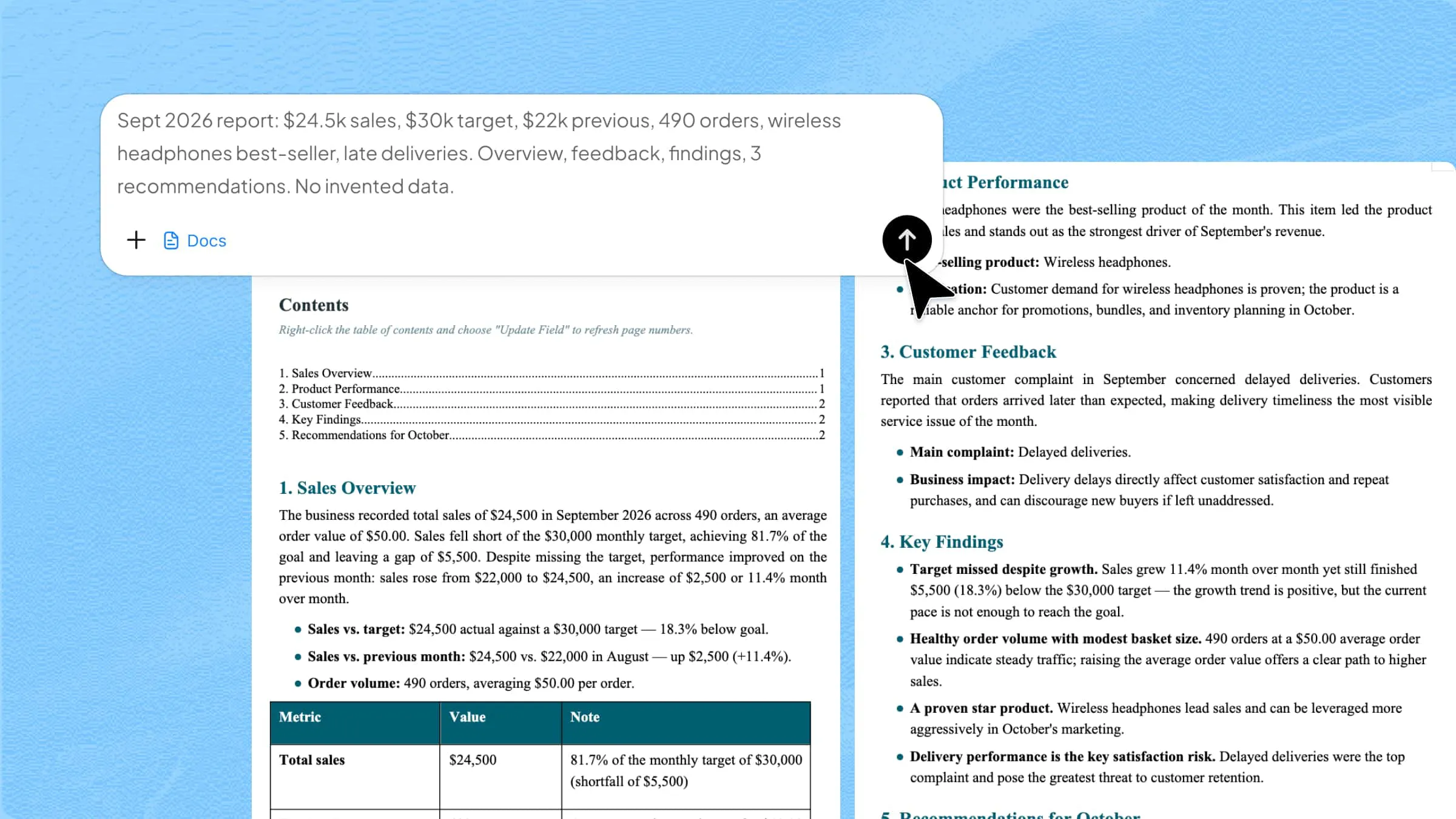
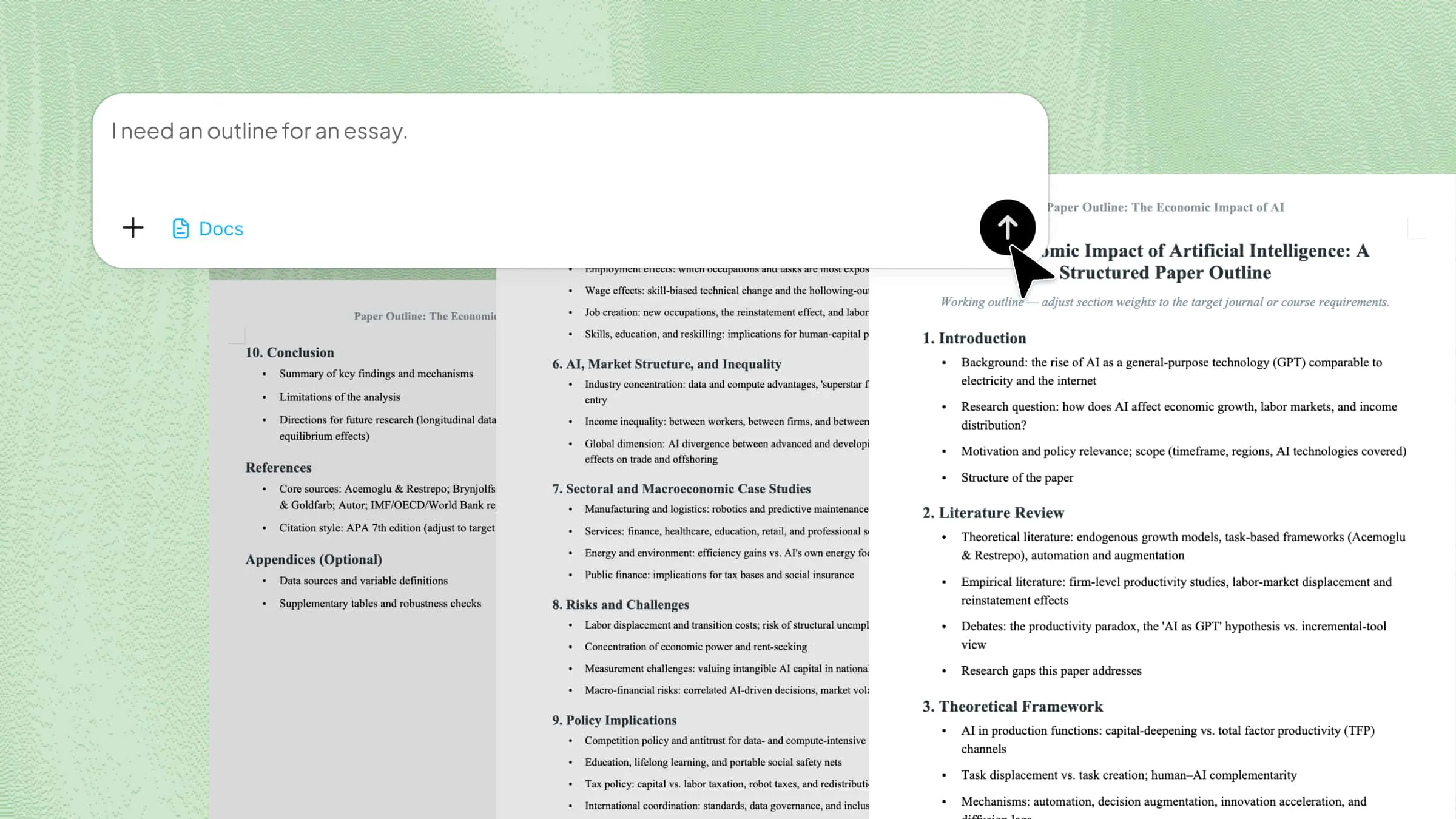
Creating a letterhead in Word becomes much faster when you use an AI tool instead of doing everything manually. It helps you design a clean, professional layout without struggling with formatting. Kimi Docs is an AI document agent that can generate polished documents, including letterheads, in just a few minutes. It guides the layout, spacing, and structure, so your document looks well-designed and ready to use.

Step 1: Upload your Word file and enter a prompt

Open the AI tool and upload your existing Word document. Then paste a clear prompt describing the letterhead design you want.

Example prompt:

Create a professional letterhead for 'NovaStruct Engineering Solutions', an engineering consultancy company. Add a simple geometric logo on the left, bold company name in the center, and contact details (Karachi address, phone, email, website) on the right. Use a modern, minimal design with blue and grey tones, clean fonts, and proper spacing. Make it formal, balanced, and suitable for official Word documents.

Upload your Word file and enter a prompt

Step 2: Let AI process and generate results

After submitting your prompt, the AI will automatically design and format your letterhead in the document. Wait a few seconds while it applies the layout and styling.

Let AI process and generate results

Step 3: Download your Word file

Once the design is ready, review the result and download your updated Word file with the new letterhead. You can now use it for official and professional documents.

Download the Word file

Key features of Kimi Docs

Kimi Docs brings together several smart features that make document creation faster and more professional. It removes the need for complex design work and helps users get polished results in just a few steps. Here are some of its key features.

  • Instant AI letterhead creation: It quickly generates a full letterhead in seconds using AI. You just give basic instructions, and it creates a ready design without manual formatting.
  • Brand identity customization: Kimi Docs lets you adjust the design to match your brand style. You can change logos, fonts, and colors to keep everything consistent with your identity.
  • Ready-made professional structures: Pre-built layouts are already designed for business use. These help you start faster with a clean and professional format.
  • Consistent visual formatting: This keeps fonts, spacing, and alignment uniform across the document. It makes your letterhead look neat, balanced, and well-organized.
  • Multi-language document translation: It allows you to convert your document into 100+ languages easily. The layout stays the same while only the text changes.
  • Multiple export options: You can download your file in different formats, like Word or PDF. This makes it easy to share or edit on different platforms.
  • Online, no-install workflow: The tool works directly in your browser without installation. You can access it anytime from any device with internet.

How do you create a letterhead in Word manually?

Creating a letterhead in Word manually is a step-by-step design process that focuses on page setup, layout tools, and formatting. It may look complex at first, but once you understand the main navigation options, it becomes quite simple. Each tool in Word helps you build a clean and professional structure. Here's how to add a letterhead in Word manually.

Step 1: Open headers and insert your logo

Double-click at the top of the Word page to enter the "Header" section. Go to "Insert" > "Pictures" > "This Device" and insert your logo.

Open headers and insert your logo

Then select the image, go to "Picture Format" > "Wrap Text", and choose "In Front of Text" so it can be freely positioned.

Open headers and insert your logo

Step 2: Add and style design shapes

Go to "Insert" > "Shapes", choose a rectangle, and draw it on the page.

Add and style design shapes

Remove the outline via "Shape Format" > "Shape Outline" > "No Outline". Then apply a gradient fill and adjust colors to match your brand style for a cohesive look.

Add and style design shapes

Step 3: Copy, align, and group design elements

Copy the shape using Alt/Option + drag or Ctrl/Cmd + C / Ctrl/Cmd + V. Align elements using "Shape Format" > "Align (Align Top/Left)". Once positioned correctly, select them and choose "Group" to merge them into one editable element.

Copy, align, and group design elements

Step 4: Add and format main text content

Click into the main body area and type your letter content, or insert a "Text Box" for better control.

Add and format the main text content

Remove borders and fill if needed, and adjust alignment (left, center, right, justify) for a clean layout.

Final adjustments and export

Step 5: Final adjustments and export

Refine spacing by adjusting margins or header positioning. Once satisfied, go to "File" > "Save As" to export as a PDF or save as a "Word template" so the design can be reused without overwriting the original.

Final adjustments and export

How do you make a letterhead in Word from a template?

Making a letterhead in Word using a template is one of the fastest ways to get a professional design without starting from scratch. Word already provides ready-made layouts that you can easily customize. You just need to choose the right template and adjust it according to your needs. Let's go through the simple process step by step.

Step 1: Open Word templates and search for letterhead

Open MS Word and go to the "File" tab, then click "New". In the search bar, type "letterhead" to see available templates. This gives you ready-made professional designs to start quickly.

Open Word templates and search for letterhead

Step 2: Choose and customize a template

Select a template you like and click "Create" to open it. Then edit text, replace the logo, and update company details using the "Home" tab and "Insert" tab. You can also change colors and fonts to match your brand.

Choose and customize a template

Step 3: Save and reuse your letterhead

After customization, go to "File" and click "Save As" to store your file. You can reuse or print it anytime for official documents. This keeps your branding consistent across all communication.

Save and reuse your letterhead

Practical tips to create a letterhead in Word

Many people want their documents to look professional, but they often miss small design details that make a big difference. A good letterhead depends on simple habits that improve layout, balance, and visual quality. These practical tips will help you design it more cleanly and effectively.

Use the header section for placement

Place your letterhead elements inside the header section in Word. This keeps your design fixed at the top of every page automatically. It also helps you maintain a clean and professional layout without manual adjustments. You can easily edit it anytime without disturbing the main content formatting.

Keep logo size balanced and clean

Adjust your logo size so it fits naturally with the text and design. Do not make it too large or too small, as it can disturb visual balance. A properly sized logo improves the overall professional look and brand identity strength. It also makes your letterhead more visually appealing and modern.

Choose fonts that match your brand

Select fonts that reflect your brand style and business tone. Use simple and readable fonts to keep the design clear. Avoid mixing too many font styles in one letterhead. Consistent fonts also improve readability and create a strong professional impression for clients.

Maintain consistent margins on every page

Set proper margins before designing your letterhead. Keep the same spacing on all sides to ensure alignment stays uniform. This creates a neat and well-structured document. Consistent margins also help maintain balance when printing or sharing digitally.

Save your letterhead as a template

Save your completed design as a Word template file for future use. This allows you to reuse the same layout without redesigning it. It also keeps your branding consistent across documents. You can quickly generate new letters with the same professional structure anytime.

Use high-resolution images for quality

Insert clear and high-resolution logos or images in your letterhead. Avoid low-quality graphics that look blurry when printed. High-quality visuals make your document look sharp and professional. This also improves brand trust and leaves a stronger visual impact on readers.

Conclusion

Creating a professional letterhead is no longer a difficult task when you understand the right methods and tools. Each approach gives you flexibility depending on your time, skill, and design needs. The main goal is to keep your document clean, structured, and consistent for better communication. Once you learn the basics, it becomes easy to apply them in any project. Mastering how to make a letterhead in Word helps you improve your document presentation with a more polished and trusted look. Try Kimi Docs today to design your letterhead faster with simple AI support.

FAQ

How to create a simple letterhead?
A simple letterhead starts with setting up your page layout in Word and using clean margins. Add your logo and company name in the "Header" section for a structured look. Keep fonts simple and avoid heavy design elements to maintain clarity. Save your design as a template for future use.
What does a good letterhead look like?
A good letterhead looks clean, balanced, and easy to read with proper spacing. It includes a logo, company name, and contact details in a well-organized layout. The design feels professional without being too crowded or decorative. Consistent fonts and alignment make it visually strong.
Where can I find a letter template?
You can find letter templates directly in Word by going to "File" and clicking "New". Then search for "letterhead" in the template bar to see ready-made designs. Many online platforms also provide free downloadable templates. Choose one that matches your brand style and needs.
What should you avoid in letterhead design?
Avoid using too many colors, fonts, or unnecessary graphics in your design. Do not place important details in random positions, as it reduces readability. Low-quality images and cluttered layouts should also be avoided. Always keep the design clean, simple, and professional.