How to Make a Resume in Word Quickly and Easily

Learn how to make a resume in Word using templates, formatting tips, and step-by-step guidance. For a faster, smarter approach, Kimi Docs lets you generate professional resumes with AI, customize layouts, upload files, and export in multiple formats effortlessly.

10 min read2026-05-29
How to Make a Resume in Word Quickly and Easily

Table of contents

Whether you are applying for your first job or updating your CV, making a clean resume in Microsoft Word can feel easy once you know the right steps. This guide explains how to make a resume in Word using simple templates, basic formatting, and a clear structure that looks professional. You will also learn small tips to avoid common mistakes and improve your resume's look without extra effort.

Overview of 3 methods for making a resume in Word

There are several ways to create a resume in Word, ranging from fully AI-assisted workflows to completely manual formatting. The right method depends on how much time you want to spend, the level of customization you need, and whether you prefer automation or hands-on editing.

MethodSuitable forSetup effortCustomization levelKey idea
Kimi Docs(AI tool)Users who want fast, automated resume creationVery lowHighUpload a file and generate a structured resume using AI
Word with templateUsers who want a quick and structured resumeLowMediumSelect and edit a ready-made Word resume design
Word without templateUsers who want full control over designHighVery highBuild a resume from a blank document using manual formatting tools

How to make a resume on a Word document using AI?

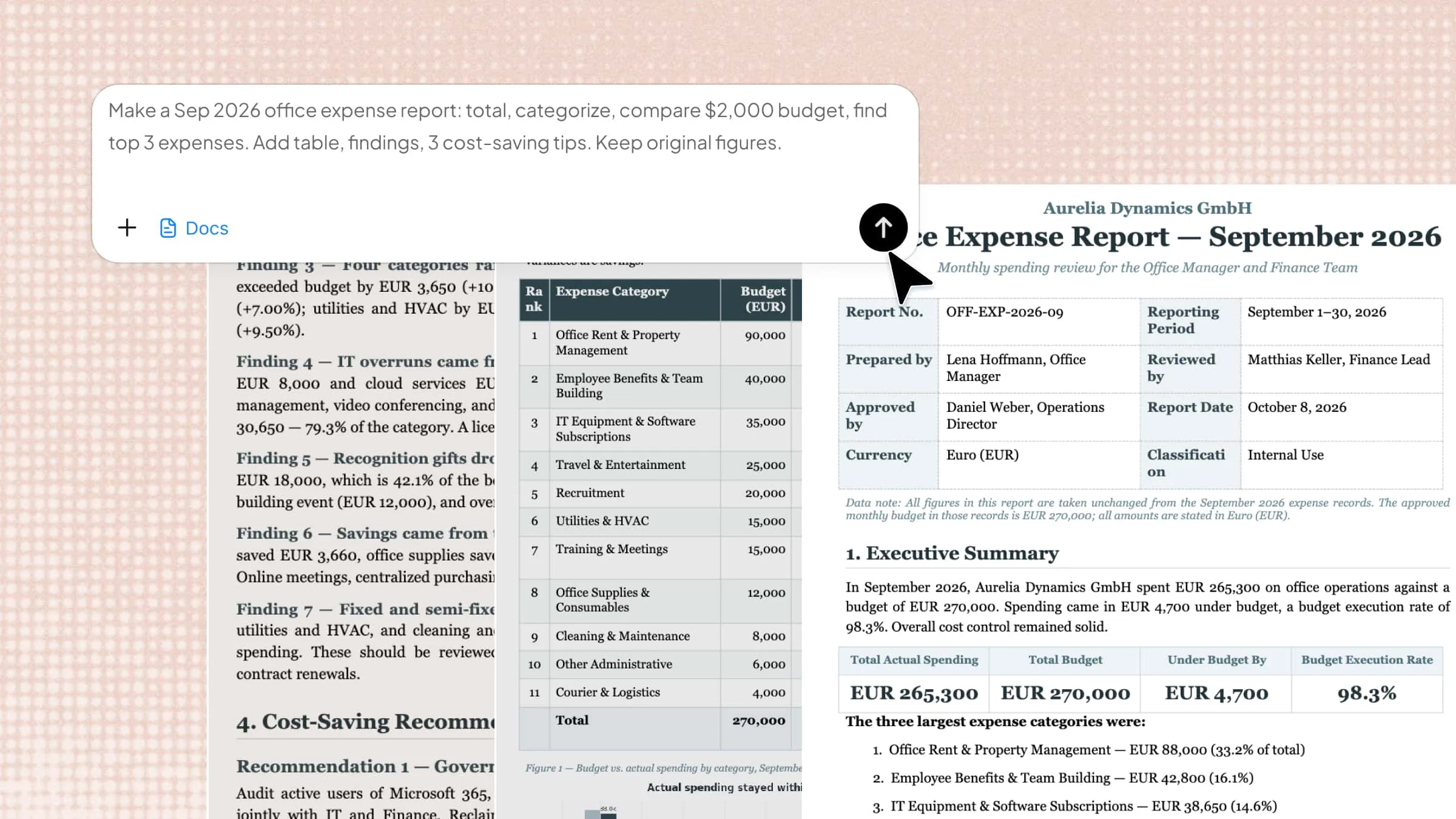
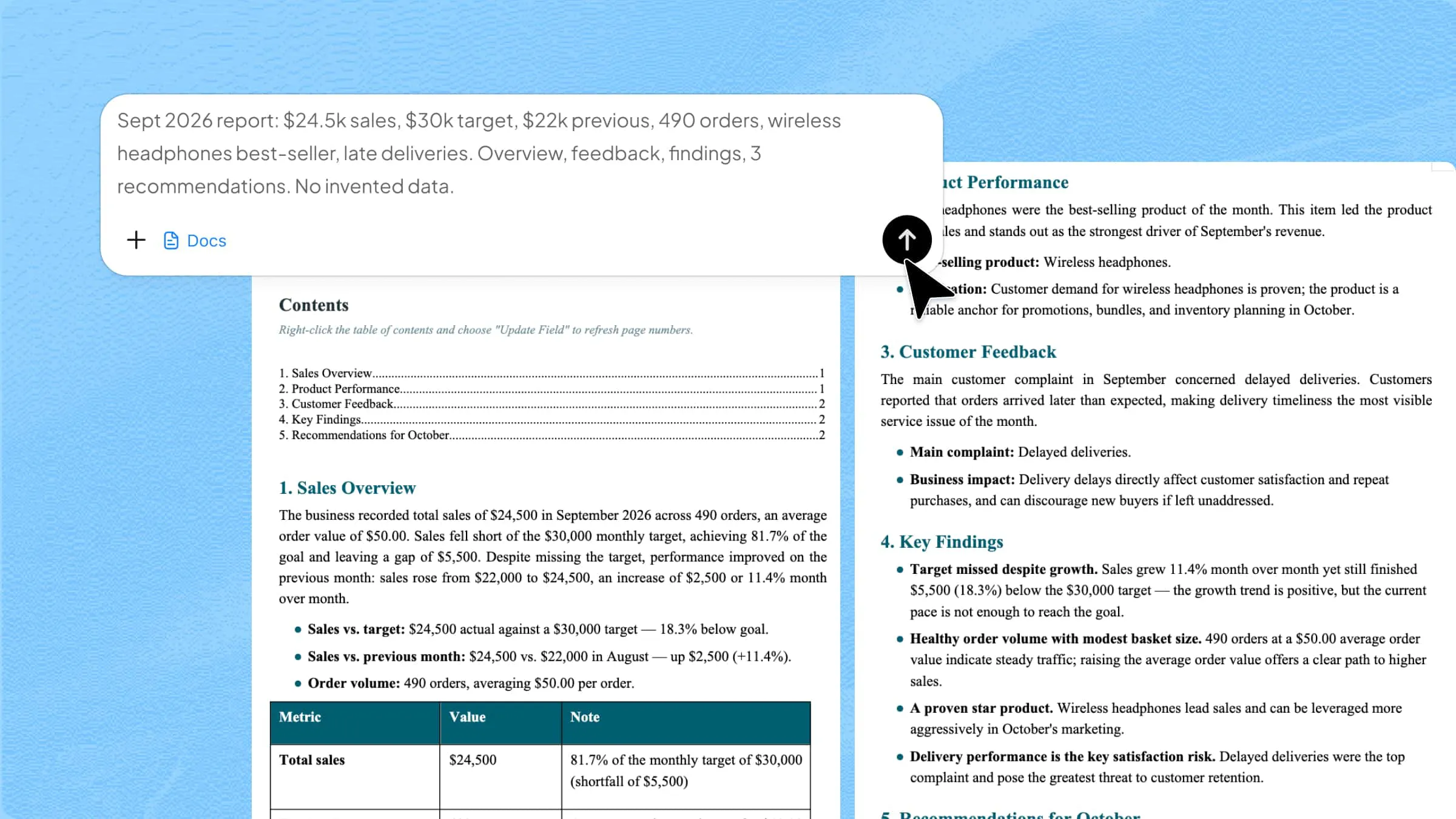
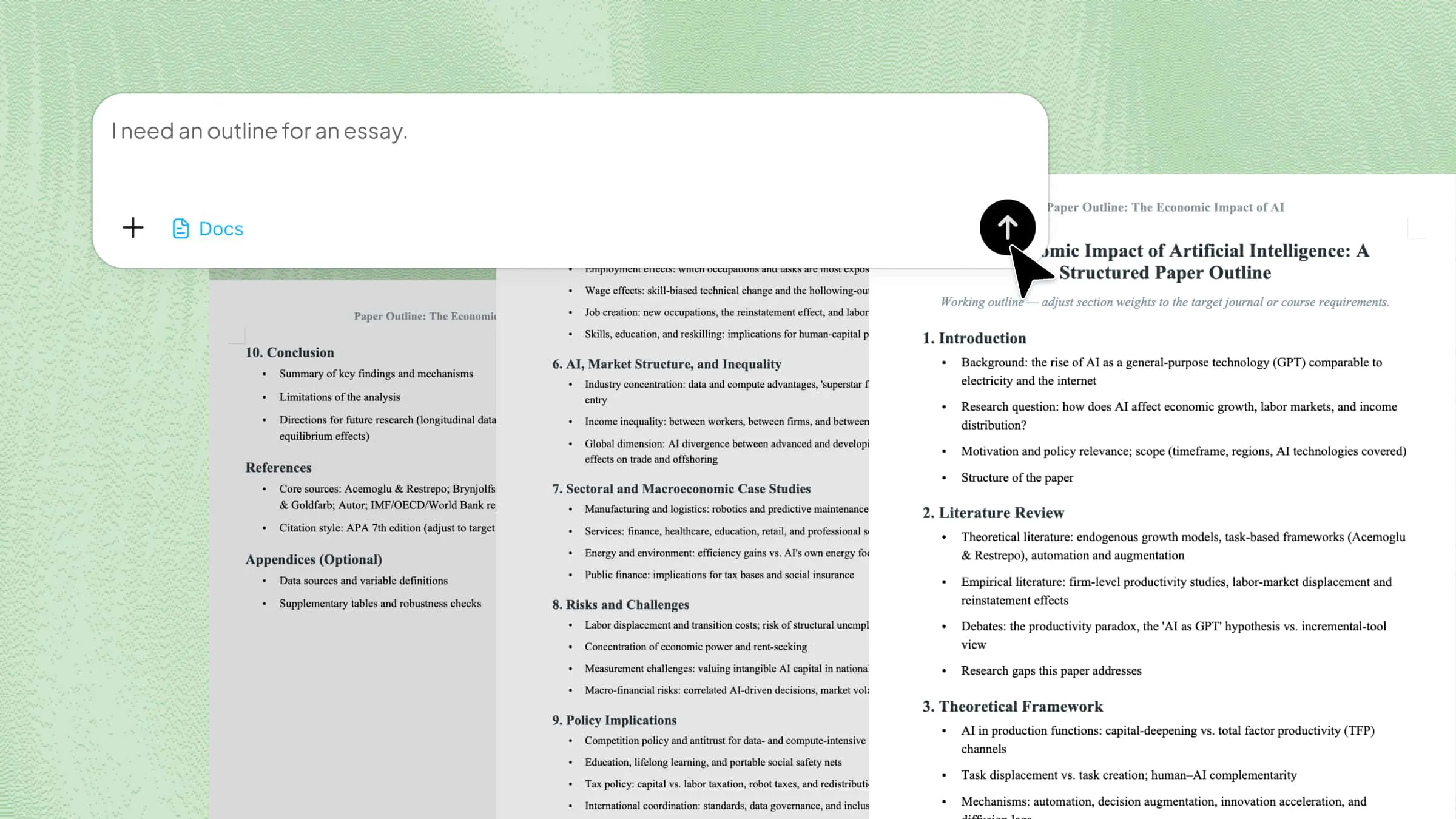
Making a resume on a Word document becomes much easier with AI tools that guide you step by step. You can quickly add content and get a clean, professional layout without starting from scratch. Kimi Docs is an AI tool that helps you create a resume by generating clear content and organizing it in a simple format. It also lets you edit, customize, and export your resume easily for job use.

Step 1: Upload your personal information and enter a prompt

Open Kimi Docs online and go to the "Docs" workspace. Upload your personal materials, such as your experience, academic projects, papers, and any other achievements. Then, write a clear prompt specifying the type of resume you want (e.g., role, skills, style, and format like Word). Click submit to let Kimi generate your professional resume automatically.

Example prompt:

Create a professional, ATS-friendly resume in Word format based on the materials I upload, including my experience, projects, skills, papers, and achievements. Organize the content into clear sections with a clean and well-structured layout suitable for the target job role.

Upload your Word file and enter a prompt

Step 2: Let Kimi process and generate results

Kimi Docs will read your file, understand the prompt, and automatically create a well-structured resume with improved formatting and content.

Let Kimi process and generate results

Step 3: Download the Word file

Once the resume is ready, review it, make small edits if needed, and download the final Word document to use for job applications.

Review and download the resume

Key features of Kimi Docs

Kimi Docs makes resume creation simple by combining AI-powered writing with smart editing and formatting tools. It helps users turn raw information into well-structured, professional resumes in just a few steps. Here are some of its key features.

  • Smart AI resume generator: You can upload existing files, and Kimi Docs will extract and format the information. It saves time by reusing your current data in a better layout.
  • Professional designs: Kimi Docs offers clean and modern resume templates. These designs make your CV look polished and recruiter-friendly.
  • Generate different types of resumes: You can create resumes for different job roles or industries. The tool adjusts content style based on your needs.
  • Multi-language compatibility: It supports multiple languages for global users. This helps you create resumes in the language you prefer.
  • Instant export options in various formats: You can download your resume in formats like Word or PDF instantly. This makes it easy to apply for jobs anywhere.
  • Version comparison: Kimi Docs lets you compare different versions of your resume side by side. You can easily track changes and improve your document over time.

How to create a resume in Word without a template?

Creating a resume in Word without using a template gives you full control over the layout and design. You can build a clean and professional CV from a blank page using simple formatting tools. It may look a bit complex at first, but Word has easy options to structure everything step by step. Here's how to make a resume on Word without a template.

Step 1: Set up the document layout

Open a blank Word file and go to "Layout" to adjust margins between 0.5 and 1 inch. This creates proper spacing and gives your resume a clean, professional look.

Set up the document layout

Step 2: Choose fonts and basic formatting

Go to the "Home" tab and select simple fonts like Arial, Calibri, or Times New Roman. Keep the font size 11–12 for body text and use bold for headings to improve readability.

Choose fonts and basic formatting

Step 3: Create your header section

Type your name at the top and increase the size to 24–32 using the "Home" tab. Add your contact details below in 12–14 size and center-align the header for a clear first impression.

Create your header section

Step 4: Add sections using headings and lines

Use "Enter" to create space and type section titles like "Professional Experience" or "Education". You can also add dividers using "Borders" > "Horizontal Line" for better structure.

Add sections using headings and lines

Step 5: Organize content and save as PDF

Go to "Insert" > "Table" or "Layout" > "Columns" to arrange your skills, experience, and details in a clean format. Once done, go to "File" > "Save As" or "Export" and choose PDF format to keep your resume layout fixed and professional when sharing.

Organize content and save as a PDF

How to make a resume in Word with a template?

Using a template in Microsoft Word makes resume creation much faster and more structured. You do not need to design everything from scratch because ready-made layouts are already available. These templates also help you maintain a clean and professional format with less effort. Here's how to make a professional resume on Word using a template.

Step 1: Find and choose a resume template

Go to the Microsoft Word template website or open Word and search for "resume" in the template search bar. You can browse different designs and select one that matches your style and job needs.

Find and choose a resume template

Step 2: Open and customize the template

Click on your chosen template and select "Create" or "Customize in Word" to open it. The template will load with pre-made sections that you can easily edit with your own information.

Open and customize the template

Step 3: Edit personal details and adjust design

Click on placeholders and replace them with your name, contact details, and add a photo if needed. Write a short profile summary or use AI tools to create a strong professional introduction. Adjust the design using "Picture Format" for images and the "Home" tab to improve text style and layout, so everything looks clean and professional.

Edit personal details and adjust design

Step 4: Save the resume

Once everything is ready, go to "File" > "Save As" or "Export" and download your resume as a PDF to keep the format consistent when sharing.

Save the resume

Do's and don'ts of resume writing

Writing a strong resume is not just about adding information; it is about presenting it clearly and professionally. A good resume follows simple rules that help you stand out, while avoiding common mistakes that can reduce your chances. Below are some do's and don'ts of resume writing:

Do's

Tailor a resume for each job role

Change your resume based on the job you are applying for carefully. This shows employers that your skills match their specific requirements very closely.

Use clear, simple formatting

Keep the layout clean with easy-to-read fonts and proper spacing throughout. A simple design helps recruiters understand your resume quickly and easily.

Highlight key skills and achievements

Focus on your strongest skills and major accomplishments clearly and confidently. This helps you stand out from other candidates effectively.

Add measurable results and impact

Include numbers or results to show your achievements clearly and professionally. For example, mention percentages, sales growth, or project success outcomes.

Keep content short and focused

Only include important and relevant information in a precise manner. A concise resume is easier to read and more effective overall.

Don'ts

Fake or incorrect information

Never add false details about your experience or skills at any stage. It can seriously harm your credibility if discovered later.

Unnecessary personal details

Avoid adding information like religion, marital status, or irrelevant personal data. These details are not needed for most job applications today.

Long paragraphs and cluttered layout

Do not write large blocks of text or use a messy design style. Recruiters prefer short points and a clean professional format always.

Sending the same version everywhere

Do not use one resume for all jobs without making changes at all. Each role needs a slightly customized version for better results.

Spelling and grammar mistakes

Avoid errors in writing as they create a bad impression quickly. Always proofread carefully before sending your resume to employers.

Conclusion

Understanding how to make a resume on Microsoft Word helps you choose the right method based on your needs, whether you prefer manual editing, templates, or AI support. Each approach can help you create a clean and professional CV when used correctly.

The best results come when you pick a method that matches your time and skill level. Keep your resume simple, clear, and focused, so it is easy for recruiters to read and understand. Try Kimi Docs to create and refine your resume faster with AI support.

FAQ

How to create a resume step by step?
Start by choosing a format like a Word template, manual design, or AI tools. Add your personal details, education, experience, skills, and achievements in clear sections. Use simple formatting, so everything is easy to read. Finally, review it carefully and save it as a PDF before sending it.
Does Word have a free resume template?
Yes, Microsoft Word offers many free resume templates you can use. You can find them by searching "resume" in the template section. These templates are already designed with proper structure and formatting. You just need to replace the sample text with your own details.
Where can I create and save a resume for free?
You can create a resume for free in Microsoft Word, Google Docs, or online AI tools. These platforms let you write, edit, and format your CV easily. Most of them also allow free downloading in PDF or Word format. Choose the one that feels easiest for you to use.
What should I not put on my resume?
Avoid adding false information, unnecessary personal details, or unrelated hobbies. Do not include long paragraphs or anything that makes your resume messy. Skip sensitive details like religion or marital status unless required. Always keep your resume professional, short, and relevant.