How to Make a Booklet in Word can feel confusing at first, especially when dealing with page order, margins, and print settings. Many users struggle to create a professional booklet layout that prints correctly without wasting time adjusting pages manually. Fortunately, Word includes simple built-in tools that make the process much easier. In this guide, you'll learn fast and easy steps to create a clean, print-ready booklet in Microsoft Word without needing advanced design skills, and also discover AI tools that can help automate the process.
Overview of 2 ways to make a booklet in Word
There are multiple ways to create a professional booklet depending on your preferred workflow and editing style. Some users prefer Microsoft Word's built-in formatting tools, while others choose AI-powered platforms for faster booklet creation and design support.
| Method | Suitable for | Main advantage |
|---|---|---|
| Kimi Docs | Fast AI-assisted booklet creation | Automatically organizes layouts, visuals, and formatting |
| Word | Manual editing and full customization | Gives complete control over booklet structure and print settings |
How to make a booklet in Word using an AI tool?
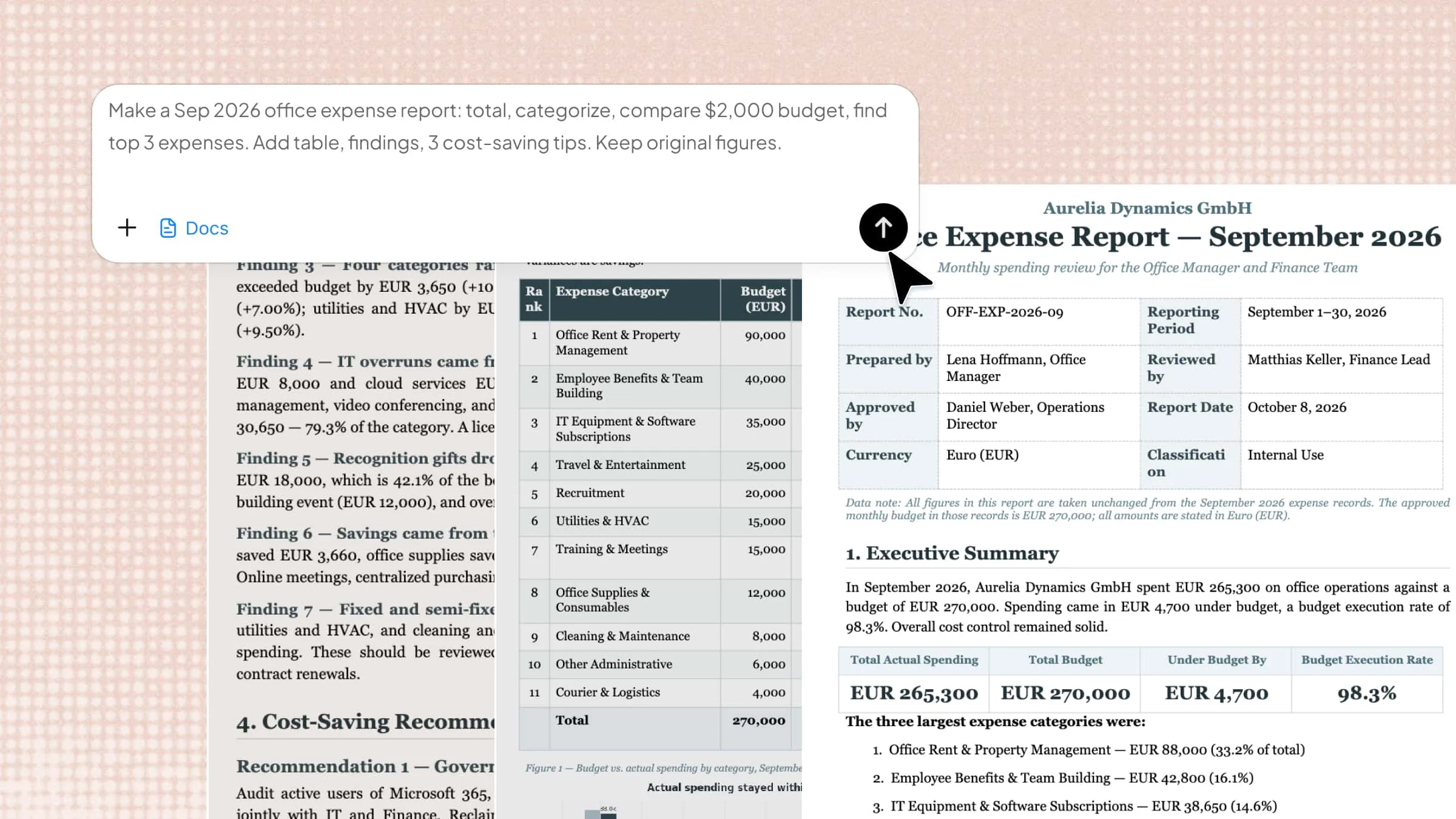
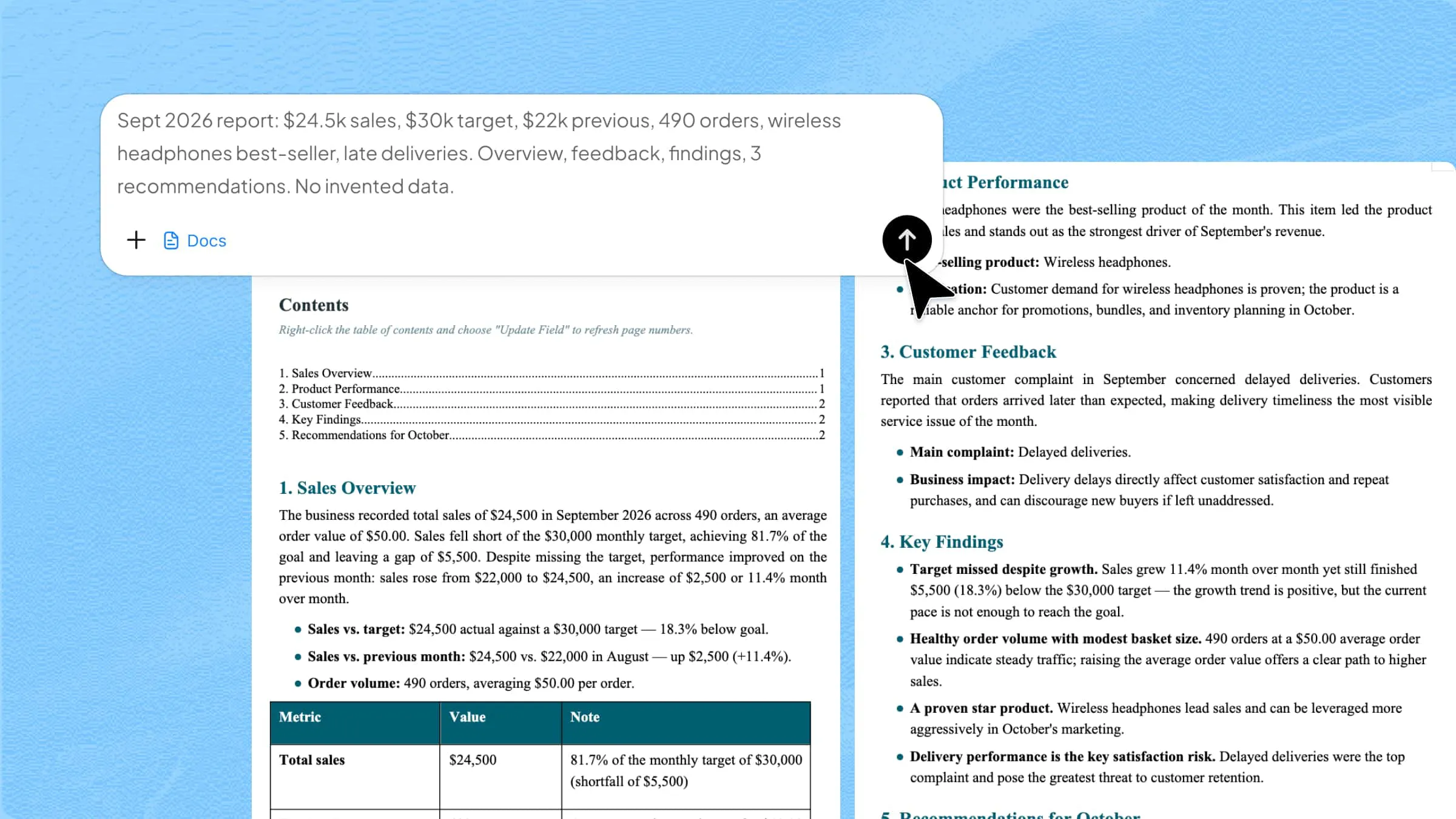
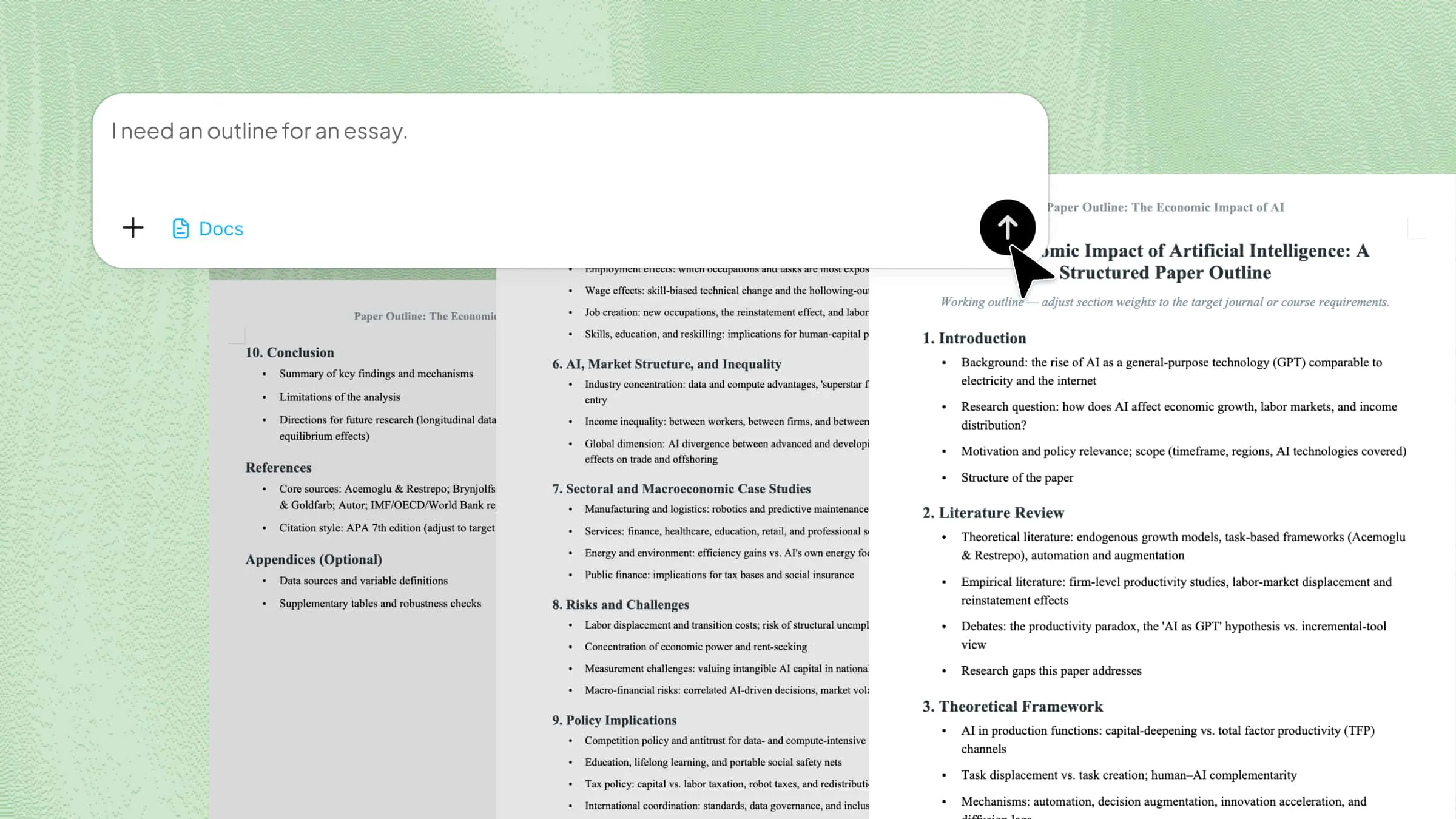
Kimi Docs is an AI document agent that helps users design professional and organized booklets with minimal effort. It can automatically structure content, arrange layouts, generate visuals, and improve formatting to create polished results quickly. With its smart editing and design features, Kimi Docs makes booklet creation faster, cleaner, and easier for beginners and professionals alike. Here is how to make a booklet in Word using Kimi:
Step 1: Upload your materials and enter a prompt
Upload your text, images, notes, or document files into Kimi Docs. Then enter a detailed prompt describing the booklet style, structure, layout, and formatting you want for your Word booklet.
Step 2: Let AI process and generate results
Kimi Docs will automatically analyze your materials and generate a professionally formatted booklet draft. The AI helps organize pages, visuals, and content structure in just a few moments.
Step 3: Edit and download your Word file
Review the generated booklet and make any final edits to the text, images, or layout. Once everything looks good, download the file in Word format for printing, sharing, or further editing.
Key features of Kimi Docs
Here are some of the standout features that make Kimi Docs useful for creating professional booklets, reports, and structured documents with less manual effort.
AI-powered content generation
Kimi Docs uses AI to help generate structured and well-organized content quickly. It can assist with drafting text, improving readability, and creating professional document layouts in less time.
Visualize insights from your data
The platform can turn complex information into clear visual presentations. Charts, organized data sections, and smart formatting help make reports and booklet content easier to understand.
Beautiful, professional layouts
Kimi Docs automatically creates clean and visually appealing layouts for documents and booklets. It helps maintain proper spacing, organized sections, and polished page designs without advanced editing skills.
Multi-language support
The tool supports multiple languages, making it suitable for international projects and multilingual documents. This feature also improves accessibility for different users and audiences.
Multi-export format support
After completing your booklet, Kimi Docs allows you to export files in different formats, such as Word and PDF. This makes sharing, editing, and printing much more convenient.
How to make a booklet in Word manually?
There are multiple ways to create a professional booklet depending on your preferred workflow and editing style. Some users prefer Microsoft Word's built-in formatting tools, while others choose AI-powered platforms for faster booklet creation and design support. Here is how you can make a booklet in Word.
Step 1: Open the page setup and choose "Book Fold"
Open Microsoft Word and go to the "Layout" tab. Click the small dialog box launcher in the "Page Setup" section. Under "Multiple pages," select "Book fold" to automatically format the document into booklet-style pages.
Step 2: Adjust the gutter for binding
After selecting the booklet layout, adjust the "gutter" size to create extra space for binding in the center. A gutter value of around 0.8 inches usually works well and helps keep the printed booklet organized and readable.
Step 3: Add and format your booklet content
Now start typing or pasting your content into the document. As you add text, Word automatically arranges the pages into booklet format. This method is useful if you are learning how to make a booklet in Word with manual formatting controls.
Step 4: Check print settings for double-sided printing
Go to "File" > "Print" and choose the double-sided printing option. Select "Print on Both Sides" and use the setting that flips pages on the short edge, so the booklet pages print correctly.
Step 5: Save or export the booklet as a PDF
Once everything looks good, save the document or export it as a PDF file. This keeps the booklet layout intact and makes it easier to print or share digitally.
Tips and tricks for making Word booklets
After learning how to make a booklet in Microsoft Word, a few formatting tips can help improve the final layout and printing quality. These simple adjustments make your booklet look cleaner, more organized, and easier to read.
Bookfold layout for correct order
Using the Book Fold layout automatically arranges pages in the correct booklet sequence. This helps ensure pages appear properly after folding and prevents manual page arrangement mistakes.
Mirror margins for balanced spacing
Mirror margins create equal spacing on opposite pages of the booklet. This gives the document a more professional appearance and improves readability after printing and binding.
Gutter space for the binding area
Adding gutter space leaves extra room near the fold or binding area of the booklet. This prevents text from getting too close to the center and keeps the content easier to read.
Consistent styles for headings text
Using consistent fonts, heading sizes, and text formatting helps maintain a polished look throughout the booklet. It also improves structure and makes sections easier to navigate.
Page breaks for section flow
Page breaks help separate chapters or sections neatly within the booklet. This keeps the content organized and improves the overall reading experience.
Correct paper size for printing
Always choose the correct paper size before designing your booklet layout. Proper sizing helps avoid printing issues and ensures pages align correctly after folding.
Double-sided printing for booklet format
Double-sided printing is essential for creating a proper booklet structure. It places pages on both sides of the paper in the correct order for folding and binding.
Conclusion
Now you know how to make a booklet in Word using both manual formatting tools and simple booklet print settings. From adjusting the Book Fold layout to setting margins and double-sided printing, these steps help you create a clean, professional, and print-ready booklet with ease. If you want a faster and more AI-powered way to design visually polished booklets, Kimi Docs can also help simplify the entire creation process.