A Step-by-Step Guide to Convert JPG to Word with iLovePDF

Convert JPG to Word with iLovePDF to turn scanned images or photos into editable text quickly. For smarter, more accurate results with cleaner formatting, tools like Kimi Docs help ensure smoother conversion.

8 min read2026-07-22
A step-by-step guide to convert JPG to Word with iLovePDF

iLovePDF offers a browser-based OCR solution that converts JPG images into editable Microsoft Word documents without requiring software installation. iLovePDF JPG to Word conversion extracts text from scanned materials, photographs, and screenshots, producing searchable, editable files. This guide outlines the procedure for uploading JPG files, configuring OCR settings, downloading the converted Word document, and covers a faster alternative..

Why use iLovePDF to convert JPG to Word?

iLovePDF is a browser-based tool that handles the conversion without any software to install. Here's what makes it a practical choice for most use cases.

  • Accurate text recognition (OCR): iLovePDF uses optical character recognition to extract text from JPG images. The result is selectable, editable text in a Word document rather than an embedded image you can't modify.

  • Works across devices: iLovePDF runs in any browser on any device. There's nothing to install on your computer, tablet, or phone.

  • Cloud access: You can pull images directly from Google Drive or Dropbox instead of downloading them to your device first.

How to convert JPG to Word using iLovePDF

Short framing sentence: Converting a JPG image to an editable Word file is quick and simple with iLovePDF. Follow these steps to get it done.

Step 1: Open the iLovePDF platform

Open iLovePDF's site. Once the website loads, look for the "JPG to Word" tool to start the process.

Open the iLovePDF platform

Step 2: Upload your JPG file

Click "Select JPG images" to choose the file from your computer, or drag and drop it directly into the window. You can also upload images from Google Drive or Dropbox.

Upload your JPG file

Step 3: Convert and download your Word file

Click "Convert to Word". Wait a few moments while iLovePDF processes your image with OCR, then download your newly created Word document to view or edit immediately.

Convert and download your Word file

Tips for using iLovePDF JPG to Word converter

A few quick checks before you upload can make a real difference in how accurate the output turns out.

  • Use high-resolution images: Clear, sharp JPGs give the OCR engine the best chance of reading text correctly. Blurry or compressed images are the most common cause of missing or garbled text in the output.

  • Check image orientation: The image should be right-side up before you upload it. A rotated image often causes the OCR tool to misread whole lines or skip sections entirely.

  • Combine multiple images if needed: If your content is spread across several JPG files, iLovePDF lets you upload them together and merge jpg to word ilovepdf style into a single Word document. This keeps related content in one place.

  • Review free-tier limits: iLovePDF's free plan has limits on file size and daily conversions. If you're converting a lot of files at once, check the current limits on iLovePDF's website before you start.

  • Proofread after conversion: OCR is not perfect, particularly with handwriting or decorative fonts. Read through the converted document before you use or share it, and correct any recognition errors you spot.

Convert JPG to Word with smarter, more accurate results using Kimi Docs

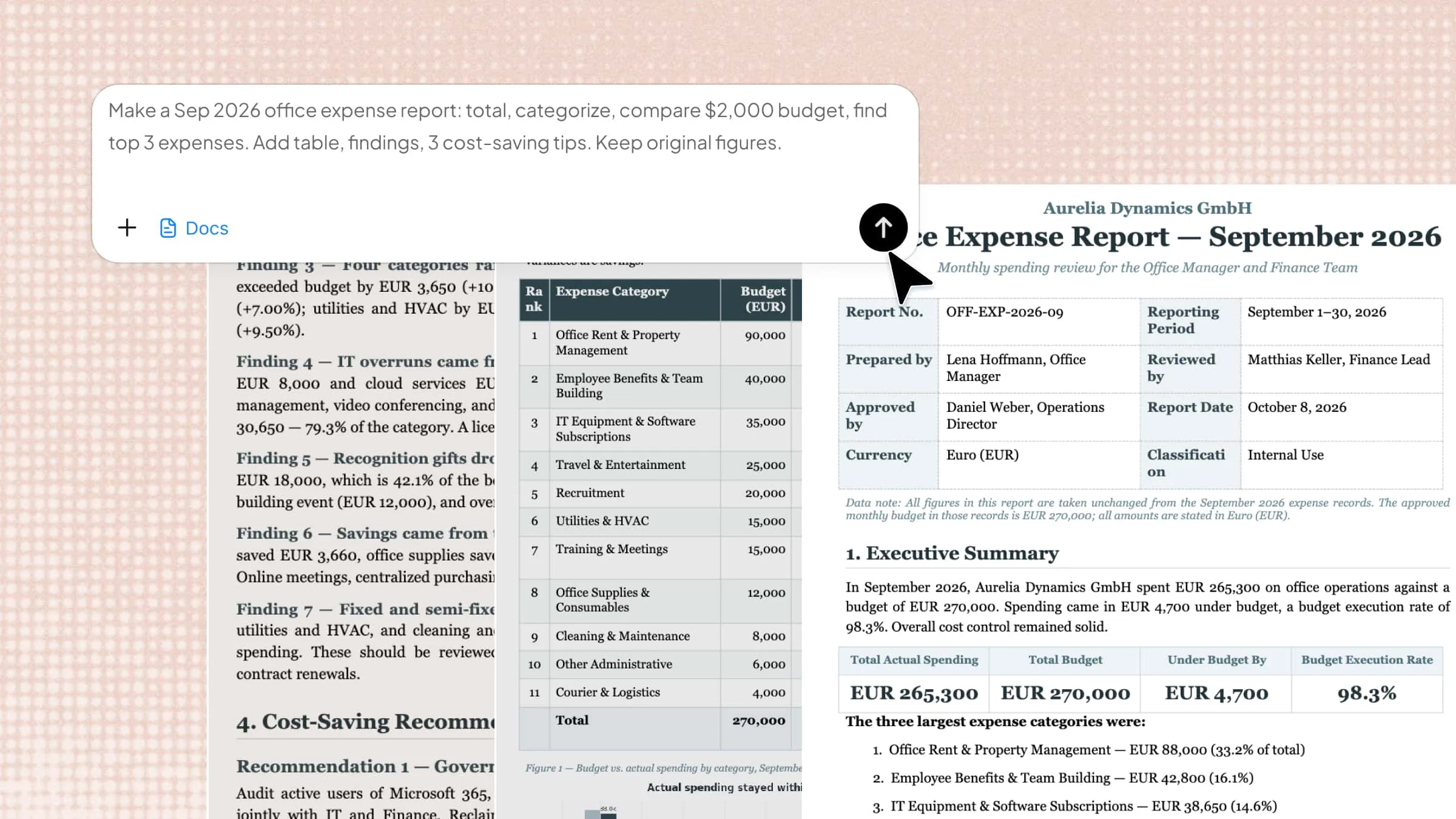
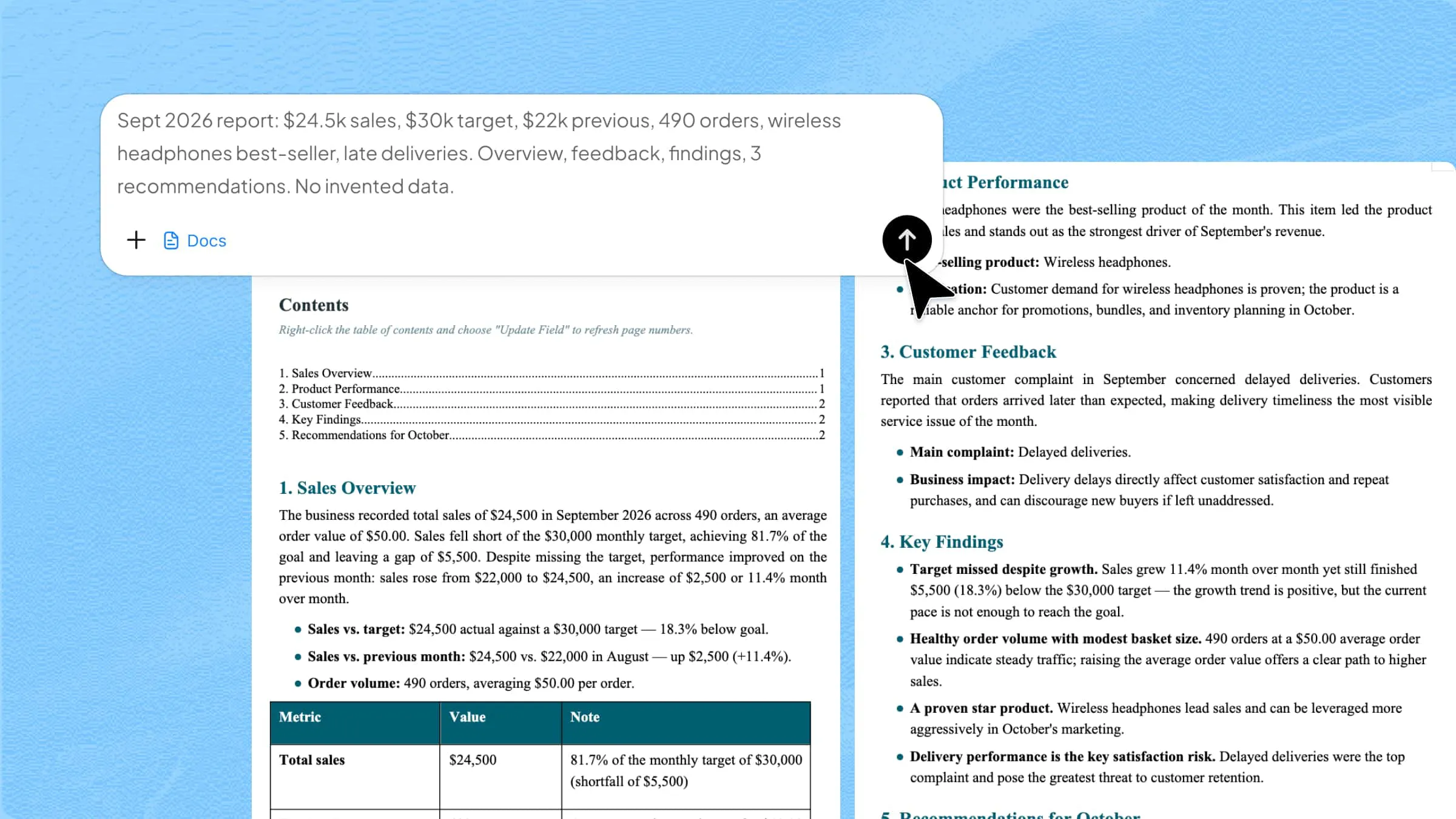
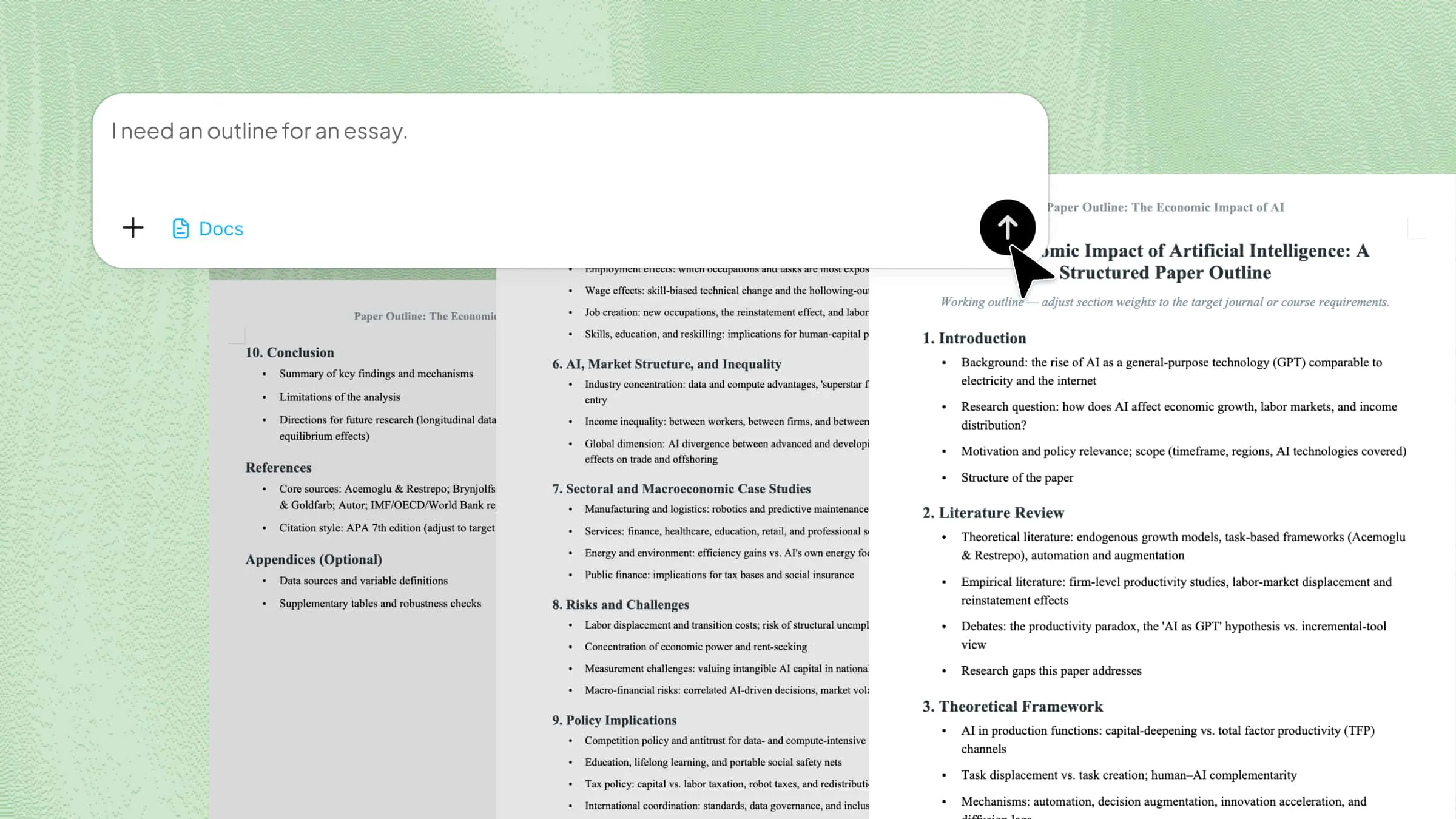
Kimi Docs is an AI document agent that improves accuracy, structure, and formatting when converting images to editable documents. It helps recognize text more reliably from JPG images, including ones with complex layouts, and organizes the result into a clean, well-structured Word document.

How to convert JPG to Word using Kimi Docs

Converting JPG images into Word documents becomes more accurate and efficient with Kimi Docs, as it helps recognize text and preserve layout during the process. Below are the brief steps to convert JPG to Word using Kimi Docs.

Step 1: Upload your JPG and enter the prompt

Upload your JPG image into Kimi Docs and enter a clear instruction prompt for conversion. This helps the system understand layout expectations and formatting requirements.

Example prompt:

Convert the uploaded JPG image into an editable Word document. Extract all text accurately, preserve the original structure and layout where possible, and format the content for clear readability.
Upload your JPG and enter the prompt

Step 2: Let Kimi process and generate results

Kimi Docs analyzes the image, extracts the text, and structures it into a properly formatted Word document, adjusting headings, spacing, and layout automatically.

Let Kimi process and generate results

Step 3: Download your Word document

Once processing is complete, download the final Word file directly from the platform. The output maintains text accuracy, formatting consistency, and a clean structure, ready for editing or sharing.

Preview the converted Word document

Key features of Kimi Docs

Kimi Docs helps users convert and organize content accurately across different file types. The tool is widely used for improving productivity in document handling and conversions. Here are some of its key features.

  • Built-in text extraction from images: Kimi reads JPGs, PNGs, and PDFs and converts the content into editable Word files. The extracted text is organized into a clean, properly structured layout rather than dropped in as a raw block.

  • Handle complex image content: Tables, multiple columns, and mixed text and graphic layouts are harder for basic OCR tools to deal with. Kimi interprets the image context rather than just scanning characters, which produces cleaner results for these cases.

  • Process multiple images at once: If you have a batch of scanned pages or screenshots to convert, Kimi can handle them together rather than one file at a time.

  • Support iteration before export: Send follow-up prompts to adjust formatting, fix a specific section, or refine the layout before downloading. Each round builds on the previous result rather than starting over.

Conclusion

When you need to iLovePDF convert JPG to Word, the process is fast and doesn't require any setup. Upload your image, convert it, and download the Word file. If you want to change a JPG with complex layouts or mixed formatting to Word with iLovePDF, Kimi Docs gives you a more thorough result with less manual correction afterward.

FAQ

Can I convert JPG to Word for free on iLovePDF?
Yes, you can convert JPG to Word for free using iLovePDF's online tool. It provides basic OCR-based conversion without any cost for standard use. You can upload your image, convert it, and download the Word file easily. Some advanced features may require a premium plan.
Does iLovePDF support multiple JPG files at once?
Yes, iLovePDF allows you to upload and convert multiple JPG images, either as separate files or merged into a single Word document. This is useful when your content spans more than one image.
Is a login required for JPG to Word in iLovePDF?
No, login is not required for basic JPG to Word conversion on iLovePDF. You can directly upload and convert files without creating an account. However, signing in may be needed for extra features or cloud storage access.
How can I fix text recognition errors after converting JPG to Word?
Recognition errors are usually caused by low image quality, unusual fonts, or incorrect orientation. Using a high-resolution, properly oriented image improves OCR accuracy. For more reliable results, especially with complex layouts, Kimi Docs can help extract and structure text more accurately.
You Might Also Like
How to Edit Footer in Word: Easy Step-by-Step Guide
2026-07-22
A User-Friendly Guide to Convert JPG to Word with Smallpdf
2026-07-22
How to Insert a Section Break in Word: A Complete Guide
2026-07-22
How to Remove a Section Break in Word: 5 Ways
2026-07-22
How to Insert a Page Break in Word: 4 Ways
2026-07-22