Smallpdf provides a browser-based OCR tool that converts JPG images into editable Microsoft Word documents without software installation. Smallpdf JPG to word conversion extracts text from scanned files and photos, producing searchable, editable Word output. This guide details the upload process, OCR execution, and document download procedure.
Why use Smallpdf to convert JPG to Word?
When it comes to turning images into editable Word files, you want a tool that's simple, reliable, and accurate. The Smallpdf JPG to Word converter makes this process fast and hassle-free.
Accurate text recognition (OCR): Smallpdf uses optical character recognition to extract text from JPG images, producing selectable, editable text in the output document rather than an embedded image you can't modify.
One-tool workflow: Unlike some converters that route your image through a PDF step first, Smallpdf's Image to Text tool takes the JPG directly and lets you choose Word as the output format in the same process.
Work across devices: Smallpdf runs in any browser on Mac, Windows, or mobile. There's nothing to install and no account required for basic conversions.
How to convert JPG to Word using Smallpdf
Converting a JPG image to an editable Word file is quick and simple with Smallpdf. Follow these steps to get it done.
Step 1: Open the Smallpdf Image to Text tool
Go to your browser and navigate to the Smallpdf website. Look for the "Image to Text" or "JPG to Word" tool to start the process.
Step 2: Upload your JPG file
Drag and drop your JPG image into the upload area, or click "Choose Files" to select it from your device. You can also upload from Google Drive, Dropbox, or OneDrive.
Step 3: Enable OCR and choose Word as the output
When prompted, enable OCR (or "Convert text from scans") and select Word as your output format, then click "Convert" to begin processing.
Step 4: Download your Word file
Once processing is complete, click "Download" to save your new Word document, ready to view or edit immediately.
Tips for using Smallpdf JPG to Word converter
Converting images into Word files works best when the source image is prepared properly. A few quick checks help avoid OCR errors and ensure a clean result.
Use a sharp, clear image: OCR accuracy depends heavily on image quality — if the image looks blurry on screen, OCR will struggle to read the text correctly.
Be aware of OCR limitations: Handwriting, tables, and decorative fonts are harder to recognize accurately, so expect some manual cleanup for complex layouts.
Proofread after conversion: Always review the converted Word document for misread characters or shifted formatting before using or sharing it.
Convert JPG to Word with smarter, more accurate results using Kimi Docs
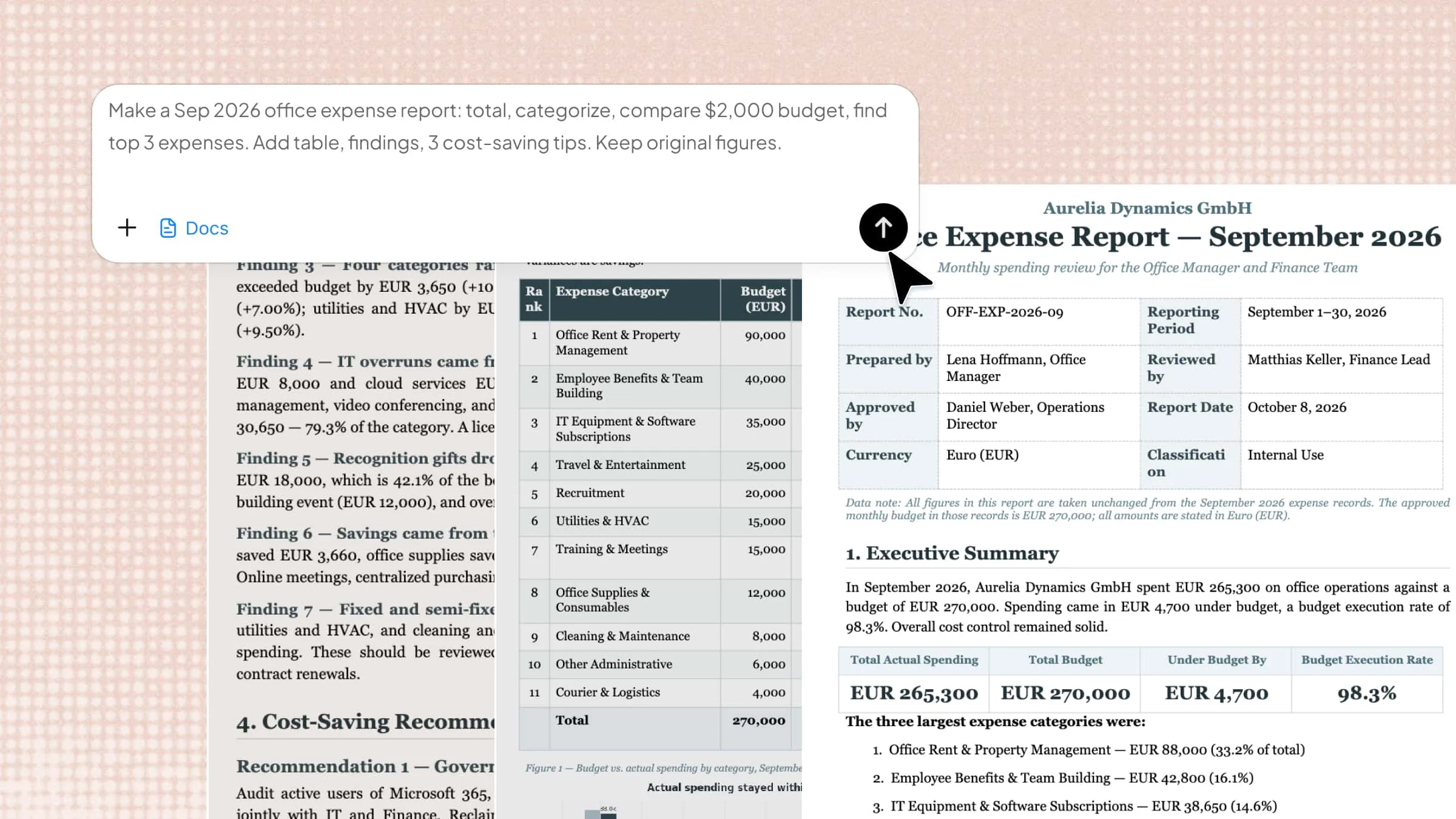
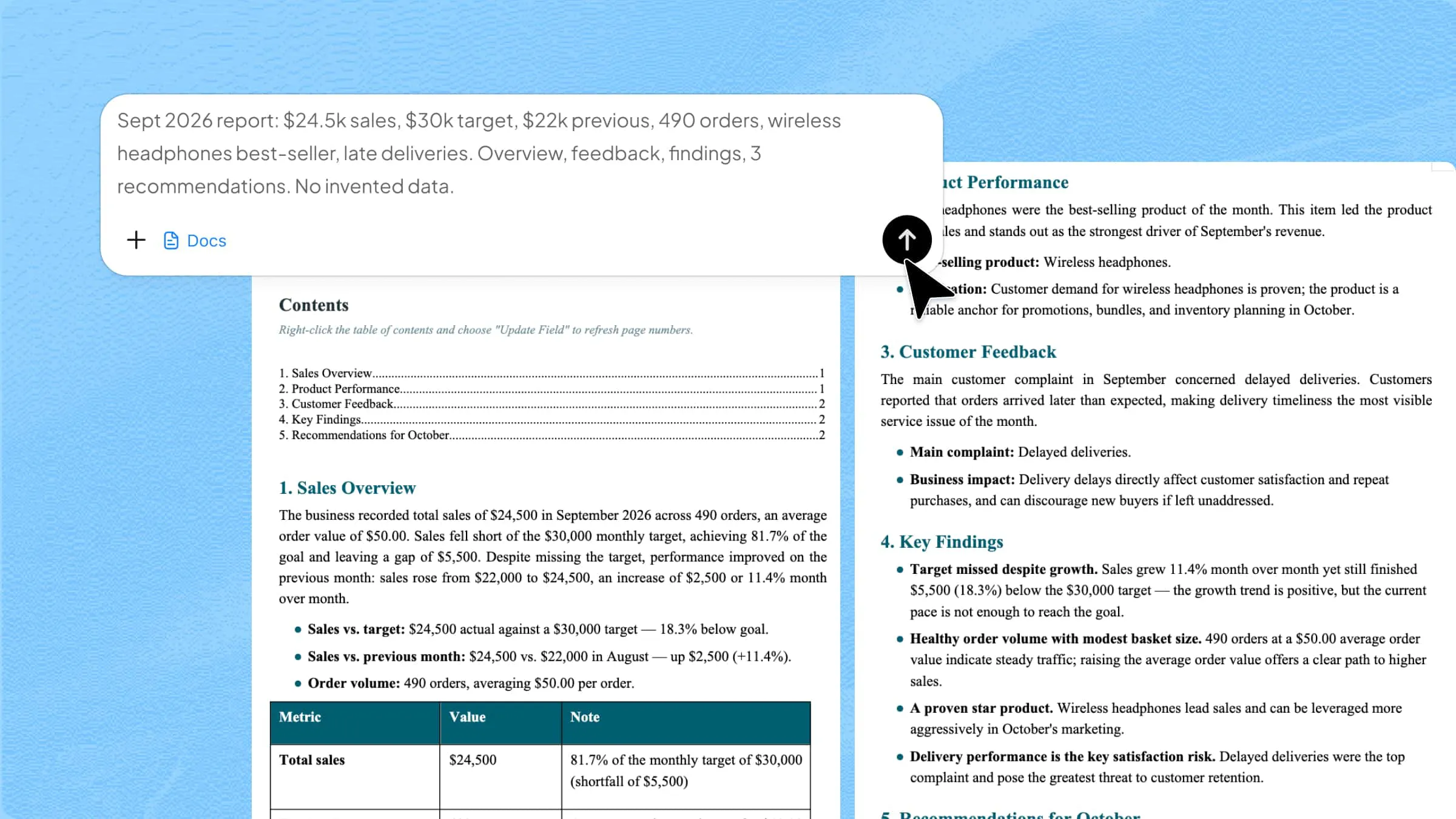
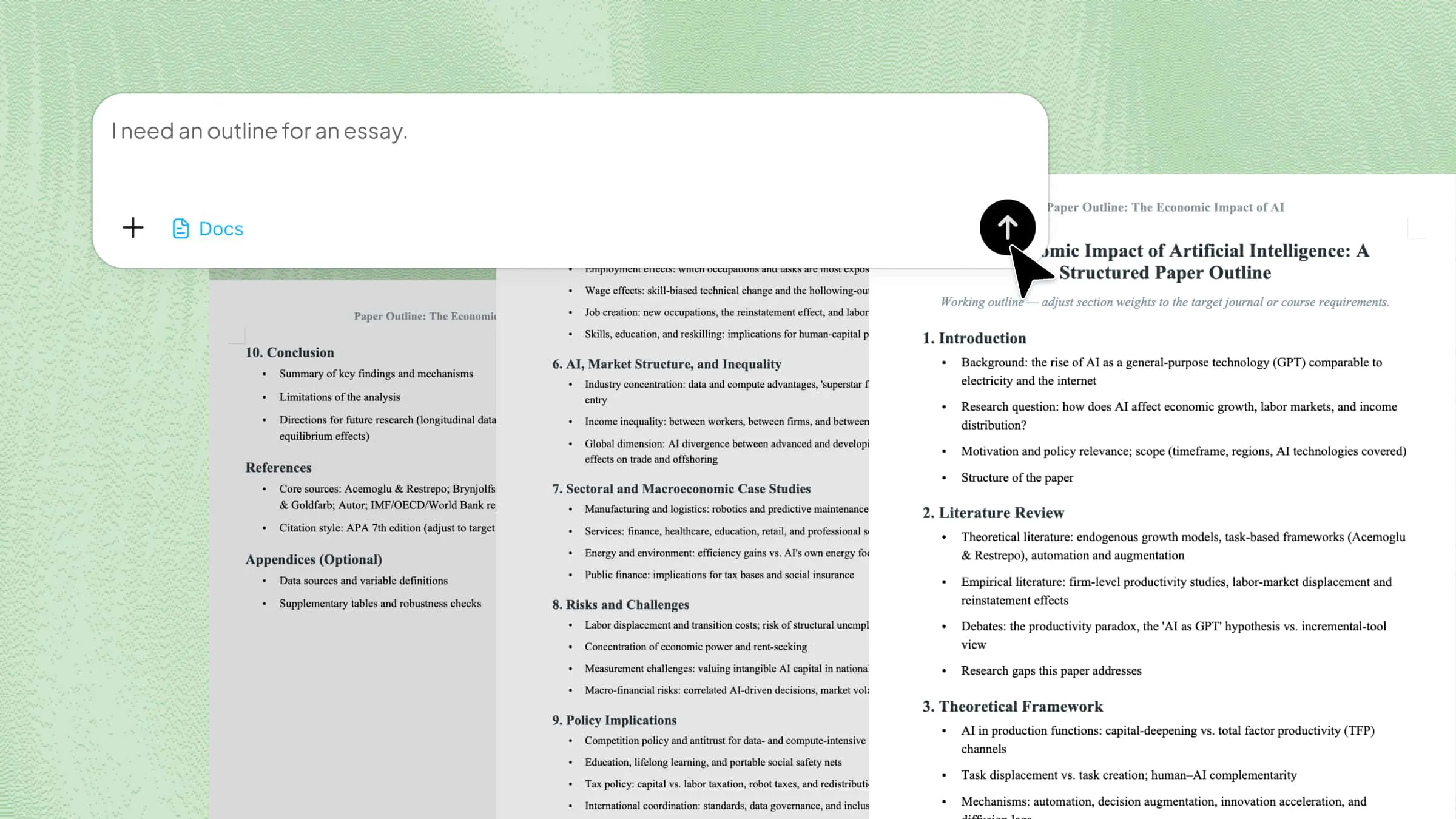
Kimi Docs is an AI document agent that improves accuracy, structure, and formatting when converting images to editable documents. It helps recognize text more reliably from JPG images, including ones with complex layouts, and organizes the result into a clean, well-structured Word document.
How to convert JPG to Word using Kimi Docs
Converting JPG images into Word documents becomes more accurate and efficient with Kimi Docs, as it helps recognize text and preserve layout during the process. Below are the brief steps to convert JPG to Word using Kimi Docs.
Step 1: Upload your JPG and enter the prompt
Upload your JPG images into Kimi Docs and enter a clear instruction prompt for conversion. This helps the system understand layout expectations and formatting requirements.
Step 2: Let Kimi process and generate results
Kimi Docs analyzes the image, extracts the text, and structures it into a properly formatted Word document, adjusting headings, spacing, and layout automatically.
Step 3: Download your Word document
Once processing is complete, download the final Word file directly from the platform. The output maintains text accuracy, formatting consistency, and a clean structure, ready for editing or sharing.
Key features of Kimi Docs
Convert various file formats into Word: Kimi Docs supports multiple input formats, including JPG, PNG, and PDF, converting them into well-structured, editable Word documents.
Accurate text extraction from images: The tool recognizes text from images with complex layouts, columns, or mixed formatting, reducing errors common with basic OCR tools.
Process batches and long documents: Whether you're converting a single scanned page or a batch of JPG files from a longer document, Kimi processes them together in one run and keeps the content organized and in the right order throughout.
Iterate before finalizing: Send a follow-up prompt to adjust formatting, fix a specific section, or refine the layout before downloading. Each round builds on the previous result instead of starting over.
Conclusion
Smallpdf offers a streamlined, browser-based solution for converting JPG to Word without software installation. For standard text extraction, it provides reliable results with minimal configuration. However, when documents require post-conversion formatting refinement, structural reorganization, or intelligent content enhancement beyond basic OCR, Kimi Docs delivers an integrated alternative that produces fully polished, publication-ready output.