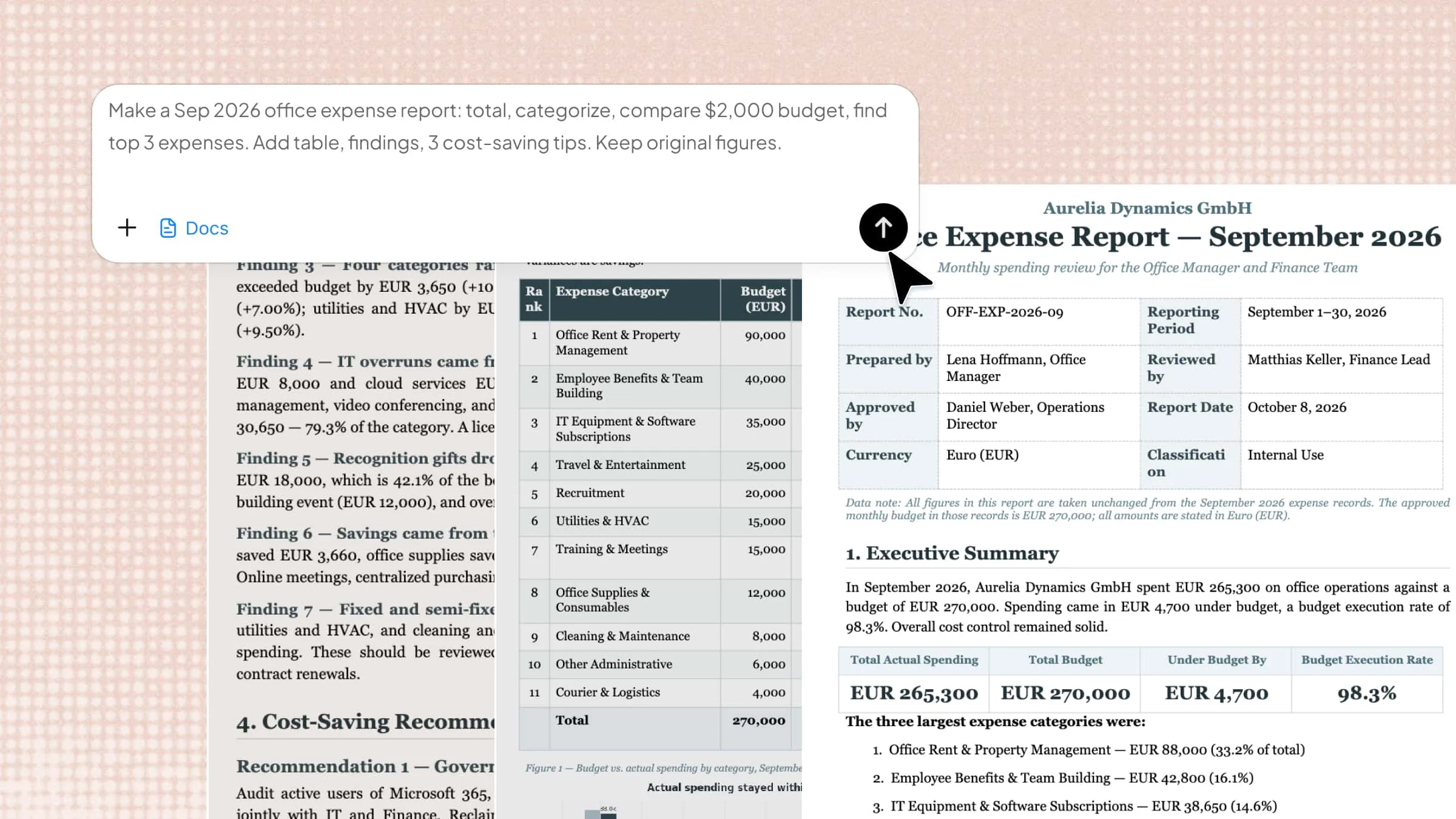
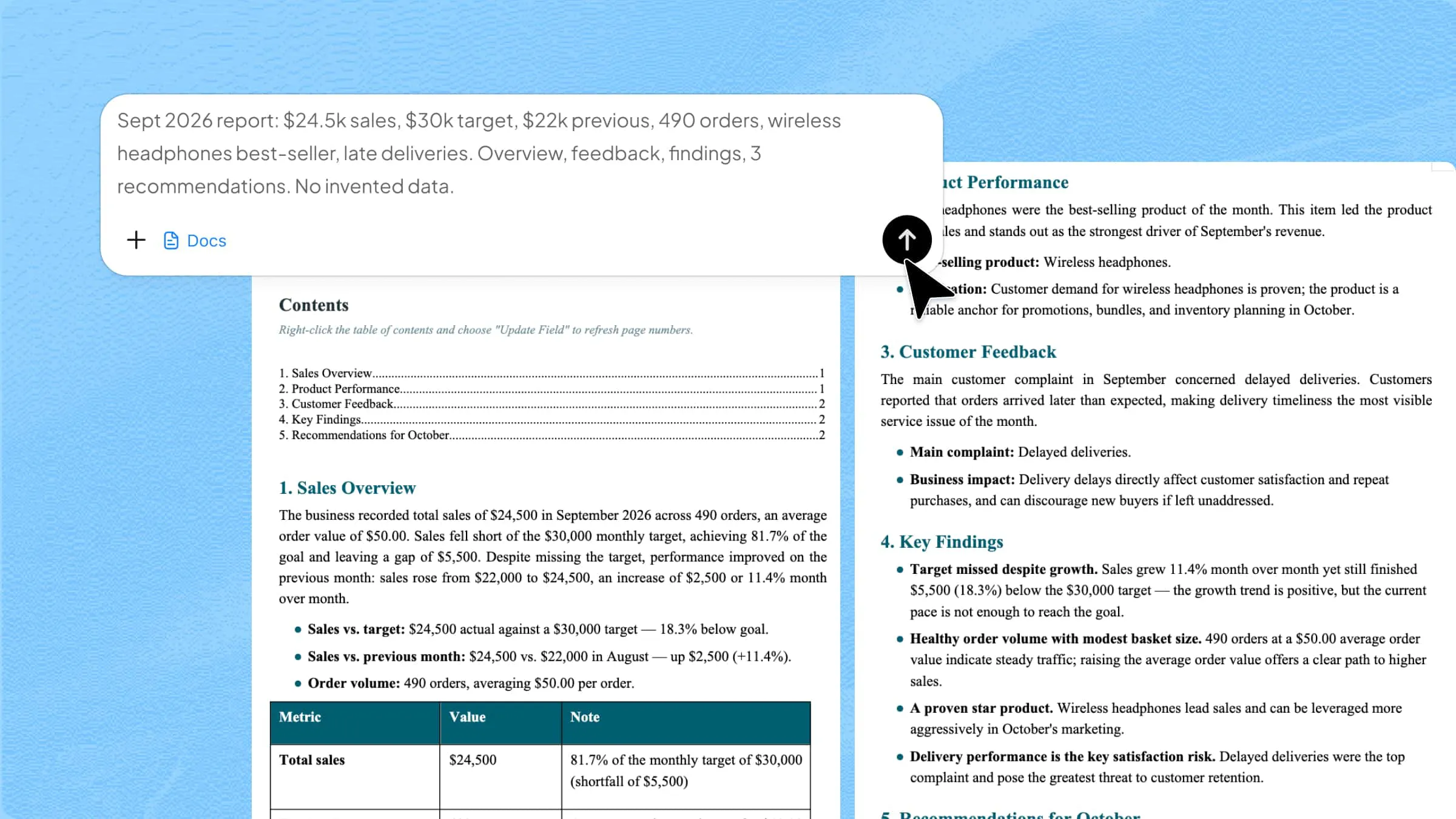
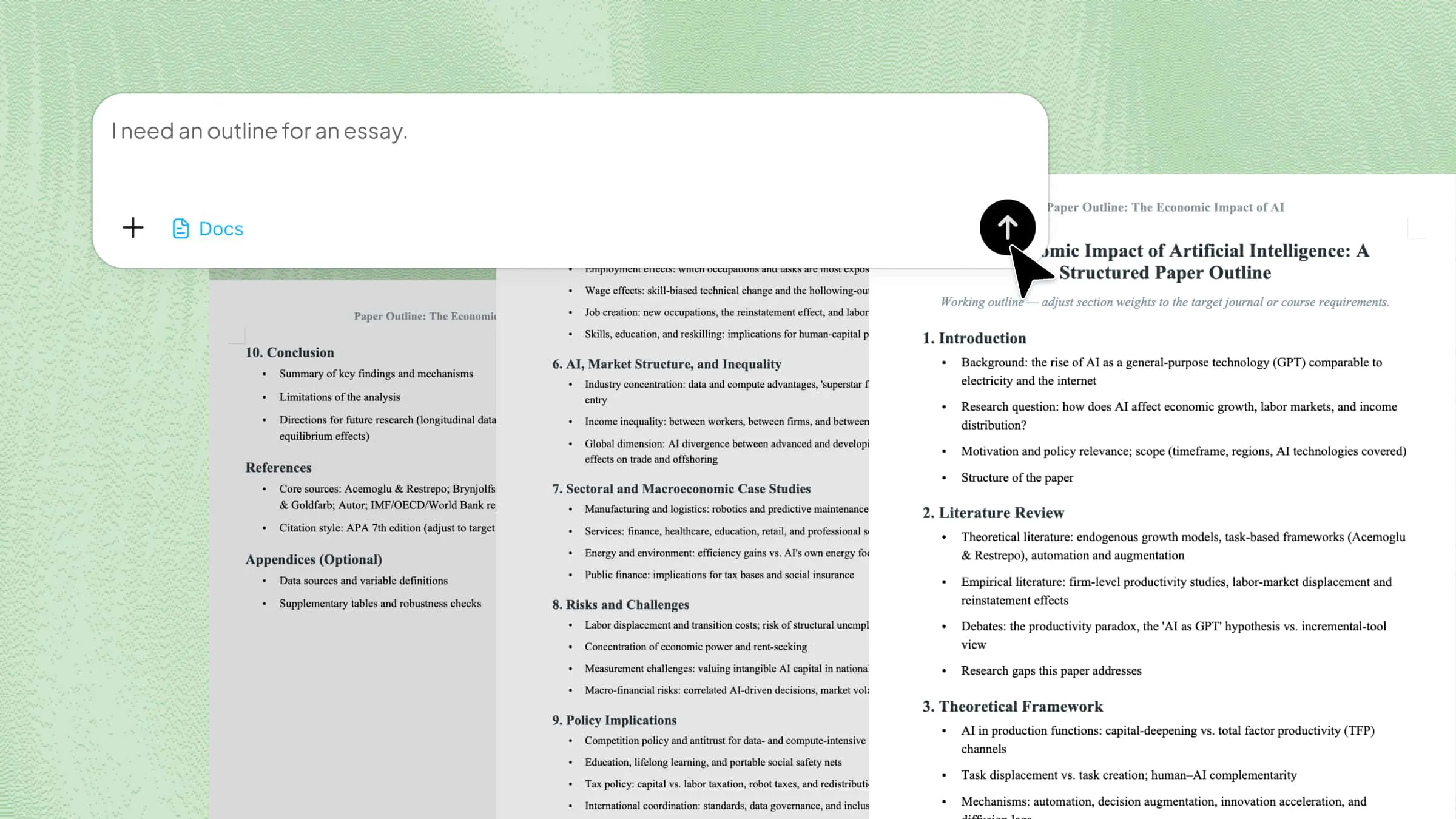
Easy Guide to Convert PDF to Word with iLovePDF Online

Transform PDF to Word with iLovePDF while keeping formatting clean and text fully editable for smooth document use. For a better workflow experience, Kimi Docs helps structure content clearly, refine instructions, and improve overall document flow, making handling smoother.

10 min read2026-05-22
Convert PDF to Word with Kimi Docs

Table of contents

Many people need to convert PDF files into editable Word documents without losing their original layout or text quality. iLovePDF offers both an online PDF to Word converter for quick, convenient use and an offline desktop version for when you need to work without an internet connection. Both options keep your content clear, neat, and ready for editing. This guide will show you how to use iLovePDF smoothly from start to finish.

How to change a PDF to Word in iLovePDF?

Changing a PDF into a Word file is quite simple when you know the right method. This process can be done online using tools like iLovePDF or even offline with desktop software, depending on your needs. Both options help you get an editable Word document quickly and easily.

Convert PDF to Word online

Converting a PDF into a Word file online is one of the fastest and simplest methods. It works directly in your browser without any software installation. iLovePDF makes this process very easy, even for beginners, with clear tools and quick processing. You can complete the full conversion in just a few minutes. Here's how you can do it online easily.

Step 1: Open the PDF to Word tool

Go to "iLovePDF" and open the "PDF to Word" tool from the main menu. This will take you directly to the conversion page where you can start the process. The platform is web-based, so it works on any device with internet access.

Open the PDF to Word tool

Step 2: Upload your PDF file

Click on "Select PDF file" and choose the file from your device, Google Drive, or Dropbox. The file will upload automatically without any extra steps. Once uploaded, it becomes ready for conversion in just a few seconds.

Upload your PDF file

Step 3: Convert and download

Press the "Convert to Word" button to begin the process. After a short wait, your Word file will be ready to download or save to cloud storage. The converted document stays editable while keeping most of its original formatting intact.

Convert and download

Convert PDF to Word offline

Working with PDF files on your computer without the internet is useful when you need speed and privacy. Desktop tools make the process stable and avoid the need for file uploads. This method also helps you manage documents directly on your system. iLovePDF Desktop provides a simple way to handle this task smoothly. Here's how to get started with it offline.

Step 1: Install and open iLovePDF Desktop

Download "iLovePDF Desktop" and install it on your Windows or Mac system. Once installed, launch the application to begin. The software runs locally on your computer, so no internet connection is required.

Install and open iLovePDF Desktop

Step 2: Add your PDF file

Use "Open File" or drag and drop your PDF into the desktop window. The file will load instantly and appear ready for processing.

Add your PDF file

Step 3: Choose the Word conversion option

Select "PDF to Word" from the available tools and click "Convert to Word". The document will be saved as an editable Word file directly on your device.

Choose the Word conversion option with iLovePDF's PDF to Word docs

Tips for converting PDF to Word with iLovePDF

Working with PDF files becomes much easier when you know a few smart tricks. These simple tips can help you get better results while using iLovePDF for conversions. They also save time and improve the overall quality of your Word output.

Convert scanned PDF to Word using OCR

Scanned files cannot always be edited directly, so OCR becomes very useful in such cases. It helps turn images of text into editable Word content with better accuracy. When you convert PDF to Word with iLovePDF, using OCR ensures your scanned documents become usable and easy to edit.

Check file size before uploading

Large files may take more time to process or may fail during upload. Keeping your file size within limits improves speed and performance. The iLovePDF PDF to Word file tool works more smoothly when your documents are optimized before uploading.

Mind daily conversion limits

Free users may face restrictions on the number of files they can convert per day. Plan your workflow accordingly to avoid interruptions, and consider upgrading to a paid plan if you need to convert large volumes regularly.

Avoid uploading sensitive files

Some tools may carry some level of risk when handling private data. It is better to avoid uploading confidential documents whenever possible. Even when you merge a PDF to Word with iLovePDF, always check file sensitivity first.

Consider paid options

Paid plans usually provide faster processing and higher limits for larger tasks. They are useful for users who work with documents regularly. Upgrading helps improve your experience when you convert PDF to Word with iLovePDF frequently.

Expect slower speeds online

Internet speed and server load can affect conversion time. Sometimes files may take longer to process during peak usage. iLovePDF tool works best with a stable connection for smooth results and ensures consistent performance during heavy traffic and large files

Batch convert to save time

Batch conversion allows you to process multiple files at once instead of doing them one by one. This saves a lot of time, especially for large projects. You can efficiently convert PDF to Word with iLovePDF in bulk to improve productivity.

Kimi Docs: Your go-to alternative for iLovePDF PDF to Word conversion

Kimi Docs, an AI document agent, is a simple alternative for converting PDF files into editable Word documents with good accuracy and reliable performance. It keeps formatting clear and makes document handling easy for users in daily work tasks. The tool supports smooth conversion even for larger files without breaking the structure. It also helps organize content in a clean and structured way for better workflow and efficiency overall.

How to convert PDF to Word using Kimi Docs?

Converting a PDF into Word with Kimi Docs is a simple and smooth process for everyday use. It helps users turn static files into editable documents without much effort or confusion. You can complete the whole process in just a few quick steps. Here's how you can use it simply.

Step 1: Upload your PDF and enter the prompt

Start by opening Kimi on the web and clicking on "Kimi Docs" on the interface. Then press the "+" icon to upload the PDF you want to convert. After that, enter your text prompt for the AI and click the "Generate" button.

Example prompt:

Convert this uploaded PDF into a fully editable Word document while keeping the original structure intact. Preserve headings, subheadings, paragraphs, and overall formatting as closely as possible. Maintain readability by fixing spacing, alignment, and font consistency where needed. Ensure the final output is clean, well-organized, and ready for editing in Microsoft Word.

Upload your PDF and enter the prompt

Step 2: Let Kimi process and generate results

After submitting your file and prompt, Kimi Docs will process the document automatically. It reads your content and converts it into a structured, editable format. The system works in the background and keeps formatting as clearly as possible.

Let Kimi process and generate results

Step 3: Download your Word file

Once processing is complete, your converted Word file will be ready to download. You can save it directly to your device with one click. The final file is fully editable and easy to use for further work.

Download your Word file

Key features of Kimi Docs

  • Quick and precise conversion: Kimi Docs converts PDF files into Word quickly without long waiting times. It keeps the output accurate, so the content stays reliable for editing use.
  • Maintain original layout: The tool preserves fonts, spacing, and overall structure during conversion. This helps the final Word file look close to the original PDF format.
  • Complete data extraction: It extracts text, images, and tables from PDFs with strong accuracy.
  • Handle long documents: Kimi Docs works smoothly with large and lengthy files without breaking them. It processes extended content while keeping performance stable.
  • Multiple file format support: It supports different file types beyond PDFs for flexible document handling. Users can switch between formats without extra tools.
  • Batch processing: Multiple files can be converted at the same time for a faster workflow. This saves time when handling large numbers of documents.
  • Seamless editing: The final Word output is fully editable and easy to modify. Users can continue working without fixing formatting issues.

Conclusion

Using iLovePDF, the PDF to Word converter, makes it easy to turn your files into editable documents in just a few steps. It helps you handle both online and offline conversion methods without much effort, making daily work smoother and simpler. For a more flexible and structured experience, Kimi Docs is also a strong option worth trying. It can make your document handling even easier with smart processing and clean results. Give Kimi Docs a try for your next PDF conversion task.

FAQ

Is iLovePDF free to use?
iLovePDF offers a free version that lets users perform basic PDF tasks without any cost. You can convert, merge, and edit files with simple limits on usage. It is suitable for small and regular document work. Paid plans are also available for advanced features and higher limits.
Is there a free AI tool to convert PDF to Word?
Yes, free AI tools are available that can convert PDF files into editable Word documents with smart accuracy. One helpful option is Kimi Docs, which provides free credits for new users to try its features easily. It uses AI to keep text clear, structured, and well-formatted during conversion.
How to convert PDF to Word automatically?
Automatic conversion can be done using online platforms or smart tools that process files with minimal input. Kimi Docs is one such option that also gives free credits, allowing users to upload files and get Word output quickly. The system detects content and converts it into an editable format without manual steps.