Text inside a PNG can't be selected, searched, or edited. Whether it's a screenshot, a scanned page, or a saved graphic, the content stays locked inside the image until you convert it. PNG to Word with iLovePDF fixes that, turning the image into a Word document where the text is editable. This guide covers how the process works and what to watch out for before you start.
Why choose iLovePDF for PNG to Word
When it comes to turning images into editable Word files, you want a tool that's simple, reliable, and accurate. The iLovePDF PNG to Word converter makes this process fast and hassle-free.
OCR that reads the image, not just stores it: When enabled, iLovePDF's OCR scans the text inside your PNG and turns it into selectable characters in Word, instead of just dropping the picture onto a page.
No software to install: The whole process runs in your browser, so there's nothing to download whether you're on a laptop, tablet, or phone.
Handle more than just PNGs: The same toolset also covers JPG, PDF, and several other formats, so it's useful beyond this one conversion if you're already in the iLovePDF ecosystem.
Pull files straight from the cloud: You can grab the PNG directly from Google Drive or Dropbox instead of downloading it to your device first.
How to convert PNG to Word using iLovePDF
iLovePDF doesn't convert PNG to Word in a single step. The process goes through an intermediate PDF, which means two separate tool uses. Here's how to do it.
Step 1: Open the PNG to PDF converter
Go to the iLovePDF website and select the "PNG to PDF" tool, since iLovePDF converts PNG to Word via an intermediate PDF step.
Step 2:Upload your PNG file and convert PDF
Click "Select PNG Images" to upload your PNG, or drag and drop it into the window. Then click "Convert to PDF" and download the resulting file.
Step 3: Open the PDF to Word converter
Go to the "PDF to Word" tool and upload the PDF you just downloaded.
Step 4: Convert and download your Word file
Click "Convert to Word." If your PNG contains a scanned image or screenshot, select the OCR option for accurate text recognition (available on iLovePDF Premium). Once processing is done, download your Word document.
Limitations of the iLovePDF PNG to Word workflow
Before committing to this method, two things are worth knowing.
OCR requires a paid plan: If OCR isn't switched on (or you're on the free plan), the PNG gets embedded into the Word file as an image. It'll look right, but you won't be able to select or edit a single word of it.
The conversion runs through two separate steps: Because the path goes PNG → PDF → Word, you'll end up downloading an intermediate PDF you don't actually need, then uploading it again for the second conversion.
Convert PNG to Word directly with Kimi Docs
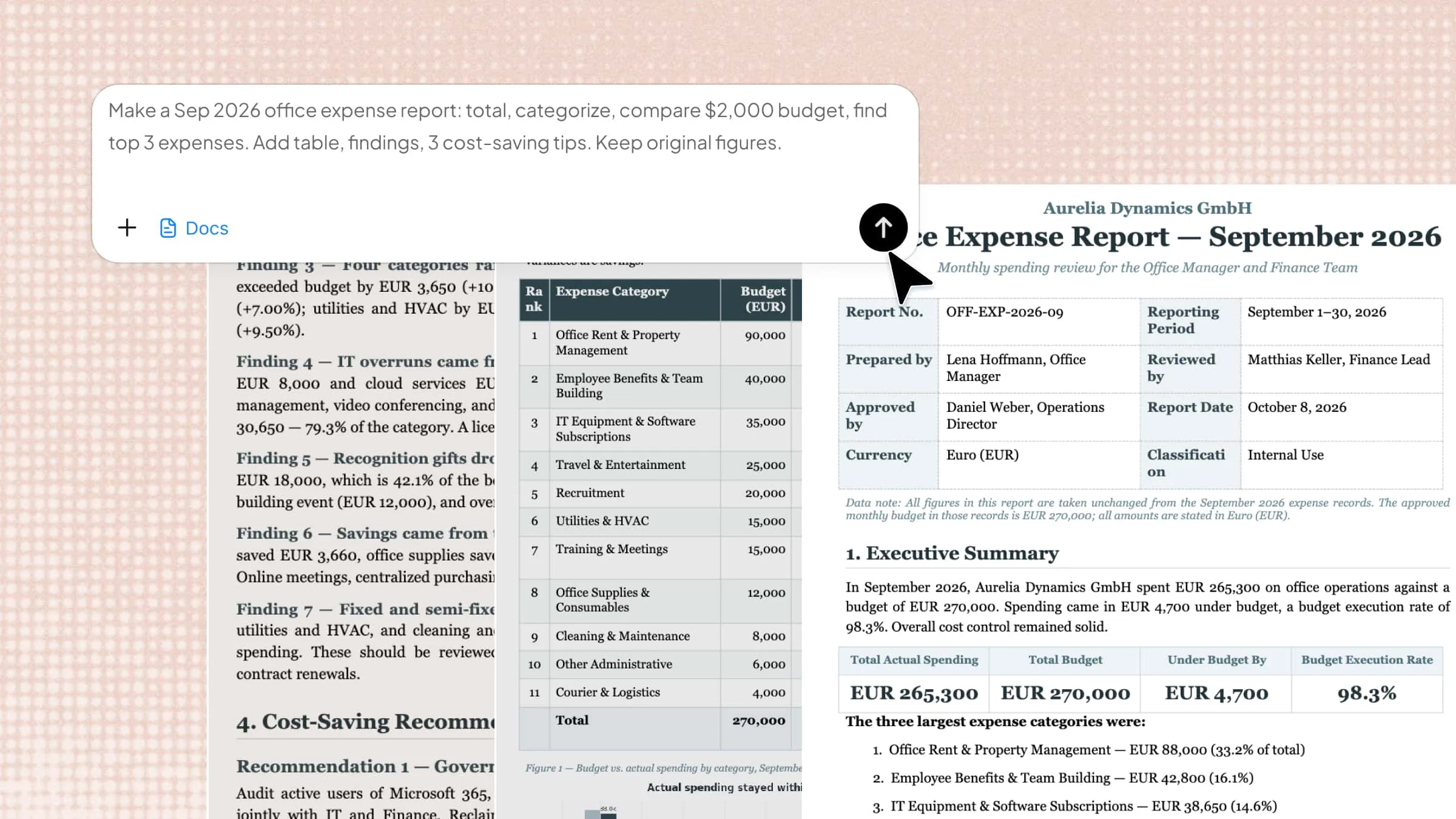
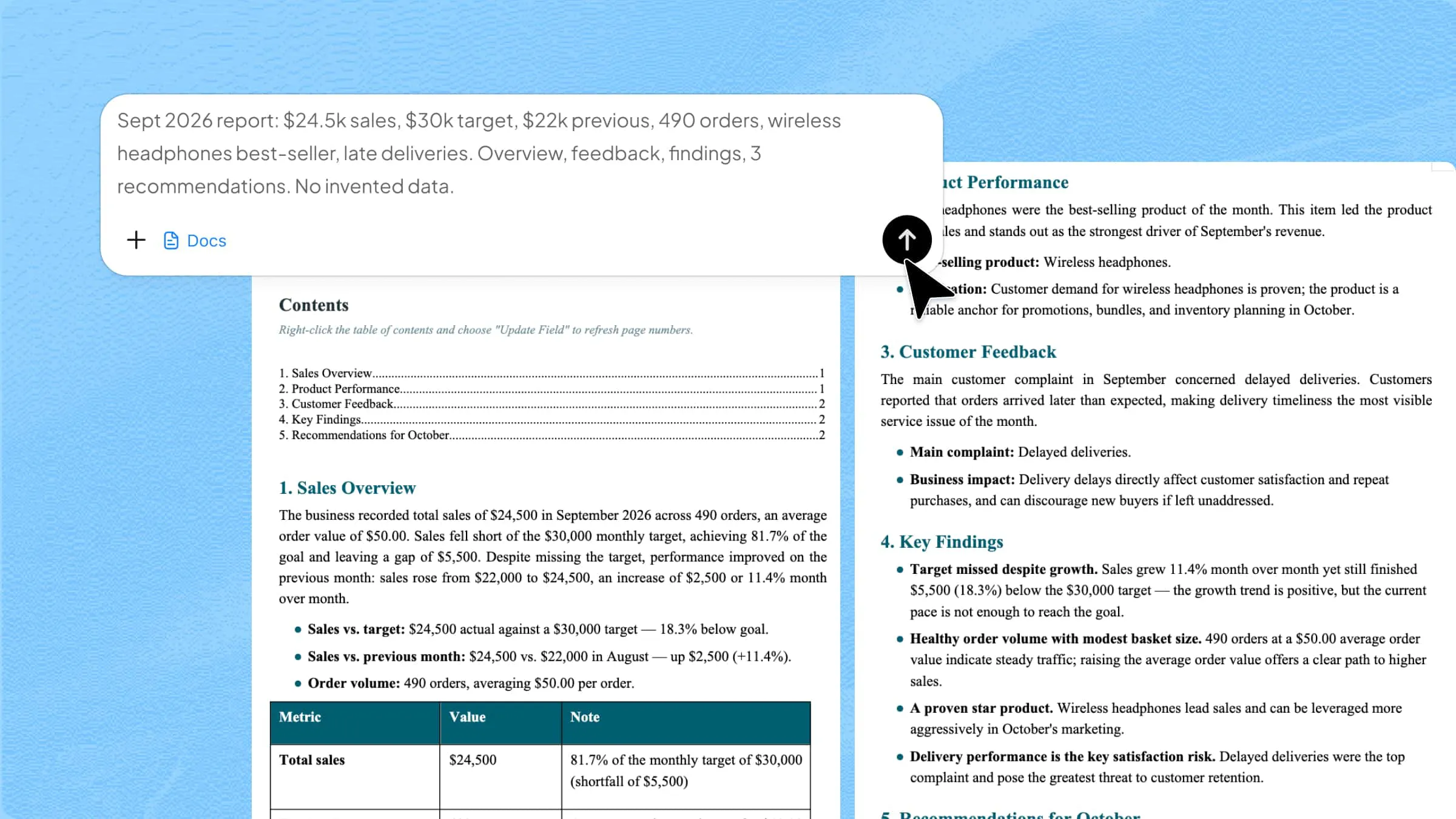
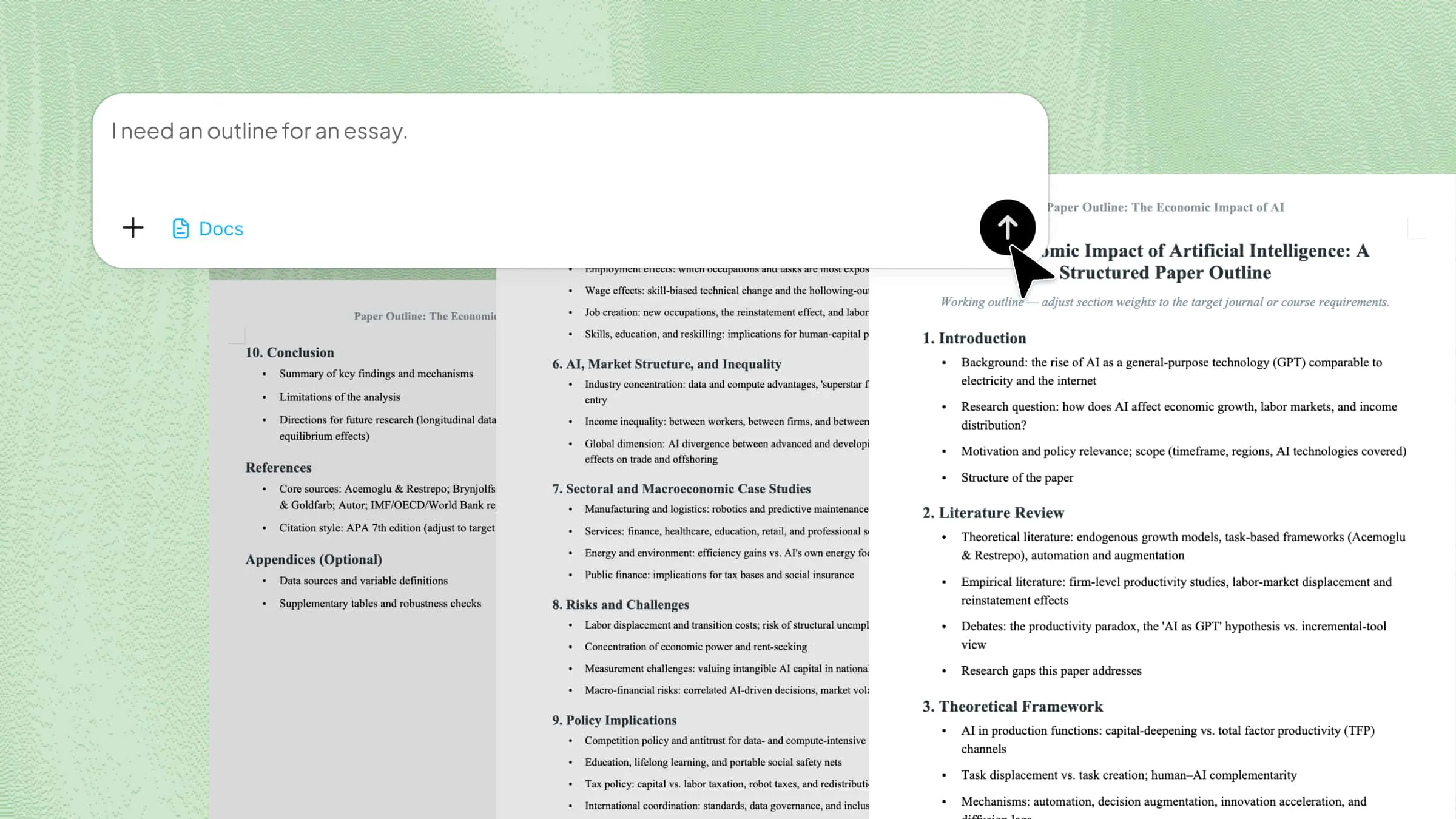
Kimi Docs is an AI document agent that improves accuracy, structure, and formatting when converting images to editable documents. It helps recognize text more reliably from PNG images, including ones with complex layouts, and organizes the result into a clean, well-structured Word document.
How to convert PNG to Word using Kimi Docs
Converting PNG images into Word documents becomes more accurate and efficient with Kimi Docs, as it helps recognize text and preserve layout during the process. Below are the brief steps to convert PNG to Word using Kimi Docs.
Step 1: Upload your PNG and enter the prompt
Upload your PNG image into Kimi Docs and enter a clear instruction prompt for conversion. This helps the system understand layout expectations and formatting requirements.
Step 2: Let Kimi process and generate results
Kimi Docs analyzes the image, extracts the text, and structures it into a properly formatted Word document, adjusting headings, spacing, and layout automatically.
Step 3: Download your Word document
Once processing is complete, download the final Word file directly from the platform. The output maintains text accuracy, formatting consistency, and a clean structure, ready for editing or sharing.
Kimi Docs features
Built-in text extraction: Kimi reads the text inside your PNG and converts it directly into a Word file, without a separate OCR step or add-on.
Single-step conversion: You upload the PNG and get back a Word file. No PDF gets created in between, and there's no extra file to manage afterward.
Keep layout structure intact: Multi-column text, tables, and images mixed with text come through with their original structure, instead of turning into one block of plain text.
Support multi-turn iteration: You can ask Kimi to fix formatting, adjust headings, or reword a section as part of the same prompt that does the conversion.
Handle multiple files at once: If you have several screenshots or scanned pages to convert, Kimi can process them together instead of one at a time.
Conclusion
iLovePDF gets the job done for straightforward PNG to Word conversions, though OCR requires a paid plan and the two-step process adds friction. For single-step conversion with text extraction included, Kimi Docs is the faster route. Either way, the text that was locked inside your PNG is now editable, searchable, and ready to use.