Table of contents
- Why use iLovePDF to convert PPT to PDF?
- How to convert PowerPoint to PDF in iLovePDF
- Things to know before using iLovePDF PPT to PDF converter
- Convert PPT to PDF with smarter, professional layouts using Kimi Docs
Sharing presentations can be tricky when formatting changes on different devices. An easy way is to convert PPT to PDF with iLovePDF, keeping your slides clean and ready to share. It ensures your content looks perfect on any device. Check out this article for a simple step-by-step guide.
Why use iLovePDF to convert PPT to PDF?
When it comes to turning your presentations into PDFs, you want a tool that is simple, reliable, and keeps your slides looking perfect. The iLove PPT to PDF converter makes this process fast and hassle-free while keeping all your content intact. Here's why it stands out.
Preserves formatting
The iLovePDF PPT to PDF converter ensures every font, image, color, and layout stays exactly as in your original presentation. You don't have to worry about slides shifting, text misaligning, or graphics moving during conversion, making your work look professional every single time.
Fast conversion
With just a few clicks, your presentation is converted in seconds without any long waiting or unnecessary delays. The iLovePDF PPT to PDF converter saves time, especially when you have large files, multiple slides, or urgent deadlines that require immediate sharing with others.
Easy sharing
Once converted, your PDF slides are easy to share via email, cloud storage, or social media platforms. With the iLove PPT to PDF tool, you can send presentations seamlessly, stress-free, and easily, so you can work efficiently with colleagues, classmates, or clients anywhere.
No quality loss
Your images, graphics, charts, and text are all crisp, clear, and highly detailed in the PDF. With this efficient tool, the professional look of your slides is maintained, without any pixelation, blurring, or loss of the original quality during the conversion.
Cloud access
You can convert, save, and access your files from anywhere, anytime, without needing to install additional software. The iLove PPT to PDF converter works fully online, giving you flexibility to manage your presentations on any device with internet access, even on the go.
How to convert PowerPoint to PDF in iLovePDF
Converting your PowerPoint presentations to PDF is a quick and easy way to make sure your slides look perfect on any device. Using iLovePDF, you don't need to rely only on PowerPoint's export option. With just a few clicks, your slides can be converted, downloaded, and ready to share. Follow these simple steps to get it done quickly.
Step 1: Open the iLovePDF platform
Go to your browser and type "ilovepdf.com". Once the website loads, look for the option "PowerPoint to PDF" to start the process.
Step 2: Upload your PowerPoint file
Click "Select POWERPOINT files" to choose the file from your computer, or drag and drop it directly into the window. You can also upload files from Google Drive or Dropbox if you prefer cloud storage.
Step 3: Convert and download your PDF
After adding your file, click "Convert to PDF". Wait a few moments while iLovePDF processes your slides, then download your newly created PDF to view or share immediately.
Things to know before using iLovePDF PPT to PDF converter
Converting PowerPoint files into PDFs requires proper preparation to maintain layout, clarity, and formatting. Careful checks help avoid design issues and ensure a smooth result when you convert PowerPoint to PDF with iLovePDF.
Check file formatting
Proper formatting helps ensure everything stays correctly positioned during conversion. Well-aligned text, images, and shapes reduce the risk of content shifting or breaking in the final PDF, keeping your layout consistent and professional.
Ensure slide size
Consistent slide size prevents cropping or stretching of content in the PDF. Different dimensions can disturb layout balance and affect readability. Standard widescreen or 4:3 formats work best for stable conversion results without errors.
Review image quality
High-resolution images are important for maintaining clarity after conversion. If the original visuals are too low in quality, they may appear pixelated or blurry in the final PDF, affecting overall presentation quality.
Verify font support
Supported fonts ensure text displays correctly after conversion. Unsupported fonts may get replaced, which can change the design and spacing. Using standard or embedded fonts helps keep the original style intact without distortion. This ensures better readability across devices.
Preview before export
Previewing the file helps detect errors before final conversion. Small layout issues, spacing problems, or missing elements can be fixed early. This step improves accuracy and gives a clean final PDF output ready for sharing or printing purposes.
Convert PPT to PDF with smarter, professional layouts using Kimi Docs
Kimi Docs is an AI document agent that improves formatting, structure, and layout quality in digital files. It helps maintain consistent design and clean visual hierarchy during editing and conversion. In PowerPoint workflows, it optimizes slides for better alignment and spacing before export. It ensures professional results when you convert PPT to PDF with Kimi Docs.
How to convert PPT to PDF using Kimi Docs
Converting PowerPoint files into PDF format becomes more efficient when using Kimi Docs, as it helps maintain layout accuracy and professional design during export. Below are the brief steps to convert PPT to PDF using Kimi Docs.
Step 1: Upload your PPT and enter the prompt
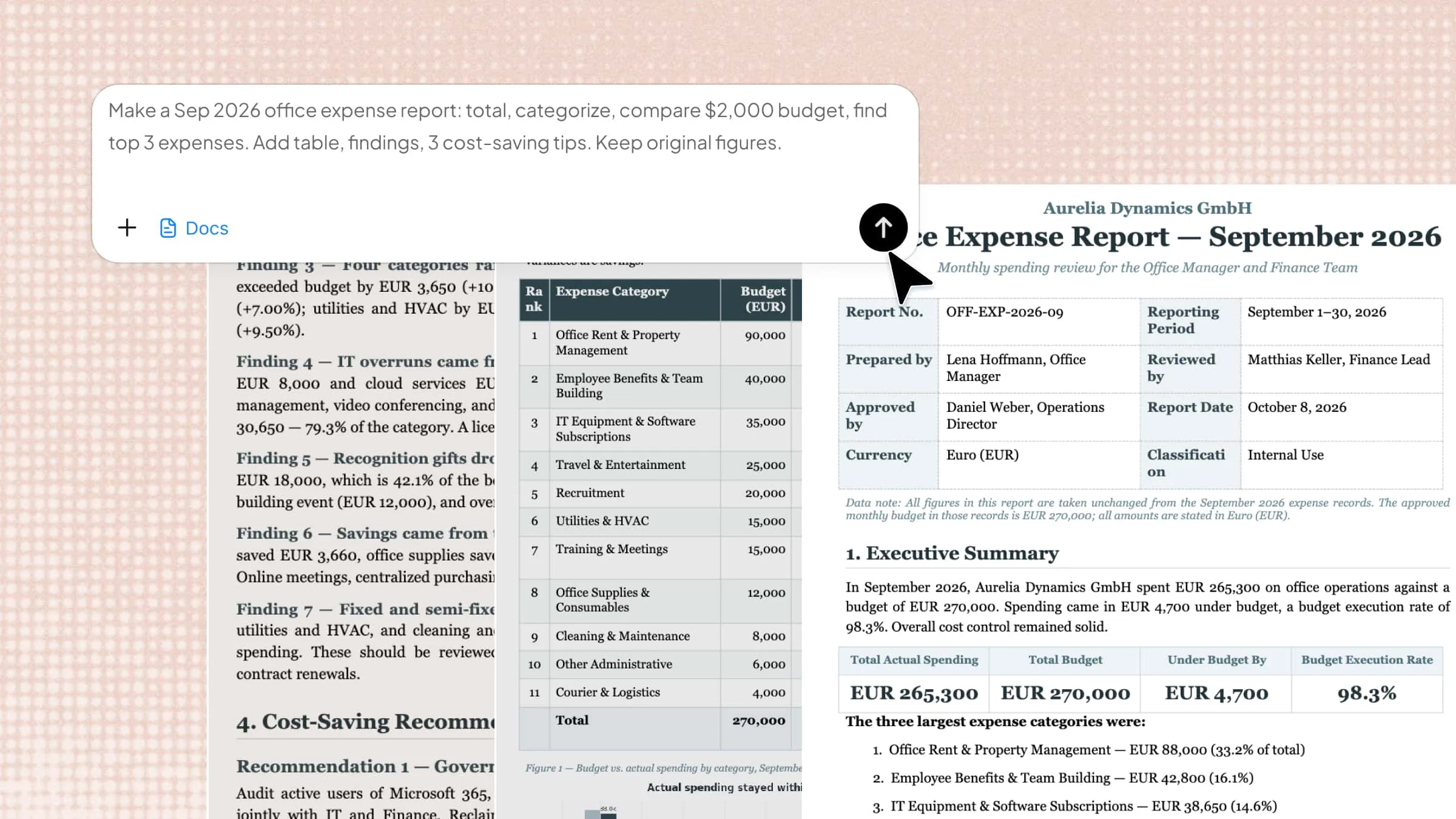
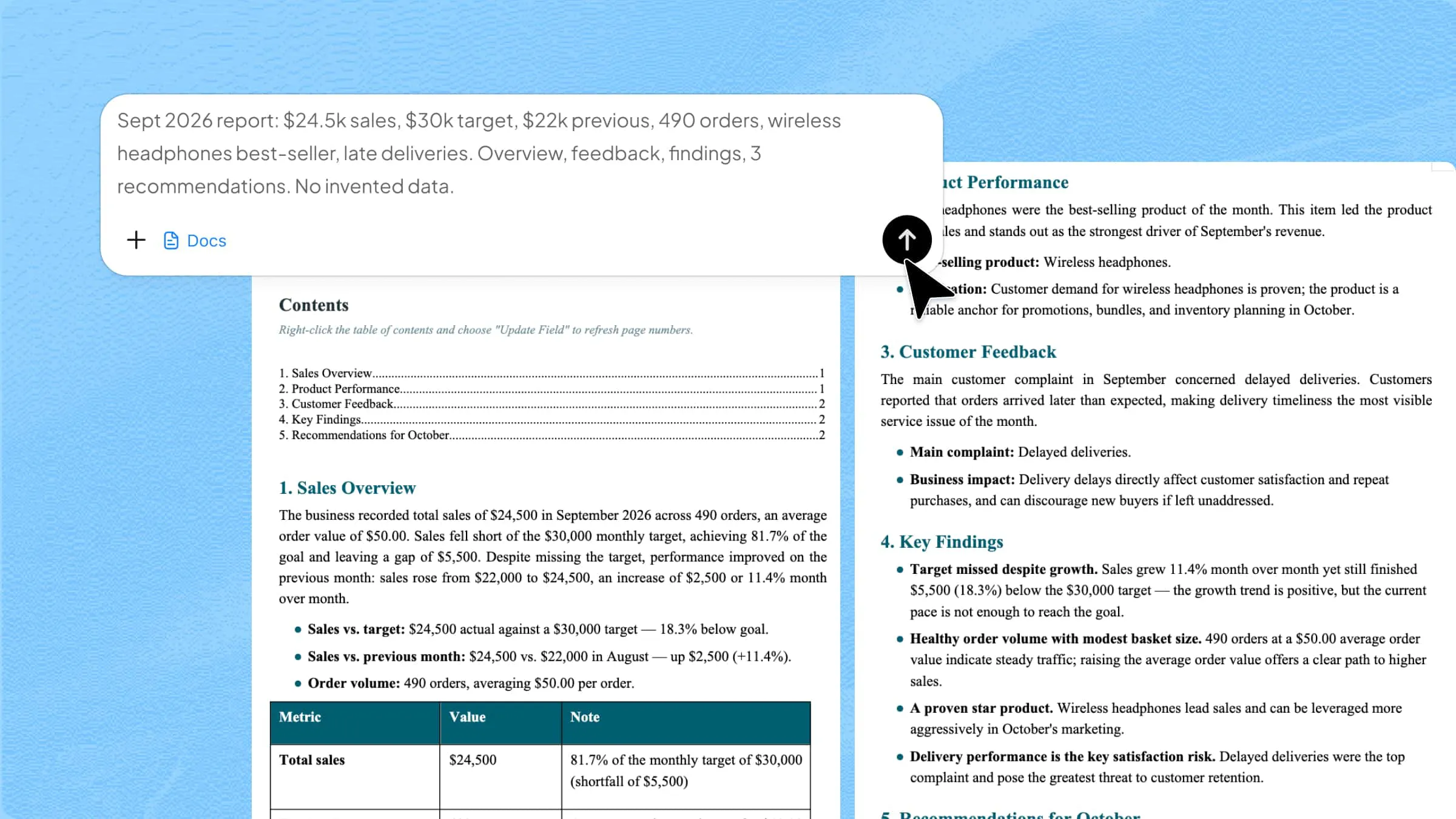
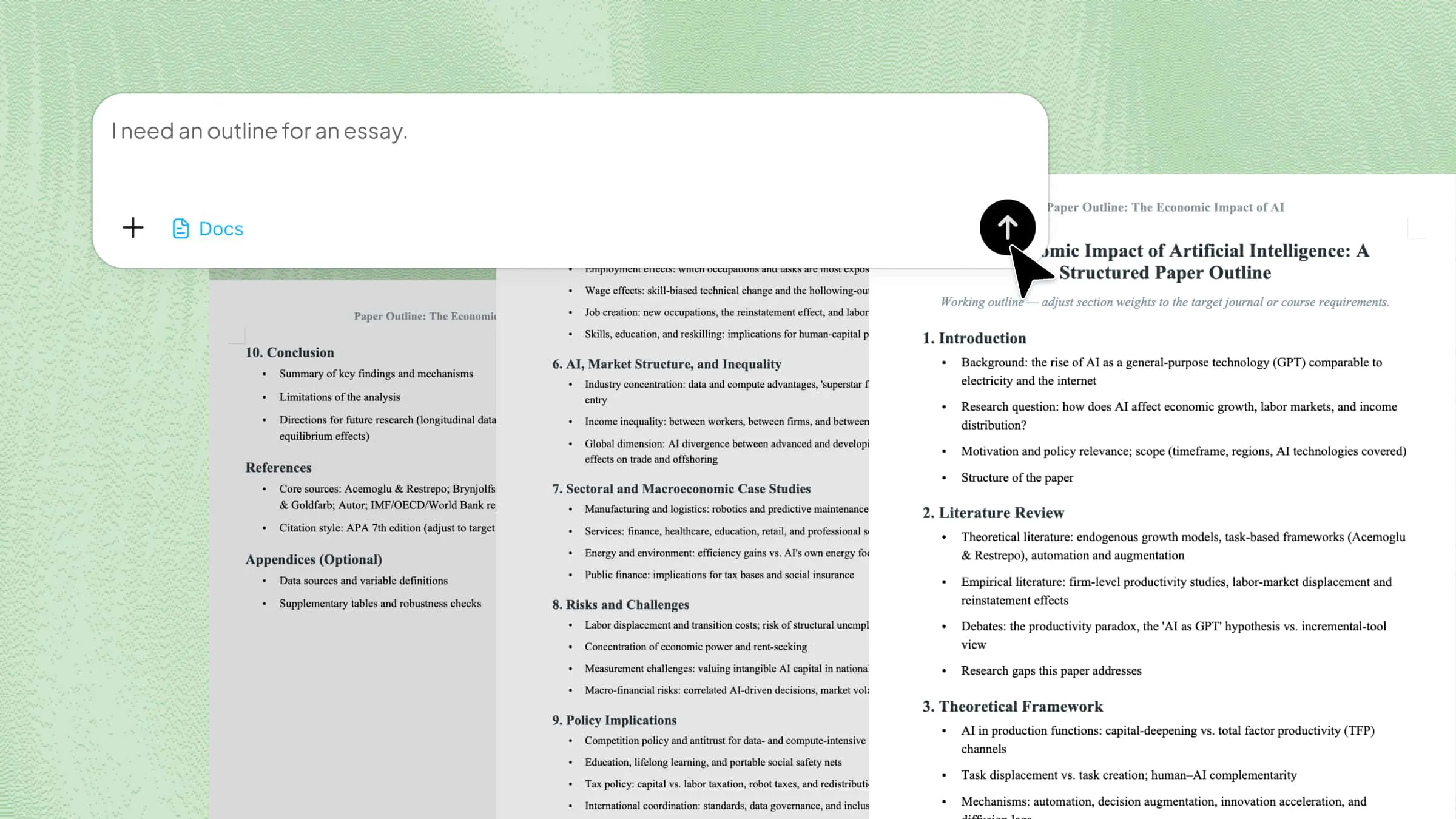
Upload your PowerPoint file into Kimi Docs and enter a clear instruction prompt for conversion. This helps the system understand layout expectations and formatting requirements.
Example prompt:
Step 2: Let Kimi process and generate results
Kimi Docs analyzes your slides, adjusts formatting, and restructures content for clean PDF output. It optimizes spacing, alignment, and visual hierarchy automatically.
Step 3: Download your PDF
Once processing is complete, download the final PDF file directly from the platform. The output maintains image clarity, formatting consistency, and design balance. Your document is now ready for sharing or printing.
Key features of Kimi Docs
Kimi Docs helps users maintain a clean structure and professional design across different file types. The tool is widely used for improving productivity in document handling and exports. Here are some of its key features.
- Convert Word, PPT, and other files to PDF: Kimi Docs supports multiple file formats, including Word, PowerPoint, and more. It converts them into high-quality PDFs with consistent structure and readability.
- Preserve professional layouts and formatting: The tool keeps original design elements intact during conversion. It ensures spacing, alignment, and structure remain consistent in the final output.
- Auto-adjust charts, tables, and images for best display: Charts, tables, and images are automatically resized for clarity. This improves visual balance and presentation quality in the PDF.
- Smartly handle long documents without losing structure: Long files are processed while maintaining proper flow and organization. Section breaks and formatting stay stable across all pages.
- Batch convert multiple files at once: Users can convert several files in a single process. This saves time and improves workflow efficiency for bulk tasks.
- Optimize file size while keeping quality: The system compresses files without reducing clarity. It balances quality and size for easy sharing and storage.
- Preview converted files before downloading: Users can check the final output before saving it. This helps ensure accuracy and prevents formatting errors.
Conclusion
A smooth conversion process helps keep presentations clean, readable, and consistent across different devices and platforms. Both traditional tools and AI-based platforms support better document handling in different ways. You can convert PPT to PDF with iLovePDF for quick and reliable results, or explore smarter options like Kimi Docs for advanced formatting and layout control.