Table of contents
- What is a text file?
- Types of text files
- Overview of 4 methods for making a text document
- How to make a text document online using Kimi Docs (AI tools)?
- How to open and edit a TXT file on Windows?
- How to create a text document on macOS?
- How to make a text document on Linux?
- What is a TXT file used for?
People use simple text files every day to write notes, save code, store data, or keep plain content without extra formatting. Knowing what a text file is helps you manage documents, pick the right file type, and work easily across devices. In this article, you'll learn about different text file types, how to use them, and easy ways to create and edit them.
What is a text file?
A text file is a digital file that holds written content in plain text. It can have letters, numbers, symbols, or simple code, but no fancy design or formatting. People often use text files for notes, programming, settings, and storing documents. Common formats are TXT, CSV, LOG, and XML. These files are small, easy to share, and work on almost any device.
Types of text files
Different types of text files are used for different jobs. Some are good for simple writing, while others help store data, build web pages, or format documents. Knowing about these file types helps you pick the right one for work, school, or everyday tasks. Here are some of its common types:
Plain text file
A plain text file is one of the simplest file types you can use on a computer or phone. It only holds basic text, with no special formatting like fonts, colors, images, or tables. These files usually end with .txt and open easily in apps like Notepad or TextEdit.
Comma-separated file
A comma-separated file, or CSV file, stores data in rows and columns. Each value is separated by a comma, making the data easy to organize, sort, and read. These files usually have a .csv extension, so you can recognize them clearly and easily.
HTML file
An HTML file is used to create and display web pages on the internet and modern web browsers. It contains tags and elements that tell browsers how to show text, images, links, videos, and other page content properly. These files usually end with the .html extension for website development purposes.
Doc and Docx file
DOC and DOCX files are document formats mostly used in Microsoft Word for professional writing. They support rich formatting like headings, images, tables, fonts, and page layouts. DOC is the older format, and DOCX is the newer, more advanced version used now.
Markdown file
A Markdown file is a lightweight text file used for formatted writing with simple symbols and shortcuts online. It usually uses the .md extension and helps create headings, lists, links, bold text, and formatted sections easily without complex coding knowledge.
Overview of 4 methods for making a text document
Users create text documents in different ways depending on their tools and workflow needs. Some prefer AI-powered platforms for faster and smarter document creation, while others rely on built-in system editors for basic tasks. For users looking for a more efficient workflow, Kimi Docs, an AI document agent, can quickly generate and format documents with AI assistance. However, traditional methods on Windows, macOS, and Linux are also available for users who prefer manual editing tools.
| Method | Platform | Type | Key approach | Suitable for |
|---|---|---|---|---|
| Kimi Docs | Online (AI tool) | AI-powered document generator | Uses prompts to generate and format full documents automatically | Fast writing, automation, structured content |
| Windows (Notepad) | Windows OS | Built-in text editor | Uses Notepad to create, edit, and save TXT files manually | Basic editing and simple file creation |
| macOS (TextEdit) | Apple macOS | Built-in text editor | Uses TextEdit for quick file creation and saving in plain text | Notes, drafts, and simple documents |
| Linux (Editors/Terminal) | Linux OS | GUI + terminal tools | Uses editors or terminal commands to create and manage TXT files | Coding, notes, and system files |
How to make a text document online using Kimi Docs (AI tools)?
Kimi Docs is an AI-powered platform for creating documents quickly, editing smartly, and managing files online. It uses advanced AI to help you make structured documents, improve formatting, and organize content easily. You can edit in real time, export documents, and automate your workflow for both work and personal writing.
Step 1: Enter a clear prompt
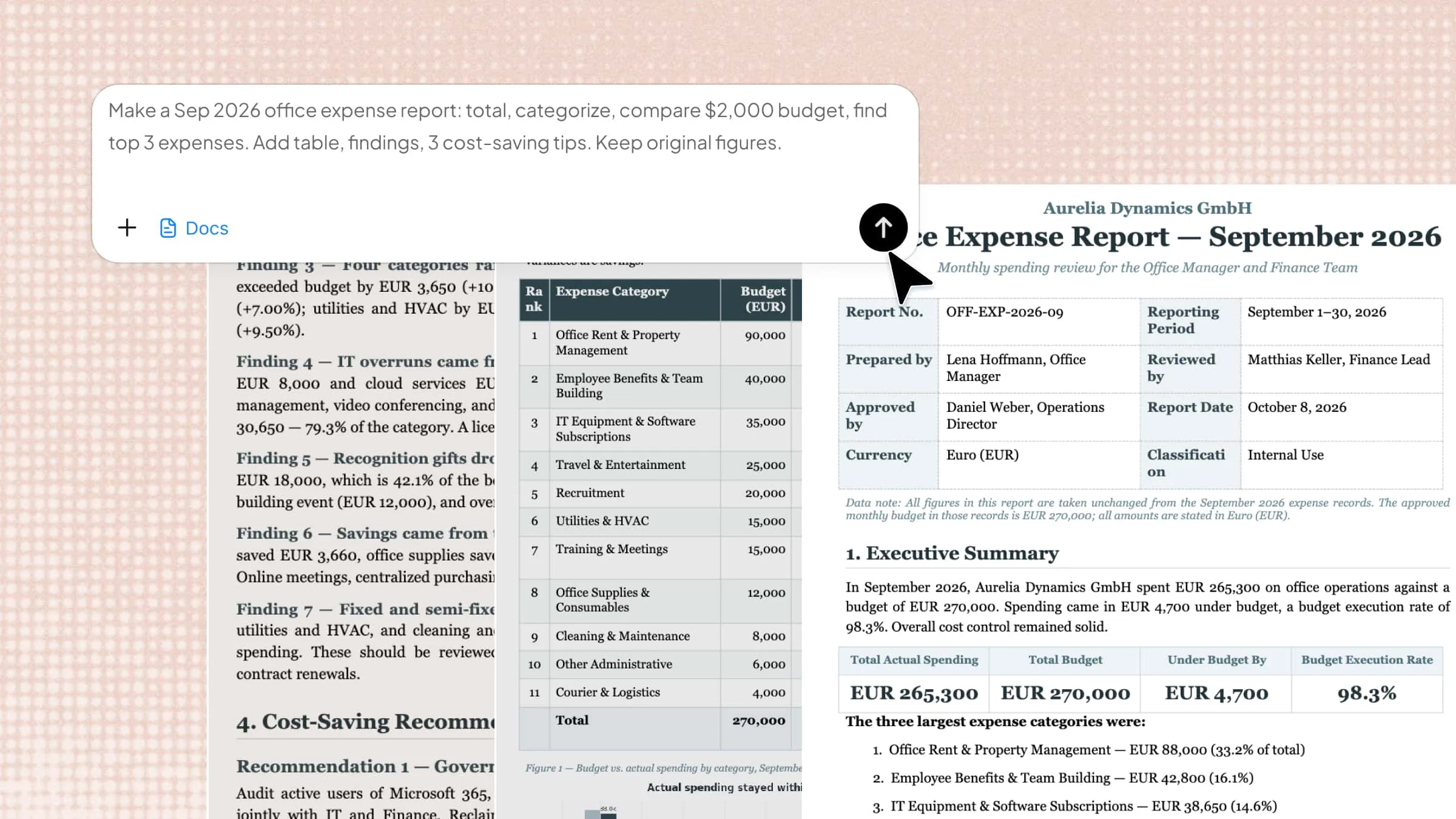
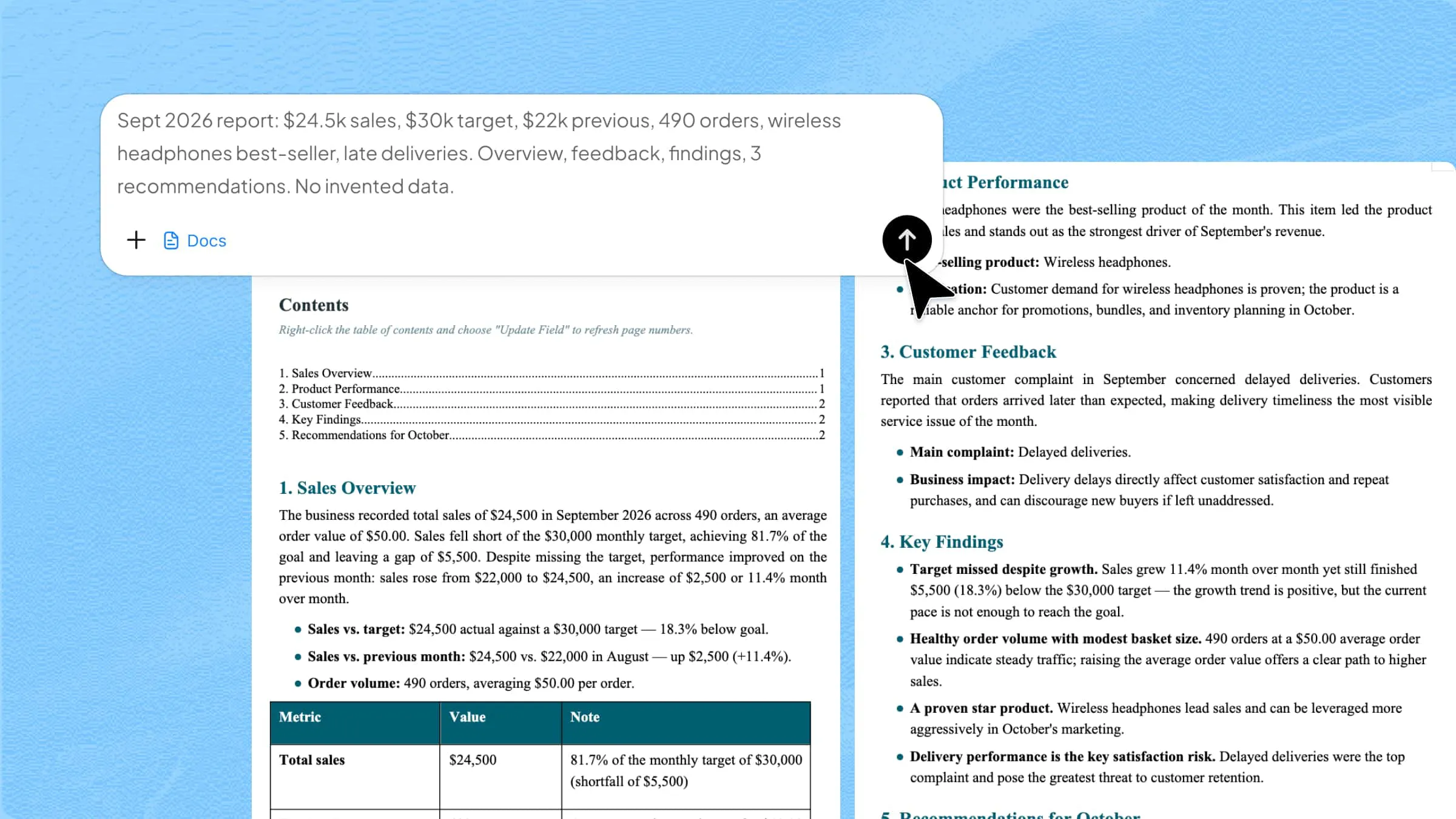
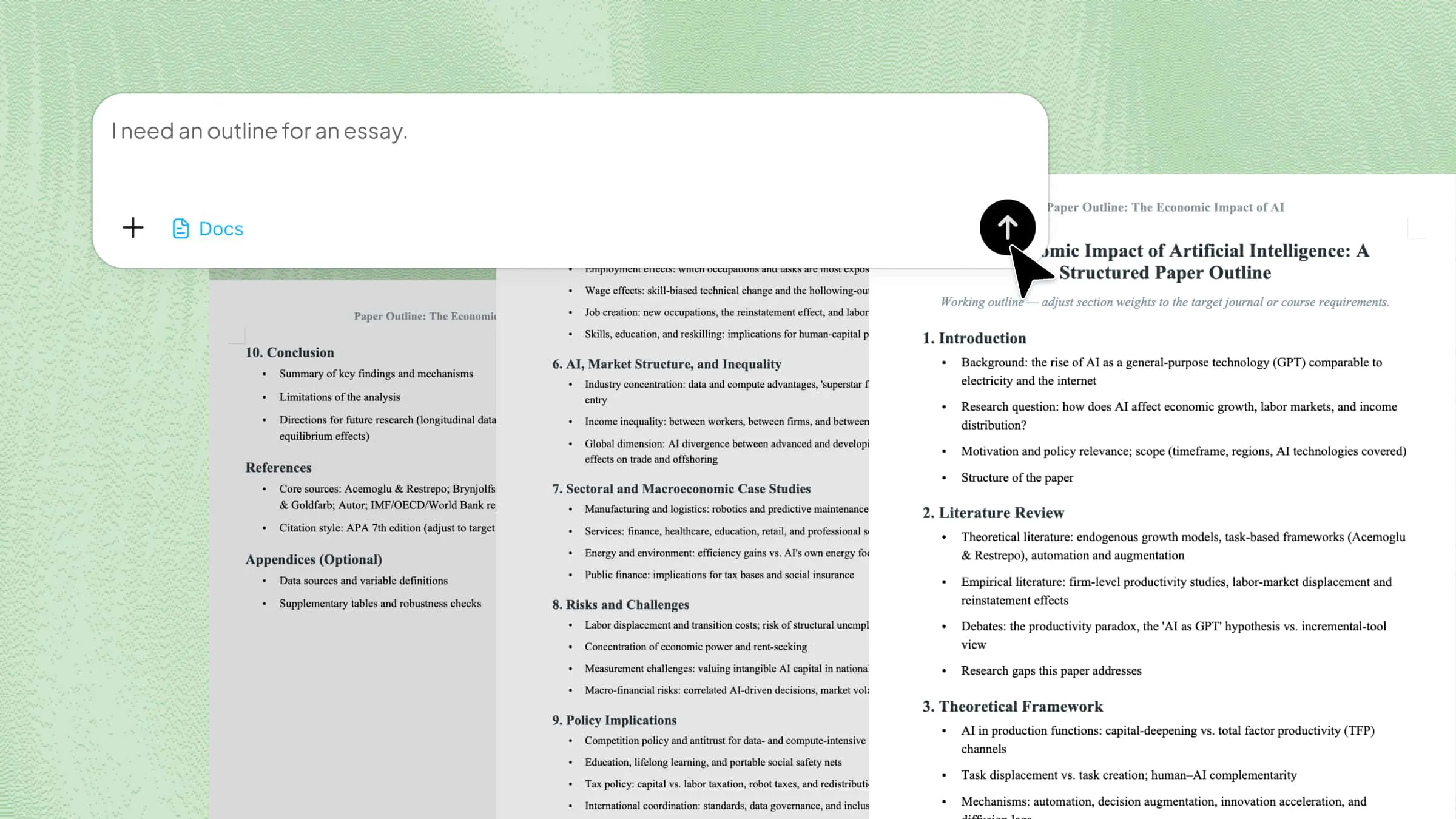
Open Kimi online and go to the "Docs" section to access the tool. In this section, write a detailed prompt describing the type of text file you want to generate, then click the submit button to start the generation process.
Example prompt:
Step 2: Let AI process and generate results
After you submit your prompt, the AI reviews your instructions and creates a full text document for you. It organizes headings, paragraphs, and formatting as you asked. You can check the content and make quick edits right in the editor.
Step 3: Export your document
Once the document is ready, export it to a PC. Kimi Docs supports easy downloading and sharing for different document types and workflows. You can save the file for offline use, collaboration, or future editing across multiple devices.
Key features of Kimi Docs
- Quick text generation with AI: Kimi Docs can generate complete text documents within seconds using AI writing technology. Users only need to enter a prompt, and the system creates structured content automatically.
- Multi-format input support: The platform supports different input formats, including plain text, notes, copied content, and structured prompts. This makes document creation faster and more flexible for different workflows.
- Clean plain-text formatting: Kimi Docs keeps text documents clean, organized, and easy to read without unnecessary formatting issues. The editor helps maintain proper spacing, headings, and a readable content structure.
- AI-assisted rewriting and editing: The AI can rewrite sentences, improve grammar, and make content clearer with minimal effort. This feature helps users refine drafts and create more professional documents quickly.
- Supports multilingual writing: Kimi Docs supports multiple languages for writing, editing, and text generation tasks. Users can create documents in different languages without switching platforms or tools.
- Easy copy, save, and sharing: The platform makes it simple to copy content, save files, and share documents online. Export and sharing options help users manage files smoothly across different devices and teams.
How to open and edit a TXT file on Windows?
Opening and editing a TXT file on Windows is easy and does not need special software. These files are small and open quickly on most devices. You can use built-in tools like Notepad to view and edit them. The process is simple and works well for basic text editing. Here's how you can access and edit text files on Windows.
Step 1: Locate the TXT file
Find the TXT file on your computer by opening the folder where it is saved. You can also use the search bar in Windows and type the file name inside "" to locate it quickly.
Step 2: Open the file with Notepad
Right-click the file and choose "Open with", then select "Notepad" from the list. The file will open in a simple text editor where you can view its content clearly.
Step 3: Edit and save changes
Make the required changes directly inside Notepad using your keyboard. After editing, click "File" and then "Save" to update the TXT file with new content.
How to create a text document on macOS?
Creating a text document on macOS is simple and does not require any complex tools. macOS provides built-in apps that make writing and saving text files quick and smooth. You can use TextEdit or other basic editors to create clean documents. The process is fast and suitable for notes, drafts, and simple writing tasks. Here's how to create a text document on a Mac.
Step 1: Open TextEdit
Open "Finder" and go to "Applications" to find "TextEdit". Launch the app to start creating a new text document easily.
Step 2: Create a new document
Click "File" and select "New" to open a blank page for writing. You can now type your content in a simple editing window.
Step 3: Save as a text file
Click "File" again and choose "Save" to store your document. Select a location, name your file, and ensure the format is set as plain text before saving.
How to make a text document on Linux?
Making a text document on Linux is quick and easy because of its simple tools and flexible system. You can use graphical editors or terminal commands to create files. This makes Linux good for both beginners and advanced users. Text files are often used for notes, scripts, and basic data storage. Here's how to create a text document on Linux.
Step 1: Open a text editor
Open "Activities" or the "Applications" menu in your Linux system. Select a text editor like "Text Editor", "Gedit", or "Kate" to start.
Step 2: Create a new file
Click "File" and choose "New" to open a blank document. You can also use terminal commands like touch filename.txt to create a file instantly.
Step 3: Save the document
Click "File" and select "Save" to store your text file on your system. Choose a folder, give a name, and save it as a ".txt" file for easy access.
What is a TXT file used for?
TXT files are simple and popular because they store information in a basic, clean format. They do not have complex styling, so they open easily on any device. These files are useful for many everyday digital tasks on different systems. The following are some creative ways to use text files.
Storing plain text data
TXT files are mainly used to store plain text data without any formatting or visual design. This makes the content lightweight, simple, and very easy to read or edit anytime. They are often used for simple data storage in both personal and professional work environments.
Writing simple notes
TXT files are commonly used for writing quick notes, reminders, and short messages. Users prefer them because they open instantly and do not require special software or tools. They are perfect for saving short, clear, and useful information quickly.
Saving configuration settings
Many software programs use TXT files to store configuration settings and system preferences. These files help applications remember user choices and system setups for smooth operation. Their simple structure makes them easy for programs to read and update automatically.
Logging system or app events
TXT files are often used to record system activities, application events, and error reports. They help track errors, actions, and performance logs over a period of time. Developers use these logs to debug issues and improve software performance efficiently.
Transferring data between programs
These files are useful for transferring data between different software programs and systems. Since they follow a basic and universal format, most applications can easily read them. This makes data sharing smooth, fast, and highly compatible across platforms.
Creating basic README files
TXT files are used to create README files for software projects and documentation. These files explain instructions, setup steps, and project details in simple, readable text. They help users understand how a program, tool, or system works.
Storing raw code snippets
Text documents are often used to store raw code snippets for reference and future use. Developers save small pieces of code without running or compiling them directly. This helps in organizing, reviewing, and reusing code more efficiently later.
Keeping simple to-do lists
TXT files are also used for making basic to-do lists, reminders, and task notes. Users can quickly add, remove, or update tasks without any complex tools or apps. This makes them a simple and effective productivity solution for daily planning.
Conclusion
Understanding how to create a text file helps you choose the right method for your work, whether it is simple editing or AI-based writing. Each approach offers varying levels of speed, control, and flexibility depending on your needs and device. Text documents remain an important part of everyday digital work because they are simple and widely usable. Try Kimi Docs to speed up and organize your writing process.