Word has no direct way to save a document as a JPG, so converting one always takes an extra step. Smallpdf handles this by routing the file through a PDF first, then exporting each page as an image. This guide walks through the full process, explains what to expect from the output, and covers a faster single-step option for when you'd rather skip the PDF entirely.
Step-by-step converting Word to JPG with Smallpdf
The process uses two separate tools on the Smallpdf platform. Here's the full sequence from start to finish.
Step 1: Open the Word to PDF tool
Go to Smallpdf's website and select the "Word to PDF" converter. This is the first half of the Word to JPG Smallpdf workflow.
Step 2: Upload your Word document
Drag and drop your DOC or DOCX file into the upload area, or select it from your device. You can also pull files from Google Drive, Dropbox, or OneDrive if your document is stored there.
Step 3: Download the converted PDF
Smallpdf converts the file automatically, keeping fonts, layout, and formatting intact. Download the PDF once it's ready. This file is just a stepping stone to get to the JPG, but it's worth checking that the layout looks right before moving on to the next step.
Step 4: Open the PDF to JPG tool and convert
Go to the "PDF to JPG" tool on Smallpdf and upload the PDF you just downloaded. Click "Convert." Smallpdf processes each page and turns it into its own JPG image.
Step 5: Download your images
Download the JPG file to your device. If the document has multiple pages, Smallpdf packages them into a ZIP file. Extract the folder and you'll find one image per page.
Limitations of converting Word to JPG with Smallpdf
Smallpdf converts the entire document, not individual pages. If you only need one page from a ten-page file, you still get all ten images. You'd need to either delete the ones you don't want afterward, or split the Word document down to just the page you need before running the conversion.
This method also only renders full pages as images. If you're trying to extract a specific photo or graphic embedded inside the document, that's not what this tool does. It takes each page as a complete unit and exports it as an image, which is useful for most cases but not for pulling out individual assets from within a page.
A one-step alternative: Convert Word to JPG with Kimi Docs
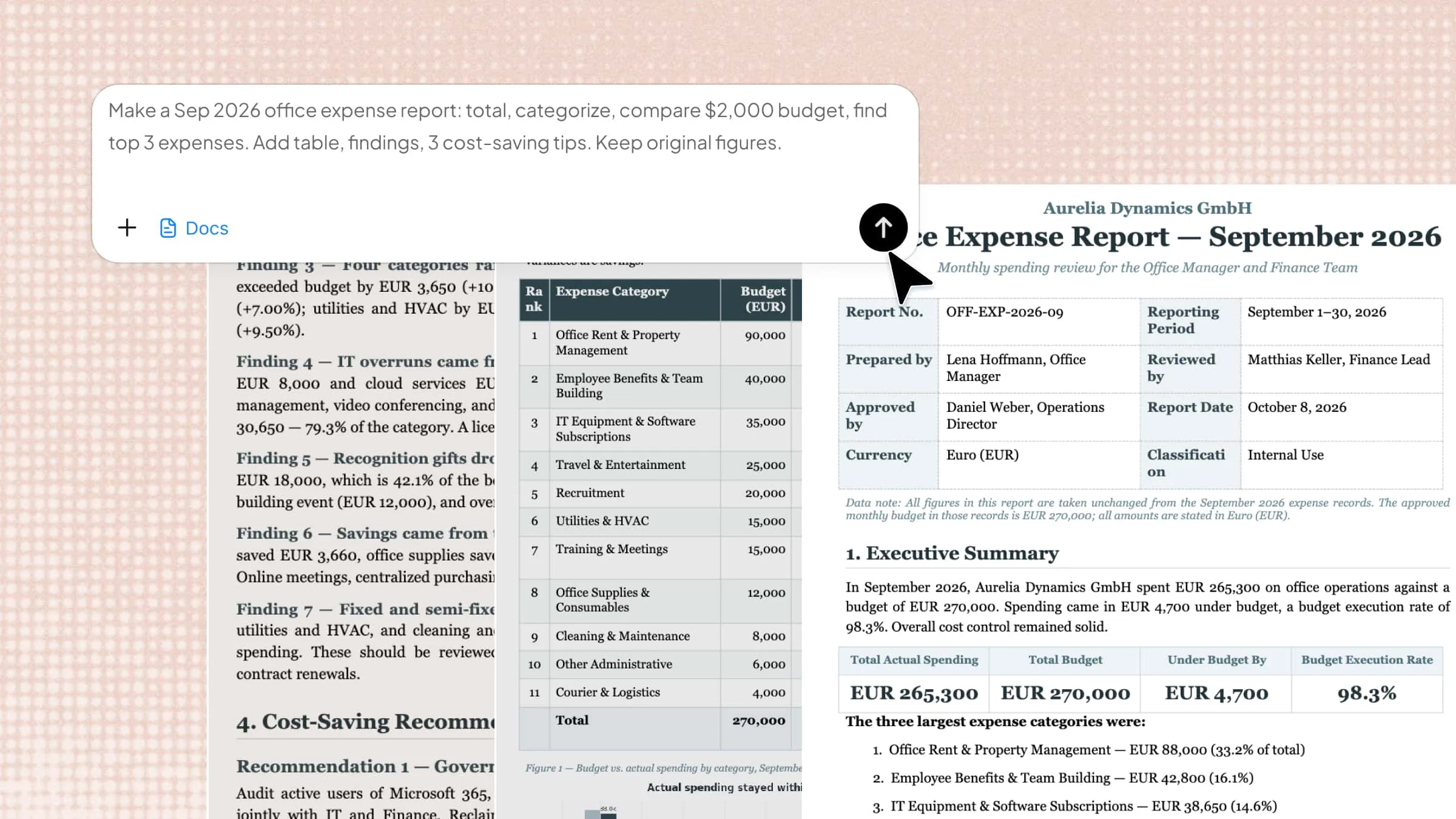
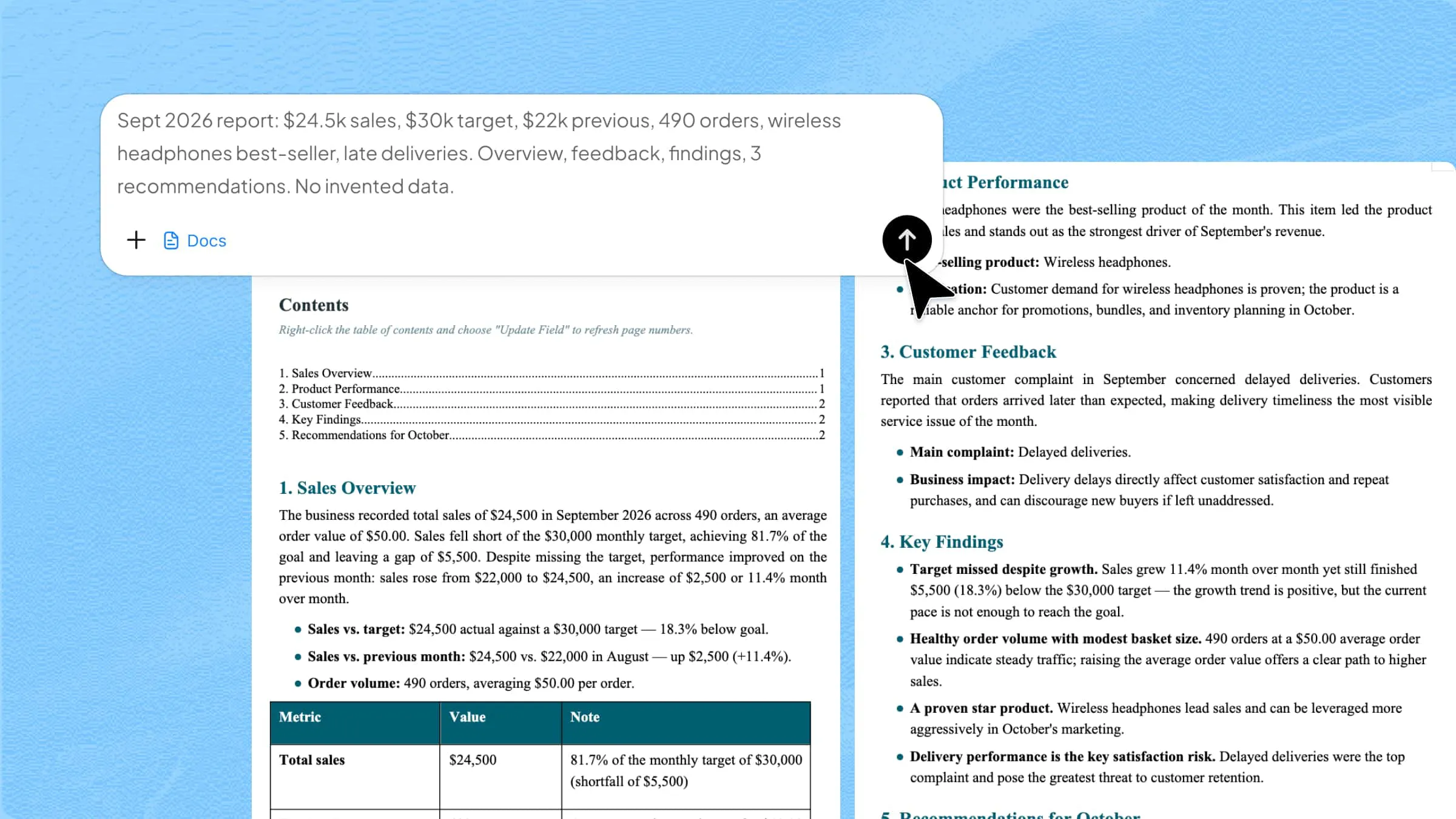
Kimi Docs takes the Word file directly and hands back the JPG. If you want a Word to JPG Smallpdf alternative that handles the whole thing in one upload, this is it. Acting as an efficient AI document agent, it streamlines your workflow by eliminating intermediate steps, allowing you to convert and format files instantly without leaving the platform.
Step 1: Upload your Word document and enter the prompt
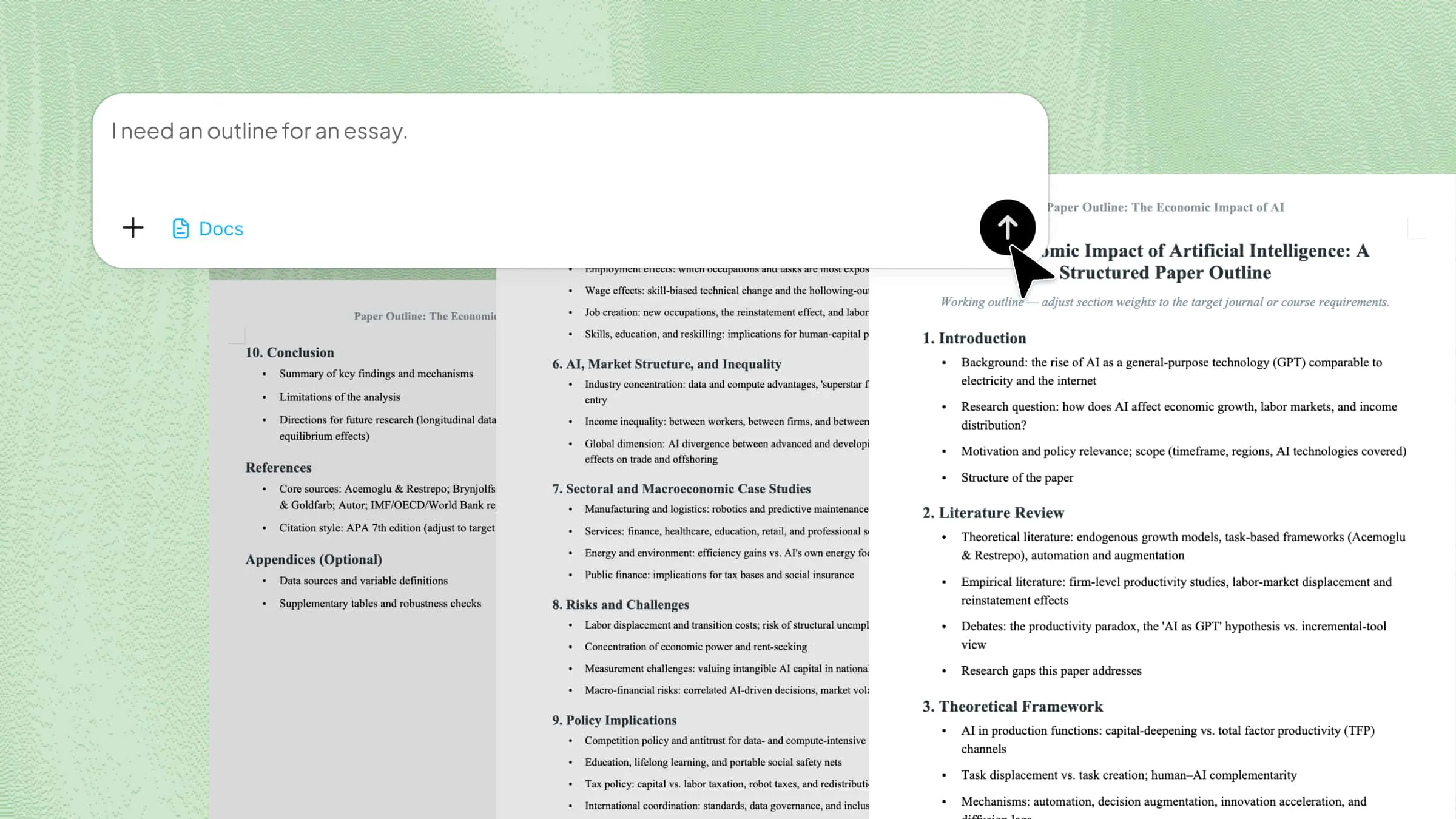
Upload your file to Kimi Docs and describe the output you want.
Step 2: Let Kimi process the file
Kimi renders each page as an image directly from the Word file, with no intermediate PDF generated or downloaded along the way.
Step 3: Download your JPG
Once processing is complete, download the image (or images) directly.
Key features of Kimi Docs
Single-step conversion: Upload the Word file and get the JPG back without saving an intermediate PDF, switching tools, or repeating the upload process. The whole conversion happens in one run.
Prompt-based customization: Specify the output format, page range, or layout requirements directly in the prompt, and Kimi applies them during conversion rather than after.
Handle long documents smoothly: Multi-page Word files convert without any extra setup. Each page is rendered as its own image automatically, so a twenty-page report produces twenty separate JPGs without any manual page selection.
Work across professional document types: Resumes, reports, white papers, financial statements, and other professionally formatted documents all convert cleanly to image format. The layout is preserved regardless of how complex the document structure is.
Tips for getting the best results
A few things that make a difference in the quality and usefulness of the output.
Start with a clean document: Any formatting issues in the Word file, such as inconsistent spacing, overflowing tables, or misaligned elements, will show up in the JPG. It's easier to fix them in Word before converting than to try to correct them in an image afterward. This is especially true for documents with columns or complex table structures.
Name your output files: For multi-page documents, name the output images before sharing. Smallpdf names the files sequentially by default, but giving them descriptive names makes them easier to manage and reference, especially if you're sharing individual pages rather than the full set.
Prioritize resolution for quality: If image quality is a priority, check whether Smallpdf's resolution settings are available for your account tier. Higher DPI output tends to produce sharper text and cleaner graphics in the final JPG.
Consider PNG for sharp detail: If the document has fine detail, small fonts, or graphics that need to stay crisp, PNG may be a better output format since it uses lossless compression. Most tools that handle JPG output also support PNG, so it's worth checking the options before you download.
Smallpdf vs Kimi Docs: Which one to use
Both tools get you from a Word document to a JPG. The difference is in how many steps it takes, what you can control, and whether an intermediate PDF is something you're comfortable downloading and managing.
| Smallpdf | Kimi Docs | |
|---|---|---|
| Steps to get a JPG | 2 tools, 2 uploads | 1 upload |
| Intermediate PDF created | Yes | No |
| Convert specific pages only | No, whole document only | Yes, specify in prompt |
| Output format options | JPG | JPG, PNG, or other formats via prompt |
| Account required | No for basic use | Yes, but free account will do |
Smallpdf is a solid choice if you're already in its ecosystem and want a familiar, no-frills workflow. Kimi Docs is the better fit if you want fewer steps, more control over the output, or you're converting professional documents that need their layout preserved precisely.
Conclusion
Smallpdf word to JPG conversion works reliably and keeps document formatting intact through the PDF step. The two-tool workflow adds some friction, but it produces consistent results for most standard Word documents and requires no account for basic use. If you want to cut out the intermediate file, skip the extra download, and get the JPG in a single upload, Kimi Docs gets you there more directly, with more control over the output along the way.