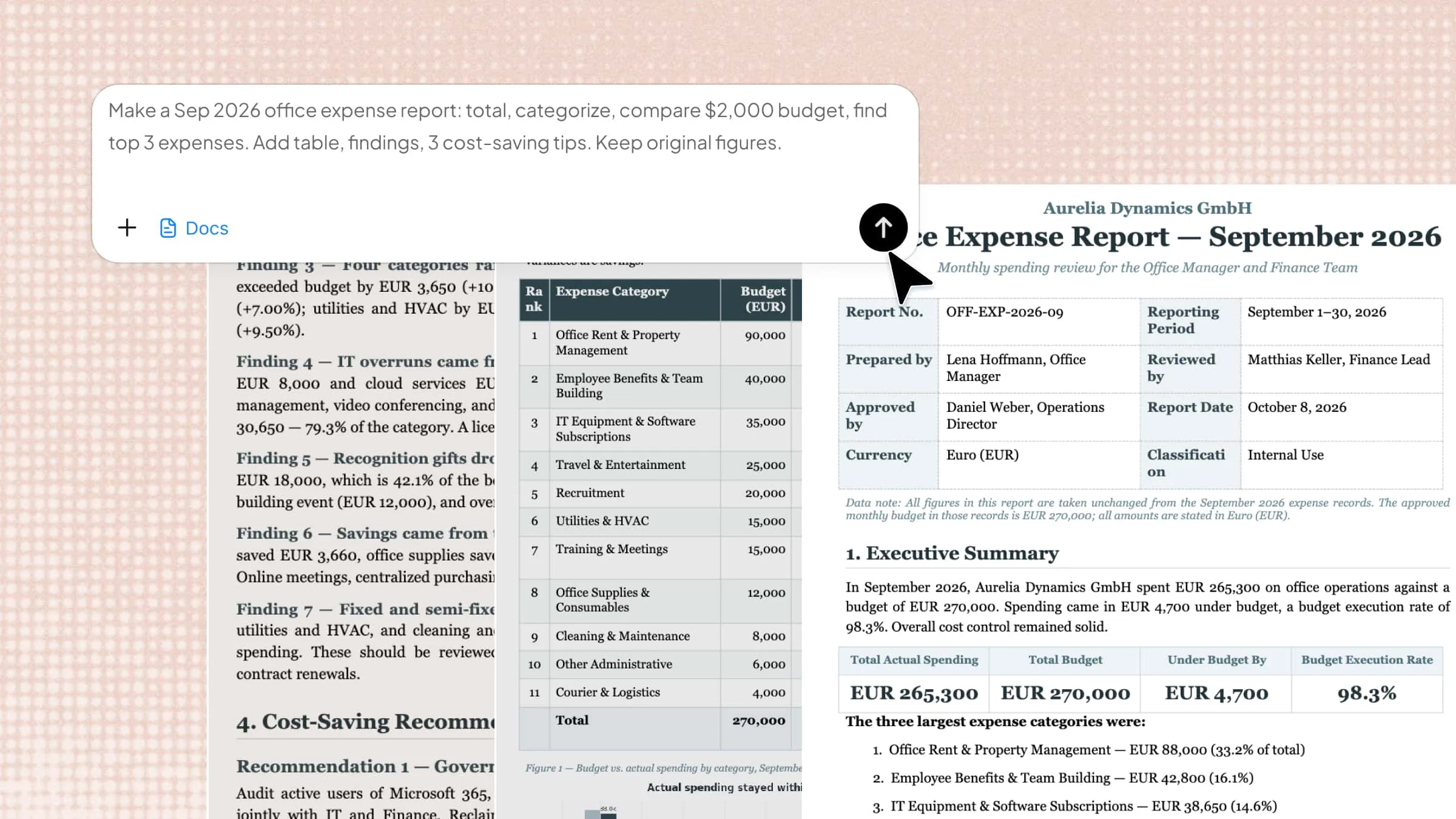
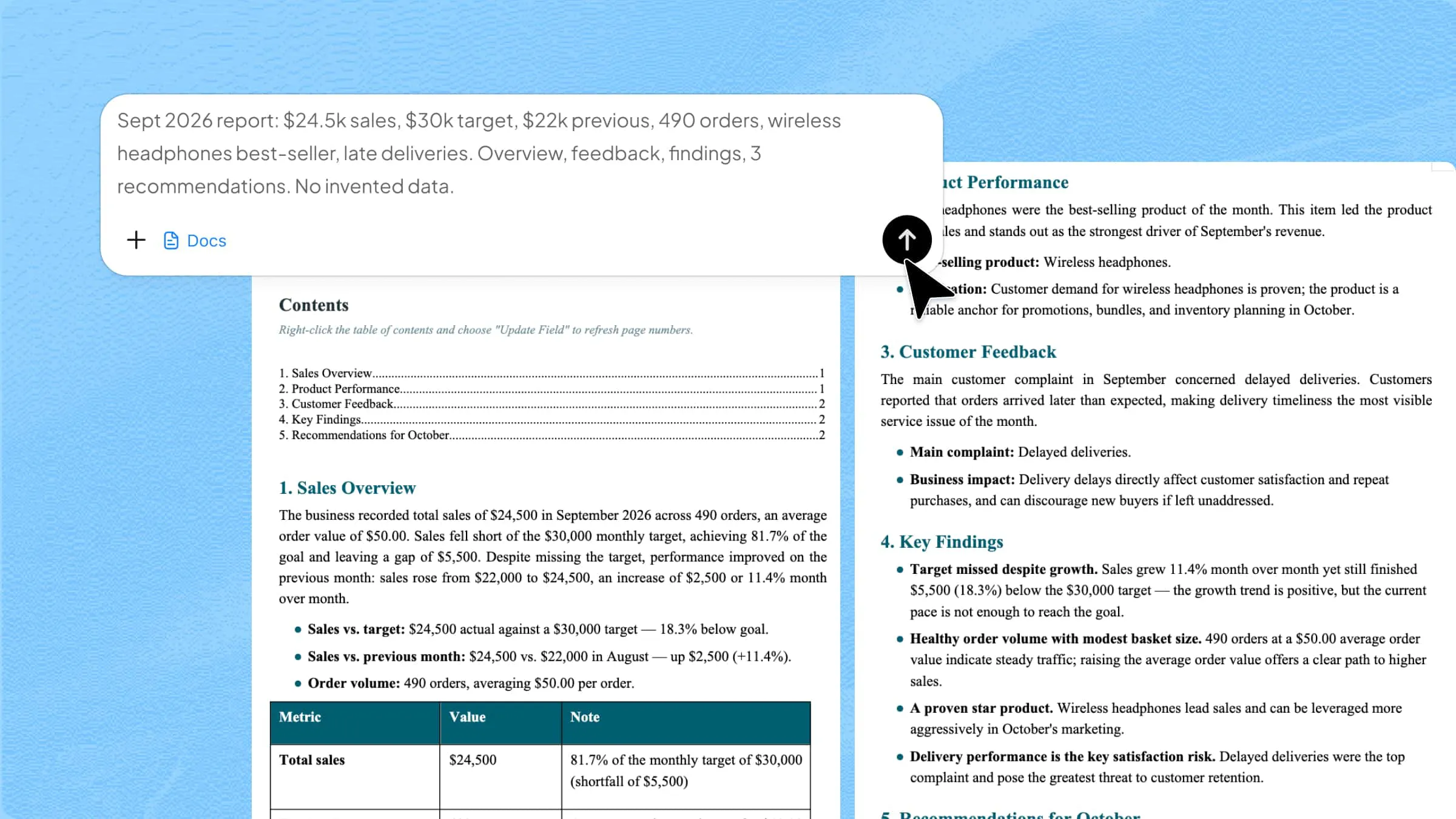
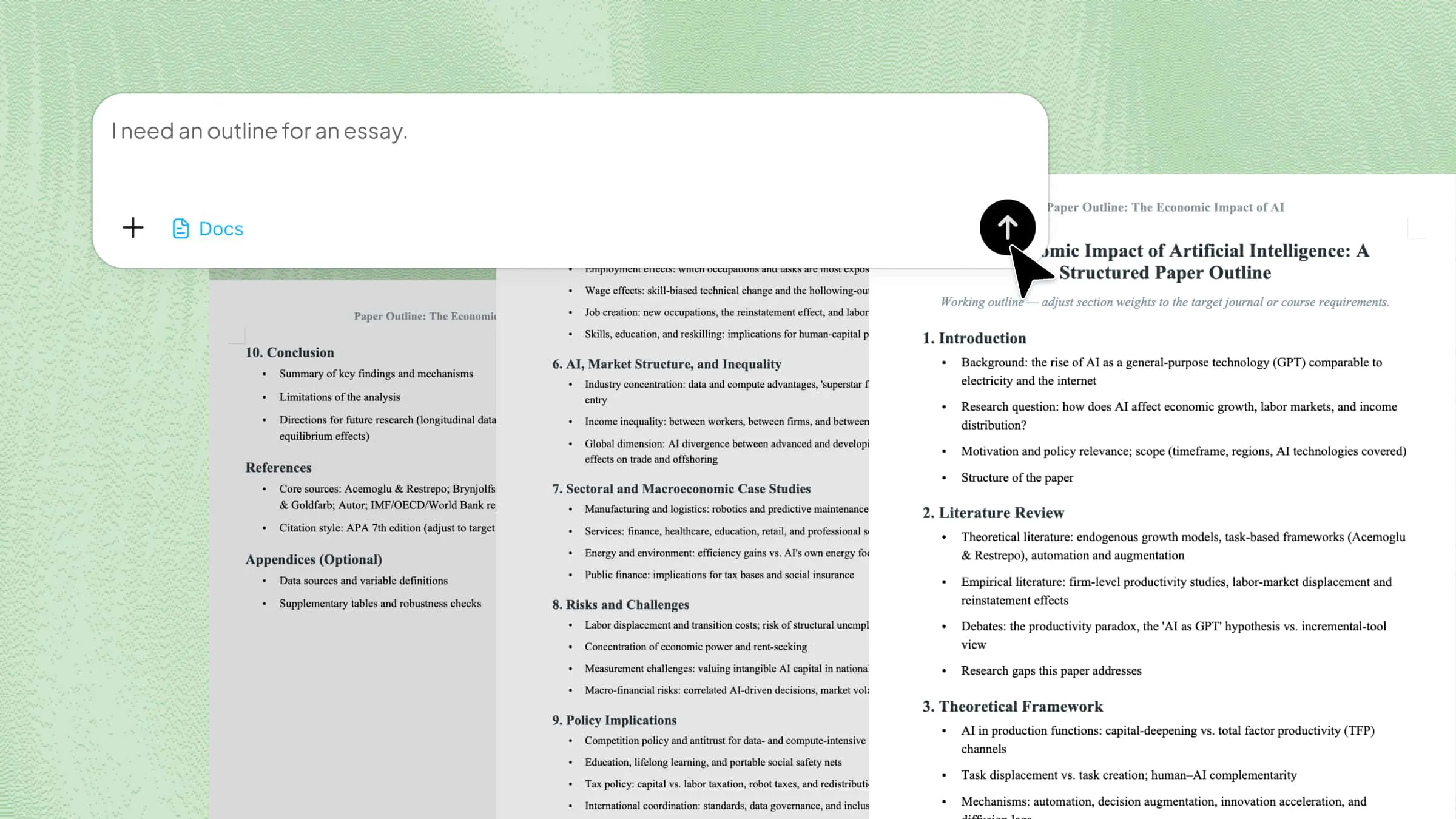
Convert Word to PDF with iLovePDF Easily

Convert Word to PDF in minutes with iLovePDF, keeping fonts, images, and layouts accurate across all devices. For a smarter, smoother experience, Kimi Docs optimizes formatting and streamlines the conversion workflow.

10 min read2026-05-22
Convert Word to PDF with Kimi Docs

Table of contents

Managing documents becomes much easier when you can turn Word files into PDFs in just a few clicks. iLovePDF Word to PDF converter helps people quickly change documents into clean PDF files for sharing, printing, or saving online without any trouble. This article will explain how to use it, its features, and why many people prefer it for daily file conversion tasks.

How to convert Word to PDF in iLovePDF?

Converting Word files into PDF is simple when you use an online tool like iLovePDF. It only takes a few clicks and works directly from your browser without any software. The process keeps your formatting safe and clear during conversion. Below are the easy steps to follow using the iLovePDF platform.

Step 1: Open the iLovePDF website

Open your browser and type iLovePDF in the search bar. From the homepage, click on the "Word to PDF" tool to start the process.

Open the iLovePDF website

Step 2: Upload and convert the file

Click " Select WORD files" to upload your file. After uploading, click "Convert to PDF" to start the conversion.

Upload the file with the iLovePDF Word to PDF converter

Step 3: Download the PDF file

Wait a minute until the tool finishes, and then download your converted PDF file. Your document will keep the same formatting as the original Word file.

Convert and download the PDF file with the iLovePDF Word to PDF converter

Which Word files are compatible with iLovePDF?

iLovePDF's Word to PDF converter works with a variety of Word document types. You can easily convert any of the following formats to PDF:

  • DOC → PDF
  • DOCX → PDF
  • ODT → PDF
  • OTT → PDF
  • STW → PDF
  • SDW → PDF
  • SXW → PDF

Limitations when converting Word to PDF with iLovePDF

Even though online converters are very useful, they still come with a few limits that users should know. The iLovePDF Word to PDF tool works well for basic tasks, but it may not always meet advanced needs. Understanding these limitations helps you use the tool in the right way for better results.

File size restrictions

One common limitation is that large Word files may take more time to upload or may not process smoothly. Free versions often have limits on file size or number of conversions. The iLovePDF Word to PDF tool is best for small to medium-sized documents only.

Formatting inconsistencies

Some small changes can appear after conversion, especially in spacing, fonts, or page layout. The final PDF may not always match the original Word file exactly. While the iLovePDF converter usually performs well, slight differences can still happen.

Basic customization

The tool mainly focuses on simple conversion without offering advanced editing features. Users cannot deeply adjust design elements, layouts, or creative formatting options. This makes it less suitable for detailed document customization needs.

No AI-assisted design

There are no smart design features or AI-based improvements for enhancing documents. Users must prepare and finalize their Word file before conversion. The platform only converts files without upgrading or redesigning the content automatically.

Experience smart and stylish Word to PDF conversion: Kimi Docs

Kimi Docs is an AI document agent built to simplify document processing and make file handling faster and smoother. It focuses on smooth Word to PDF conversion with clean formatting and stable output quality. The system is built with smart processing features that help maintain document structure during conversion. Overall, Kimi Docs provides a reliable and tech-driven way to manage and convert documents with ease.

How to change a Word doc to a PDF file in Kimi Docs?

Converting a Word document into a PDF in Kimi Docs is a simple and smooth process designed for quick results. The platform keeps the workflow clean so users can easily upload and convert files without confusion. Here's how you can do it easily:

Step 1: Upload your Word file and enter the prompt

Open Kimi online and go to the "Docs" section to access the workspace. Click the "+" icon to upload the Word file from your PC. Then, enter a clear and descriptive conversion prompt and press the "Generate" button to start the process.

Example prompt:

Convert this Word document into a clean, properly formatted PDF. Keep all headings, subheadings, spacing, and structure the same. Ensure consistent font style and size throughout the document. Maintain paragraph alignment and readability. Preserve bullet points, numbering, and any tables without distortion. Make the final output professional and print-ready with proper margins and no content loss.

Upload your Word file and enter the prompt

Step 2: Let Kimi process and generate results

Kimi Docs will automatically process your file and prepare it for conversion. The system analyzes the document and maintains its structure, formatting, and layout. Just wait a few seconds while it generates the final PDF output.

Let Kimi process and generate results

Step 3: Download your PDF

Once processing is complete, your converted PDF will be ready for download. Click the "Download" to save the file to your device. The final PDF will preserve your original formatting and keep it clean and professional.

Download the PDF

Preview the PDF

Main functions of Kimi Docs

  • Instant word-to-PDF conversion: Kimi Docs quickly converts Word files into PDF format without a long waiting time. The process is smooth and works directly through the platform in just a few clicks.
  • Automatic content formatting: The system automatically adjusts spacing, layout, and structure during conversion. This helps keep the document clean and readable without manual editing.
  • Smart text refinement: Kimi Docs improves text clarity by adjusting alignment and presentation. It ensures the final document looks more polished and professional.
  • Customizable styles: Users can change basic styling options before final conversion. This helps match the document with personal or professional requirements.
  • Accurate image & chart handling: Images and charts stay properly placed during the conversion process. The tool maintains its quality and alignment without distortion.
  • Long-document support: Kimi Docs can handle large documents without breaking structure or layout. This makes it useful for reports, research papers, and lengthy files.
  • Batch processing capability: Multiple files can be processed at the same time for faster workflow. This is helpful for users who need bulk conversions regularly.
  • Secure & editable output options: Converted files remain secure during processing and download. Users also get flexible output options depending on their editing needs.

Conclusion

Choosing the right tool for document conversion can make everyday work faster and more organized. Online platforms help users handle files easily without complex steps or extra effort. A smooth process also saves time in study, office, and personal tasks. The iLovePDF Word to PDF option is still a simple and reliable choice for quick conversions. For a smarter and more modern experience, try Kimi Docs and improve the way you manage your documents.

FAQ

Is iLovePDF Word to PDF free?
Yes, iLovePDF is free to use for basic document conversions. Users can easily upload and convert Word files directly from their browser without any payment. It works well for simple daily tasks like assignments, reports, and personal documents. Some extra features may be part of a paid plan, but basic conversion stays free.
How many files can I convert for free on iLovePDF?
The free version allows users to convert a limited number of files depending on usage rules. There may also be restrictions on file size and batch processing for free accounts. For normal users, single-file conversion is usually enough for everyday work. If you need more conversions, upgrading can increase the limit and speed.
Can I convert multiple Word files at once with iLovePDF?
Yes! To save time and work more efficiently, you can convert multiple Word files to PDF simultaneously. After logging in to your iLovePDF Premium account, simply drag and drop your files into the online tool. You can also add more files anytime by clicking the red "+" icon.