Convert Word to PDF with Sejda: Step-by-Step Guide

Convert Word to PDF with Sejda quickly and reliably, preserving fonts, layouts, and images. For a smarter conversion, Kimi Docs streamlines your workflow—refining content, enhancing clarity, and making daily file-handling smooth and effortless.

10 min read2026-05-25
Convert Word to PDF with Kimi Docs

If you need to turn a Word document into a PDF quickly, using the Sejda Word to PDF converter makes it really simple. It works online, so there's no need to install anything on your computer. The tool keeps your files neat and ready for sharing or printing in just a few steps. Keep reading to learn how to use it easily in this step-by-step guide.

How to convert Word to PDF in Sejda?

Turning a Word document into a PDF is quick and simple with the Sejda Word to PDF tool. Everything works online, so you can upload, convert, and download your file in just a few easy clicks.

Step 1: Go to Sejda PDF editor

Open your web browser and visit "sejda.com". On the homepage, you will see the PDF editing tools. This is where you can access all the features, including the Word to PDF converter.

Go to Sejda PDF editor

Step 2: Select the Word to PDF tool

Click on "All tools" and look for the option "Word to PDF". Click it to open the conversion page where you can upload your Word document.

Select the Word to PDF tool

Step 3: Upload, convert, and download your file

Click "Upload Word file" and select your document. The tool will automatically convert it to PDF. Once finished, click "Download" to save your new PDF file.

Upload and convert your file

Why is Sejda Word to PDF not working properly?

Sometimes the Sejda Word to PDF editor may not work properly due to small technical issues. These problems are usually related to file type, internet connection, or browser settings. The good thing is that most issues are easy to fix in a few simple steps and with quick troubleshooting methods.

File format issue: Convert to .docx

The Sejda Word to PDF tool may not work if your file is not in a supported format. Older formats like .doc can cause errors during upload or conversion. Converting your file to .docx before uploading usually solves this problem quickly and effectively without any hassle.

Large file size: Reduce or split the file

Very large documents can slow down or stop the conversion process. The tool may struggle to process heavy files with many images or pages. Reducing the file size or splitting it into smaller parts can help fix this issue in a better way for smooth conversion.

Slow internet: Switch connection

A weak internet connection can interrupt the upload or conversion process. The file may fail to load completely in the Sejda Word to PDF editor. Switching to a stable or faster connection usually improves the result and makes the process smooth and reliable.

Browser problem: Clear cache or change browser

Sometimes the browser causes errors while using the tool. Cached data or outdated settings can block proper file processing. Clearing the cache or switching to another browser often fixes the issue and restores normal working quickly and easily.

Corrupt file: Re-save and retry

A damaged or incomplete Word file may not be converted correctly. The Sejda Word to PDF tool may fail to read or process it. Re-saving the document and uploading it again can solve this problem without any extra difficulty or repeated effort.

Upload error: Re-upload file

File upload issues can happen due to temporary glitches. The document may not fully reach the server, causing conversion failure. Re-uploading the file usually helps complete the process successfully and ensures proper conversion without any interruptions.

Outdated browser: Update your browser

An old browser version may not support all features of the tool. This can lead to slow performance or conversion errors. Updating your browser ensures better compatibility and smooth working without any interruption or unexpected issues.

Server delay: Try later

Sometimes the issue is not on your side but with the Sejda server. Heavy traffic can slow down or pause the Sejda Word to PDF editor. Waiting a little while and trying again usually resolves the problem and restores access quickly and smoothly.

A smart alternative to Sejda Word to PDF: Kimi Docs

Kimi Docs is an AI document agent that works as a smart alternative to Sejda. It uses advanced AI models to understand document structure and content more accurately during conversion. This helps keep formatting, layout, and text alignment consistent in the final PDF output. The system is designed for fast, cloud-based processing to make file handling smooth and efficient.

How to convert Word to PDF with Kimi Docs?

Converting Word files to PDF becomes easier with AI-based tools like Kimi Docs. It uses smart processing to keep your document layout clean and accurate. Follow the simple steps below to complete the conversion quickly and smoothly.

Step 1: Upload your Word file and enter the prompt

Open Kimi online and navigate to the "Docs" workspace. Click the "+" icon to upload your Word file. Then, enter a clear conversion prompt and click the "Generate" button to let the AI start processing the document.

Example prompt:

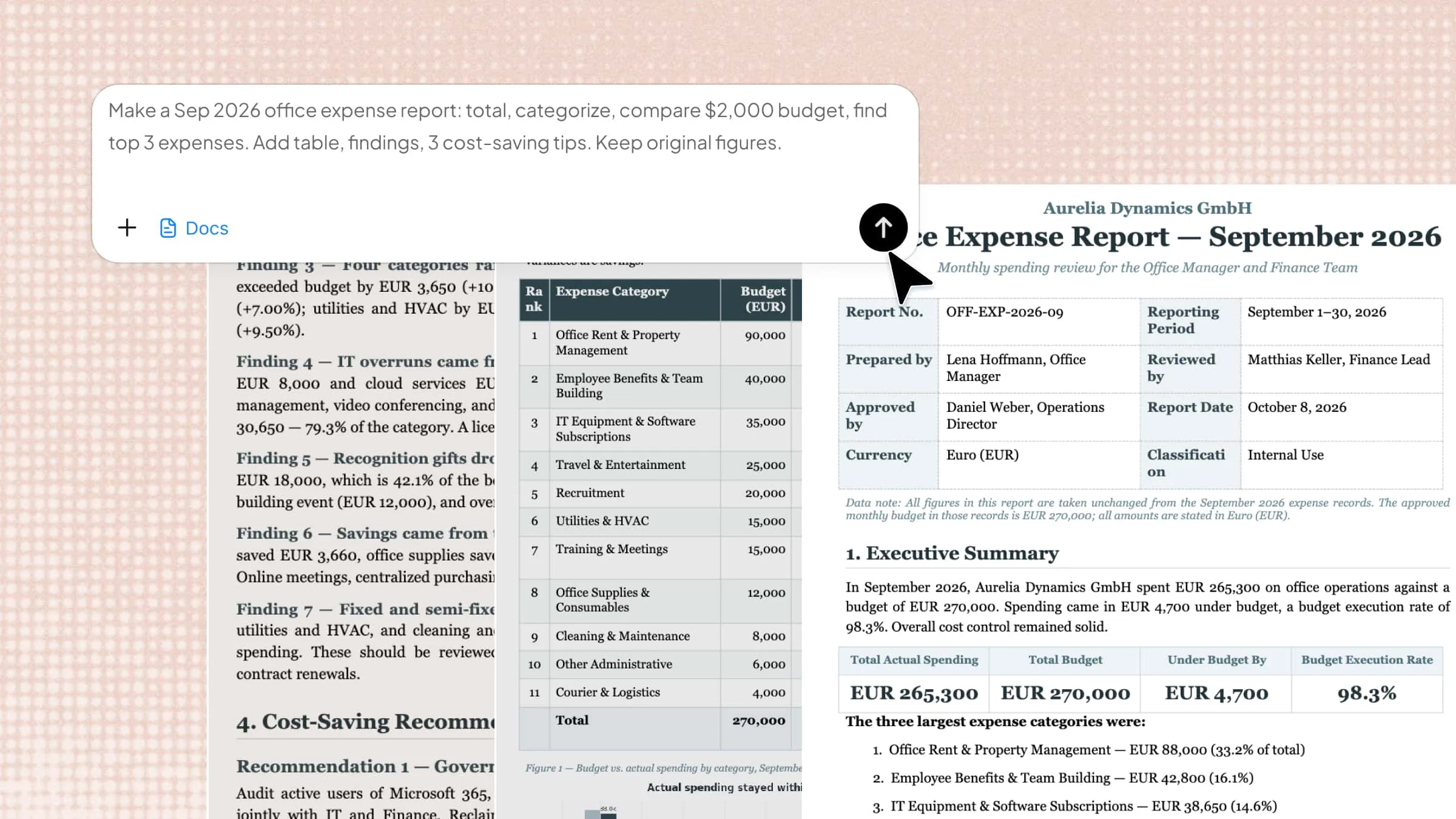
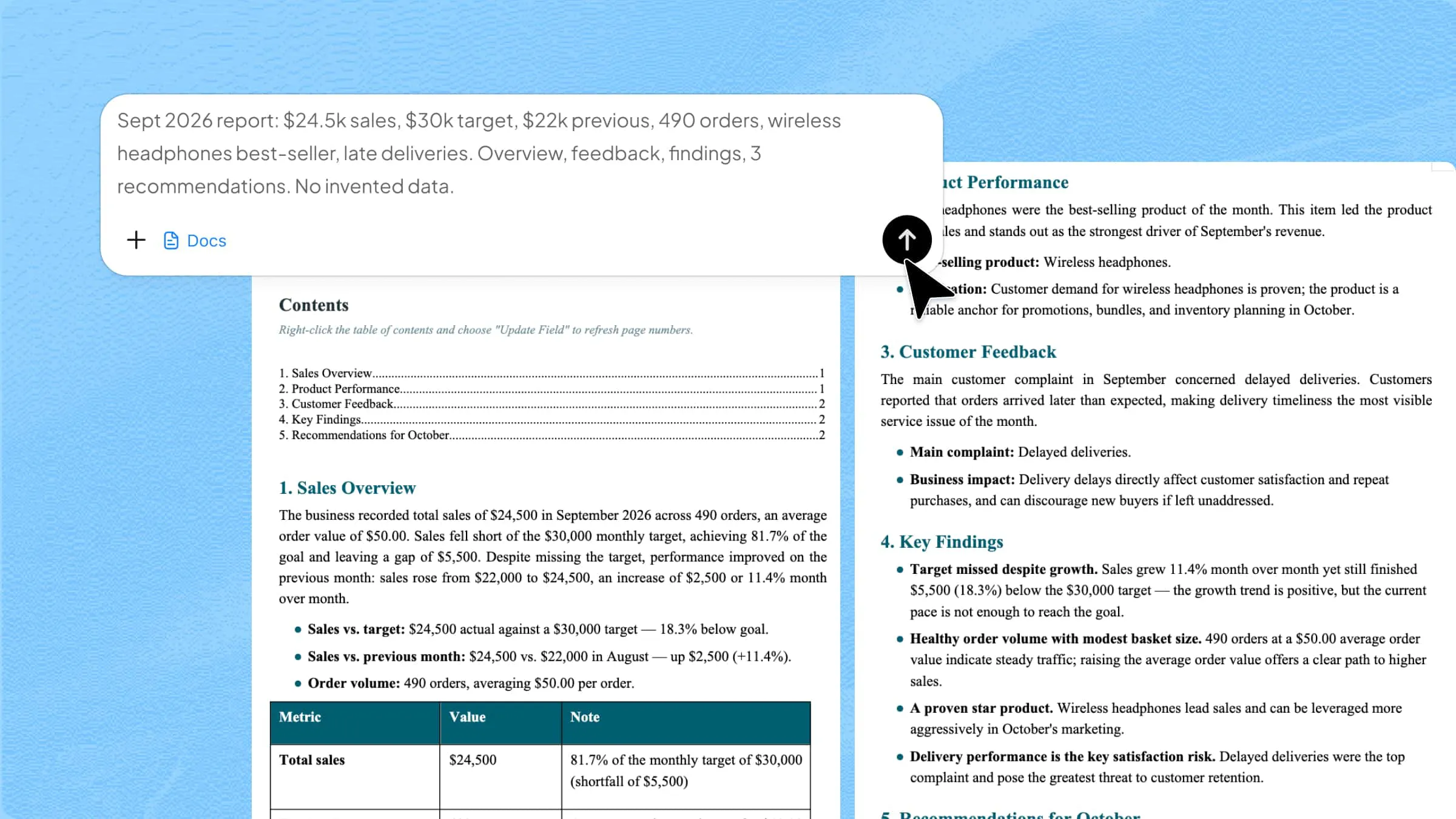
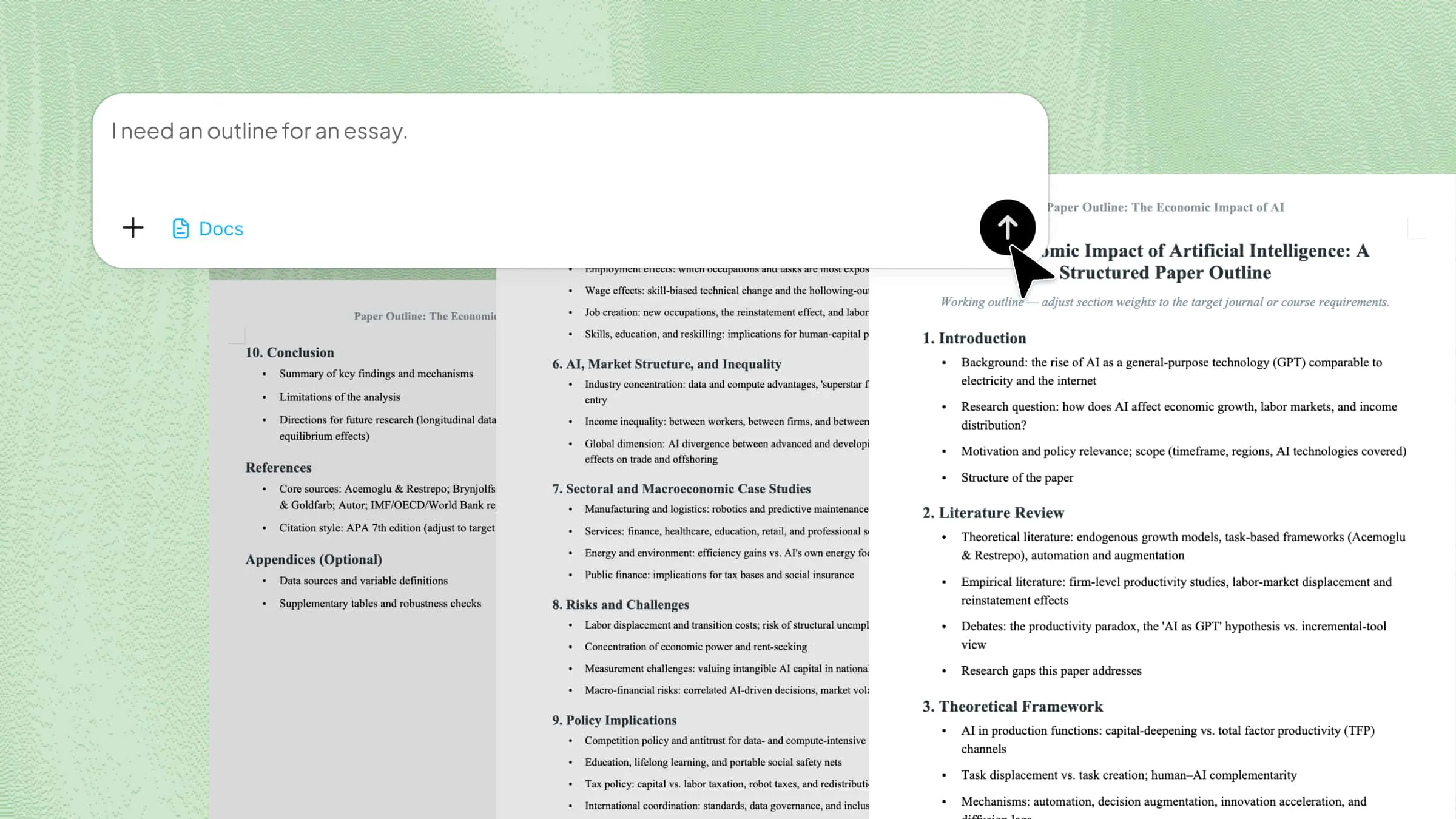
Convert the uploaded Word document into an editable PDF file. Preserve all formatting, including headings, paragraphs, tables, and images. Ensure the text remains selectable and editable in the PDF. Make the final PDF ready for immediate use and easy modification.
Upload your Word file and enter the prompt

Step 2: Let Kimi process and generate results

Now, let Kimi Docs start analyzing your document using AI-based processing. It reads the structure, text layout, and formatting to generate an optimized PDF version. This step runs automatically, so you just need to wait for the results to be prepared.

Let Kimi process and generate results

Step 3: Download your PDF

Once processing is complete, the final PDF file is ready for download. You can review the output to check formatting and layout consistency. Simply click download to save the file to your device for use or sharing.

Download your PDF
Preview your PDF

Top functions of Kimi Docs

  • Fast & seamless conversion: Kimi Docs converts Word files into PDF quickly without delays or manual adjustments. The process runs smoothly in the background for a better user experience.

  • Preserve every detail: It keeps all text, formatting, and structure the same as in the original document. Even small layout elements remain consistent in the final output.

  • Handle long and complex documents: Kimi Docs can process large reports and detailed files without breaking the structure. It manages complex formatting with stable performance.

  • Accurate data and chart extraction: The system correctly identifies tables, charts, and numerical data during conversion. It ensures nothing important is lost or misaligned in the PDF.

  • Professional layout and design: Converted files maintain a clean and professional look suitable for formal use. Spacing, headings, and alignment stay well-organized throughout the document.

  • Supports multiple file formats: Kimi Docs works with a wide range of file types beyond Word documents, including PPT, XLS, XLSX, TXT, JPG, PNG, etc. This flexibility makes it ideal for various document conversion and processing needs.

  • Batch processing for efficiency: Multiple files can be processed at the same time without slowing down performance. This saves time when handling bulk document conversions.

Conclusion

Converting documents has become much easier with both online and offline tools, giving users flexible options for different needs. Choosing the right method depends on your workflow and document type. Each option helps keep your files ready for simple sharing. The Sejda Word to PDF tool works well for quick browser-based conversions, while AI-based solutions bring more advanced handling for complex files. For a smoother and smarter experience, try Kimi Docs and see how it improves your document conversion process.

FAQ

Can I edit PDF text with Sejda?
Yes, Sejda lets you edit text inside PDF files directly in your browser. You can add, remove, or change text without installing any software. It also supports basic formatting tools for quick adjustments. The changes are saved and ready for download easily.
Is Sejda PDF editor free?
Sejda offers a free version with limited daily usage. You can perform basic tasks like editing, converting, and compressing PDFs. For larger or unlimited use, a paid plan is required. The free version works well for simple and occasional tasks.
How to type on a PDF with Sejda?
To type on a PDF, first select your PDF document and click on "Upload" to choose the file. Make sure the "Text" tool is selected, then click anywhere on the PDF page to add your text. Once you've finished typing, click the "Apply changes" button to save your edits, and finally select "Download" to get your updated PDF document.