Using Skills in Agent Mode
How to invoke Skills?
In Kimi Agent Mode's input box, there are three ways to invoke Skills:
Method 1: Use the / command
Type / in the input box to bring up the Skill list. Click a Skill name to insert it. You can also type keywords after the / to filter the list.
Method 2: Use the "➕" menu
Click the ➕ button next to the input box. Select a Skill from the menu, and the Skill name will be inserted as text in the input box.
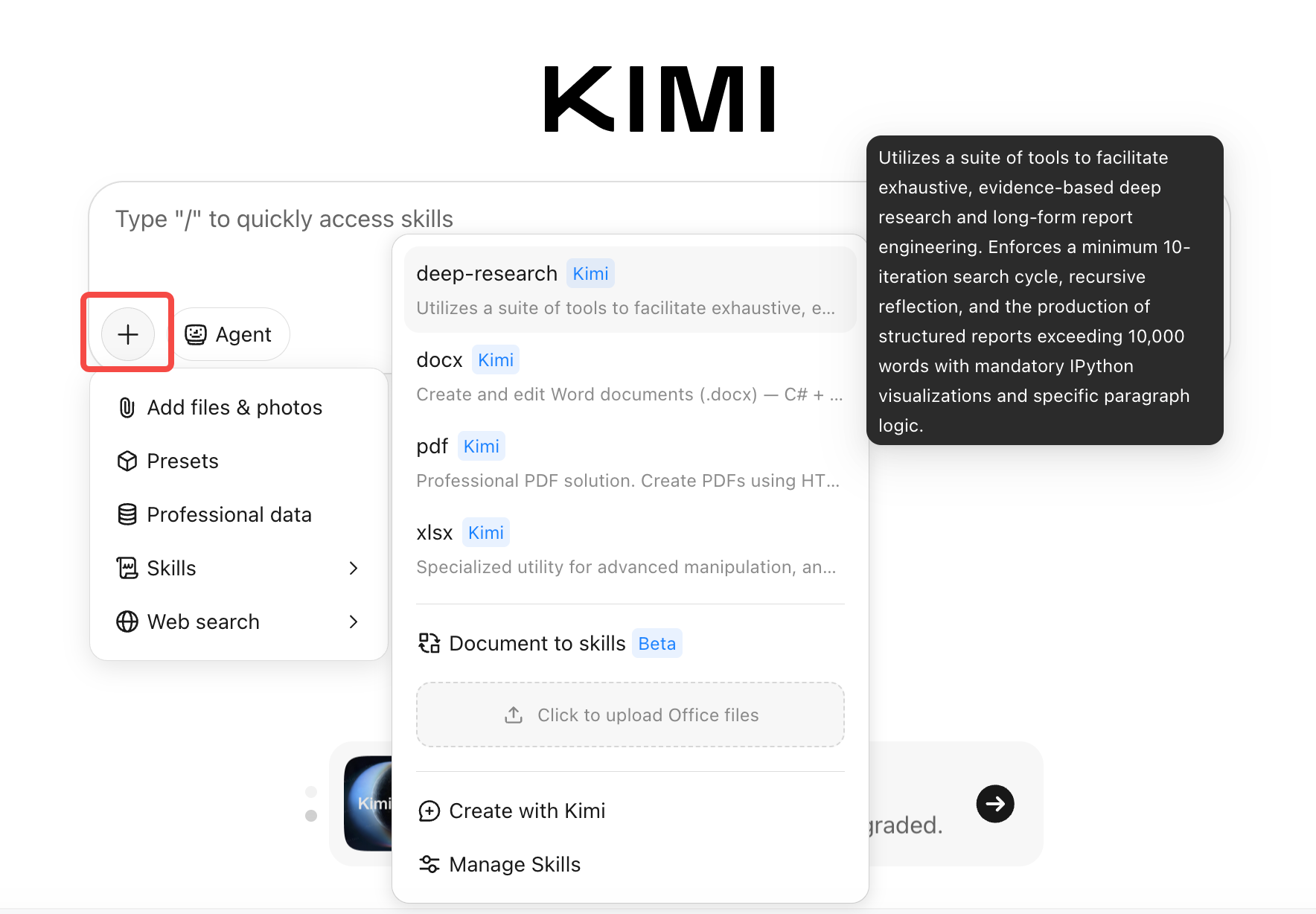
Method 3: Let Kimi decide
Simply describe your needs. Kimi will automatically identify and trigger the most appropriate Skill based on your task content.
Example: Using Skills to generate an SEO analysis report
Suppose you are a content manager who wants to analyze your website's SEO performance:
- Type
/in the input box, find and select theseo-analyzerSkill. - Continue entering:
Please analyze https://help.com/zh-cn/help's SEO performance, list the main issues and optimization suggestions.
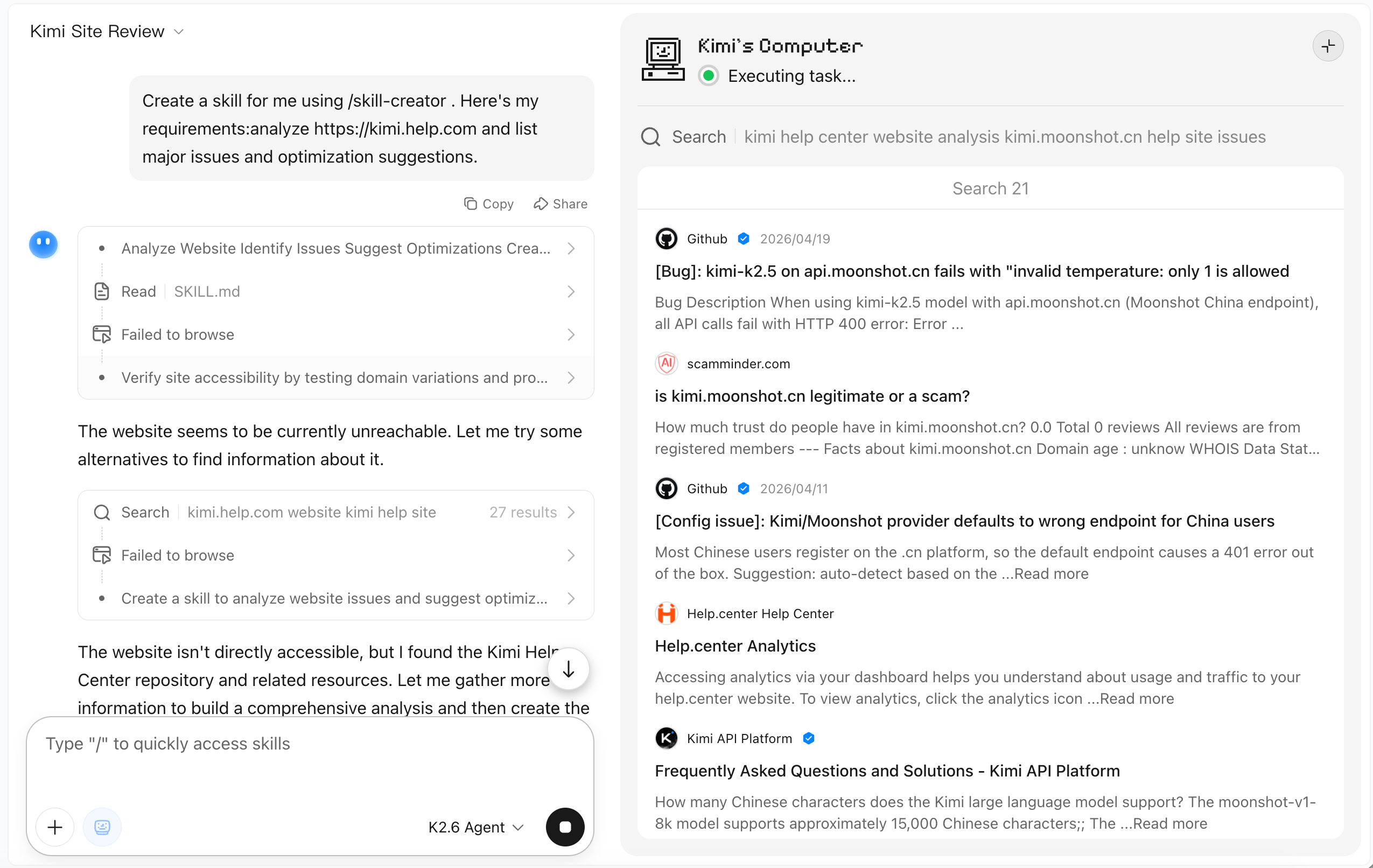
- After sending, Kimi will automatically search, organize, and output a structured report following the SEO analysis workflow.
You don't need to tell Kimi how to do the analysis—the workflow is already defined in the Skill.
Discover and manage Skills
Kimi' picks
Kimi offers a set of out-of-the-box recommended skills available for one-click addition:
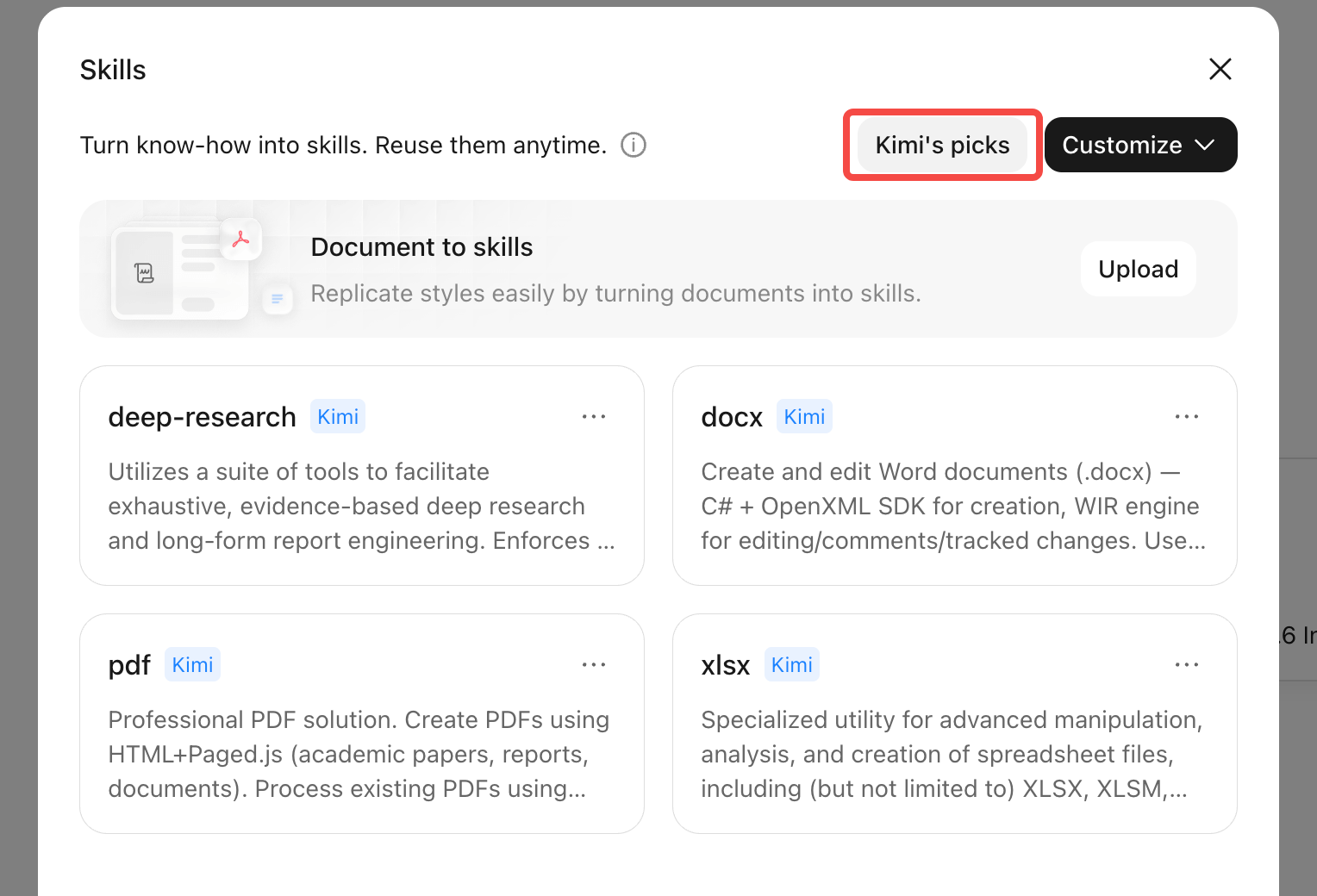
Customize Skills
If Kimi recommended skills don't meet your needs, you can create custom skills tailored to your specific workflow.
When should you create a custom skill?
- You have a recurring task that needs to be executed repeatedly (e.g., weekly competitor reports).
- You want Kimi to output content in your company's specific format.
- You have a set of working methods that you want Kimi to follow directly.
A good skill should do one thing and do it well. Don't try to cram all requirements into a single skill.
Option 1: Document to skills
If you already have ready-made templates, standard documents, or example files, you can upload them directly and let Kimi learn and generate the corresponding skill.
- Select Office Document to Skill in the Skills panel.
- Click or drag files to the upload area. Supported formats:
docx,xlsx,pdf,pptx, and document screenshots. Maximum 3 files per upload, each not exceeding 100 MB.
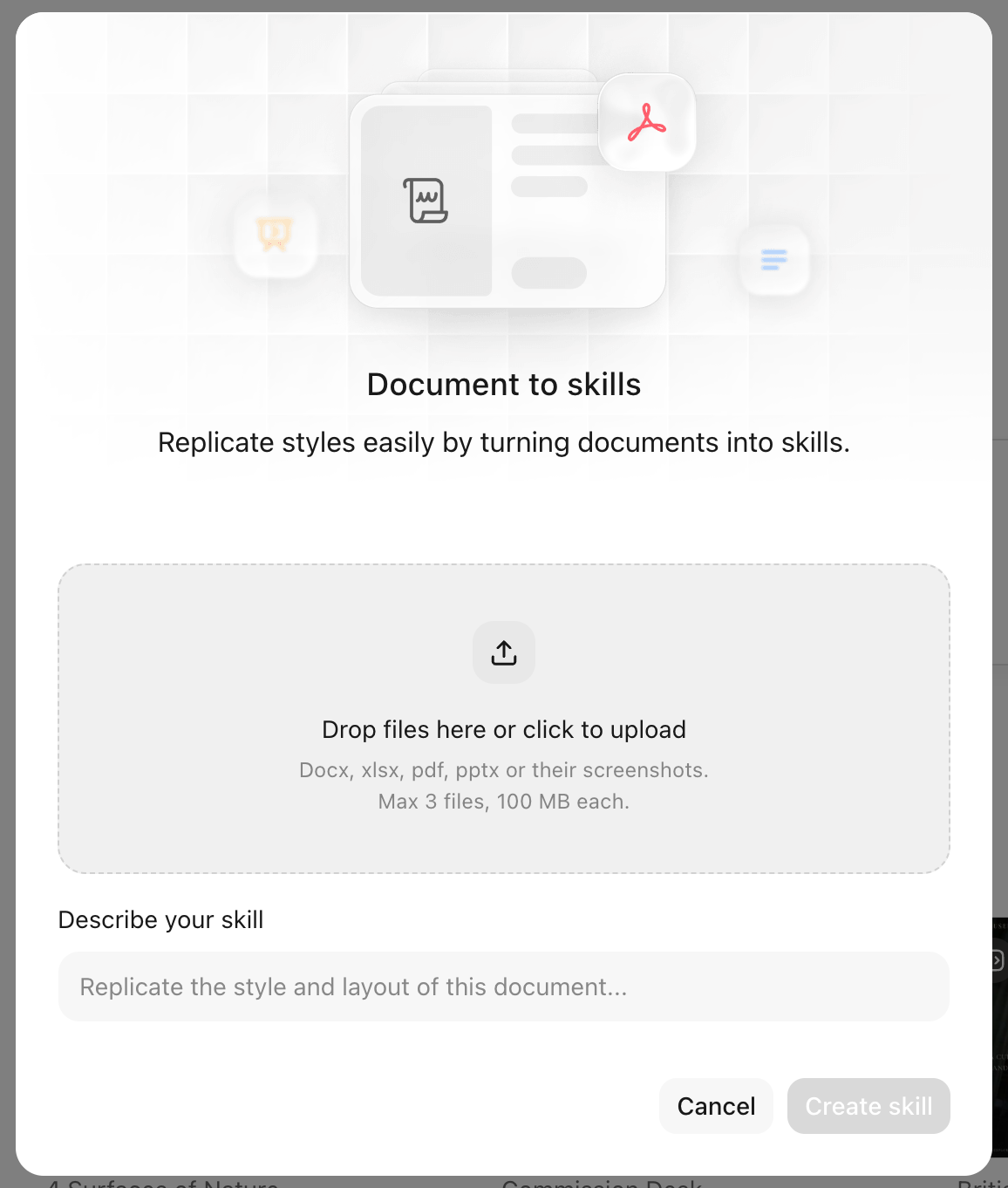
- Fill in the skill description, telling Kimi what this skill should do. For example: "Help me organize weekly sales data following this template's style and format."
- Click Create Skill.
Option 2: create with Kimi
If you don't have ready-made documents, you can directly describe your requirements through dialogue, and Kimi will guide you step by step to complete the skill creation.
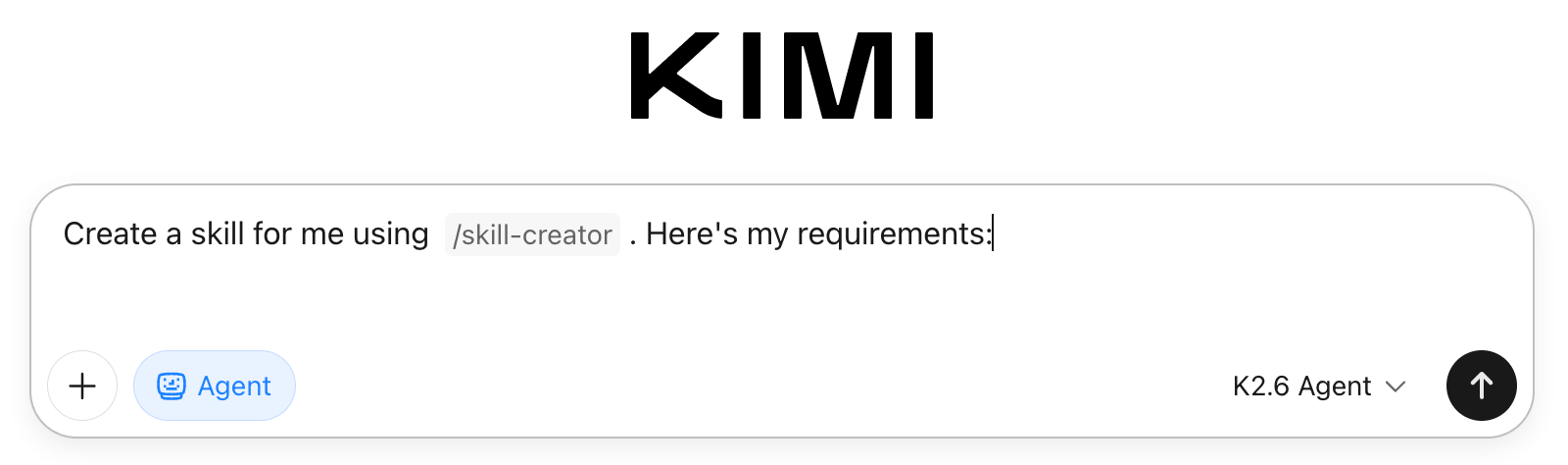
Type /skill-creator in the input box, then describe what Skill you want to create. Kimi will help you organize the requirements into a complete Skill.
Manage existing Skills
In the Skills panel, switch to the Custom Skills tab to edit, update documents, or delete Skills you have created.
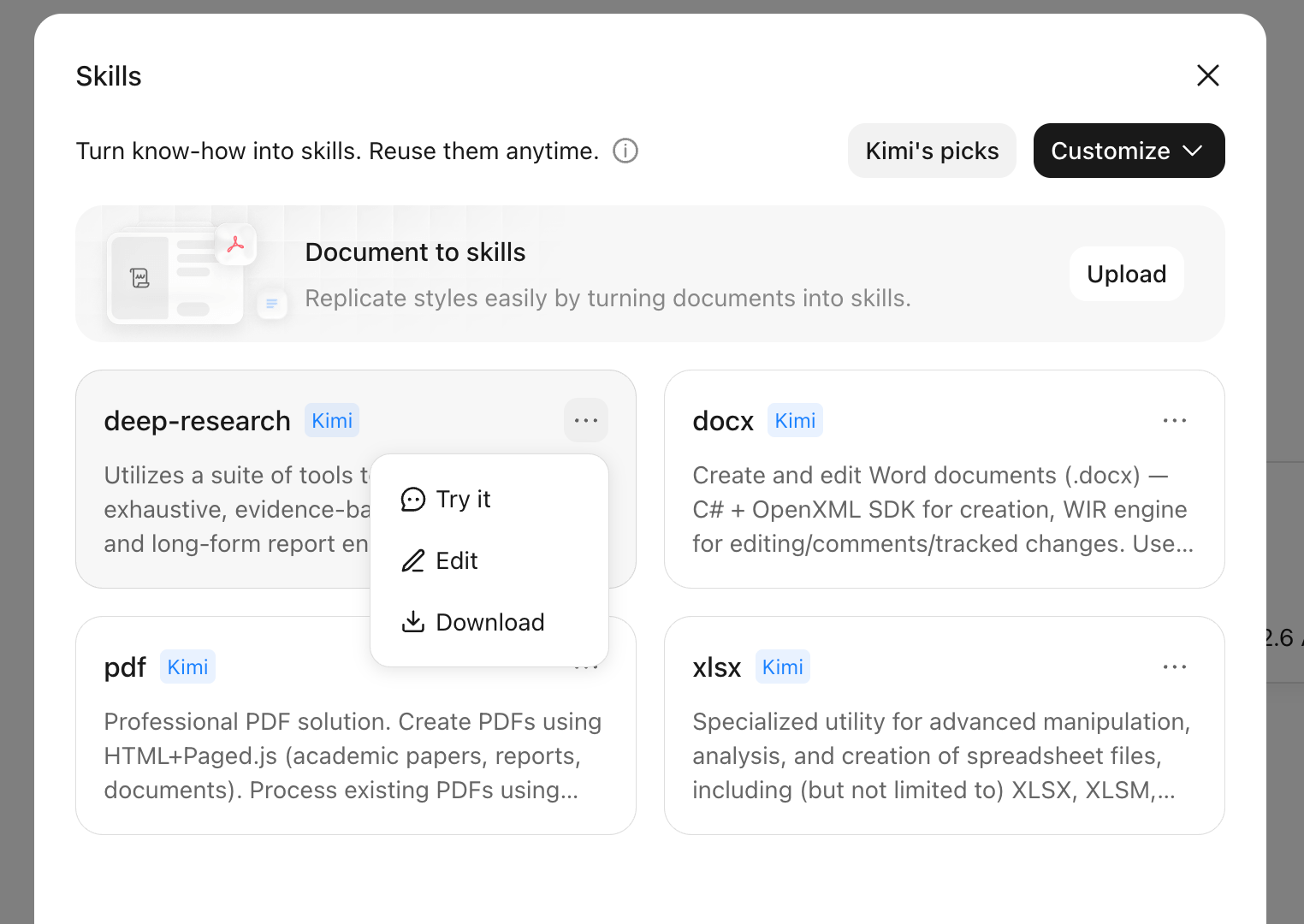
Skills are supported in Agent Mode and Kimi Claw. Skills with the swarm suffix are only available in Swarm (Agent cluster) scenarios and won't be displayed in other contexts.
Writing effective Skill descriptions
Kimi relies on Skill descriptions to determine "when to use this Skill." The clearer your description, the more accurately the Skill will be triggered.
A complete Skill description should include:
- The core function of the Skill.
- What scenarios it's suitable for.
- Trigger words it responds to.
- Recognition of indirect mentions of the requirement.