Traditional computer systems may struggle to automate complex tasks that involve multiple apps, files, and workflows, requiring constant manual effort. Computer use automation changes this by enabling AI agents to understand, interact with, and manage digital environments like a human. This guide explains how it works, its real-world applications, and how tools like Kimi Work simplify automation, file management, and workflow execution.
What is AI computer use?
Computer use enables AI to operate a computer through its graphical interface, much like a human user. Instead of relying on APIs or custom integrations, the AI can understand what appears on the screen and perform actions such as clicking buttons, entering text, scrolling pages, and navigating applications.
By interacting directly with the user interface, computer use makes it possible for AI to work across different desktop applications and websites without requiring software-specific integrations. This allows a single AI system to automate a wide variety of workflows using the same interface people use every day.
How do computer-use agents work?
Computer use agents typically involve capabilities such as visual perception, element grounding, planning, and action execution—sometimes handled by separate components and sometimes unified in a single multimodal model. First, vision models analyze screenshots and interface elements to understand what is happening on the screen. Grounding components then attempt to locate UI elements, though accuracy varies, such as the exact location of buttons, menus, and input fields, translating visual information into actionable targets.
Next, planning systems break down the user's objective into a sequence of logical steps and determine the best course of action. Finally, action executors carry out those steps by clicking, typing, scrolling, or interacting with applications, while continuously monitoring feedback to adapt their behavior and complete the task.
Computer use vs. Traditional automation
Before adopting AI-powered workflows, it is important to understand how computer use differs from traditional automation. While both aim to reduce manual effort and improve efficiency, they take fundamentally different approaches to executing tasks and adapting to changing environments. The following comparison outlines their key differences to help determine the most suitable approach for specific operational needs and workflow complexity.
| AI computer use | Traditional automation | |
|---|---|---|
| Core approach | Uses AI agents to interact with computers like humans, understanding interfaces and completing tasks autonomously | Uses predefined scripts, rules, and workflows to execute repetitive tasks |
| How it works | Observes screens, interprets context, makes decisions, and performs actions through clicks, typing, and navigation | Follows fixed instructions such as APIs, macros, RPA rules, or programmed steps |
| Flexibility | High flexibility; handles complex, multi-step, dynamic workflows | Lower flexibility; works best for stable, predictable processes |
| Learning capability | Can improve through AI models, feedback, and accumulated context | Does not learn unless developers modify the automation rules |
| User interface interaction | Directly interacts with GUIs, buttons, forms, documents, and visual elements | Often depends on APIs, structured data, or fixed UI selectors |
| Setup process | Requires AI agent configuration, goals, permissions, and tool access | Requires workflow design, scripting, and maintenance |
| Maintenance effort | Lower for changing environments because AI adapts to UI changes | Higher when software, layouts, or processes change |
| Examples | AI agent booking meetings, researching information, managing files, completing workflows across apps | Email rules, data extraction scripts, invoice processing bots, and scheduled workflows |
Real-world use cases of computer use agents
Computer use agents are helping organizations automate tasks that traditionally require manual interaction with software. Their ability to navigate interfaces and execute workflows makes them valuable across a wide range of business and technical applications.
Software testing: Computer use agents can interact with applications just like human users by clicking buttons, filling forms, and navigating workflows. This helps identify bugs faster, reduces manual testing effort, and improves software quality.
Data collection & research: These agents can browse websites, gather information, and organize data into structured formats automatically. This makes market research, competitor analysis, and large-scale data collection much faster and more efficient.
Administrative workflow automation: Computer use agents can handle repetitive tasks such as scheduling meetings, updating spreadsheets, and processing documents. By automating routine work, they help teams save time and reduce operational errors.
Development & engineering support: In development environments, these agents can assist with debugging, environment setup, and tool interactions. This allows engineers to spend less time on manual processes and more time solving technical problems.
Customer support operations: Computer use agents can navigate CRM platforms, retrieve customer information, and assist with ticket management. This helps support teams respond more quickly while maintaining consistent service quality.
Business process automation: Organizations use computer agents to automate workflows such as invoice processing, employee onboarding, and report generation. This improves efficiency across departments and reduces the need for repetitive manual work.
Manage local files and tasks automatically with Kimi Work
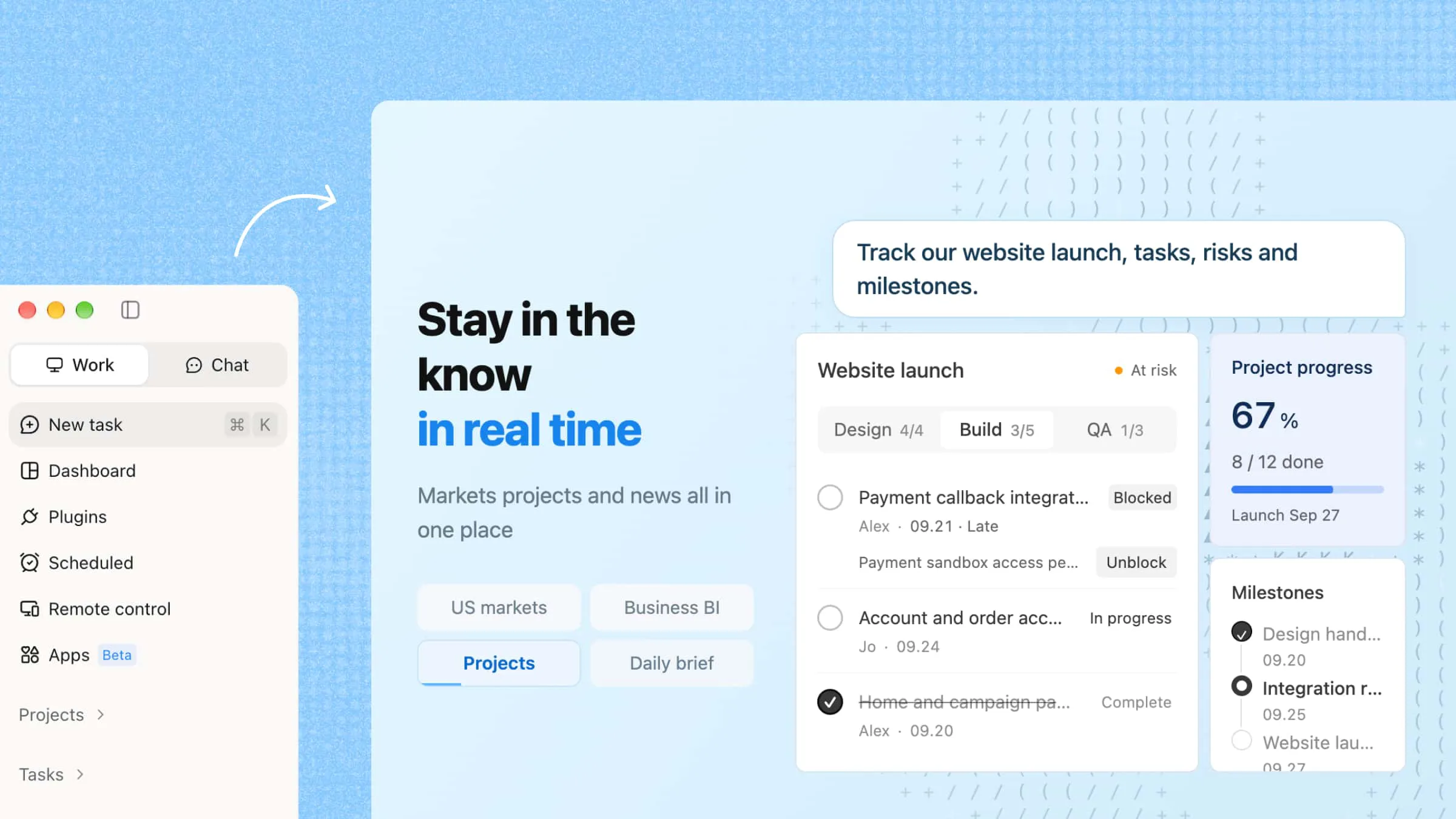
Kimi Work is designed to simplify how users handle both local files and digital tasks by turning manual workflows into automated, intelligent processes. Instead of switching between multiple tools or repeatedly performing routine actions, users can rely on AI-driven automation to organize files, execute tasks, and retrieve information efficiently. This makes it especially useful for professionals managing large volumes of data, recurring reports, or complex multi-step workflows.
Main features
Scheduled automation tasks: Kimi Work lets users schedule recurring tasks that run automatically in the background. This helps automate reports, file organization, and other routine workflows without manual effort.
WebBridge for autonomous browsing: WebBridge enables Kimi Work to browse websites, interact with web pages, and collect information independently. It is especially useful for research and online data-gathering tasks.
Agent swarm for complex task execution: Kimi Work can deploy multiple AI agents to work on different parts of a task simultaneously. This improves efficiency and helps handle complex workflows more effectively.
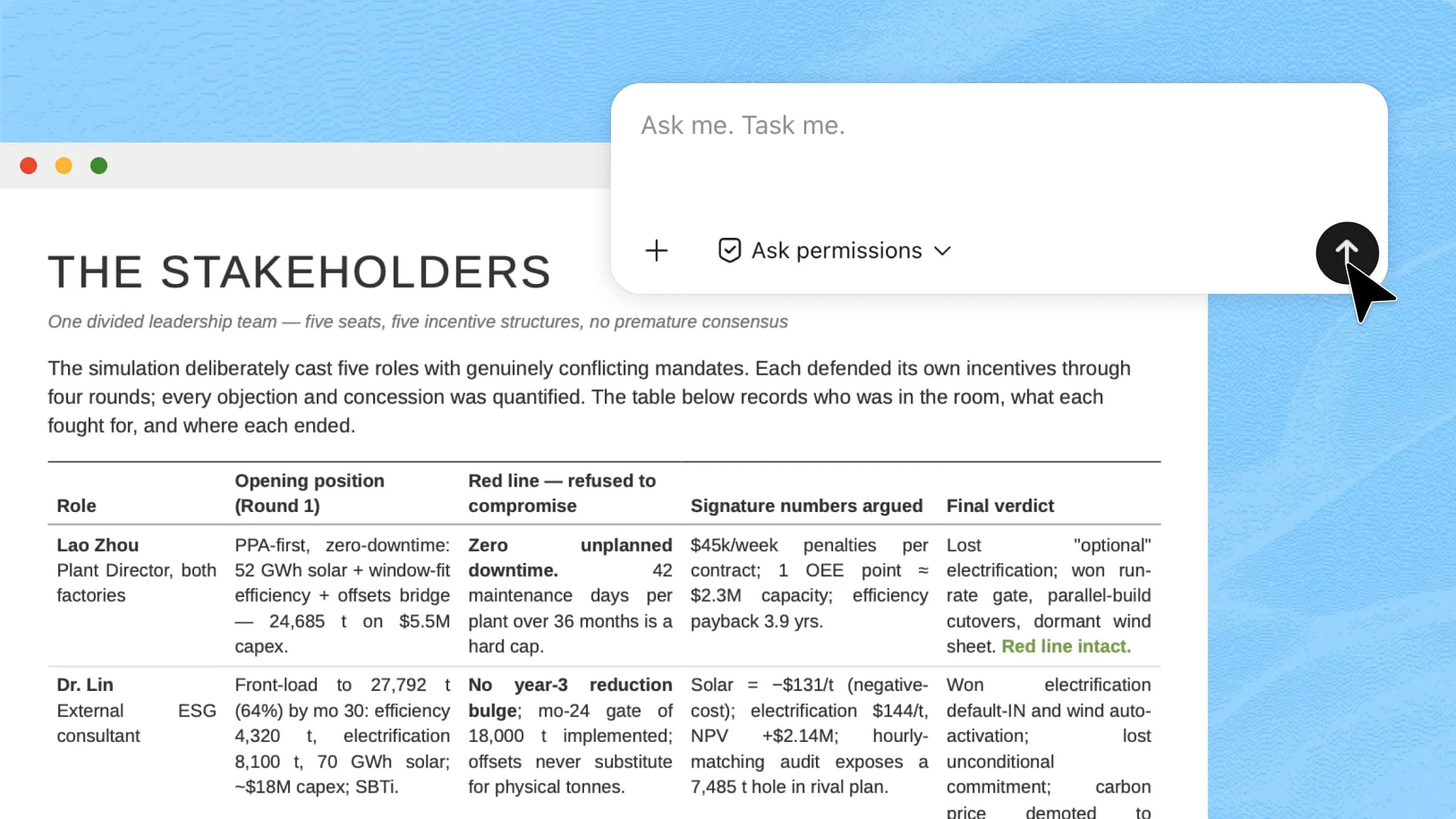
Autonomous data access and retrieval: Kimi Work can gather information from files, connected systems, and online sources automatically. It then organizes the data into useful outputs such as reports, summaries, or insights.
Extensible plugins for expanded capabilities: Through plugin integrations, Kimi Work can connect with external tools, services, and business systems. This allows users to expand functionality based on specific workflow requirements.
Goal mode for continuous task execution: Goal Mode allows users to define an objective and let Kimi Work handle the execution process. It continuously plans, gathers information, and completes tasks until the goal is achieved.
How to use Goal Mode in Kimi Work?
Goal Mode in Kimi Work allows AI to work toward a defined objective instead of completing a single request. It continuously plans and executes the steps needed to finish tasks, making it ideal for managing local files, organizing folders, and automating multi-step desktop workflows.
Step 1: Download and install Kimi Work
Visit the official website and download the Kimi Work desktop app. You can download it on both Windows and macOS.
Step 2: Use Goal Mode in Kimi Work
Open a new workspace and describe the outcome you want to achieve. For best results, include the goal, requirements, constraints, and success criteria. You can activate Goal Mode by adding the /goal command to your prompt.
If you don't need Goal Mode for your task, just give Kimi your prompt without typing /goal.
Prompt template:
Example prompt:
How to create scheduled tasks with Kimi Work?
Kimi Work allows you to automate recurring workflows by scheduling tasks to run automatically at specific times. Whether you need daily reports, research updates, or routine data processing, scheduled tasks help ensure work gets completed without manual intervention.
Step 1: Create a task manually or use chat
Launch Kimi Work and open "Scheduled Tasks" from the left navigation menu. To set up a recurring workflow, choose one of the following options:
Create manually: Configure the schedule, task details, and execution settings yourself.
Create through chat: Describe the workflow in natural language, and Kimi Work will create the scheduled task automatically.
Step 2: Describe your recurring workflow
Enter a prompt explaining the workflow you want to automate. Include the task objective, execution schedule, required files or data sources, and where the results should be saved. Kimi Work will use these instructions to create a scheduled workflow that runs automatically at the specified time.
For example, you can automate routine tasks such as creating recurring reports, tracking website updates, organizing local files, or collecting and summarizing information.
Step 3: Check your completed workflow output
Once execution is complete, review the generated output. Depending on the task, the results may include reports, summaries, spreadsheets, research findings, or other generated files. You can inspect the output, make adjustments if needed, and continue refining the workflow for future runs.
Conclusion
To sum up, computer use and AI-powered automation are reshaping how digital work is performed, shifting from manual execution to intelligent, autonomous systems. With tools like Kimi Work, tasks such as browsing, scheduling, data handling, and workflow management can run smoothly in the background without constant user input. This shift not only reduces operational effort but also improves speed, consistency, and decision-making across workflows.